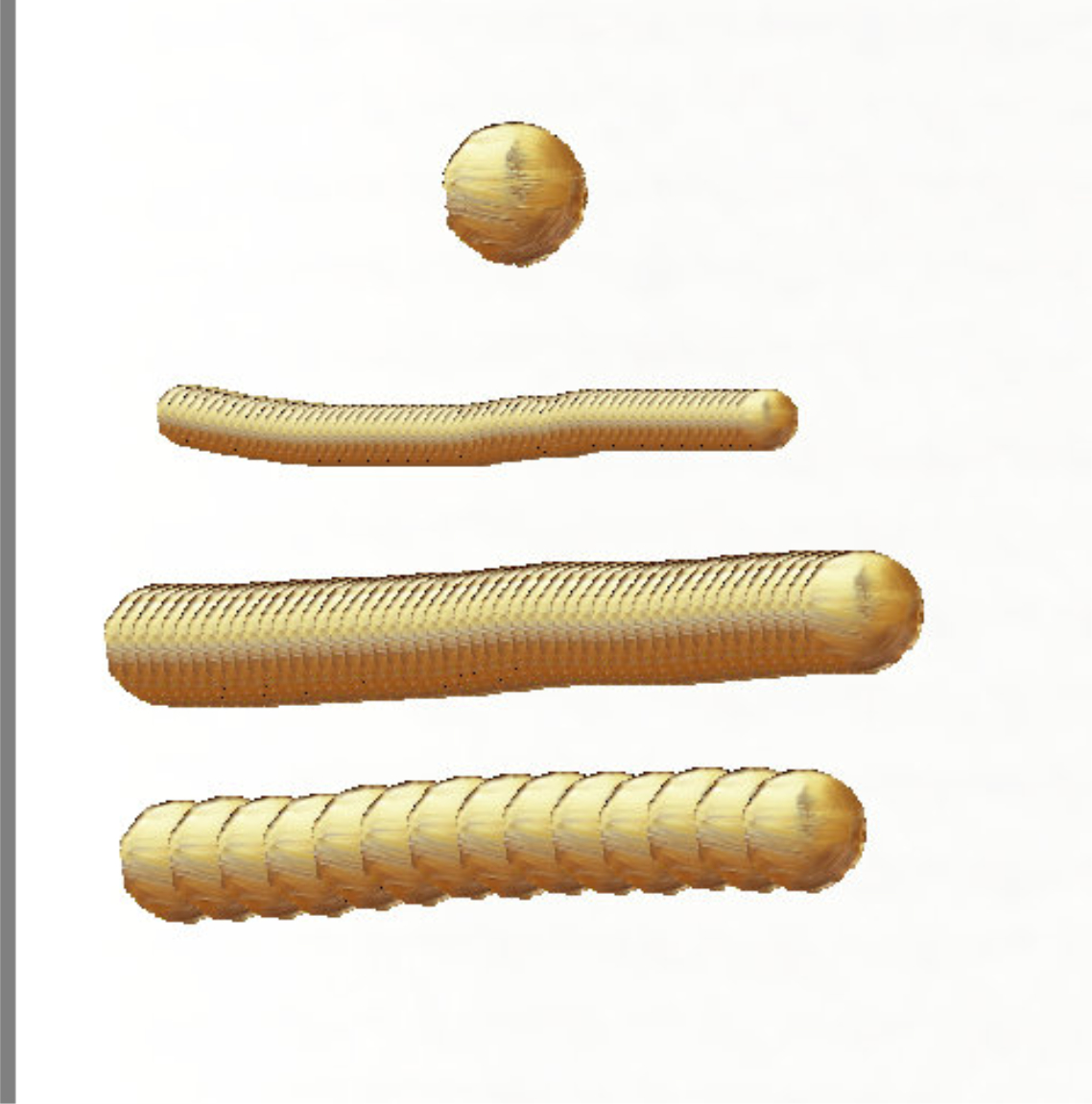
Hi all - how would I create a paintbrush tip that can just “dab” as a gold blob, or draw as a line, repeating itself in the sampled gold colour (not b&w)?
In my former app, Sketchbook, I could take a sample of a blob of paint and have that as my paintbrush - then, when I stroked on my canvas (vs just blobbing it), it would make this cool 3d line, like a metal bar.
I’m also watching tutorials but any advice would be great. Thank you! 
Hello @Tim_Atkins. I’ve changed the category of your topic to a more suitable one.
Can you upload an image of the type of effect you’ve been used to getting when using Sketchbook?
That would help people to have ideas about this and give you advice.
Thanks man. Actually… I seem to have solved it myself, see image  - I just found the colour Image setting under Brush tip, and it’s the kinda thing I’m aiming for. Needs work still. I want to make it flexible and organic
That said, it would still be great to know whether I can take (or create) a png sample of an image within Krita itself VS import it. I cropped it as a png using a different program.
Krita can be used to create .png images and it can crop images 
In the Brush Editor, under Brushtip - Predifined, you can use the +Clipboard button to make a brushtip from the clipboard.
Also, you can have more that one document open at a time and pump images from one document to another (using copy/paste) without using intermediate image file storage. Useful for when you’re in the early stages of developing brushtip images.
I suggest you try using Brush Mode - Gradient Map to get ‘speckled’ gold effects.
I played with that type of thing some time ago: Glittery!
You’d need to make a ‘gold’ coloured gradient, easy enough; then try some ‘speckled’ greyscale brushtip images to select the gold colours.
Thank you so much mate.  Although, when I tried the +clipboard button it says nothing copied to clipboard. Is it meant to be automatic? What would copying the tip achieve in this context? I’m not sure I know what the advantage or benefit is
Suppose you’ve designed a brushtip image, say the entire image on a 128 x 128 canvas.
You can Export that as a .png image file then go into the brush editor and Import it. Standard practice and not difficult.
You can also do that by Select → Select All (Ctrl+A) then do Edit → Copy (Ctrl+C) which puts the entire image on the system clipboard.
Open the Brush Editor: Brush Tip: Predefined, then click +Clipboard and you’ll get the small window that asks you what to call it and what its properties are.
If you’re ‘playing/experimenting’ with possible ideas for brushtip images on a larger canvas, you can select a rectangular area with the Rectangular Selection Tool and then Ctrl+C that to put it on the system clipboard then proceed with that in the Brush Editor.