I would like to draw with a pencil brush on a paper-like canvas with an ivory white color.
What I did so far is:
add a fill layer
fill it with the default available texture “03_default_paper.png”
The color of that png doesn’t look like paper at all (is very grey).
I managed to make the grey color lighter with Adjust => HSV adjustment => decrease Lightness
I would however also like to change the color. The only way I found is to add an additional fill layer. There I can change the color via Layer properties, and change the opacity to make it transparent.
But like this it’s a lot of trial and error with color and opacity to find the result I want. Also part of the texture is lost because obviously you can’t use opactiy 0% (then you wouldn’t have any color)
All this looks like a complex process to just obtain a simple paper-like canvas for a pencil drawing.
What are the alternatives?
Is there a way to change the color on the texture layer itself? (i.e. not having to use opacity)
Is there a recommended site with free but excellent paper canvases (png’s)?
When I put the color layer under the texture layer (not above it) then it seems to color the texture, and no longer need for making transparent color layer.
When you’re done setting up your paper canvas you can save your kra file and import it as a template, then you can select that template every time you start a new project and don’t have to set everything up again every time.
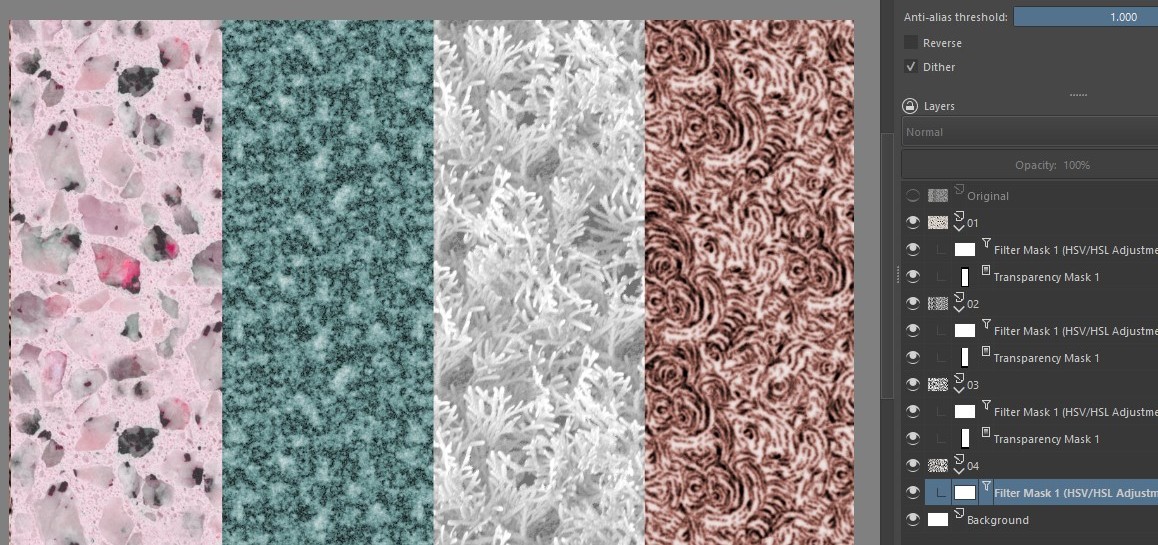
You create a layer and apply the texture. Then right click on it in docker and choose Add > Filter Mask. In Adjust, you choose the option HSV/HSL Adjustment…. and move the controls until it’s the way you want. Maybe it doesn’t work with all textures… but it’s an option.
In this example I applied a texture to each layer and added a transparency mask to the first three. Then click on each one and added the filter mask:
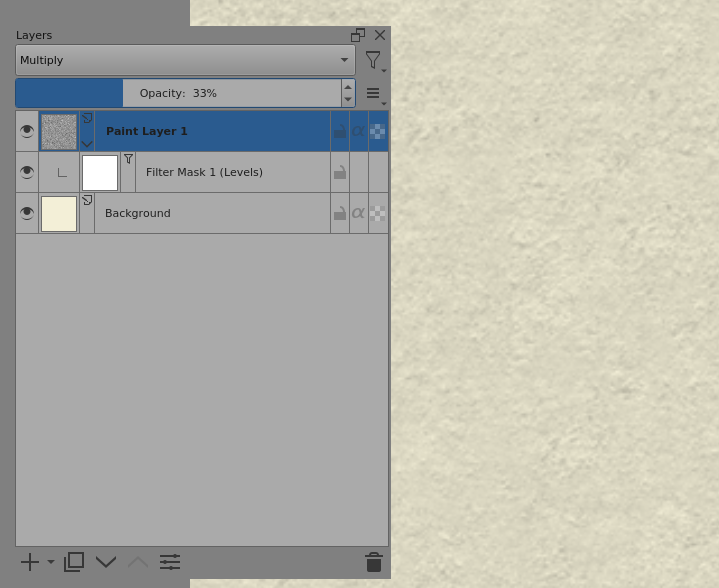
Another way is to put the texture layer over the colour layer and set its blending mode to Multiply with low opacity or Overlay with high opacity.
You can use a levels filter to adjust the ‘depth’ of the pattern: