I’m making an animation on Krita and on the bottom right-hand corner there’s a bar that’s almost red. When clicking on it reads “WARNING: Out of memory! Swapping has been started. Please configure more RAM for Krita in settings dialog.” I looked up how to fix this on google, and most of the suggestions say something along the lines of Go to “Settings → Configure Krita → Performance and check if you can add more memory for Krita”. But I cannot find the “configure Krita” tab in the settings. The application has been acting very slow and glitching. I’m scared I will not be able to finish my animation. If anyone can help me it would be appreciated!

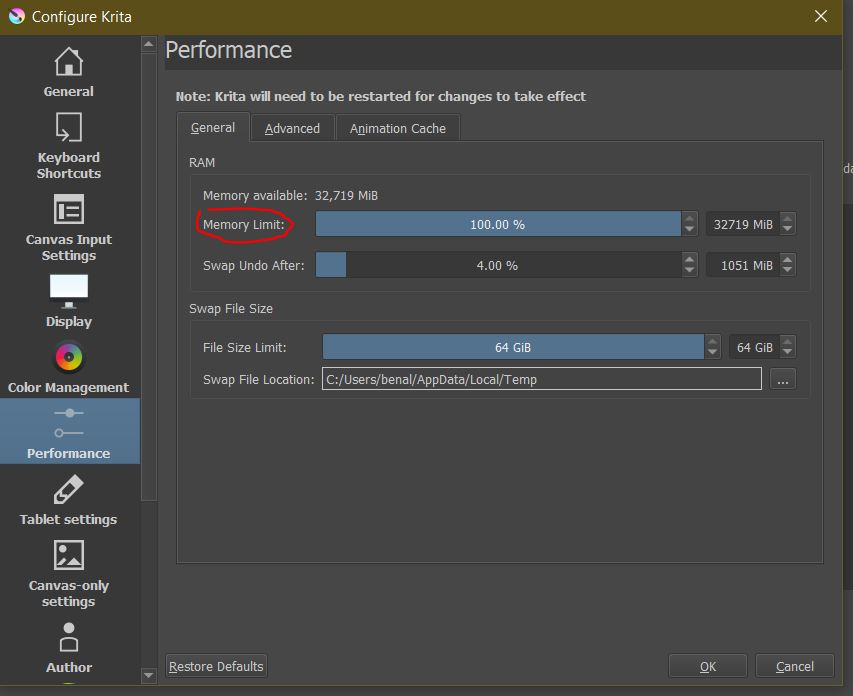
Does this help? Just change the memory limit here. You can also change the Animation cache to on disk might help. that is under Settings → Configure Krita → Performance --animation cache
Aside from this the only way is to build in more RAM into your computer.
1 Like
Yeah, I can’t find the performance tab on the settings tab. I’ll attach a screenshot of what I see. I also have Krita 4.1.1 and I use my MacBook if that helps.
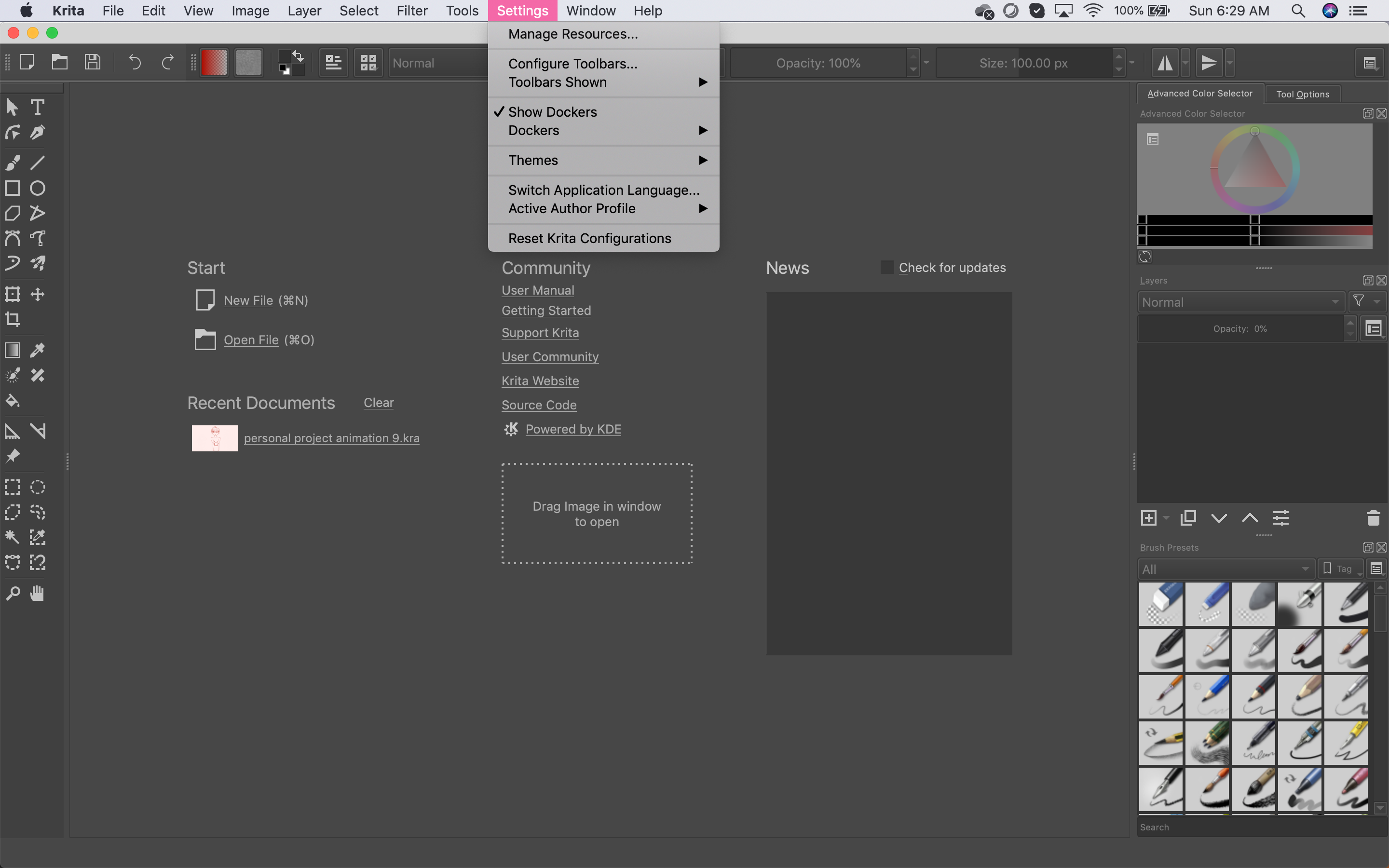
The configuration is always in the app-preferences menu (that’s pressing on the apple icon) on macOS devices.
It might also be an idea to consider splitting up the animation into smaller sections and then later editing them together with a video editor.
Of course it’s different on Mac 
Thank you so much! I found it!
yeah lol sorry about that
I sometimes get the feeling that Apple just wants to make supporters lifes harder.
2 Likes
OFF TOPIC:
@Takiro: This is not an Apple story, everyone has his own ideas. Example Firefox, on Linux the settings are in the Edit submenu, on Windows under the Extras submenu and on Apple I don’t know, but because of the proximity to Linux possibly also in the Edit submenu. And every provider, every operating system is sure to offer the “best solution” 
Michelist
1 Like
This topic was automatically closed 7 days after the last reply. New replies are no longer allowed.