It’s kind of annoying because I can’t see the line I’m supposed to be drawing. Or is it a Wacom thing and cannot be changed?
It’s kind of annoying because I can’t see the line I’m supposed to be drawing. Or is it a Wacom thing and cannot be changed?
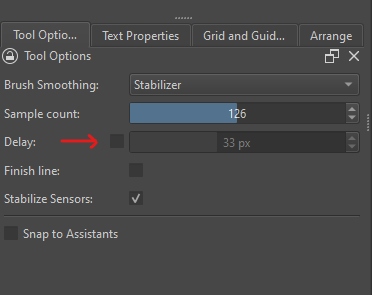
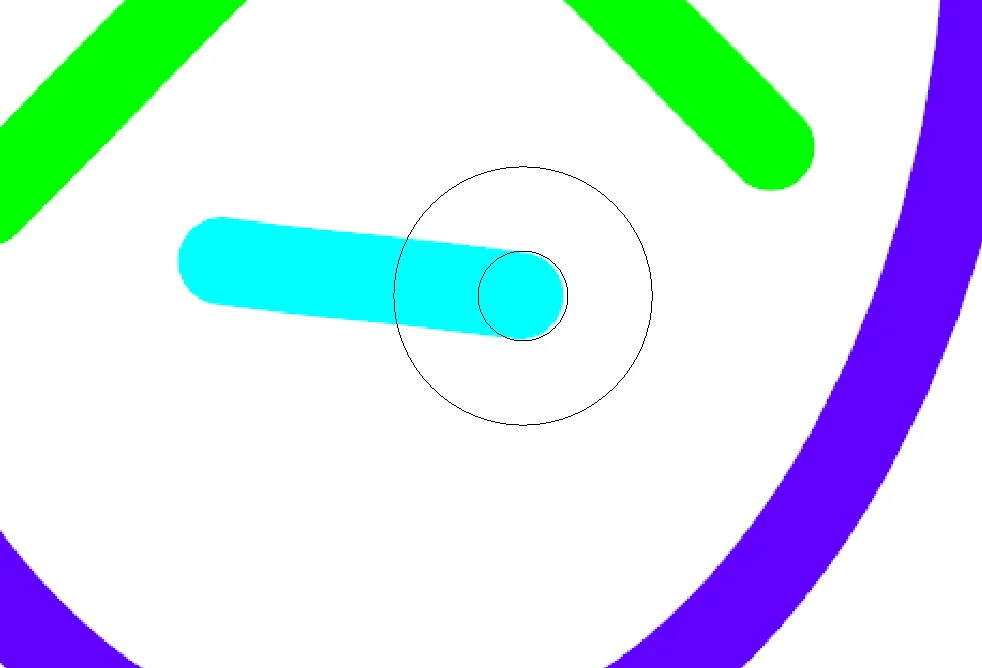
The ring designates the edge of the “delay” area. If you turn off the delay option, you won’t see it.
I believe I once heard that there is a setting in the Wacom driver that can display something like this. But since you say it is only shown with stabilizer, it will be Krita showing the delay range in pixel around the center of your brush preset, like @Someonesane already said.
But unfortunately you haven’t chosen the best resolution for your screenshot, and because you say you can’t see the line you are drawing, something Krita’s stabilizer would allow, even with the delay range area shown, I have the feeling you are speaking about the white dot in the inner of the two circles, then I tend to guess it is Wacom.
So, if it is not the delay area, you should search through the Wacom Control Center settings.
Here you can see the blue line completely with stabilizer enabled, and so I wonder:
Michelist
Edit: Grammar
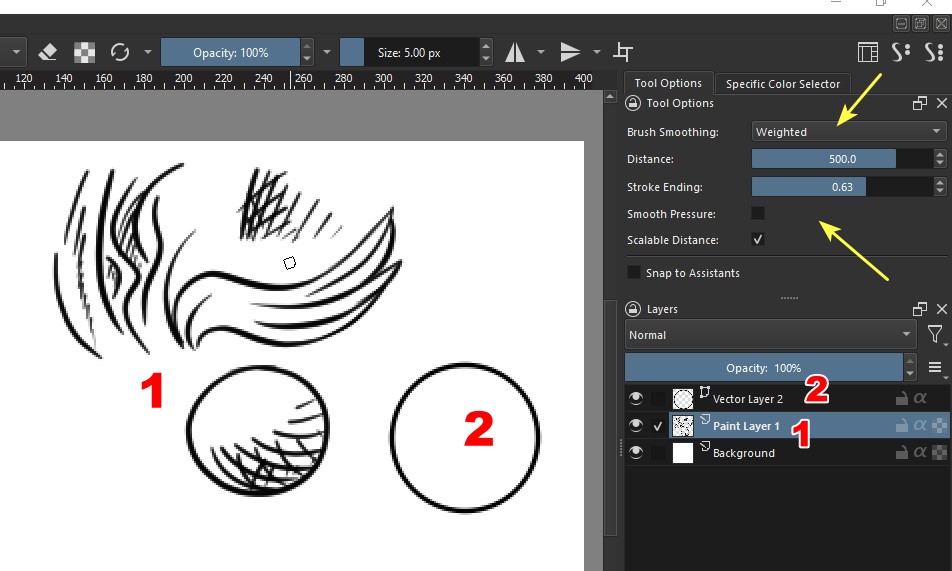
I rarely use Stabilizer; the Weighted option works well for me. In this example, I traced with this option enabled, using a 5-pixel G-Pen brush on a Paint Layer (1). The circle I traced is somewhat oval, but acceptable for a quick demonstration.
If I want a perfect circle, it’s much more practical to create a Vector Layer (2) and use the Vector Circle Tool. To make the circle’s outline the same thickness, I first switched to the Fineliner brush and set the thickness to 2.5 pixels.
This topic was automatically closed 30 days after the last reply. New replies are no longer allowed.