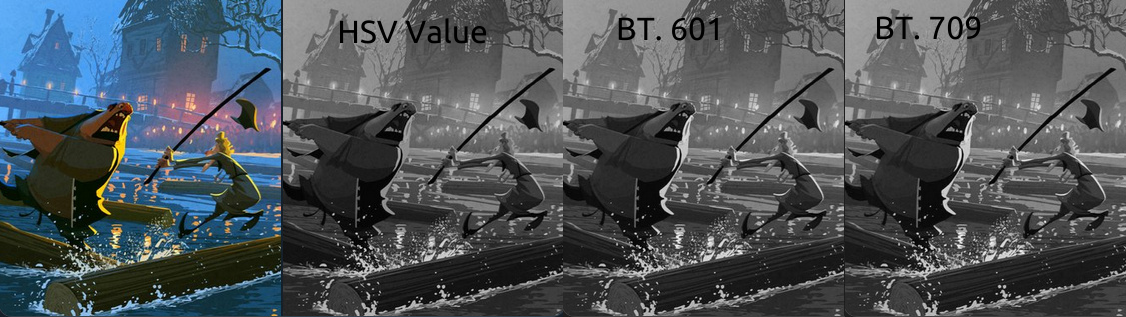
Hi! I read an extremely interesting Twitter-thread by Tim Soret about how easy it is wrongly check values in your drawing. (See the link beneath). It is not enough to desaturate to check values, you need better methods. The thread has great visual examples on how to do it correctly.
My question is: can this be applied to Krita as well? What is the best method to check values in Krita?
So in a nutshell - it’s about the difference between actual values (lightness) and perceptual values - which is different because our eyes sensitivity to colour varies across the spectrum.
If you check the desaturate filter it contains 6 different settings.
Lightness is the same as if you use the saturation slider in HSV/HSL.
The second and third are luminosity - which may correspond to what he’s getting at.
I usually create a layer on the top, fill with a grey (zero chroma) then set to ‘colour’. This corresponds to the third option (Luminosity 601), so I think is a good bet. It can easily be switched on and off to quickly check values.
In Filter → Desaturate you have two “perceptual” options: Luminosity BT.709 and BT.601. You can choose which one fits the image more. I remember that it had some different results when I applied it to a book shelf with books in red and green covers; one of them considered one much brighter, while the other considered both similar value, and the other one actually a bit brighter. But in most cases, both would be very similar and much better than the HSV-based Value.
What @Mythmaker wrote is a good idea as well. It will be faster than a Filter Layer I think, and it gives just as good results.
As you can see, the rim light is much lighter in the other options.
There is a LUT Management docker which also allows you to do stuff like this, even in real time: you can have two views of your document, one with applied LUT management with desaturate, and you can paint and see your values at the same time without any new layers. But that might be a bit advanced.
Just wanted to chime in, and I do it with a black color layer with ‘Color’ mode selected. Works well enough for me to get the perceived values correctly
Oh yeah! - I didn’t read the whole thread, just scanned it to try and understand what you were asking!
Anyway - The most important thing is your own awareness of the issue as no filter will tell the whole story; the way we see and interpret colour and value is too complex.
Note: with that greyscale colour-layer trick (which can be any value from black to white), if you have a duplicate of the colour image above that and set it to colour-layer the combined result will be the same as the original image. I’ve sometimes used this to make subtle value changes in greyscale.
I don’t know if that makes sense, or even if it’s wise - but just thought I’d share it
Well in my ongoing battle to improve the “internal” color selector, I came across an issue that is relevant here too:
Calculating luminosity requires linear color spaces, doing it on 8-bit sRGB will give wrong results.
That’s why you see differences between the softproofing in Greyscale/Alpha and the desaturate filter. Convert your image to e.g. sRGB-elle-V2-g10 (requires 16-bit/channel to not massively lose quality) and the results will match.
So I’d definitely recommend the softproofing variant for correct values, unless you work with linear color spaces.
I am late to the party but I did a smal trick on pigmento that might be worth mentioning here.
Considering the mode you choose 601 or 709 when you select any colour from the screen that is not saturation zero it will show the perceptual amount of black in the A channel, however if you click on the A channel it will select a monochrome grey of zero. Also you have the luma Y channels on other colour space sets.
Also you have the luma lock when shifting hues from the hue GUI. This will force the same perceptual grey the best it can as colours change on the rainbow circle. When selecting a colour that is not max saturation it will save it and then the lock will use that as a reference for the grey.
Hope this helps to maintain values while you create the image so the desaturate process goes as expected.