I’m a newbie and I have a feeling this is kind of a very newbie question with probably a very simple solution, but I can’t work it out…
So I’m new to drawing and Krita but have been fiddling with both for about a year now. It’s an awesome piece of software but there’s one thing I can’t figure out: After I’ve drawn and colored a character, how do I paint the background without getting color on the character?
I’ve tried putting a layer under the layer where the character is (or the group where the line art and the coloring layers of the character are) but I still always “paint over” the character.
Do I always need to use the lasso tool or similar to select the character and then reverse the selection before I can paint the background without the color “smudging” the character? I also recently learned about alpha inheritance and clipping masks but I need kind of the reverse of that: painting everywhere else than on the bits I’ve already colored. Does it have something to do with opacity? Can you please help me?
Can you share how your layer stack looks? It sounds you’re doing it exactly right – the character is on the layer above, and the background is on the layer below. If you now select the lower layer and paint, it cannot affect the character layer.
For this to work, your character needs to be on a transparent layer though, and must be filled with opaque pixels inside the silhouette. So that the background won’t show through any gaps.
This is unrelated to the problem, but I suggest you paint the background and the character at the same time. This way you will achieve a better color balance. The background may be simple initially, the point is to not color over a bright white default background, as that will affect the perception of colors.
Thanks for your reply! I think I maybe got it now: I’ve been using the Airbrush Soft brush a lot for painting skin for example. Apparently it doesn’t paint 100 % opaque pixels even though its opacity is set at 100 %. Or at least you need several “coats of paint” before you reach 100 % opacity?
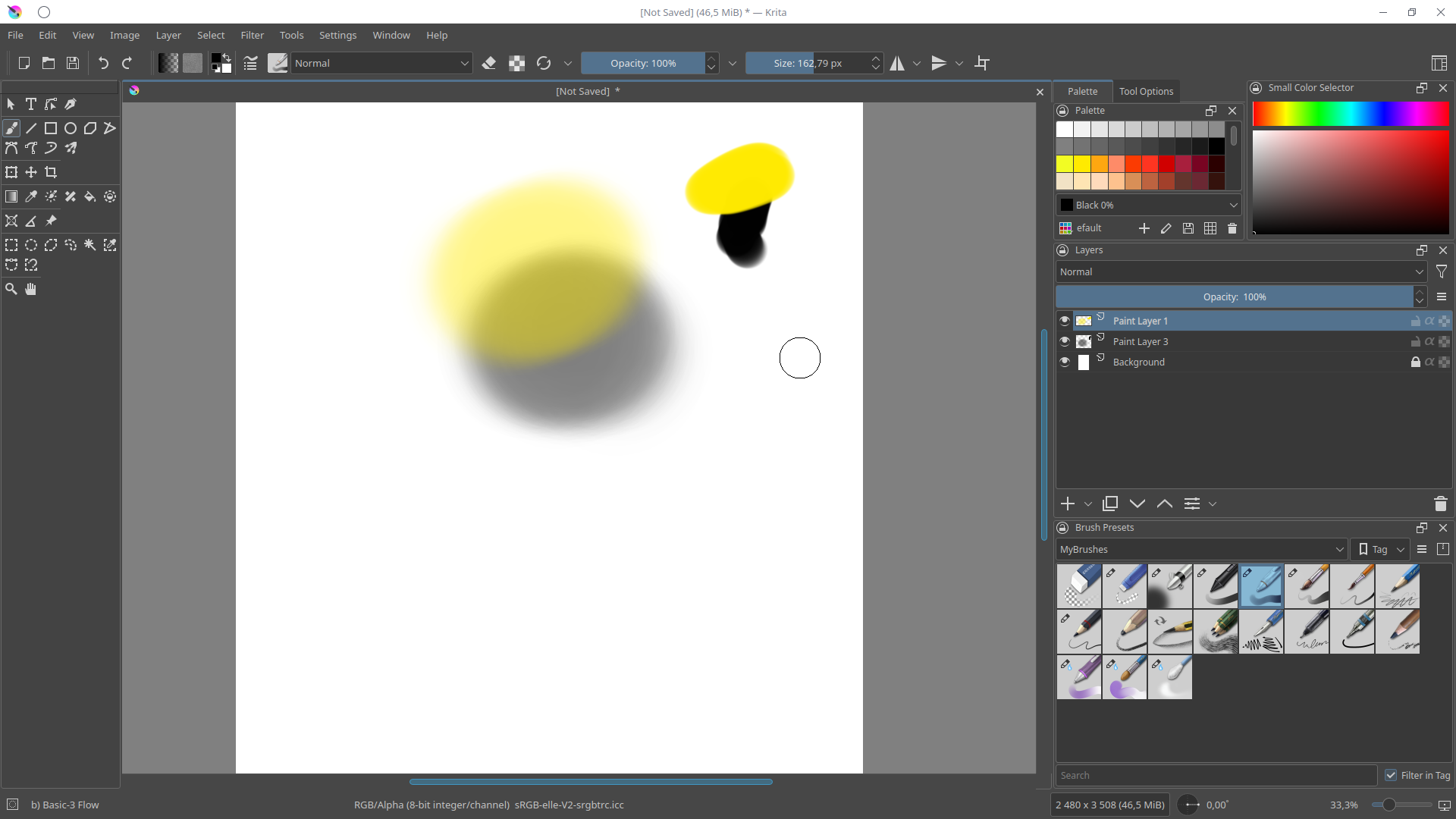
I’m attaching a screenshot of one of my tests. The black shapes are on the lower layer and the yellow ones on top. The black shows through on the circle I painted with the Airbrush brush but not on the one I painted with another brush. So maybe I’m doing everything right, I just need to make sure the top layer is opaque enough?
That’s right. You should first paint the flat, opaque underpaint for your character. Usually, it’s an average color for that part, like skin or a part of clothing. Then you can shade more subtly on top with an airbrush and using layer alpha lock to not go outside the silhouette.
Personally, I try to avoid the airbrush for most of the painting, but it depends on the effect you are going for.
Yes, the airbrush brush is modeled after a real airbrush so it’s probably not intuitive for people who never used one. The airbrush gets more opaque over time, when you keep painting on the same spot. When you look at the presets you can see that the softness is set in a way that it’s never fully opaque and it also uses the pressure sensor of the pen for transparency. That’s why it can look like you draw over (when it’s actually under) because the upper layer is too transparent. This gets really visible when you deactivate the background layer so the checkered board patern (indicating transparent background) becomes visible.
This helps a lot. I already tried it and it kind of makes me understand the whole painting process better. Brings a whole new dimension (literally) to the paintings…
Can I ask what brush you use for doing the base layer?
I almost always work with lineart, so I use the fill tool and a simple brush like Basic-5 or the aliased pixel brush. I also use the lasso tool a lot to mask areas. Remember that you can also invert the selection, it works well if you just need to protect one part of the image.
For more complex cases, I create a new layer, paint there, erase the parts that I don’t need and merge it down.
The most important part is that the underpaint layer is fully opaque and has no holes in it. Then you can freely paint inside it.
Thanks for the advice! Krita has so much stuff it’s a bit overwhelming for a beginner. But I feel something clicked with this and I think I made a real bound forward