How to convert Photoshop-Pattern-Files (*.PAT) to use them in Krita?
A tutorial for all users of Krita (and GIMP) who use patterns and want to benefit from the large amounts of (often high quality) patterns in Photoshop pattern format available mostly for free on the internet.
I wrote it, because in this topic I realized such a tutorial could be useful for more than one user. The used plugins are unfortunately only available for Windows, but I believe users of Linux and macOS should be able to use it too.¹
The Tutorial:
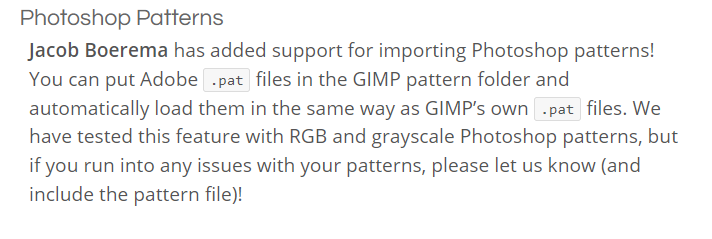
If you would like to use content from Photoshop pattern files (*.PAT) in Krita, you have to convert them beforehand, because Photoshop pattern files differ from GIMP pattern files.
These files have the same filename extension as Krita/GIMP-PAT’s, but a different data structure. This leads regularly to irritations.
One difference is, that a GIMP-Pattern-file can hold only one pattern, a Photoshop-Pattern-File can hold hundrets of patterns in extreme cases, but there are also PS-PAT’s which contain only a single pattern. So, in order to use these Photoshop-Pattern-Files you would need to be able to extract or convert the files first, before that Krita can’t render them.
> Click here to see how to distinguish GIMP PAT's from Photoshop PAT's <
If you want to identify for which software such a file is made, you can check this with a simple text editor, any will do, Notepad for example, Photoshop-PAT’s start with the string “8BPT”, while Krita/GIMP-PAT’s have at first 20 arbitrary characters and the characters 21-24 are then “GPAT”, they are often, but not always, followed by the filename or a small description of their content.
By the way, there are other software that use this filename extension and, you guessed it, again use other data structures (e.g. CorelDRAW, CAD software).
But there is a solution:
You can use GIMP and need at least one plugin to convert a PS-PAT to the Krita-Compatible GIMP-PAT-Format. At least because, the most PS-PAT-Files I came along so far contained more than one pattern, and it could be a tedious task to save them one by one, but there is a handy plugin that is able to export all patterns from these PS-PAT’s in one run.
###############################################
So, what do you need?
At first you need GIMP (Licensed under GNU General Public License - GPL):
After the download install it via the execution of the downloaded file, currently it is “gimp-2.10.34-setup.exe”, but this will change with the next update.
Caution: For those who prefer portable applications!
Caution: For those who prefer portable applications, the platform PortableApps.com offers GIMP in a portable version, it is exactly the same application, but made portable. If it is able to hold plugins, and where in its folder-structure to install them is not known to me. You have to elaborate it on your own, in case you want to try this.
Usually, it should up to date, updates to GIMP will follow there a few days after they are launched.
###############################################
Then you need the converter plugin "Photoshop Pattern Loader Win_64bit"² (the initial Author was Eric Lamarque, the license is unknown to me, the original source was once found on Github), two years ago I got the file from the so called and now apparently (partly?) defunct GIMP-Registry, a subdomain on GIMP.org (I didn’t research further), but there is one last Website offering this plugin:
After the download you have to unzip the file “PS-pat-load Win_64bit.zip” and place its content, the unzipped file “ps-pat-load.exe”, in GIMP’s plugin-folder.
The folder is found here:
"c:\Users\YOUR_WINDOWS_USERNAME\AppData\Roaming\GIMP\2.10\plug-ins"
where you have to replace the string “YOUR_WINDOWS_USERNAME” with your Windows-Username (the name you use to login into Windows).
Attention 1:
If in the folder “2.10” NO folder “plug-ins” exists, then you have to create it yourself, in exactly this notation, so “plug-ins” but without quotes!
Attention 2:
If you can not find the folder AppData, you have to enable the view of hidden files and folders in the “View”-Menu of Windows-Explorer, if you can not find it, then I have a workaround for you:
- Please open Krita,
- and in Krita open the menu ‘‘Settings’’ click on ‘‘Manage Resources…’’
- in the next dialog click on ‘‘Open Resource Folder’’
- to open Krita’s resource-folder
- and then go one level up, so leave Krita’s resource-folder.
- Now you are in the folder “Roaming”,
- and from there you can enter the folder "GIMP\2.10\plug-ins",
- to where you have to copy the plugin “ps-pat-load.exe”.
That’s it!
Now you can convert Photoshop-Pattern-Files, or, more precisely, GIMP does it for you, because you just need to open a pattern-file in GIMP and it will be shown in GIMP like any other file.
So, if you want to export a pattern from one of your PS-PAT’s, you can do it in GIMP via ‘‘File’’ >> ‘‘Export’’ after you have selected the layer you want to export and hidden all the other layers.
This may be okay with a PS-PAT-File that holds one or only very few pattern(s), but will get quickly tedious, if there are lots of patterns contained.
###############################################
Or, that could it have been, if you don’t like it convenient.
But if, and you have a pattern-file with lots of patterns and want to save them all, you’ll probably want to install also the following plugin:
And, if you are interested in a convenient export of multiple patterns at once, you need Kamil Burda’s Plugin “GIMP Export Layers” (Export Layers is licensed under the BSD 3-Clause license.):
For this plugin, the installation of the current version is identical to the previous plugin.
That means, you have to unpack it from its ZIP file and copy the just unpacked content of the plugin, completely into the directory "c:\Users\YOUR_WINDOWS_USERNAME\AppData\Roaming\GIMP\2.10\plug-ins" already used for the plugin “ps-pat-load.exe”, following the above description.
[details=“Installable version of “GIMP Export Layers””]
By the way, up to version 3.3.1 there was also an installable version of “GIMP Export Layers” (direct download), which I still use myself, because I haven’t updated so far, just execute the EXE file and it will install itself into GIMP.
Whether you choose to use the convenient installation or the latest version is up to you.
[/details]
[details=“Linux & macOS-Version of “GIMP Export Layers””]
For all of you who use GIMP in the respective native version for Linux or macOS and would like to use this plugin there as well, up to version 3.2.1 of this plugin there were also versions for Linux (direct download) and macOS (direct download).
[/details]
Now, if you have both plugins installed in GIMP, you can also export PAT’s with a lot of patterns in a short time and very comfortably.
To do this, open the desired PS-PAT file in GIMP and export the patterns via the newly added submenu ‘‘Export Layers’’ in the menu ‘‘File’’ of GIMP.
In the dialog that opens you can select the desired file type for the export in the lower left corner, I mostly use GIMP-Pattern for this, which has the same file extension *.PAT as mentioned above, but PNG can also be a good option, then you select the desired location for the files to be exported, GIMP offers a breadcrumb bar for this at the top of the dialog and on the left side of the dialog you can browse through its directory structure to the desired folder.
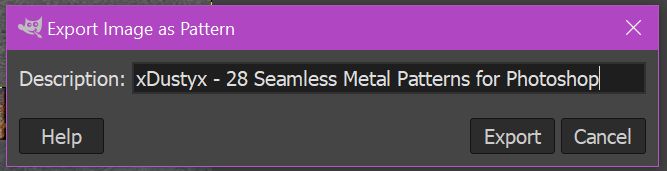
Once you have selected the location and the desired export format, then after clicking on the button ‘‘Export’’ a small dialog box opens where you can enter a small description or the filename of the original file, or whatever you want. By the way, you could also look at this text again with a text editor, like described above for the identification of PS/GIMP-PAT’s, it is behind the string “GPAT”.
Now click on the button ‘‘Export’’ in this dialog to convert the patterns, done.
After importing a PS-PAT you can export it via this new menu-entry in GIMP:
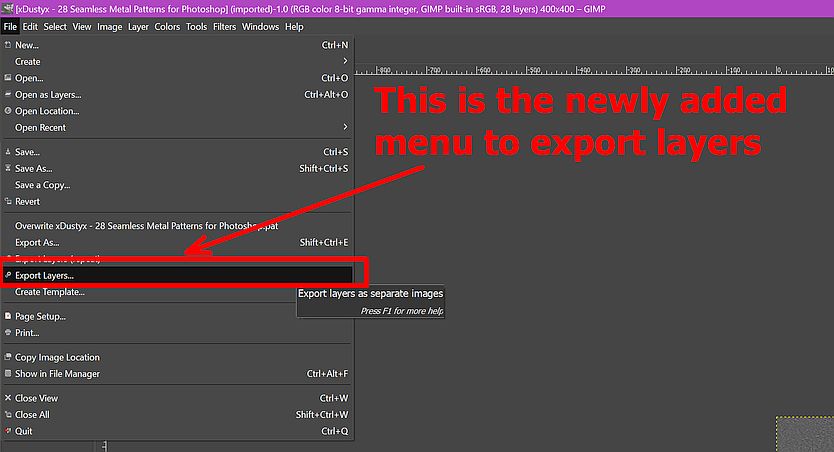
That will open this dialog, here you choose the format to export to, and here you chose the destination-folder for the converted pattern(s), if you’ve made your decisions a click on “Export” brings up the last dialog:

This is the last dialog, here you have the opportunity to add some descriptive text, or whatever you like, before a click on “Export” will export the chosen pattern(s) to the previous selected folder:
What is missing now is to import the converted patterns into Krita via ‘‘Settings’’ >> ‘‘Manage Resources…’’ >> ‘‘Import Resources’’, and of course many new, interesting PS-PAT’s whose patterns you want to use.
###############################################
You may wonder where you can find PS-PAT’s now, I have picked out a few websites, but can’t say anything about their quality.
But, maybe you like some of these possible sources for PS-Patterns to convert?
My first stop is usually DeviantArt where I just use the search and ask for “Photoshop Patterns”, there you’ll find patterns in every quality from superb to very simple.
The second stop is Google where I also simply search for “Photoshop Patterns”.
But here, as a beginning, are some more for you to discover:
400+ of the Best Free Photoshop Patterns for Designers
70 Free Photoshop Patterns The ultimate Collection
Brusheezy offers ~350 PS-PAT’s
myPhotoshopBrushes offers more then only PS-Brushes, seemingly endless page…
DesignShack offers 70+ PS-PAT’s
Free photoshop patterns download 100 files in .pat
It was just a quick selection of search-engine hits that I found appealing, as mentioned above the quality of the content offered may vary! Also, some sites may require regristration, at least for DeviantArt I find it worth to consider registration.
BTW, you can suspect that, if you search for sources via a search-engine, there will be some sources listet by more than one site, because some seem to share their content.
###############################################
That was my first tutorial. I thought it would be an easier task, but it took me much longer to search for all of the information above. I hope you can make use of it, and if you find errors or things not working, then please feel free to ask or to give advice what I could have done better, or should revise.
Michelist
¹But I think you can use the Windows-Version of GIMP under Linux using WINE (usually to be found in your repo), and under macOS using Winebottler, and install the plugins in GIMP for Windows (theoretically, even the portable should work, but may have a different folder structure).
²Unfortunately it is no longer available on the internet, at least I thought this until as I began to write this tutorial. Then I thought, do a last search and used Opera instead of Firefox. I also visited one of the sites where I found before only a description, but no download-button, and couldn’t believe my eyes, wow, now there was a download-button. Bam, my Firefox didn’t display that button for an unknown reason. 

 Thank you for your efforts there
 )
)  ,csp并没有这个功能,但是笔刷上的pat图案可以转换