Hi…complete newbie here (to Krita, not to painting)! 
I’ve been trying to figure out how to get rid of all details outside of a mask I’ve created, or paint outside of it. I want to choose a number of masked areas to delete the information outside of, but I can only presently paint or delete what’s INSIDE the mask, not outside it.
Is this an easy function, sitting somewhere? Or is it more complex…
Please help if you can. Many thanks
Tim
Hello and welcome to the forum 
You probably mean a ‘selection’ (which has properties similar to a mask).
The manual has lots of details about the various selection tools and other tools:
Tools — Krita Manual 5.0.0 documentation
If you’ve made a selection, you can invert it with Select → Invert Selection (Ctrl+Shift+I) so that everything outside of the original selection is then the active/selected region.
In the Tool Options docker, the Action options, Replace, Intersect, Add, etc actions are very useful for creating complex selections.
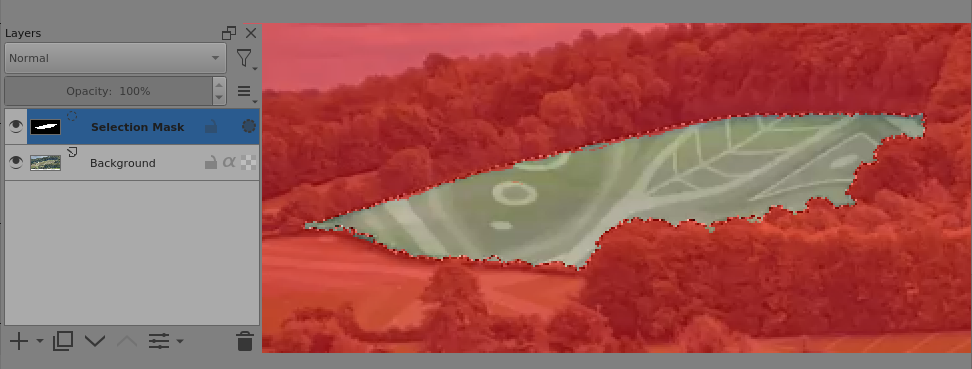
You can also see and present a selection as a greyscale mask (which is actually coloured pink for presentation) by doing Select → enable Global Selection Mask then the selection presented as a mask will be shown in the Layers docker and you can select it there to see it and paint on it in greyscale.
You can do all sorts of things
1 Like
Hey, thanks for the quick reply! 
The invert selection tool seems to do what you say, except, it changes the selection I made to just a few tiny spots which I can erase outside of. I don’t know why it doesn’t keep my original selection intact, in the shape I carefully masked off.
Any ideas on that? Also, I would upload a video except I’m not authorised (yet) - are you a moderator as well? Can you enable me to share a 30 sec clip of my screen?
Tim
You could upload it to a file hosting service like Dropbox, Google Drive, OneDrive, ufile.io, etc, and share the link.
Michelist
Good point…will upload something that way 
Here’s a link to my 30 sec video showing what happens with the invert tool. I’m hoping this works.
That is a link to a .pdf of a book calld “The Silva Mind Control Method”.
That could be an innocent mistake on your part or it could be a very complicated spamming operation on your part.
So, I’ve reported that particular reply as spam.
Please clarify the situation regarding this.
1 Like
OMG, sorry…lol. yes that was a book i downloaded ages ago (yet to read it!)! I added the wrong link! try this instead, hopefully it should be the rigt one. I assure you I’m legit
Cheers
Tim
Could you please edit that reply (use the pencil icon at the end of the reply) to remove that link?
Ok, done that. Is it causing an issue?
The link is still in your reply and it may have been frozen for examination.
I’ll ping the owner/moderator, @raghukamath, who is the only one who can deal with this.
It looks like you used the Contiguous Selection tool with a low spread value or a high threshold value to pick out and add part of that field in the woods.
It’s a particulary difficult thing to get by use of the selection tools.
If you use a low threshold and the Acrion@Add technique, you can gradually build up the selection.
Doing that, even then I had an are outside selected and I then used the Freehand Selection tool with Action:Subtract to remove it.
Alternatively, the final tidy up could be done by painting in black/white on the global selection mask (which I didn’t try).
You could also do the entire thing by careful use of the Freehand Selection tool.
Here is the resulting selection, (shown as the global selection mask for clarity) and I wouldn’t want to do many like this:
Fine selections on complicated images take time and some manual dexterity with use of different selection tools.
You can do pick’n’mix of different tools and different techniques to get the required end result.
1 Like
you need to edit this post to change the link.
1 Like
Thank you so much!
I’m getting somewhere with the subtler adding / subtracting method. I need to know how to smooth the edges a bit now, so my selection isn’t so hard-edged…I guess erasing softly or blurring / painting would do the trick.
Thanks again
Tim
1 Like
I have - thx - please can you ensure I don’t get a “black mark” or something against my profile? I’ve only just started using the forum today, still getting to know the rules
Cheers
Tim
No blackmark or anything don’t worry.
I have edited your link in the concerned post.
1 Like
If you have a selection and you’re using one of the selection tools, you can right-click the canvas and you’ll get a context menu showing all the things that can be done to the selection.
One of these is Transform that when selected will show a submenu that has the Smooth option on it.
Also, if you have the global selection mask visible, you can select it in the Layers Docker and treat it as an image (which it is) and do a Filter → Blur → whatever on it or anything else that you can normally do to an image including painting soft greyscale edges on it.
1 Like
Awesome, I’ll try that. Thanks for helping Ahab! (My Silva mind control method has worked, then  )
)
1 Like