I want to draw a curve in vector layer without antialias turning on
How to do that?
Thanks!
I don’t think you can ‘disable’ the antialiased edges.
What you see on the screen is a raster ‘projection’ of the underlying vector object and this is probably done to make the image look ‘better’, which it does for most people’s artwork requirements.
As suggested by @Reptorian in the other topic where you asked this question, you can use a filter mask on the vector layer (or a filter layer at the top of a group of vector layers).
When the New Filter Mask window pops up, choose Adjust → Cross-channel colour adjustment. Then select the Channel to be Alpha. Also select the Driver channel to be Alpha though I’m not sure if that’s absolutely required.
Grab the (flat line) curve in the middle and drag it to the top.
Grab the curve somewhere to the left of the middle and drag it down to the bottom-middle. Drag the right side end point and drag it to the top. The canvas will show the effects as you make adjustments. Example screenshot:
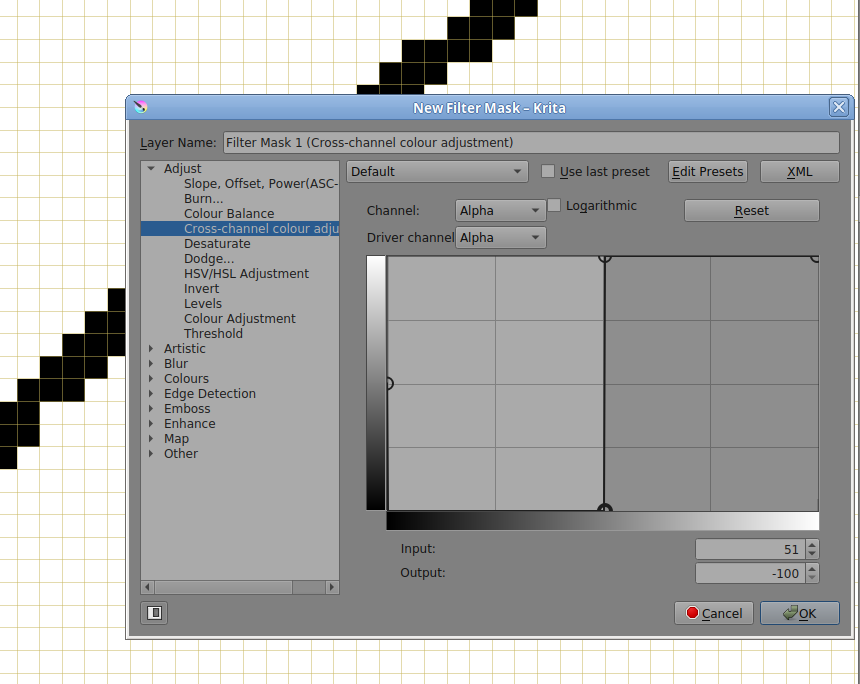
Then press OK and it’s done.
Later, you can select the filter mask layer and press F3 to bring up its Properties display/control window and make further adjustments to it, though I doubt if you’d want to make any further adjustments for this particular filter in this particular application.
Edit:Add: I should have also grabbed the left side end point and dragged it to the bottom.
One can also use color adjustment as a filter.
That being said, it is possible to add a option to disable anti-aliasing at the code level.
This topic was automatically closed 15 days after the last reply. New replies are no longer allowed.