How to export object position in frames and replace simple object with imported image

Hello:

I am very new to Krita, and today I created my first animation with drawing tool to one simple object, and place it in different position in different frame, fill total 24 frame, it works.

However, the position from my first animation is not good, I mean not scientific, I have some math rules to calculate the exact position of the simple object.

Therefore, I want to know two things:

  1. Can I export some type of data, like Json format data showing the position of the object in each frame. I have total 24 frames, so the data is not too big. But I can’t find any answer from internet. Please advise.

  2. I have some complicated image in PNG format, I want to replace the simple object with this complicated PNG image, so the animation will show the imported PNG image, instead of the simple object by the drawing tool.

I know how to import PNG image from layer, but I have no idea if I can replace the simple object by drawing tool by the imported PNG image.

Please advise!

Thanks,
Well, first of all, what do you mean by “object”? do you mean a vector shape? or simply a raster/paint shape? A freehand brush stroke?

And is that object alone on that layer or are there other stuff?

  1. You can in theory use the python api, if it is a vector then it is pretty simple, but if it is raster it would require some work

  2. It is possible to some extent via the python api, but it may require some workarounds depending

Hello:
The object I mean is just a raster shape(a circle).
I want to know further details:

  1. Since I am using a raster, what is required to do the job? Do you have any Python code example?
  2. Also, I need some Python code for the replacement.
    However, since my animation is simple: there is only one raster object in it, I can also try to use a vector sharp, also the complicated PNG was created from one SVG file, so it is also possible I can use a vector shape for it.
    Please provide some Python API code for my job.
    Thanks,

This is literally one of the reasons for me to request a Empty object. You could animate it with curves or on all frames and use that location to move another thing.

Hello:
I will try to do what you said. But I would like to have some Python code to do some job.
For example, I use the down arrow to step from top to bottom in a 720px by 406px to move a simple circle, I count the steps required to finish the step through is 316. I need more time to count how many steps are needed for step from left to right (720px) for default move tool steps.
I can calculate how many steps is good for each frame to move, if I want to finish one second of animation, but using hand to do is not easy.
If you know I can write some Python code (I have about 3 years experience with Python), to move an empty object to specific position (the center coordination of the empty object) in each frame, then it will be much accurate for the animation to work.
Thanks,

I don’t know much if anything about animation, but to move an unchanging object, like a circle, across the screen you should try motion tweening, this seems easier to me. But this is the opinion of an animation layman and could be identical to the method described by EyeOdin - possibly just with different words. And it could also be totally wrong.

Michelist

You can do this with version 5.0.0 onwards by using an animated transform mask.
This can be duplicated and moved to another animated layer and can be copy-pasted between open documents.

At the moment, the detailed numerical control is only by manually typing in values in the Animation Curves docker. The graphical UI adjustments are ok.

Maybe there could be the facility for a transform mask to have its parameters written to an .xml file (or whatever) and to be able to be load the parameters of a transform mask from an .xml file?

Hello:
I am currently using Krita Version 4.4.8. So I have to download the 5.0 Beta version?
Do you have some instructions in details for what you said?
Thanks,

First of all, if you want to use the 5.0.0-beta1 or the nightly 5.1.0-prealpha, I’d recommend that you use the portable .zip package if you have Windows. so you don’t overwrite your 4.4.8 installation.

Further, you should make a backup copy of all your configuration files and your resources folder for later recovery in case of problems.

You can avoid all those precautions by running as a different user for any 5.0.0 tests and experiments. (But on Windows, using the portable .zip has advantages if you want to keep up with nightly release changes.)
On Linux, you can set up an isolated local .home folder if you want to stay as the same user.

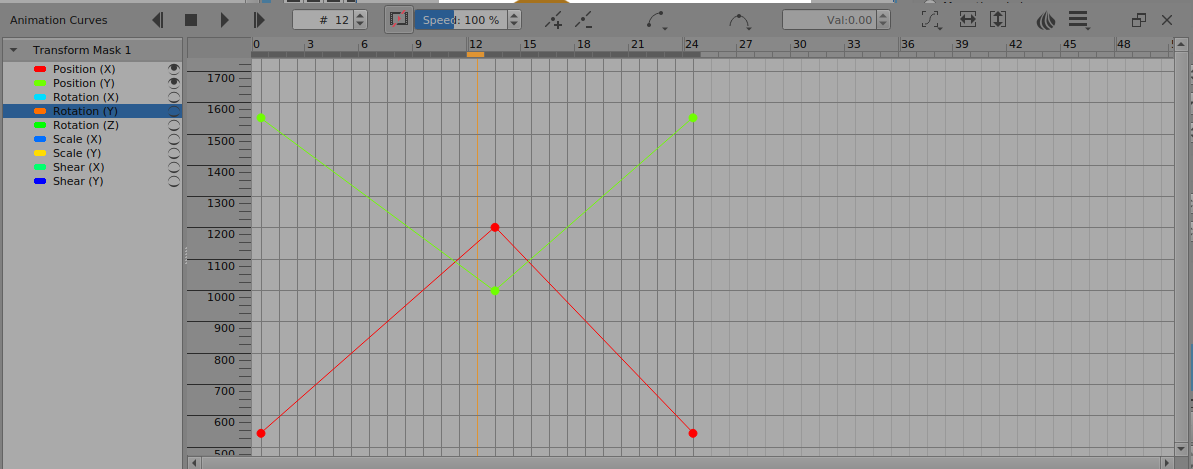
For the animated transform mask, you need to make just one keyframe in your animated image layer. Then you add a transform mask to it.
In the animation curves docker, you add scalar control keyframes with the ‘+’ and ‘-’ buttons at the top of the docker.
Since you’re only interested in Position control, you can turn off the visibility of the Rotation, Scale and Shear parameters, for clarity and ease of use.

It’s not difficult once you try it a few times and get used to it:

Edit:Add: I forgot that the manual has been updated:

Thank you very much for your advice. I will try to do some testing according your advice.
I will let you know later on!
Thanks,

You guys unstood me wrong. Emptys don’t exist in Krita.

I want them to exist because they are an amazing animation tool. Transformation masks are the most similar but I think they still miss the mark for usability.

@EyeOdin I did understand what you said about empties but this is a Support and Advice : General Questions category topic and @zydjohn wants to perform a particular operation right now.

You’ve mentioned empties before and I think they need to be discussed in a Feature Request category topic?
(I don’t know what an ‘Empty’ is but I’d be happy to read about it somewhere.)

My suggestion of exporting/importing transform mask parameters would also need to be discussed in a Feature Request topic.

If it is a raster shape, you can get the location of it via:

doc = Krita.instance().activeDocument()
node = doc.activeNode()
print( node.bounds() )

you will then have to write a loop that hops frames via:

doc.setCurrentTime(time)

and extract the locations.

Now there is a simpler function for extracting the pixeldata at time via

node.pixelDataAtTime(x, y, w, h, time)

but the problem is you also want to set the pixeldata, and there the current

node.setPixelData(bytes, x, y, w, h)

isn’t timeline aware. So the goal would be to hop frames via a timer loop, get the location via bounds, then use setPixelData to write your image.

You can extract the Transform Mask data in Krita 5 via:

node.finalAffineTransform()

But as above, it isn’t timeline aware so you would have to hop frames.

2 Likes

Hello:

I tried to understand what is happening with your code.

Now, I understand what this part is doing:

doc = Krita.instance().activeDocument()

node = doc.activeNode()

print( node.bounds() )

However, I found some technical issue: I can’t use keyboard to move the selected raster object to specific position.

For example, I added one raster object (a soccer ball in PNG format), and try to move it to different position, then make animation using the same soccer ball with different position.

I have done the calculation, so I know for each frame, what the exact position I should move the soccer ball. When using keyboard up and down arrow, and left, right arrow keys, I can easily put the soccer ball in the specific position. But suddenly I found that, I can’t use left, right arrow keys. If I use left or right arrow keys, the soccer ball didn’t move, but the current timeline header moves to other frame. Up and down arrows are still working, after I click on Move Tool of the soccer ball, I can move it pixel by pixel up and down, but not for left or right.

I can try use mouse to move the soccer ball, but the position is not accurate, like: if I want to move the selected soccer ball to position (31, 30), it sometimes go to (32, 31), or (31, 29). Anyway, it is very difficult even not impossible to move the selected soccer ball to the specific position.

I want to know if I can use short Python script to move the selected soccer ball to specific position.

I searched around but I can’t find any useful Python code for this.

I am currently just want to use a raster object and put it into exact position to finish my job. So I need 24 python script to move the soccer ball 24 times, then I can finish my project.

Please advise,

So technically speaking, you don’t need to do any replacements. Since you have a formula for the locations already, why not just skip that step and simply use setPixelData to place it in the calculated location from the get-go?

You also don’t need 24 scripts, just a list and a loop.

Hello:

Thanks for your help.

I have written the following Python code now:

node = doc.activeNode()

bytes = node.pixelData(0, 0, 50, 50)

node.setPixelData(bytes, 30, 31, 50, 50)

The soccer ball has the size 50px by 50px.

I can move the soccer ball to next position.

But I have question to know, as when make Krita animation by hand, each new frame was done by right-click on timeline header on the new frame, and select “Create Duplicate Frame”, this way, the new frame will record the new position of the soccer ball.

But what is the Python corresponding code for “Create Duplicate Frame”?

Thanks,

Here you go, just change the QImage (img) to the one you want and fill in the list x and y parameters:

Edit: If you want to use pixeldata instead of a QImage, you can do that too, get the pixel data than blank out the frame.

from krita import *

doc = Krita.instance().activeDocument()

list = [ [0,0], [50,50] ]

view = Krita.instance().activeWindow().activeView()
img = view.currentBrushPreset().image()

img.convertToFormat(QImage.Format_RGBA8888)
ptr = img.constBits()
ptr.setsize(img.byteCount())

def stepper1(i):
    doc.setCurrentTime(i)
    Krita.instance().action('add_blank_frame').trigger()
    
    if len(list)-1 >= i+1:
        QtCore.QTimer.singleShot(1000, lambda: stepper1(i+1))
    else:
        stepper2(0)

def stepper2(i):
    doc.setCurrentTime(i)
    node = doc.activeNode()
    node.setPixelData( bytes(ptr.asarray()) ,list[i][0],list[i][1], img.width(), img.height() )
    doc.refreshProjection()
    
    if len(list)-1 >= i+1: QtCore.QTimer.singleShot(1000, lambda: stepper2(i+1))

newLayer = doc.createNode("Animated Item", "paintLayer")
doc.rootNode().addChildNode(newLayer,None)

QtCore.QTimer.singleShot(1000, lambda: stepper1(0))

This has been Reported and Confirmed. It’s annoying:
https://bugs.kde.org/show_bug.cgi?id=436060

Hello:

My knowledge about Krita Python is very limited. I have no idea on how to get the image.

I have done the following:

Open Animation workspace, then from Layer to import/export layer, import image: soccer.png.

Then click on soccer.png with move tool.

I have the following Python code in Scripter:

from krita import *

doc = Krita.instance().activeDocument()

list = [ [0,0], [50,50], [30, 31], [50, 50], [60, 62], [50,50], [90, 93], [50, 50] ]

view = Krita.instance().activeWindow().activeView()

node = doc.activeNode()

bytes = node.pixelData(0, 0, 50, 50)

img = QImage(bytes, 50, 50, QImage.Format_RGBA8888)

img.convertToFormat(QImage.Format_RGBA8888)

ptr = img.constBits()

ptr.setsize(img.byteCount())

But my code didn’t work, as the image seems not recognized by Python code.

I didn’t use all the list of position, just try a few of them to see if your code works.

But I can see that your code really works, as the image in your code:

img = view.currentBrushPreset().image()

img.convertToFormat(QImage.Format_RGBA8888)

ptr = img.constBits()

ptr.setsize(img.byteCount())

The image is legal in Python code, but my code didn’t work. As my knowledge for this area is very limited.

Please advise!

Since you are loading from a png anyways, you would use this:

img = QImage('c:/my_path_to/soccer.png')

like so:

from krita import *

doc = Krita.instance().activeDocument()

list = [ [0,0], [50,50] ]

img = QImage('c:/my_path_to/soccer.png')

img.convertToFormat(QImage.Format_RGBA8888)
ptr = img.constBits()
ptr.setsize(img.byteCount())

def stepper1(i):
    doc.setCurrentTime(i)
    Krita.instance().action('add_blank_frame').trigger()
    
    if len(list)-1 >= i+1:
        QtCore.QTimer.singleShot(1000, lambda: stepper1(i+1))
    else:
        stepper2(0)

def stepper2(i):
    doc.setCurrentTime(i)
    node = doc.activeNode()
    node.setPixelData( bytes(ptr.asarray()) ,list[i][0],list[i][1], img.width(), img.height() )
    doc.refreshProjection()
    
    if len(list)-1 >= i+1: QtCore.QTimer.singleShot(1000, lambda: stepper2(i+1))

newLayer = doc.createNode("Animated Item", "paintLayer")
doc.rootNode().addChildNode(newLayer,None)

QtCore.QTimer.singleShot(1000, lambda: stepper1(0))