
The COLOR layer above is appearing on the stroke of Vector Layer.
Is there any way so that Vector Stroke is not affected by above Clipped Raster Layer ?
(In this image, the ideal would be the border color is black)
If there’s a way, this will work like Panel Tool on CSP.
I’m sorry, but there is too little information what you’re trying to do.
This is probably to be solved by changing the order of layers and getting right layers grouped with each other. If you want the lineart not to be covered with other things, don’t you just need to move it up, or remove the alpha inheritance?
Inheritance basically means that you have the same transparency as all the non-inheritant layers below in a group. Online manual can help with that too.
Sorry, but I can’t really help without understanding what you exactly want to achieve, and what is on which layer.
1 Like
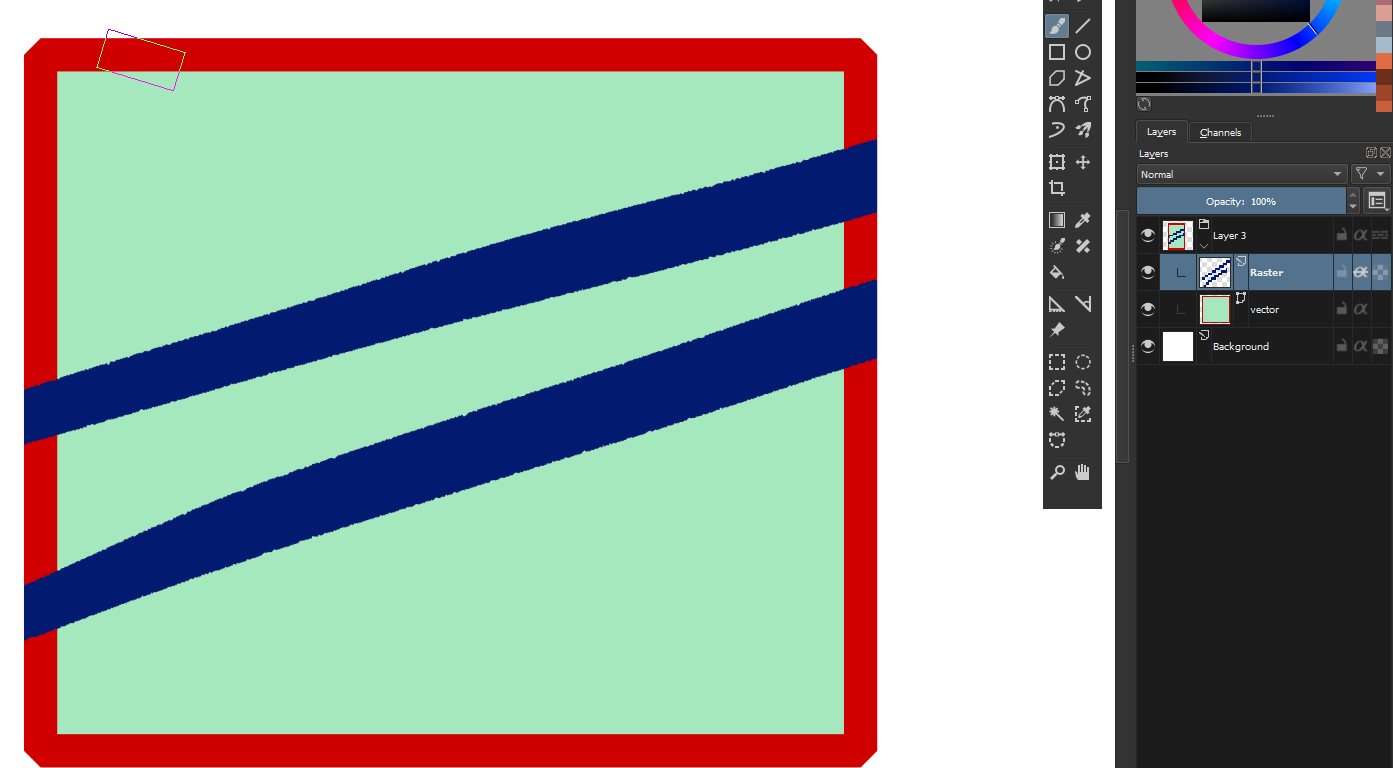
Ok, now it’s clear 
I don’t think you can do it this way - specify that you want clipping to affect only a fill, and not contour. The image is composed by merging layers from bottom to top, so you first get the vector layer rasterized, and then blue strokes are merged to it, getting clipped to what you have in a group, as the clipping is turned on.
One way would be to have a red shape on one layer and then above: a group of green and blue layers, with the blue one clipped.
The other way is to make a green one, blue clipped, and then red one without filling, not clipped.
I’m afraid that basic vector tools krita have, don’t allow to constrain clipping to part of the vector layer
1 Like
thanks you, it works
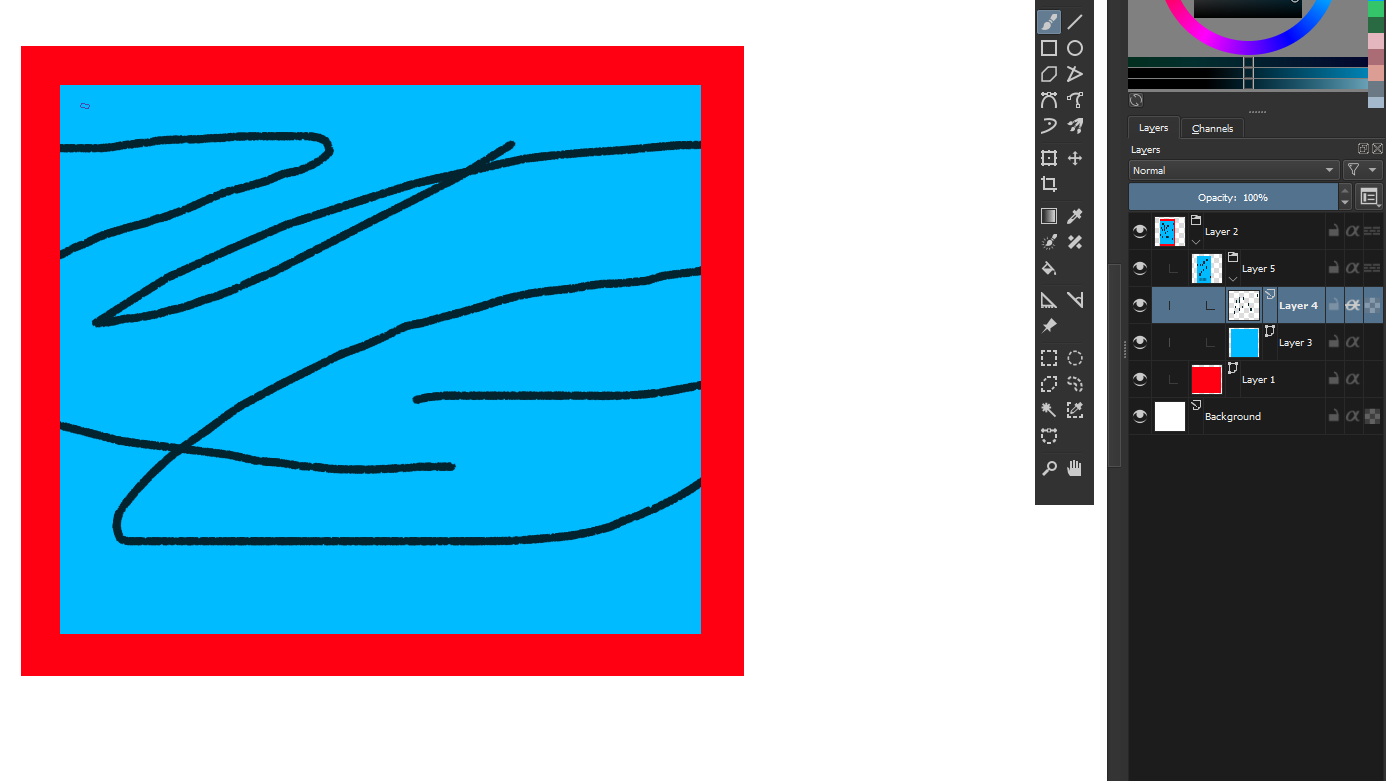
but it defeats the purpose of dynamically resizable panel border as the two vector is not grouped together. I wonders if this can be changed as I cannot find the use case of having Stroke also be part of Clipping. Fill is enough for Clipping.
I just ask it because I draw comic and I found this a little annoys me.
The clip layer takes into account the whole layer pixel data, it will not differentiate between the stroke or fill of a vector object. For it this is a whole big opaque object.
To achieve what you want to do I would do the following layer arrangement:
|-> vector layer with the only red stroke
|->other layers with inherit alpha on
|-> base layer with stroke and fill
Another thing you can try but it has its caveats
|-> clone layer of the vector layer with multiply blending mode (bad for colors other than black and white good for comic panels)
|-> other layers with inherit alpha on
|-> original vector layer
This setup ensures that any change to vector layer is reflected on the top layer since the top layer is clone
This setup is shown here in this video:
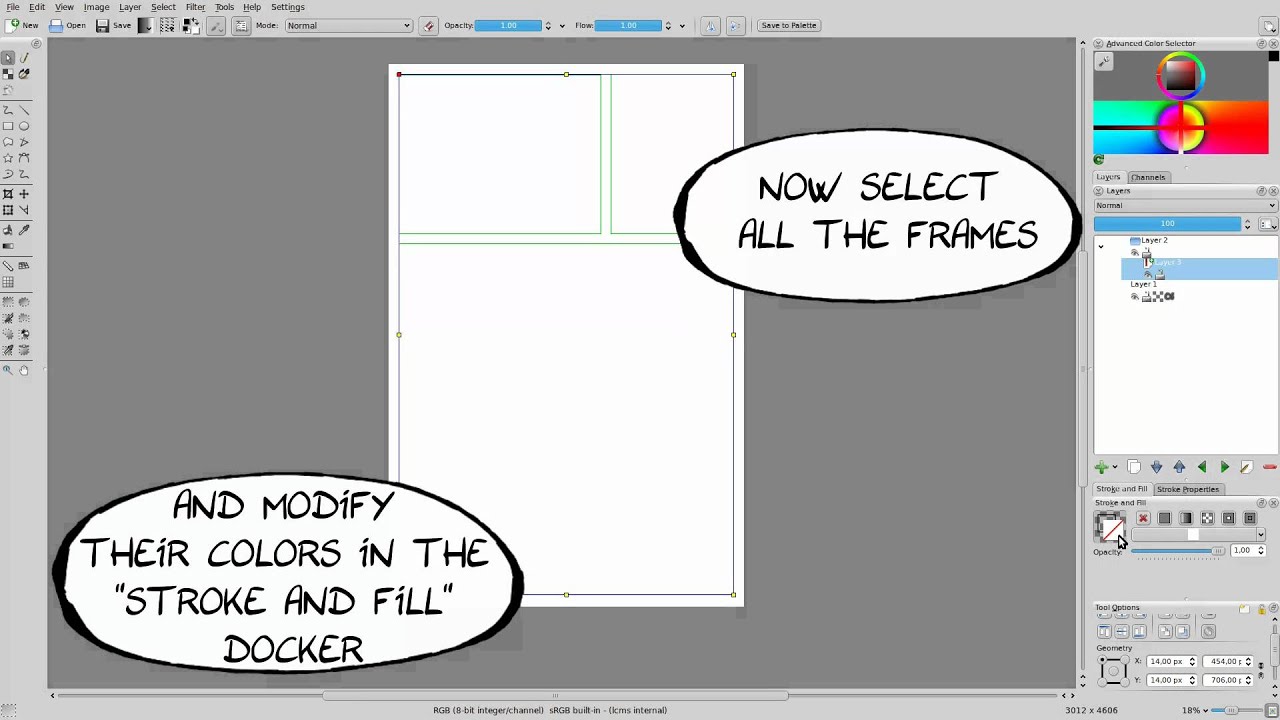
1 Like
I’m not sure it’s about use-cases in this context. It’s the whole core idea of how clipping and displaying multiple layers work. Clipping is being done to rasterized layers from below in a current group. No exceptions from that. And I guess it’s something I would expect it to be doing and what it should be doing.
Sorry you can’t really get it this way.
2 Likes
Thanks you all for technical explanations. I think what I am asking for is out of how Krita currently functioning.
To achieve what you want to do I would do the following layer arrangement:
Here’s a third way.
- Create a Vector Layer
- Insert a square with geometric option set to Fill: Foreground / Outline : None
- Group the Vector Layer. And insert a paint layer inside the group.
- Set the paint layer into inherit alpha.
- Now click on the group layer.
- Go to Layer-> Layer Style.
- Add a stroke to it and set position to outside.
- Now you can add as many square as you want.
Here’s the setup
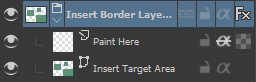
@cowc2 I believe this problem is solved.
With this setting, I get this.
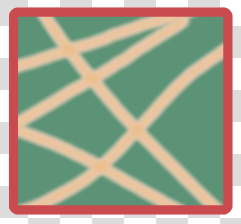
3 Likes
OMG… what a creative use of layer style.
Why applying Layer Style to Group Layer doesnt affect all layers inside it ?
How does it works ?
As I said - image is created from layers and displayed from bottom to the top. Each group is treated separately, and has to be merged into one layer before things above get merged to it.
Here you have the area, paint layer clipped to it (has no border yet). Then krira want to apply the effect, so first need to merge the group, and then applies the effect to it making a contour.
Clever solution indeed
1 Like
Oh so this is how it works. Paint Layer is inside the Base Layer so Krita only apply Stroke to the Border of Base Layer.

Thanks you for such as explanation. I just used Krita by Clicking every button I could without understanding how this kinds of things work behind. So such explanations are big knowledge to me
1 Like