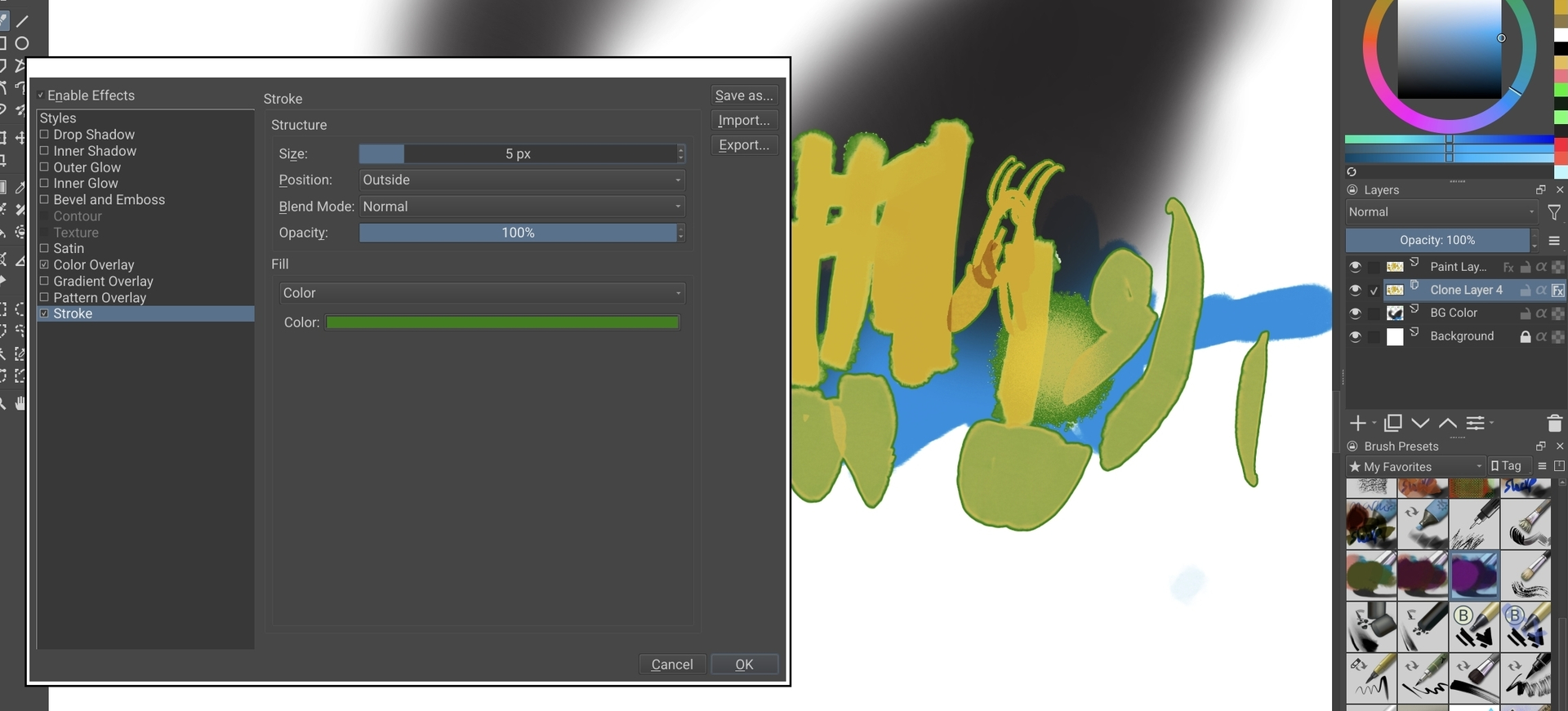
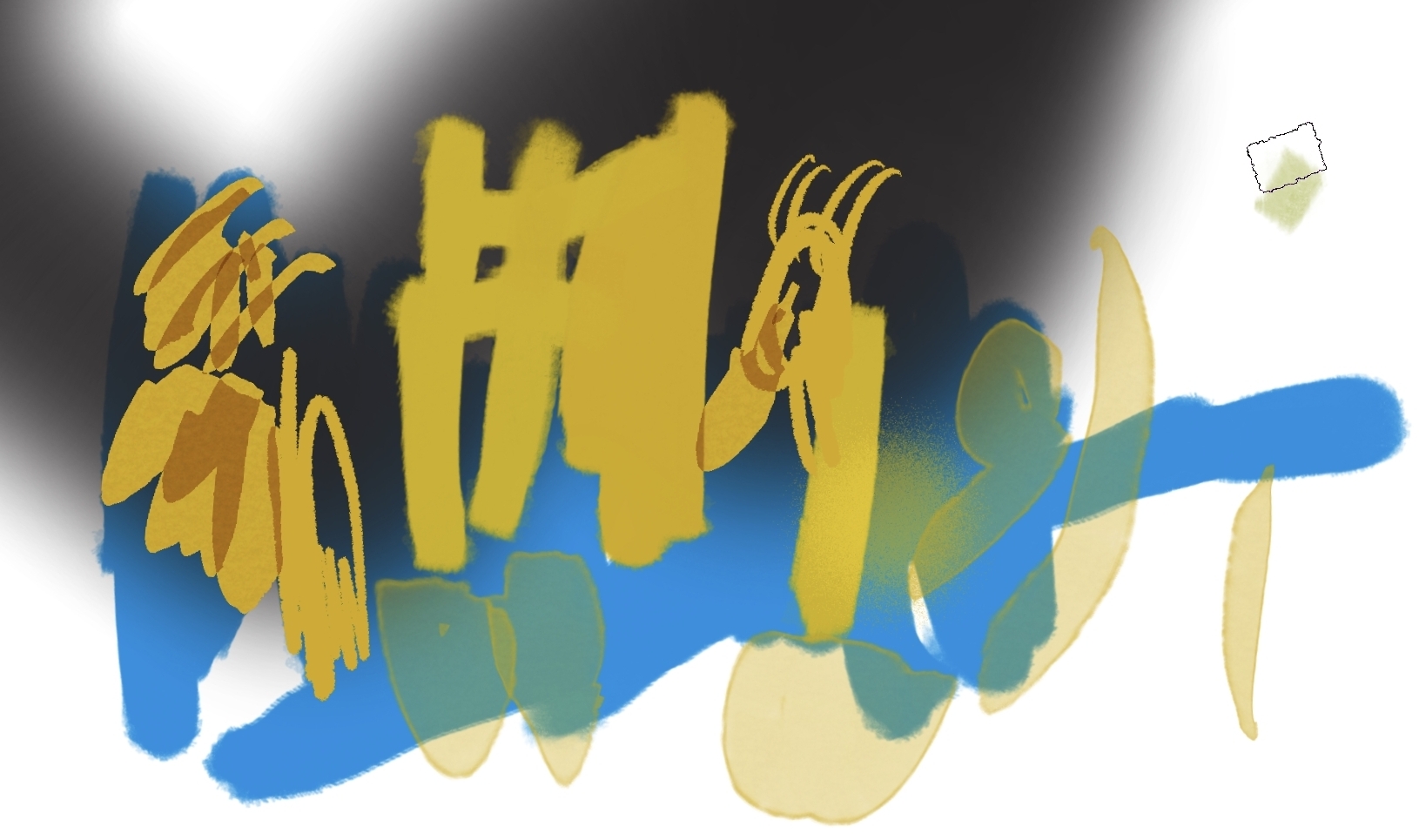
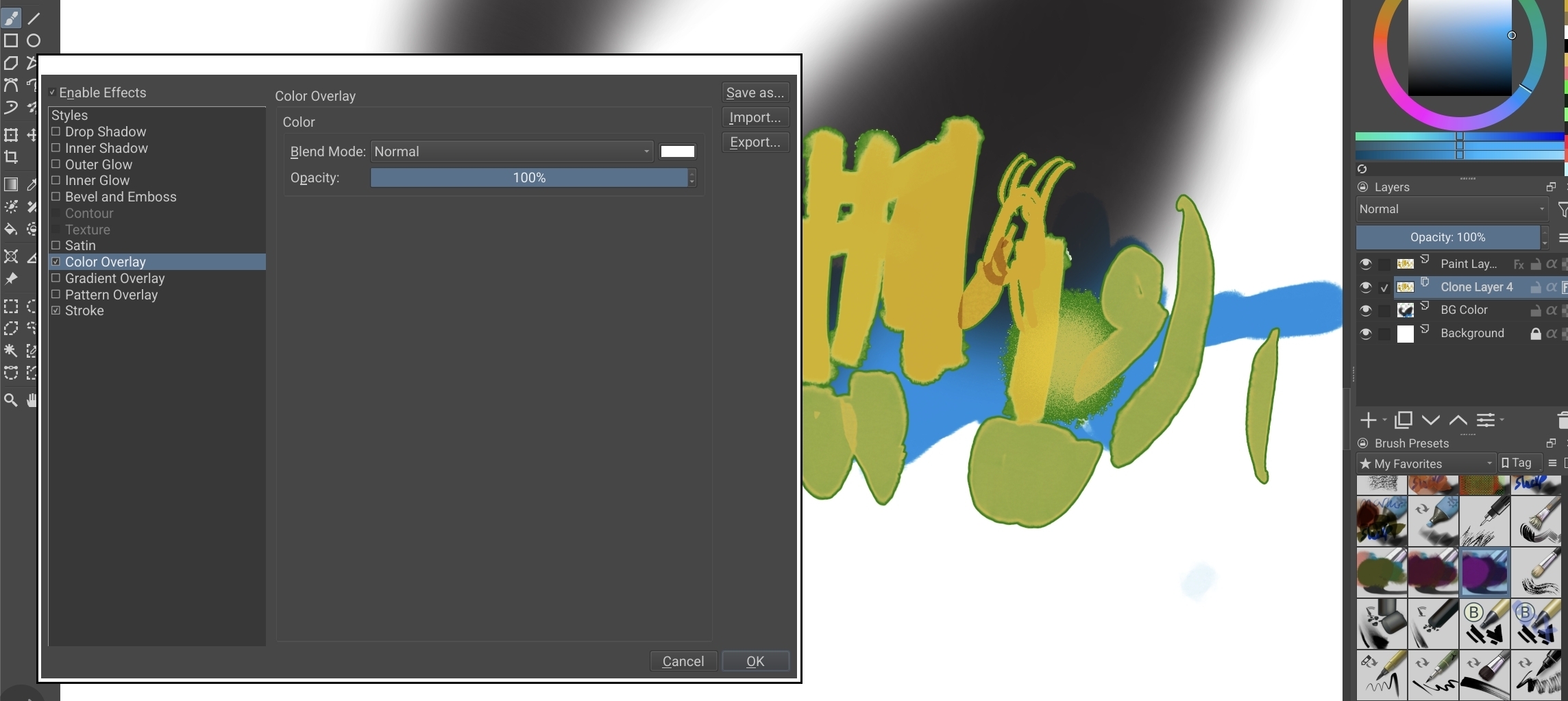
Hello, I would like to preserve my brush opacity, and not have the stroke layer style tint underneath it. I have selected “outside” but it still tints low opacity brushes. I tried adding the layer style to a clone layer with the color overlay style set to normal but it’s still tinting green and adds flecks of white (and it’s not ideal because I want to preserve the opacity). Any way to fix this? I only want a perimeter line around my marks.
Yes, but it will involve a few steps:
-
Clone the layer (or layer group) with your transparent marking, by right clicking the Layer/Group in the Layer Docker and selecting Add > Add Clone Layer.
-
Move the Clone Layer beneath the original layer.
-
If you have a stroke applied to your original layer, remove it at this point, and apply it to the Clone layer, instead.
-
Right Click on the Clone Layer, within the Layer Docker, and select Add > Add Filter Mask and choose the “Color Adjustment” Option.
-
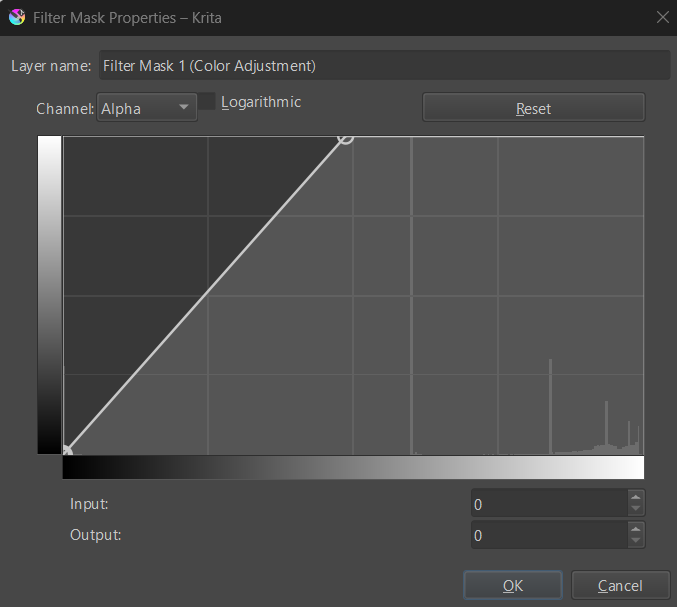
On the Color Adjustment panel, locate the “Channel” menu, select “Alpha” from it, and drag the upper-right node to adjust the alpha (“opacity”) of the clone layer to a suitable point. For me, this ended up being around the midpoint, along the top (see image below).
-
Now, change the “Channel” menu to “RGB”, and drag the upper-right node all the way to the upper-left. This will change the color information to pure white.
-
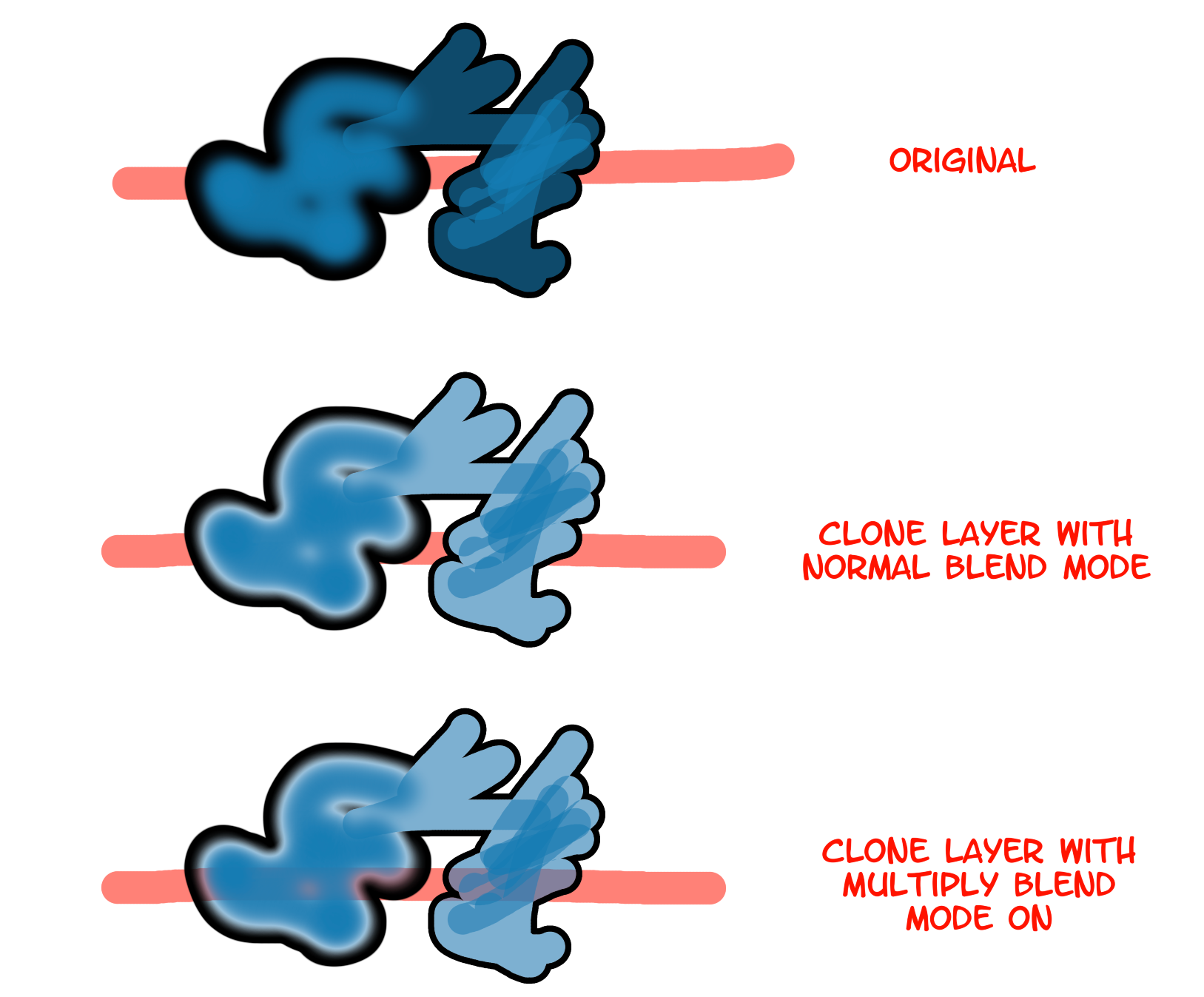
Optional Step: There may be a chance you’ll want to see through the clone layer, to the layer beneath, rather that have it white. If that’s the case for you, change the Blend Mode for the Clone layer to “Multiply”.
The image below shows the three differences, with the original being what would normally happen, followed by a version where the clone is made solid white, and has the stroke applied to it, and finally a version where the clone what the solid white area made transparent, via the blend mode. I drew a red line on a layer beneath my transparent mark layer, to show how it would look with things beneath the layer.
(EDIT) - I should note that this method is dynamic. So, if you wish to continue adding to the original layer, you may do so, and any changes will update the clone layer, accordingly.
If you want to achieve almost the same result without adding a Filter Mask, may I recommend changing the blend mode of the clone layer to Erase, and then putting the clone layer in its own Group so it won’t actually erase anything? The Erase blend mode does not apply to the layer style, so the stroke will remain visible.