I would like to know the easiest way of how to clean/remove dusts from images like a page from a manga since it’s quite dusty after scanning. Thank you in advance!
Is your scanner glass clean and dust free? Thats easy to check and fix.
If the ‘dust’ is caused by paper texture that’s more difficult.
I think this is in the category of ‘noise reduction’.
Krita has Filter → Enhance → Gaussian Noise Reduction or Wavelet Noise Reducer.
The GMIC filters have a variety of noise reduction filters in the Repair category.
Specialist photo processing applications like Darktable and Raw Therapee will probably have specfic dust removal filtering facilities.
If you can post an image that shows the typical problems that you’re having, someone with experience of this may be able to give more detailed advice.
Here’s a photo example:
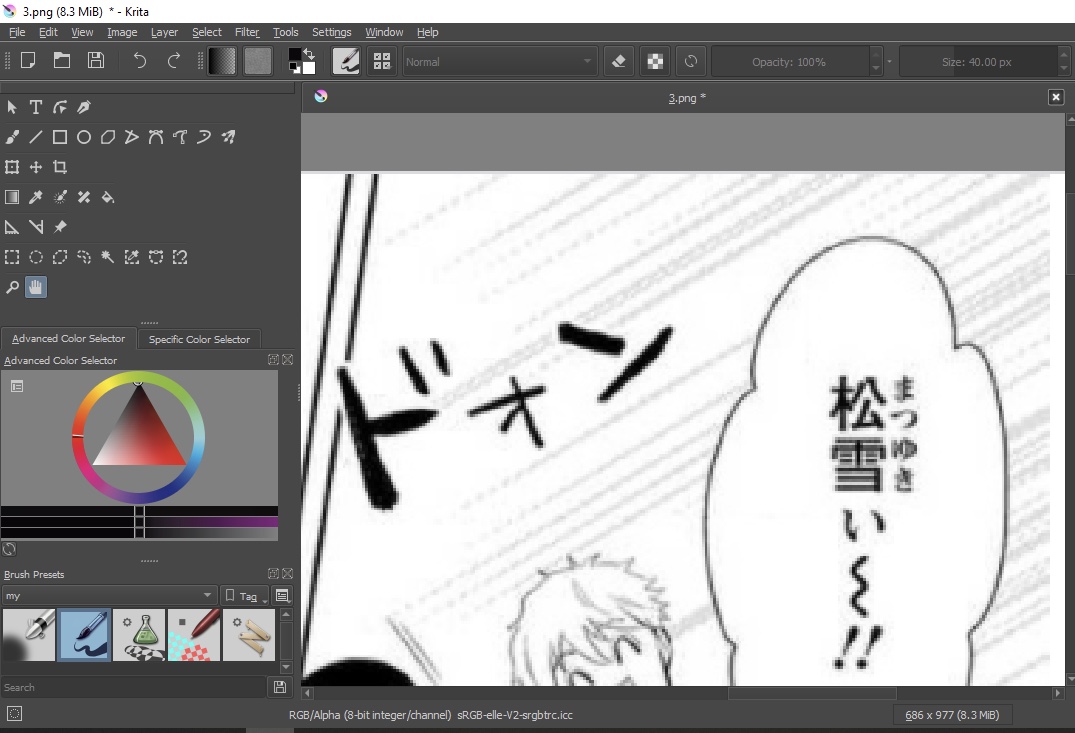
There are dusts near the speech bubble and all around the whole page if you look at it properly. Is there a way to remove these dusts easily?
That is not dust. Those are .jpg compression artifacts.
Set your scanner to produce .png file output and also increase the scan resolution (the dpi value, probably) to at least twice what it is at the moment, preferably more.
2 Likes
If i’m not the one scanning, how can i remove the dust from the jpg image using krita?
Were is the dust?
You can’t improve the quality of jpg no matter which software you use, unless you are artificially adding pixels. If it is possible ask the person to scan in high resolution.
Also, you might get some more useful information in GIMP forums for this type of work.
Cleaning jpg artifacts if your not the one doing scanning will be a problem. They should have been stored in PNG or similar as stated before.
If your willing to suffer you can clean manually but this only works on the speech bubbles mostly. The rest will be near impossible to clean.
- Make a selection to hold just the characters of the speach bubbles.
- then add a levels layer filter to that selection.
- adjust the levels filter white point to go over the grey of the white artifacts. Same can be done to the black point.
This will be destroying your image by clipping your whites out so if your scanned page. if the white of the page is not real white you will have to adjust the page or the balloon to that level of white after or before whatever is easier for you. Also if your confident on the half tones of the artist work to have good value variation you can apply to the whole page and not just the balloon but that might be a page by page assessment.
But I must say those characters are very low resolution…
At that point it’s almost easier to just trace everything.
3 Likes
There are ‘tricks’ you can do with the GMIC Denoise filters but you need to boost the artifacts first, with the Levels filter then remove them and then correct the Levels, which can not be perfectly recovered:
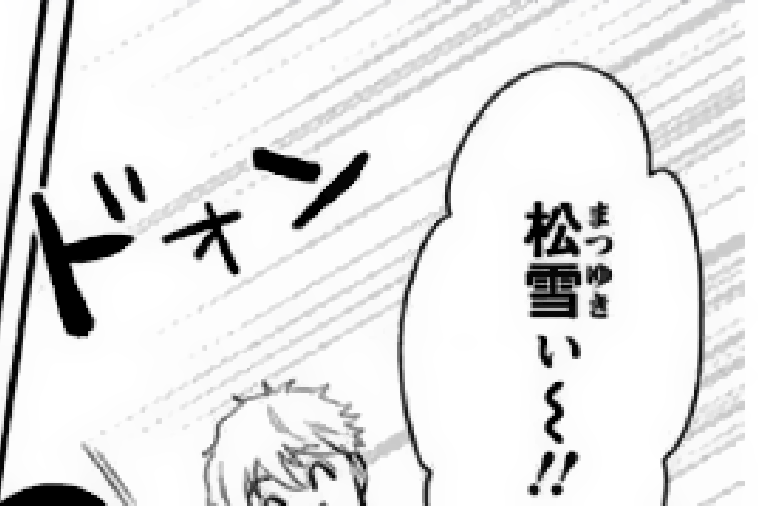
This takes a long time, is far from perfect and is a total pain for even one image.
You need a better scanned image.
2 Likes
And I just see the file name is 3.png which means at some point someone thought they’re smart by converting jpg back to png and I bet it isn’t even converted but just renamed as it often happens.
Well gimp doing batch processing can help a bit if going overkill on the whole page works. I assume the scanned set has the same tint in whites overall. So it if works on one it should work on the others too. Then you can correct the special cases by hand. But keeping a save of before and after will be important to have obviously in that case.
This topic was automatically closed 15 days after the last reply. New replies are no longer allowed.