How can I finish and then render an animation to be a video but with the transparency element, so that I don’t have to use the BG Removal feature with a video editor?
You need to export into a video format that supports transparency, that’s all.
So WEBM (or is it WEBP?), GIF or APNG for instance, also MOV as a container if you obey some precautions (need to work with PNG’s, have to save the MOV with lossless settings (but Krita can not export to MOV, you have to export as PNG-Sequence and stitch it together in a video editor!)).
And you have to obey that not many video players support showing transparency in a video, often it is pseudo-transparency, that is an issue where it is said that some got crazy about because they didn’t think of incapable video-players.
Michelist
Like Michelist already mentioned not many video formats support transparency, only a few that are image files at heart. There is also a good reason why it is that way, which is that most video playback devices are traditionally not see-through. Imagine playing a video with transparent/no background on your TV, what should be shown? The Wall that is behind it? Most things that do support transparency in video files will simply replace it with black or white.
Exporting as an image sequence is normally the way to go (and then importing it into the video editor as a clip).
I was testing exactly this recently, using Krita, Blender and Shotcut. Krita offers two export options: as a sequence of png images or as an mp4 video. Since mp4 doesn’t support transparency, you can choose the first option… and open the sequence in Blender or Shotcut (or another video editor).
In these last two programs, you can export the sequence in mov format. Unfortunately, this format has the disadvantage of being too heavy: a simple animation, in 1280x720 pixel format, one color (black) with 68 frames ended up weighing about… 60 MB!
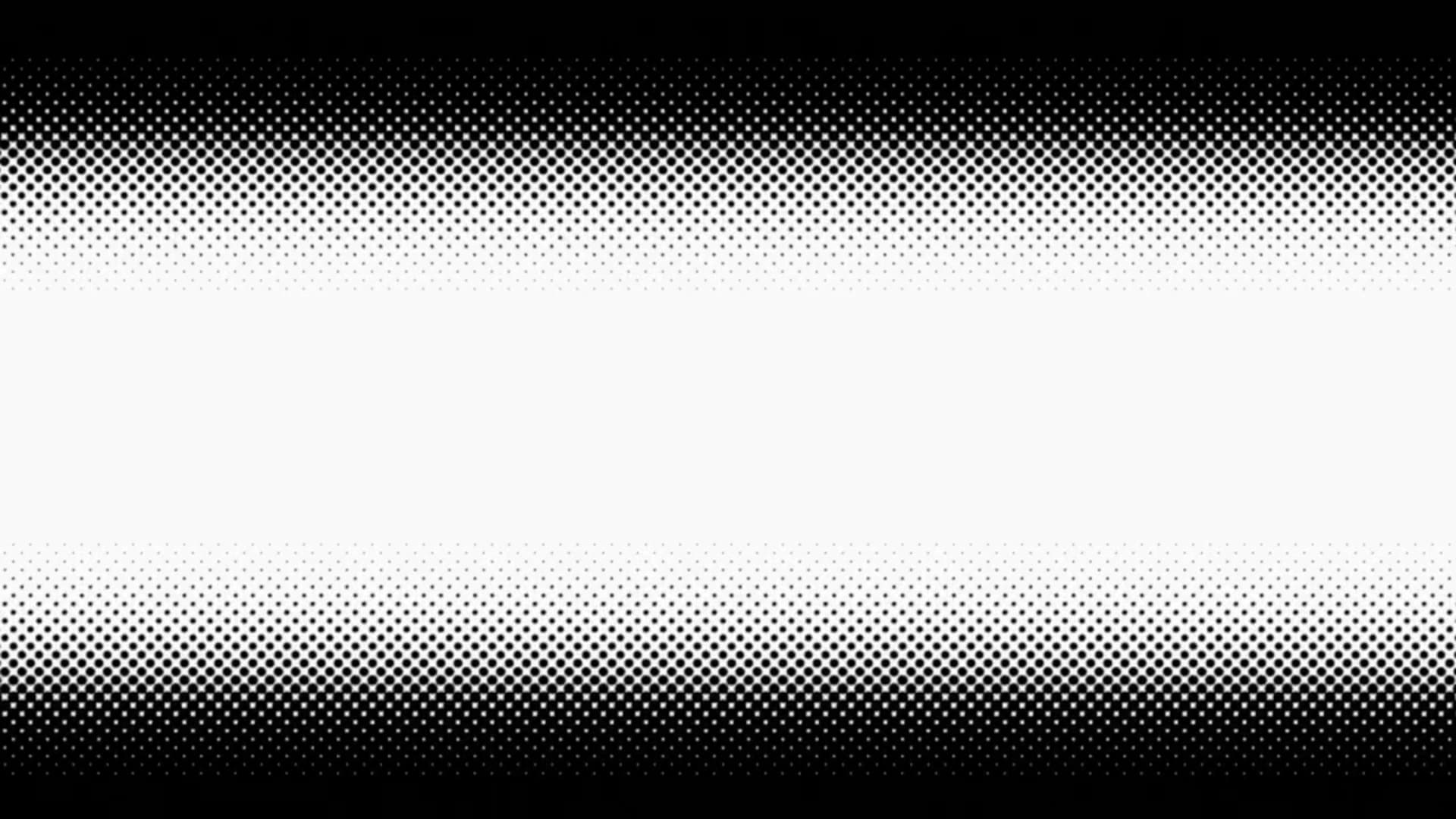
In Blender, I tried exporting the animation with a white background, in mp4 and with a BW color scheme, not RGB. Since my animation was basically composed with a solid black color, without any gradients, there was no problem with that. I saved a simple screenshot, just so you can get an idea of what it’s like:
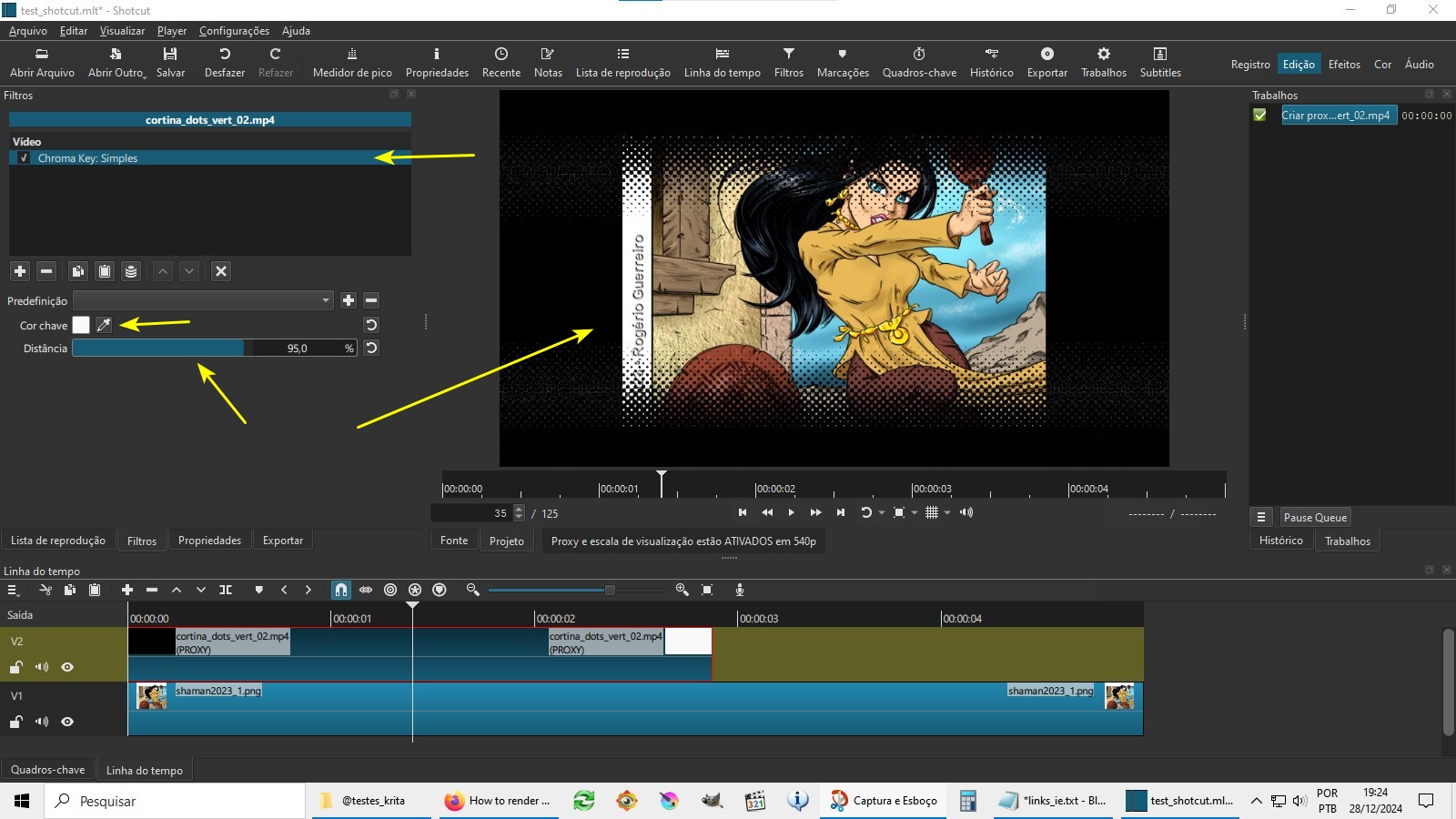
Then I opened the mp4 in Shotcut and applied the “Simple Chroma Key” filter. By default it’s set to green, but you can choose the color to be eliminated using the eyedropper. In this case I chose white and increased the filter’s range percentage to 95%:
I saved the final result as a gif, because an mp4 would be too heavy… but the effect is similar: