I’d like to give a gradient effect on the letter. So, I flattened the letter, but have no idea how to select.
As far as I remember, it worked if I hold ctrl and click the layer in Photoshop. Thus, I set the shortcut setting as Phtoshop. But it doesn’t work in that way.
Use one of the selection tools in the toolbox. They look like a shape made from a dotted line.
Once the area is selected and you do the operation you want (such as adding a gradient) you must deselect the area. Select > Deselect.
It’s strongly recommended that you learn how to use the Krita manual. Some things might work similarly to Photoshop but not many. Krita does not intend to be a Photoshop replacement or clone.
1 Like
@Nothingness
You have moderator mail that requires a response.
Hi, thanks for the response. But the quesiton is “How to select the area?”
It doesn’t work for me. Here is the clip:
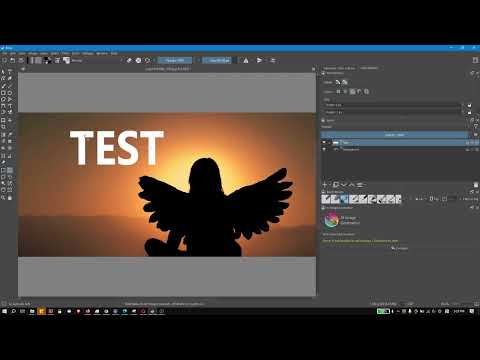
@Nothingness After the right click on your layer, in the menu select “Select Opaque (Replace)”.
2 Likes
For this specific example where the TEST text is all solid white, or any solid color that’s different from the background, you could use the Contiguous Selection Tool. It’s the one that looks like a magic wand in the toolbar – second up from the magnifying glass.
Click on the Contiguous Selection Tool;
Click somewhere in the first T;
Hold down the Shift key;
Click somewhere in the E to add it to the selection;
Repeat for the S and last T to complete the selection of TEST;
Click on the Draw a Gradient Tool;
Click and drag from the left-top of the first T to the bottom of the last T to apply a gradient to the entire word TEST;
As an added note, if you’re ever not sure of what was selected then there’s an icon at the bottom left of the screen – looks like a box with a circle in it. If you click on that then the area that is not selected (where you cannot paint) will show up in pink. I picked that up from one of the Blade & Quill demos. Suggest that you check out some of her stuff. https://www.youtube.com/watch?v=uSHGKfj_Qlw
You don’t even need to select it - you can just click on the alpha lock icon (the chessboard/checkers) to “lock the transparency” and you’ll be able to draw everything you want on a layer without painting outside of the letters (since everything except for them is transparent and will stay transparent while you draw). It’s much more convenient for me.
3 Likes
There is also ctrl+click on the layer thumbnail to select everything on the layer (which will give you exactly the result you asked for).
If it wasn’t on a separate layer, either clicking with the “magic wand” (Continuous Color Selection Tool) on every letter, or the Similar Color Selection Tool on any of the letters, would select everything correctly as well.
1 Like
Man, I didn’t realize it was so simple. Thanks!
1 Like
This topic was automatically closed 4 days after the last reply. New replies are no longer allowed.