If I use the ellipse tool to create two circles that overlap, how do I select and move either circle?
I’ve tried selecting one circle with the contiguous selection tool, and then selecting the move tool, and then dragging elsewhere, but that only seems to move the inside of the selected circle, leaving the outline of the circle in place.
Seems like such a simple and common thing to do, but I have no idea how to do it in Krita!
That sounds like the contiguous selection tool parameters are not properly set to select all of the filled circle. The edges of a painted circle are often a slightly different colour due to antialiasing.
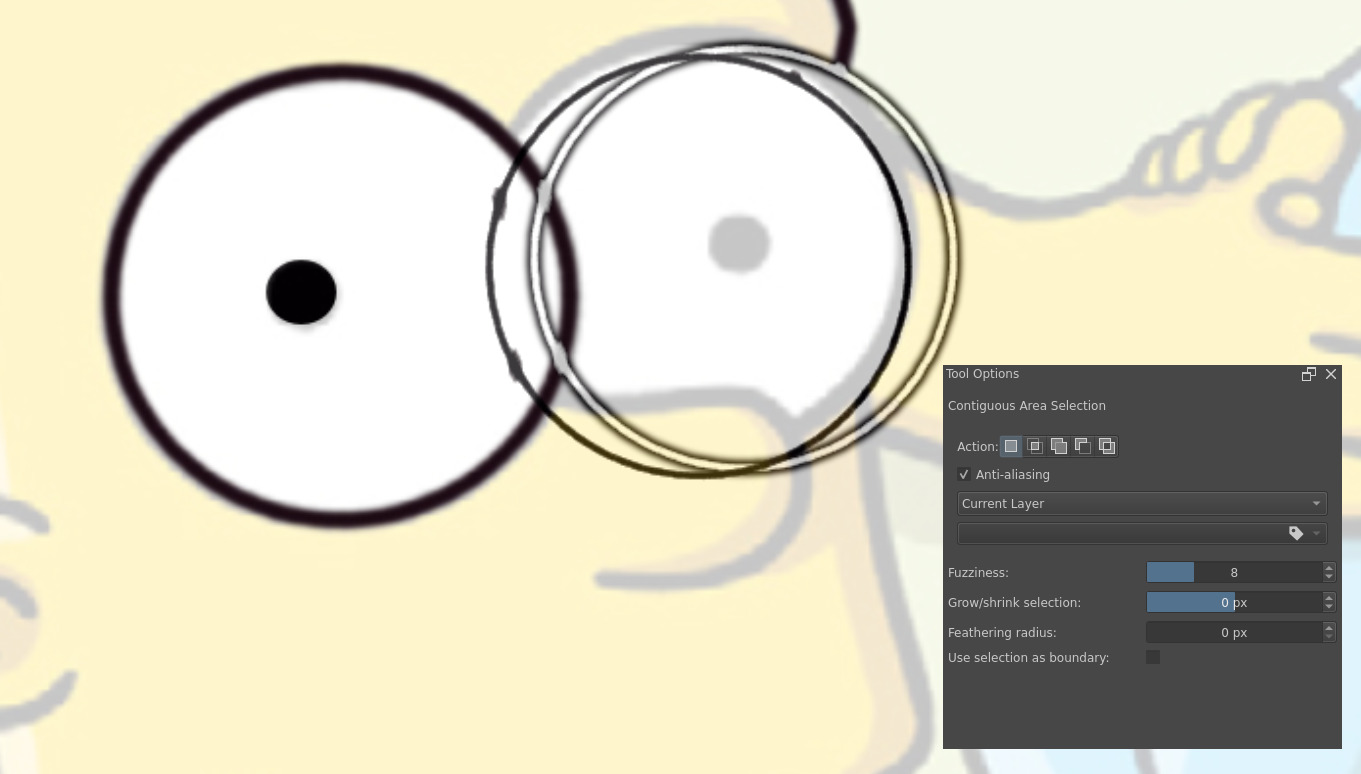
Please post a full screen screenshot showing the Tool options docker for the contiguous selection tool while this is happening.
If you painted the circles on separate layers, you wouldn’t have this problem.
Also, if you use vector layers and vector objects, you could select them and move them independently .
Here is the requested image. The white circle is the outline and the black circle is what was dragged after using the contiguous selection tool.
I didn’t think a second circle deserved it’s own layer, because I have about 5 pairs of eyes to create, and would need to create 10 layers just for the eyes. Seems overly complicated.
With so much anti-aliasing at the edges and the overlap with the other pasts of the image, it’s going to be difficult to get the selection you want.
You don’t need a separate layer for each eye. I’d suggest a layer for left eyes and a layer for right eyes. Each left and right eye of a pair will be close to each other and so should be kept separate to make it easier to select and move them individually.
@Wannabe_Artist What you’re trying to do is very difficult in a raster painting program. Those rings are not discrete objects that you can select and move around without doing a lot of fiddling and clean up.
If you learn how to use vector layers in Krita, you would be able to easily move the eye elements around.
And once they are in the shape and position you want them to be, you can easily convert them into paint layers if you want to, so they behave like the rest of your picture, have the same “feeling”.