Type of device: Convertible 2 in 1 Laptop
Brand and version of the device: HP Envy x360 2-in-1 Laptop 16-ad0xxx
System: Windows 11 Home 23H2
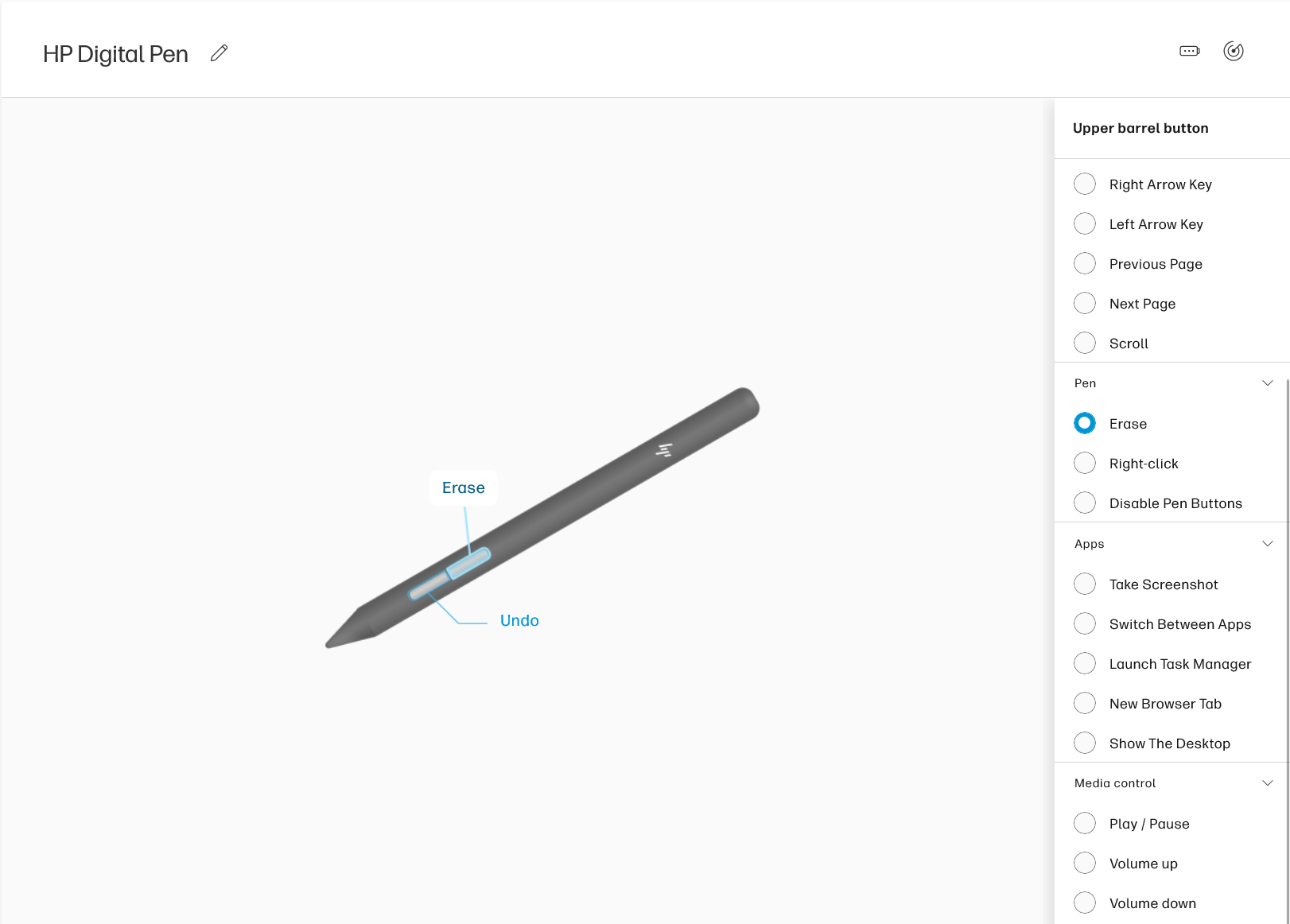
Description of the issue (you can include screenshots): I got a 2 in 1 x360 HP Envy laptop recently and a hp mpp 2.0 tilt pen. Since HP Pen control isnt compatible with the device, I used myHP to set the functions of the 2 buttons the pen as, as you can see here
The undo button works just fine. However, when I used the erase button in krita, it wouldn’t work. What was even more confusing is that in Paint, the button actually did work and, when held, actually erased mistakes I did when testing. I just need some help when it comes to knowing how to solve this issue. Thanks
That’s good that the undo button is working. Your pen probably sends a ctrl+z signal to the operating system which is Krita’s undo default shortcut. As Krita does not communicate directly with the pen, you need to set the buttons to whatever key or mouse combo Krita understands.
Try setting the button to E and see what happens. Hopefully your tablet allows you to set a profile for Krita so this doesn’t mess with your other apps.
This would actually work on HP Pen control and I have tried on myHP. Only problem is that myHP doesnt allow me to set the pen’s buttons to other buttons:
In case your device has the multimedia buttons listed at the end and you don’t use them, so Play/Pause, Volume up, Volume down, and if Krita has access to / can see these buttons under ‘‘Settings’’ >> ‘‘Configure Krita’’ >> ‘‘Keyboard Shortcuts’’ when you try to set up a custom shortcut for your eraser, you can try to set your pen to one of them and assign the eraser in Krita to the button you selected in your pen’s driver application.
And in case you need these buttons but not one of the other listed options, you can try to set your stylus to use that button if Krita can see and assign it.
There is a possibility that the HP pen identifies itself as having an Eraser tip when that button is pressed.
You can test that in the krita tablet tester:
Settings → Configure Krita → Tablet settings → Open Tablet Tester
You can grab-drag the window to make it conveniently large.
Draw on the left side grid area and the right side will show the tablet/stylus events log.
Is there a difference, in the events log, for drawing with the pen normally and when drawing with the button held down?
Can you copy a few lines from the events log and paste them in a reply here for each situation?
If it does identify itself as an eraser tip then further explanation will be needed about how to use that.
Another, different and separate, possibility for convenient erasing is to use the Ten Brushes script. This is configured with Tool → Scripts → Ten Brushes.
You can map any brush preset, such as an eraser, to one of the ‘slots’ that will then be selected with a Ctrl+Alt+‘n’ keyboard shortcut.
Those keyboard shortcuts can be changed in Settings → Configure Krita → Keyboard Shortcuts.
When you’ve finished erasing with the Ten Brushes selected eraser, you can then press the ‘/’ key to go back to using the previous painting brush preset, whatever that brush preset was.
Seems like using an unused button is indeed the best option in this case. Whilst I’d prefer the erase button to actually work (looking at you HP on that one), this works for now
Last question just to see if there is an alternative anyone knows about how to work or if this is inevitable, does anyone know how to work Tablet Pro STUDIO, or nah?
Sorry, this is not the answer you expected, but it is my honest opinion:
I had never heard of this app before. I also didn’t like the fact that their information page tells endless stories without going into any detail about the type of app and how to use it. So, after reading nothing but great stories up to the middle of the page, without actually learning anything tangible and reliable about the app, I closed the website. Instead of briefly and concisely introducing the product and then explaining its (great) possibilities and uses, I got the impression that they were trying to sell me a fairy tale …
Sorry, I’m not going to try to find out if this app is for you.
If you are really seriously interested in digital graphics and want to paint, draw or animate seriously, then the best solution is a graphics tablet anyway, whether with or without a display is a question of taste and budget. But for serious work this is indispensable in my opinion, everything else is a makeshift solution, which, if at all, may be an advantage for travelers.