Hi, I just installed Krita and the pop up palette is HUGE, it literally covers the whole screen and actually won’t even fit into it in full. I have a Dell PC and Windows 10.
Have you come across this issue before? what can I do?
Hello and welcome to the forum 
Can you upload a screenshot of the entire window when the popup palette isn’t showing?
Also, can you do Help -> Show system information for bug reports and paste the entire content to a reply here?
Someone who’s familiar with this type of problem may be able to notice a possible cause and solution.
It might be enough to disable HiDPI support in krita’s settings. Qt gets confused with some display resolutions.
Thanks for helping out, here is the report:
Krita
Version: 4.4.1
Languages: en_US, en
Hidpi: true
Qt
Version (compiled): 5.12.9
Version (loaded): 5.12.9
OS Information
Build ABI: x86_64-little_endian-llp64
Build CPU: x86_64
CPU: x86_64
Kernel Type: winnt
Kernel Version: 10.0.18362
Pretty Productname: Windows 10 (10.0)
Product Type: windows
Product Version: 10
OpenGL Info
Vendor: “Google Inc.”
Renderer: “ANGLE (Intel(R) UHD Graphics 620 Direct3D11 vs_5_0 ps_5_0)”
Version: “OpenGL ES 3.0 (ANGLE 2.1.0.57ea533f79a7)”
Shading language: “OpenGL ES GLSL ES 3.00 (ANGLE 2.1.0.57ea533f79a7)”
Requested format: QSurfaceFormat(version 3.0, options QFlagsQSurfaceFormat::FormatOption(DeprecatedFunctions), depthBufferSize 24, redBufferSize 8, greenBufferSize 8, blueBufferSize 8, alphaBufferSize 8, stencilBufferSize 8, samples -1, swapBehavior QSurfaceFormat::DoubleBuffer, swapInterval 0, colorSpace QSurfaceFormat::DefaultColorSpace, profile QSurfaceFormat::CompatibilityProfile)
Current format: QSurfaceFormat(version 3.0, options QFlagsQSurfaceFormat::FormatOption(), depthBufferSize 24, redBufferSize 8, greenBufferSize 8, blueBufferSize 8, alphaBufferSize 8, stencilBufferSize 8, samples 0, swapBehavior QSurfaceFormat::DefaultSwapBehavior, swapInterval 0, colorSpace QSurfaceFormat::DefaultColorSpace, profile QSurfaceFormat::NoProfile)
Version: 3.0
Supports deprecated functions false
is OpenGL ES: true
QPA OpenGL Detection Info
supportsDesktopGL: true
supportsAngleD3D11: true
isQtPreferAngle: true
Hardware Information
GPU Acceleration: auto
Memory: 16217 Mb
Number of Cores: 8
Swap Location: C:/Users/krism/AppData/Local/Temp
Current Settings
Current Swap Location: C:/Users/krism/AppData/Local/Temp
Current Swap Location writable: true
Undo Enabled: true
Undo Stack Limit: 30
Use OpenGL: true
Use OpenGL Texture Buffer: true
Use AMD Vectorization Workaround: false
Canvas State: OPENGL_SUCCESS
Autosave Interval: 900
Use Backup Files: true
Number of Backups Kept: 1
Backup File Suffix: ~
Backup Location: Same Folder as the File
Backup Location writable: false
Use Win8 Pointer Input: false
Use RightMiddleTabletButton Workaround: true
Levels of Detail Enabled: false
Use Zip64: false
Display Information
Number of screens: 1
Screen: 0
Name: \.\DISPLAY1
Depth: 32
Scale: 2
Resolution in pixels: 960x540
Manufacturer:
Model:
Refresh Rate: 60
Current Settings
Current Swap Location: C:/Users/krism/AppData/Local/Temp
Current Swap Location writable: true
Undo Enabled: true
Undo Stack Limit: 30
Use OpenGL: true
Use OpenGL Texture Buffer: true
Use AMD Vectorization Workaround: false
Canvas State: OPENGL_SUCCESS
Autosave Interval: 900
Use Backup Files: true
Number of Backups Kept: 1
Backup File Suffix: ~
Backup Location: Same Folder as the File
Backup Location writable: false
Use Win8 Pointer Input: false
Use RightMiddleTabletButton Workaround: true
Levels of Detail Enabled: false
Use Zip64: false
and screenshot:
Now that I think of it, I guess some other elements are quite large also…
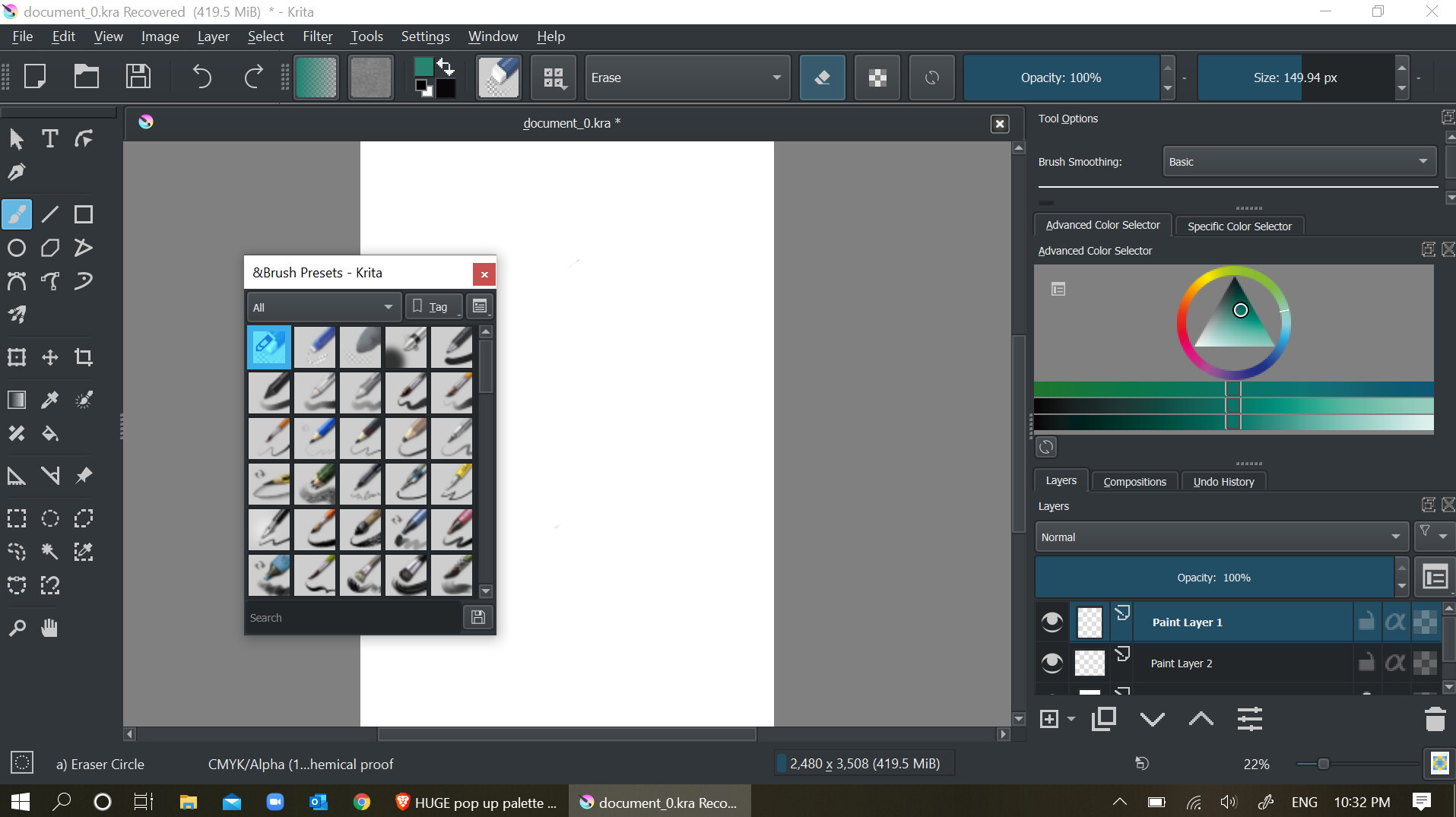
Thanks Boud, I tried this but nothing changed.
Try right clicking in the toolbox on the left. There you can set the size for those icons at least.
Here is also an image of the screen with the pop up palette to show the size.

I just tested changing the overall windows display settings, changing the size of text apps and other items, it’s usually on 150, when i changed it to 125, the pop up palette appeared smaller but everything else got way to tiny to be able to use. it’s somehow out of proportion to the other elements.
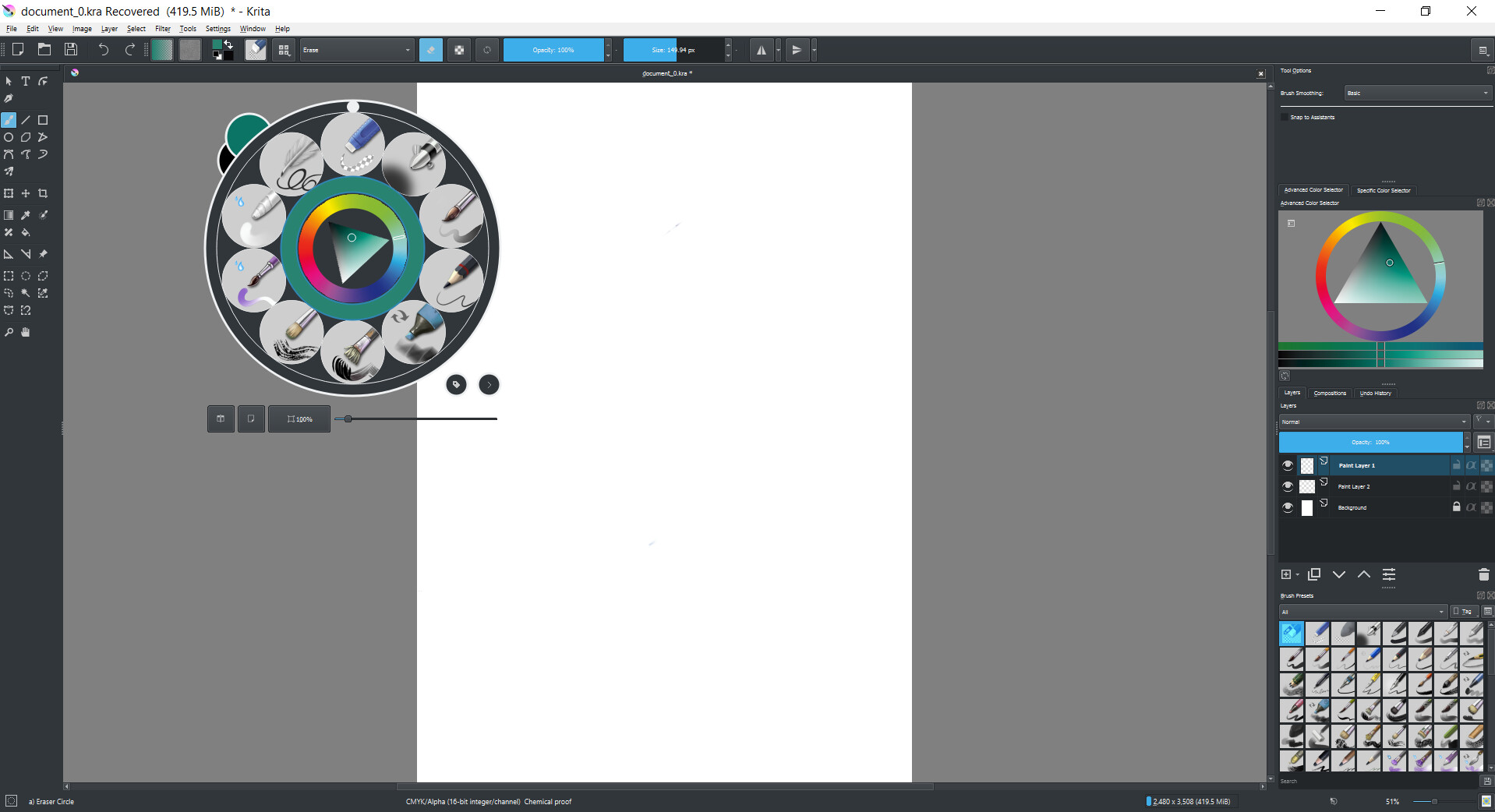
Thanks for your help!
The full screen screenshots are 1915 x 1075 or similar size but your system info says that your screen resolution is 960 x 540 with Scale: 2.
Could that have something to do with it?
I don’t know what I did, but it went to normal 
I have a new problem though…Krita won’t recognize my stylus.
I’ve tried multiple things from Youtube but nothing has worked so far, for example based on this video: https://www.youtube.com/watch?v=qEWVRLcepUo I should be able to add a button for sensitivity but this option does not even exist on my Krita.
I have a Dell Inspiron with touch screen, using a Dell stylus PN338M
the sensitivity works fine on other programs like Sketscbook Pro for example. So I am not sure what else I can do about it…
Sorry to be such a problem child and again, thanks for your help
Update, I did find that button - the wording had changed to “Use pen pressure”, but it did not do the trick.
Also when testing my stylus in the tablet settings “test tablet” area, it only shows a red line, but I learned that red line means it pick up mouse functions, and blue line means it pick up the full stylus functions, So it seems like Krita does not see my stylus fully…
My stylus does not have a stylus control panel or aynthing like that so I have no idea how to update drivers or operating systems, But I don’t think this should be the issue cause the stylus works fine in other programs.
help much appreciated…thanks!
The ‘Use pen pressure’ icon is just a toggle switch to enable or disable response to stylus pressure input, for if you want to spend some time using 100% pressure for whatever reason.
By default, it’s enabled so it won’t make any difference if your stylus isn’t providing pressure signals to krita.
In Settings -> Configure Krita -> Tablet settings, try switching from Wintab to Windows-Ink, or vice versa.
If you switch to Wintab, also disable Windows-Ink at the Windows OS level.
In the tablet tester, pressure signals are indicated by a P=xy.z% entry in the signal record in the right side sub-window, next to the drawing grid.
Well your monitor is tiny. Krita ui is naturally big by itself. Most of your problem steams from that alone.
But if you have any type of windows scaling you should turn it off to test this.
I have a laptop also and the ui scale is pretty close to your screenshots.
I’ve tried both Wintab and Windows Ink, nothing changes.
The tablet tester does not pick up the pressure at all, it only gives specs like this:
Mouse move X=113 Y=113 B=1
Mouse move X=117 Y=112 B=1
Thanks
thanks, I’m ok with the size now it somehow fixed itself.
1 Like
This topic was automatically closed 15 days after the last reply. New replies are no longer allowed.