I recently got a Huion H420 tablet and it is not working well with Krita. I’m inserting a picture. I tried to get my video to upload but it won’t. The video shows me drawing a simple circle and the picture shows what Krita picked up. This has happened many times, I can’t get it to simply draw a straight line with the drawing tablet, but when I use my trackpad it works and draws what I want it to. Anything I should try? Thanks!

Hello and welcome to the forum 
In your other topic ( I can only use one brush, no others show up with my drawing tablet ) you seem to have it working but only with one brush preset.
Does this mean that the problem in this topic is now fixed?
If so, what did you do?
Which version of krita are you using and which operating system?
(Please state this in every help topic to assist anyone who tried to help you.)
Does the H420 work properly with other painting applications?
I’m not familiar with the H420. Does it have the ability to create application profiles for different applications?
If it does then you should create one for krita.
Have you installed the driver in accordance with the instructions in the manual and did you uninstall any previous graphics tablet drivers?
Have you carried out any configuration and setup activities in the tablet utility software?
Yes this issue seems to be resolved, but I’m not sure how I fixed it.
I’m using the newest version of krita and I’m on a Mac.
Yes it works in other painting applications.
I have no clue if it can create application profiles for different applications. I’m very new to this so I have no clue how to find that out either.
Drivers have been installed and there should be no other graphics tablet drivers installed, I’ve never used another one.
I believe I have configured and set up my device. There wasn’t anything the instructions said to do besides install drivers.
The issue was resolved, now it is acting up again. My husband checked to be sure that drivers were installed correctly and they were. It doesn’t do this with any other paint software, just krita.
I was asked for this at another time, so here is a screenshot (I drew a circle) and the tablet tester log.

Device(0) press X=212.14 Y=105.69 B=1 P=1.6%
Device(0) move X=212.14 Y=105.69 B=1 P=3.1% (DRAW)
Device(0) release X=444.14 Y=275.61 B=0 P=3.5%
Device(0) press X=212.14 Y=105.69 B=1 P=5.1%
Device(0) release X=444.14 Y=275.61 B=0 P=5.2%
Device(0) press X=212.14 Y=105.69 B=1 P=6.7%
Device(0) release X=444.14 Y=275.61 B=0 P=7.0%
Device(0) press X=211.80 Y=105.69 B=1 P=8.6%
Device(0) release X=444.14 Y=275.61 B=0 P=9.0%
Device(0) press X=211.80 Y=105.69 B=1 P=11.0%
Did you do anything to the settings in krita?
Did it come back after you used a different graphics/painting application?
Did it come back after you did a power down restart?
Did you use the Huion setup/config utility in any way, even just looking at it?
Do you have any other devices such as a gaming mouse connected to your Mac?
For that peculiar behaviour with lots of lines fanning out:
Try Settings → Configure Krita → Display, then untick Canvas Graphics Acceleration and press OK. Does it still do that line fanning.
Do Help → ‘Show system information for bug reports’ then copy-paste the entire contents of the resulting window to a reply here.
Ideally, a Mac user with a Huion tablet would come along to give advice about this. (I’m a Linux user with a Wacom tablet.)
Can you run the Huion setup utility and take a screenshot then upload it in a reply here.
Ideally take a screenshot of every tab/page of the utility.
Edit:Add: Is it possible that the stylus battery is dying and it started to work a little after you turned it off and gave it a few hours to rest.
Have you tried a fresh battery?
no I didn’t change the settings, it has been intermittent, not necessarily getting better or worse after going to a different application, the problem remained after powering down and restarting, I don’t have anything else connected to it except a cooling pad that doesn’t have any drivers or anything.
Changing that setting doesn’t seem to help with the line fanning, it just makes nothing work.
It has been doing this since I got it the other day and it had a fresh battery then.
Here is the bug reports
Krita
Version: 5.0.2
Languages:
Hidpi: true
Qt
Version (compiled): 5.12.12
Version (loaded): 5.12.12
OS Information
Build ABI: x86_64-little_endian-lp64
Build CPU: x86_64
CPU: x86_64
Kernel Type: darwin
Kernel Version: 19.6.0
Pretty Productname: macOS 10.15
Product Type: osx
Product Version: 10.15
OpenGL Info
Vendor: “Intel Inc.”
Renderer: “Intel(R) HD Graphics 6000”
Version: “4.1 INTEL-14.7.20”
Shading language: “4.10”
Requested format: QSurfaceFormat(version 3.2, options QFlagsQSurfaceFormat::FormatOption(), depthBufferSize 24, redBufferSize 8, greenBufferSize 8, blueBufferSize 8, alphaBufferSize 8, stencilBufferSize 8, samples -1, swapBehavior QSurfaceFormat::DoubleBuffer, swapInterval 0, colorSpace QSurfaceFormat::DefaultColorSpace, profile QSurfaceFormat::CoreProfile)
Current format: QSurfaceFormat(version 4.1, options QFlagsQSurfaceFormat::FormatOption(), depthBufferSize 24, redBufferSize 8, greenBufferSize 8, blueBufferSize 8, alphaBufferSize 8, stencilBufferSize 8, samples 0, swapBehavior QSurfaceFormat::DoubleBuffer, swapInterval 0, colorSpace QSurfaceFormat::DefaultColorSpace, profile QSurfaceFormat::CoreProfile)
Version: 4.1
Supports deprecated functions false
is OpenGL ES: false
supportsBufferMapping: true
supportsBufferInvalidation: false
Extensions:
“GL_ARB_transform_feedback3”
“GL_EXT_texture_compression_s3tc”
“GL_EXT_texture_filter_anisotropic”
“GL_ARB_explicit_attrib_location”
“GL_EXT_debug_marker”
“GL_ARB_timer_query”
“GL_ARB_texture_gather”
“GL_ARB_texture_rgb10_a2ui”
“GL_ARB_ES2_compatibility”
“GL_APPLE_container_object_shareable”
“GL_ARB_vertex_attrib_64bit”
“GL_ARB_occlusion_query2”
“GL_ARB_texture_buffer_object_rgb32”
“GL_ARB_internalformat_query”
“GL_ARB_blend_func_extended”
“GL_ARB_viewport_array”
“GL_ATI_texture_mirror_once”
“GL_ARB_shader_subroutine”
“GL_APPLE_row_bytes”
“GL_ARB_gpu_shader5”
“GL_APPLE_texture_range”
“GL_ARB_draw_buffers_blend”
“GL_ARB_separate_shader_objects”
“GL_APPLE_object_purgeable”
“GL_APPLE_flush_render”
“GL_ARB_shading_language_include”
“GL_ARB_sample_shading”
“GL_ARB_gpu_shader_fp64”
“GL_ARB_texture_query_lod”
“GL_ARB_draw_indirect”
“GL_ARB_shader_bit_encoding”
“GL_ARB_transform_feedback2”
“GL_APPLE_client_storage”
“GL_ARB_sampler_objects”
“GL_ARB_texture_storage”
“GL_APPLE_rgb_422”
“GL_ARB_texture_cube_map_array”
“GL_EXT_texture_sRGB_decode”
“GL_ARB_tessellation_shader”
“GL_NV_texture_barrier”
“GL_EXT_debug_label”
“GL_EXT_framebuffer_multisample_blit_scaled”
“GL_ARB_instanced_arrays”
“GL_ARB_texture_swizzle”
“GL_ARB_vertex_type_2_10_10_10_rev”
QPA OpenGL Detection Info
supportsDesktopGL: true
supportsOpenGLES: false
isQtPreferOpenGLES: false
useBufferInvalidation (config option): false
Hardware Information
GPU Acceleration: desktop
Memory: 4096 Mb
Number of Cores: 4
Swap Location: /private/var/folders/1c/rr0vhqgj7618734hp0qzx56w0000gp/T
Current Settings
Current Swap Location: /private/var/folders/1c/rr0vhqgj7618734hp0qzx56w0000gp/T
Current Swap Location writable: true
Undo Enabled: true
Undo Stack Limit: 200
Use OpenGL: true
Use OpenGL Texture Buffer: true
Disable Vector Optimizations: false
Disable AVX Optimizations: false
Canvas State: OPENGL_SUCCESS
Autosave Interval: 420
Use Backup Files: true
Number of Backups Kept: 1
Backup File Suffix: ~
Backup Location: Same Folder as the File
Backup Location writable: false
Use Win8 Pointer Input: false
Use RightMiddleTabletButton Workaround: false
Levels of Detail Enabled: false
Use Zip64: false
Display Information
Number of screens: 1
Screen: 0
Name: Color LCD
Depth: 24
Scale: 1
Resolution in pixels: 1440x900
Manufacturer:
Model:
Refresh Rate: 60
Current Settings
Current Swap Location: /private/var/folders/1c/rr0vhqgj7618734hp0qzx56w0000gp/T
Current Swap Location writable: true
Undo Enabled: true
Undo Stack Limit: 200
Use OpenGL: false
Use OpenGL Texture Buffer: true
Disable Vector Optimizations: false
Disable AVX Optimizations: false
Canvas State: OPENGL_SUCCESS
Autosave Interval: 420
Use Backup Files: true
Number of Backups Kept: 1
Backup File Suffix: ~
Backup Location: Same Folder as the File
Backup Location writable: false
Use Win8 Pointer Input: false
Use RightMiddleTabletButton Workaround: false
Levels of Detail Enabled: false
Use Zip64: false
Current Settings
Current Swap Location: /private/var/folders/1c/rr0vhqgj7618734hp0qzx56w0000gp/T
Current Swap Location writable: true
Undo Enabled: true
Undo Stack Limit: 200
Use OpenGL: true
Use OpenGL Texture Buffer: true
Disable Vector Optimizations: false
Disable AVX Optimizations: false
Canvas State: TRY_OPENGL
Autosave Interval: 420
Use Backup Files: true
Number of Backups Kept: 1
Backup File Suffix: ~
Backup Location: Same Folder as the File
Backup Location writable: false
Use Win8 Pointer Input: false
Use RightMiddleTabletButton Workaround: false
Levels of Detail Enabled: false
Use Zip64: false
Current Settings
Current Swap Location: /private/var/folders/1c/rr0vhqgj7618734hp0qzx56w0000gp/T
Current Swap Location writable: true
Undo Enabled: true
Undo Stack Limit: 200
Use OpenGL: false
Use OpenGL Texture Buffer: true
Disable Vector Optimizations: false
Disable AVX Optimizations: false
Canvas State: TRY_OPENGL
Autosave Interval: 420
Use Backup Files: true
Number of Backups Kept: 1
Backup File Suffix: ~
Backup Location: Same Folder as the File
Backup Location writable: false
Use Win8 Pointer Input: false
Use RightMiddleTabletButton Workaround: false
Levels of Detail Enabled: false
Use Zip64: false
Current Settings
Current Swap Location: /private/var/folders/1c/rr0vhqgj7618734hp0qzx56w0000gp/T
Current Swap Location writable: true
Undo Enabled: true
Undo Stack Limit: 200
Use OpenGL: true
Use OpenGL Texture Buffer: true
Disable Vector Optimizations: false
Disable AVX Optimizations: false
Canvas State: TRY_OPENGL
Autosave Interval: 420
Use Backup Files: true
Number of Backups Kept: 1
Backup File Suffix: ~
Backup Location: Same Folder as the File
Backup Location writable: false
Use Win8 Pointer Input: false
Use RightMiddleTabletButton Workaround: false
Levels of Detail Enabled: false
Use Zip64: false
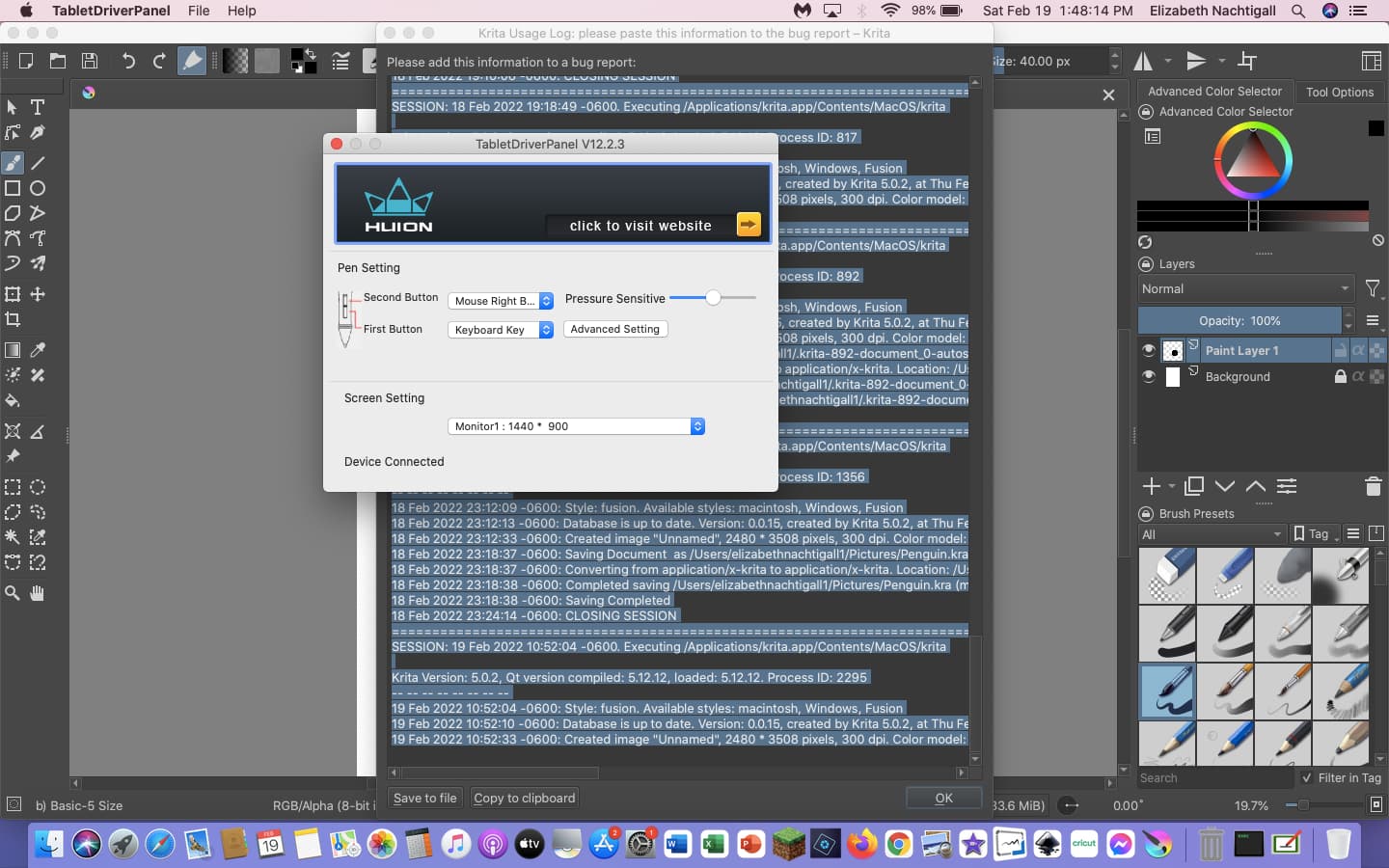
Re. turning off Canvas Graphics Acceleration …
You should still be able to draw with the touchpad when Canvas Graphics Acceleration is disabled and also draw with the stylus if using the Basic-1 brush preset.
That is actually the krita activity log that you would have got by doing
Help → Show Krita log for bug reports.
What’s needed is the technical information about your system by doing
Help → Show system information for bug reports.
It would be a good idea to edit that reply to remove the activity log and paste the system information in there instead.
I’m wondering if a Mac person can spot anything in there that might be cause for concern.
What I was wanting was an idea of the range of setup and configuration options that are available with the Huion H420 and that is what is shown.
It doesn’t have much compared to other Huion tablets or any other tablets.
In fact its very mimimalist. The settings you have look ok so I’ve no idea why it’s not producing proper pressure signals.
Have you checked that you have the latest driver from the Huion website?
If you have, you could try downgrading to the previous driver in case the latest driver had a bug introduced into it, which is not an unknown event.
The H420 is a very simple tablet that is marketed as a ‘signature pad’ and an ‘OSU’ game playing pad.
On this forum, the only other person who had a Huion H420 on a Mac was this one here:
This seems like a similar problem to yours.
I asked her some relevant questions but she never came back.
I think you need someone who has the H420 working on a Mac to give advice.
Have you tried looking on YouTube for ‘Huion H420 Mac’ ?
Upon further playing with it yes I can draw with the basic 1 brush, but it still has fanning lines. I have edited the above to include the correct bug reports. I have the latest driver and I tried downloading the previous driver and it does not help.
Hello,
Looking at some known issues with Huion and Mac, I found this Youtube video. You might want to give a try at least.
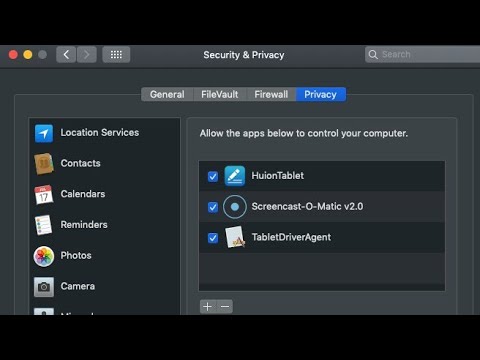
The gist of it consist in: Installing the driver. Going to Security and Privacy, and on the Privacy section enabling the HuionTablet and TabletDriverAgent
I have done all of this that applies. I have a different tablet than they are talking about though so some doesn’t apply.
Did you do that?
Yes I have gone to security and privacy and enabled the driver agent. the huron tablet doesn’t show up on my computer, but from what I have seen with my tablet that doesn’t tend to show up.
Unless @Daishishi (or anyone else) has any further ideas, I think you’re stuck with waiting for someone who has the H420 working with krita on a Mac to advise you.
It is unusual compared to other Huion tablets (and most other brands I know of) in terms of its marketing and its very minimalist configuration utility.
Hello,
Never having used a Mac, and not having access to one really limits my understanding of the problems you could be having. So I ask you to bear with me and my (tedious) attempts to help.
This first attempt is somewhat of a continuation of my previous one.
By searching Huion’s Help Page I came across this pdf.
In it, there is two instances of enabling the TabletDriver agent in that Security and Privacy window.
- In the Input Monitoring section
- In the Accessibility section
Maybe you could check and see if there is multiples instances of TabletDriver in your system too. The Huion page with this pdf is as follow: Huion 420 on macOS Big Sur
2nd Attempt: Did you had any other tablet used in your system previously (even a Huion one)? If yes, did you installed a driver for it?
In this case you could try uninstalling the current driver, and reinstalling the newest one.
3rd Attempt: This one is a stretch. Your tablet’s pen use an AA battery right? If it the case, did you tried putting a new one?
4th Attempt: Trying going direct to the Huion page and asking them for help.
Here the link: Huion Support
You will have to login in their site and choose Submit a ticket.
Here some tips if you do so:
- Write your Tablet model (and pen model if you know it too)
- Put your Mac version
- The driver version you managed to install
- Already clarified that you changed the pen’s battery and, allowed the DriverAgent in the Security and privacy (So they don’t suggest the ‘obvious’ help)
- And this might be the most important piece for them. Tell that is only on Krita that the problem appears.
My suspicion is that their driver is playing ‘hard’ with Qt tablet code.
Qt is the Toolkit responsible for Krita’s GUI. Basically, in lame’s man term, it is the tools responsible for the windows and dockers visual representation. Also it has some tools (code) critical for Krita, per example the Tablet code isn’t from Krita itself, but it comes with the Qt framework.
This is one of the reasons it is hard for even Krita’s dev to help with tablet problems.
Hope I didn’t wear you off with my blabbering, and hope your issue get solved soon.
Cheers.
Hi, your Link has a little error in it and is not working, would it be possible to correct this link?
Michelist
1 Like
Thanks for the heads up.
Cheers
1 Like
I checked that pdf and have done exactly what it said to do.
I don’t have and have never had another tablet.
Yes my pen uses a AAA battery. It has been acting like this since I first got it and it had a new battery then.
I will try contacting huion and let you know if that helps.
Thank you all for your help. I appreciate all the ideas everyone has thrown around.
This topic was automatically closed 15 days after the last reply. New replies are no longer allowed.