Type of device* : Huion Graphics Tablet
Brand and version of the device: Huion Inspiroy H640P
System** : Product Type: windows
Product Version: 10
Description of the issue (you can include screenshots):
The only problem that I am having is the pen pressure when I am in application like Krita. The pen pressure works in Krita however it is irregular not smooth.
When I entre the Huion software I can glide the pen (without any pressure) over the table and it picks it up drawing a very thin/light line on the testing square in the pen sensitivity settings. However in Krita It does not pick up the pen form just gliding across the tablet, I have to increase my pressure applied considerably on the Huion tablet for the Krita to pick up what I am drawing on the tablet and transfer it to the canvas. I am not sure if it’s meant to be like this or if there is a calibration issue on Krita’s side that is not working well with the Huion software or Vis-versa . It does not feel smooth, it feels lack luster but the Huion software it just works.
As in the Above images (Huion tablet pressure) you will see the blue thin line is just gliding over the tablet surface and as I apply pressure the line gets thicker.
Where as in image 2 ( Huion tablet pressure with krita) The white line only starts to show up as I apply pressure to the tablet. It does not show up if I just glide the pen on the tablet.
Please advise on this. As I don’t have any references to compare to and I have not used any other tables before.
Is this just something that I need to get use to or
Any help or being pointed in the right direction for help would be greatly appreciate.
This looks bad, the white lines don’t even go from thin to thick.
 Hello @FluffyOne and welcome to the forum!
This may be due to the pen you are using. Here it looks like you are using a brush-preset that only affects the opacity, like “b) Basic-3 Flow” or “b) Basic-4 Flow Opacity”.
Could you please try the brush b) Basic-5 Size, if this pen changes the width? Not every brush preset uses the pen pressure you should know, and not every brush preset uses the pressure in the same way.
Michelist
Hello @Michelist
Thank you for your time and help, However I am aware of this setting and I did not put this setting on in the example. I just wanted to show the opacity.
The pen pressure works, however it does not feel natural there is a bit of response lag/delay to me applying the pressure before Krita picks it up.
eg. if I press lightly “say 1N of force” (just glide the pen across the tablet with minimal pressure.) Krita does not pick this up, But as soon as I apply “say 3N of forces” Krita pick it up. I am wondering if that discrepancy of 1N - 3N can be minimized or do I have to get use to the difference?
I don’t know the Huion tablets at all but that pressure transfer curve is just wrong.
Before you do anything, if the Huion tablet setup utility has the ability to create separate profiles for different applications then you should create a profile for krita and always use that when making any changes or adjustments in there.
Also, always close the tablet utility (after pressing OK or whatever) to finalise any changes you’ve made.
That behaviour can be predicted from the transfer curve.
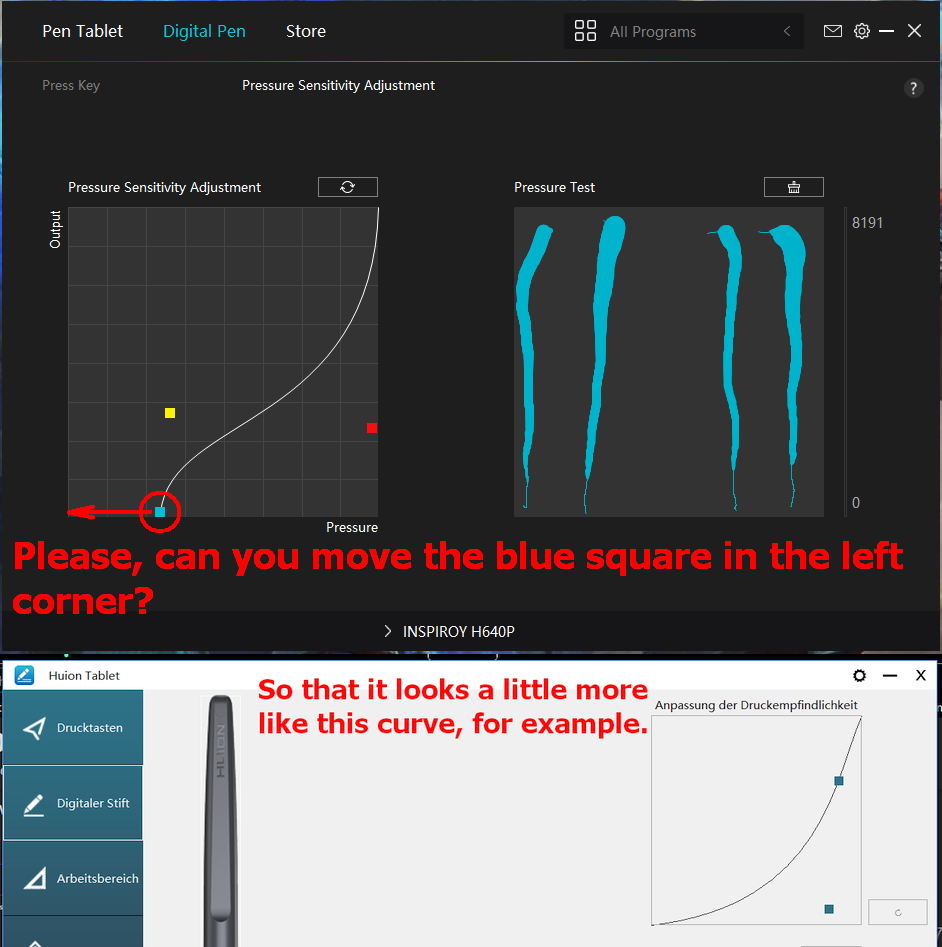
The blue square control handle should be dragged to the left, to the 0,0 point.
The yellow and red handles should be adjusted to give a straight line up to the top right corner.
Then, in krita, use Basic-2 Opacity and Basic-5 Size, with dark saturated colours such as red or blue to test the ‘feel’ and behaviour of the brush with pressure as you draw.
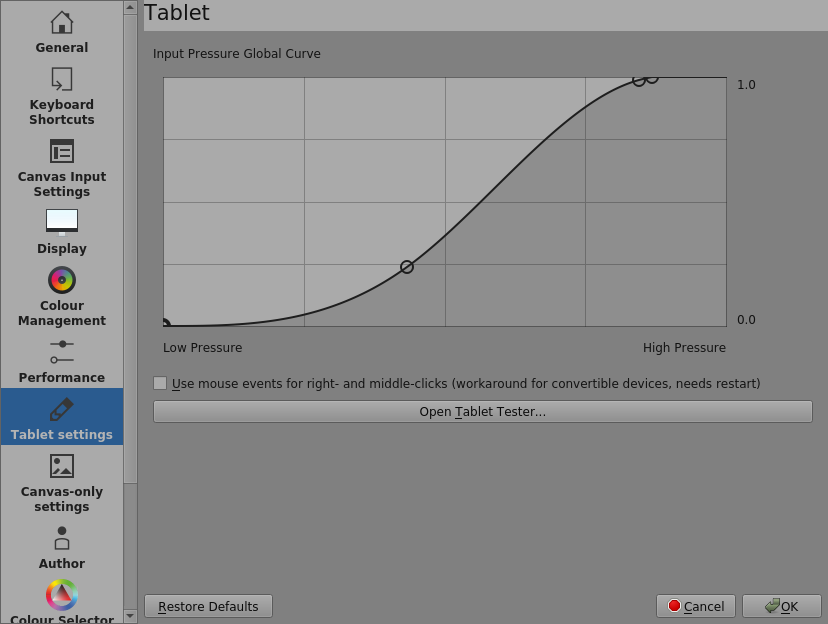
You can then go to Settings → Configure Krita → Tablet settings and make adjustments to the Input Pressure Global Curve to make it more suited to your personal preferences.
Here’s mine as an example:
My fingers don’t like applying high pressure so I brought the maximum output down to about 80% of maximum applied pressure.
I’m not at all good with fine control of low pressure so I flattened that region out to give me more pressure range over the low output area.
If you have doubts about the actual level of the pressure signal coming from the stylus/tablet, you can use the Open Tablet Tester button in that same adjustment area to get a grid you can draw on with a live output record of the pressure being sent from the tablet
As always, @AhabGreybeard was once again faster  to suggest another curve. I still attach my suggestion, so I set my huion. But he has said everything.
Okay, could you please try to set a curve in your tablet settings similar to the one I showed in the screenshot and try it with that?
If you don’t get better with it or it gets better but you are still unsatisfied you can go to “Settings” >> “Configure Krita” >> “Tablet settings” in Krita and adjust the curve offered there.
The way it works there is a little different, if you hoover one of the circles at the ends of the line with the mouse a cross appears, if you click on it and hold it you can move it on the line, if you click next to it or on the line you create a new circle, so you can fine tune the curve, if you want to remove the circle press Del (or whatever the delete key is called for you) or hold the circle with the mouse and drag it out of the settings window.
Michelist
@Michelist I may be faster but you make useful annotated pictures
My purely personal opinion is that the tablet curve should be straight and all further adjustments should be made using krita’s global pressure curve.
However, if the tablet does not have the ability to create separate profiles for different applications, that may give problems with other painting applications which do not have the ability to adjust their own pressure respones curve.
As usual, “Do whatever works best for you”.
I have set my curve in that shape for various reasons. On the one hand because the Huion tablet is so extremely sensitive at the beginning of the curve and on the other hand because not every graphics software has the possibility to define its own curves, so I was forced to “limit” there in the driver, in addition, I had not found the place to create the profiles at the beginning with the tablet in my 14.x driver, because it was hidden by Huion very well behind the small gear icon, top right in my screenshot and used the tablet first without profiles (neither the gear icon nor the functions behind it are mentioned in the manual!). In Krita, I still had to fine tune the pen pressure.
And out of laziness I left it at that, even after I found where I create the profiles, since I only use Krita, other programs I have tested in the beginning of “my career as a painter”  and only call them to check something - in connection with forum questions.
But I noticed that the new 15.x driver from Huion has made access to the profiles now much easier and especially more obvious, you can see it well on the screenshot of @FluffyOne that now at the top of the program bar access to the programs and profiles is possible.
But what counts is that @FluffyOne can now use the tablet properly.
Michelist