Type of device: Graphic tablet
Brand and version of the device: Huion H610PRO(8192)
System: Windows 10 (I’m actually on Windows 11 but Krita’s “show system information for bug reports” says it’s 10 for some reason. Maybe I misunderstood and this is referring to only Krita, not Windows)
Description of the issue:
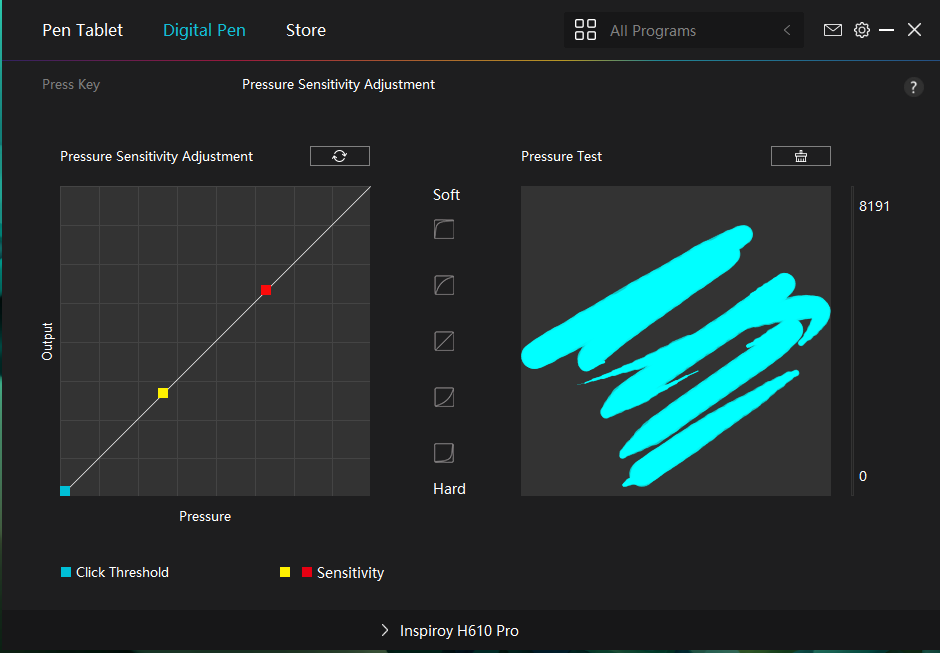
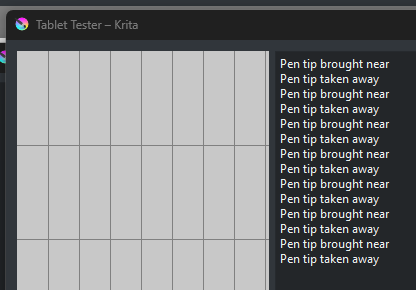
My tablet will detect when the pen is close, and will also allow the cursor to hover around, but won’t register any clicks. Or at least, it does seem to make some broken lines in the pen tester, but only for the first few attempts. Interestingly it doesn’t seem to be able to draw circles. Changing pressure sensitivity does nothing.
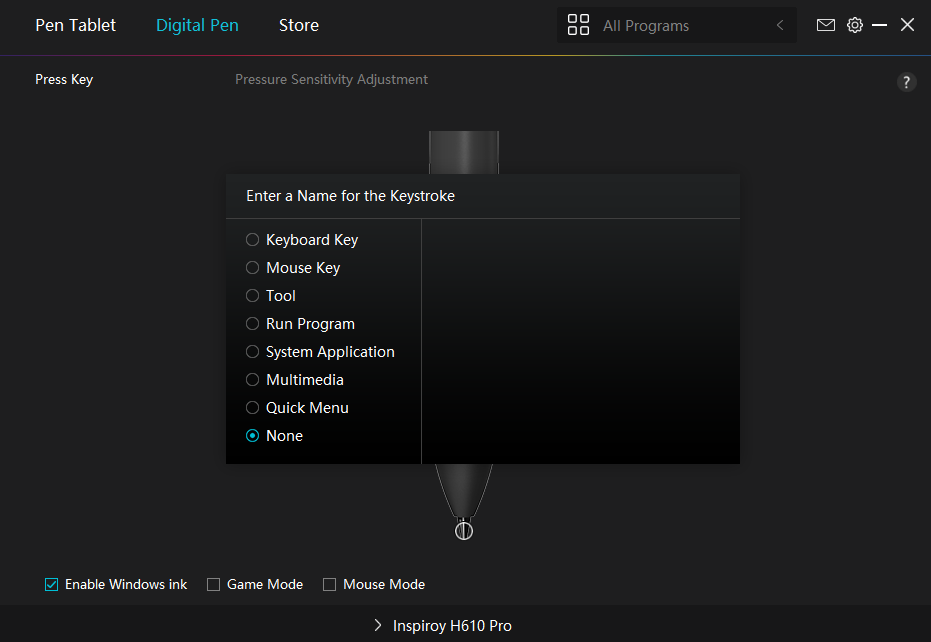
Also, if I don’t disable the mouse-click functions on the pen buttons to “none” (had to do this after reinstalling), the tablet will seemingly click nonstop even if my fingers are nowhere near the buttons. By default, the upper button is assigned as right-click, and when it’s enabled it keeps randomly right-clicking everywhere.
This is what’s happening in Krita even if I press the pen very hard. (I have no idea how the second scenario happened.) No marks at all. In one of my attempts, it did seem to make some broken lines on the canvas but isn’t making a single mark at all now. Marks also stopped appearing in the Huion pen pressure tester after a few tries as well.
I have installed a new driver for my tablet (apparently a new one came just a few days ago), tried reinstalling the driver/rebooting my pc multiple times, and still, no luck. I thought I just finished dealing with a different problem on Krita but now my pen decided to malfunction :,)
At first: What I’m missing in your screenshots is that you haven’t created a profile for Krita. Please do so via the drop-down menu in the drivers titlebar where it is written “All Programs”, just click on it and select Krita from the list of running applications or if Krita is not running browse to its EXE-file after you clicked on + Add a Program and select it. Because I guess you use the installer version of Krita, from Krita’s homepage you will find it here: c:\Program Files\Krita (x64)\bin\krita.exe
You can even copy that into the opening search-dialog of your driver after clicking on + Add a Program.
I’m not sure about this, if you got the same pen-model I have, it has very sensitive buttons, and I needed some time to hold the pen in a way to not constantly click something.
In the lower left of your second screenshot is the option “Windows Ink” enabled, please disable it, and in Krita go to tablet settings via ‘‘Settings’’ >> ‘‘Configure Krita’’ >> ‘‘Tablet Settings’’ and enable the setting ‘‘WinTab’’, confirm that with the OK-Button and restart Krita.
I hope that this will enable you to use the pen in Krita to paint and be registered as pen in the tablet-tester.
It may be needed to toggle the setting ‘‘Use mouse events for right and middle-clicks’’.
Please report back if you get stuck and describe briefly what you have done so far.
I’m out for a while, so if someone likes to step in, if needed.
Okay, I created a profile for Krita, disabled Windows Ink, and have WinTab and “Use mouse events…” enabled by default. The problem’s still persisting I think there’s something wrong with my devices, not Krita, as this inability to click anything with my pen is occurring when I try to do pretty much anything on my PC.
I don’t think I have much of a problem like this, I’ve been using this pen for quite a long time and this issue seems to be happening only recently.
Why always comes the really important information at the end of a story?* You report an issue with your tablet and Krita, only to tell later it behaves that way everywhere you use it…
If you can, get your tablet to a store where they sell them and ask to test it there on one of their PCs with a pen from the shop and yours. If that pen works with your tablet and your pen behaves like you described above, you need a replacement pen.
Michelist
*Child “Dad, I can’t come home tonight, the mirror on your car is broken.”, Father “The car is also driving with a broken mirror, come home right away”, Child “That’s not possible!”, Father “Why not, say it!”, Child “The car is on top of it!”
The Tablet Tester shows the signals that are coming in from the tablet so that is what your tablet is doing, sadly.
Did you uninstall the old/previous driver first and then do a full power down restart before installing the new driver, in full accordance with the manual instructions and then doing a full power down restart?
That is the best way to do it.
If anyone else is having this issue I thought I’d just mention the issue seems to have resolved on its own everything was working fine the very next day, and still is. It’s normal for my tablet to glitch every now and then and it usually goes away with a PC restart, reconnecting the pen/wires, etc. This particular instance worried me a bit because of how persistent it was. I guess some glitches just happen to take a while.


 I think there’s something wrong with my devices, not Krita, as this inability to click anything with my pen is occurring when I try to do pretty much anything on my PC.

 I should’ve been clearer, this really was the most important bit.