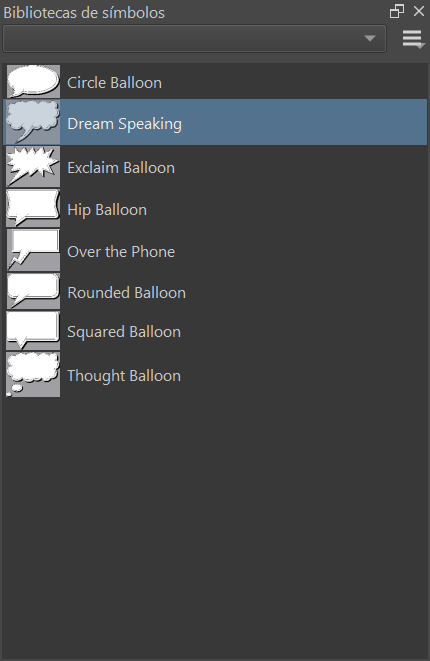
I am getting reaquianted with Krita, but I am a little unexperienced. I am working on a visual novel, and accessed to the symbol libraries via tutorials, yet I can’t access other than the default!
I thought “well, I will download one”, but when I opened the symbols folder, I found out I have more: pepper and carrot cake, and the rest. I can’t access them and I kind of need them, what do I do???
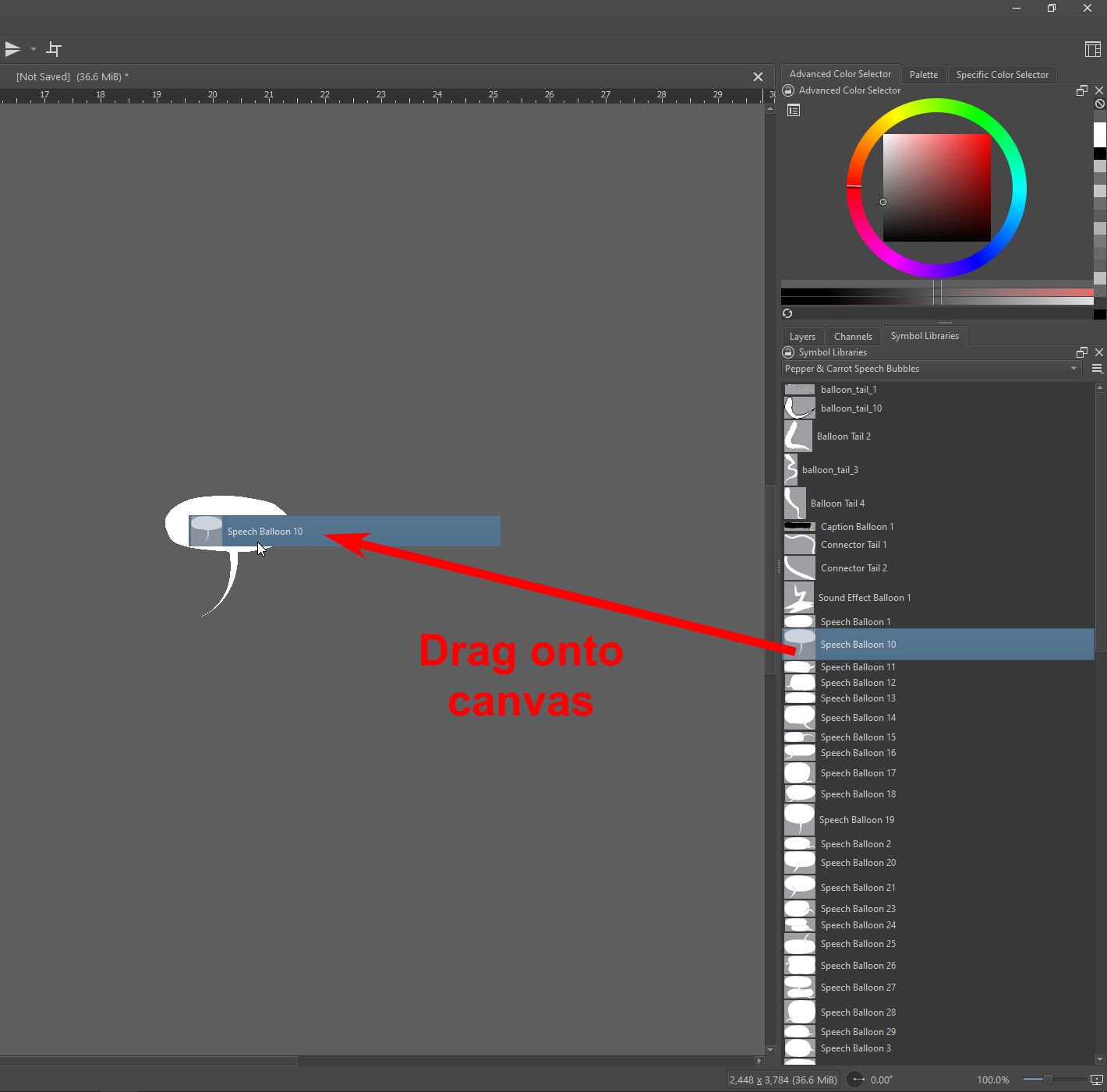
So, just to be clear on this, you do have the symbol libraries, but aren’t sure how to use them, right? If so, keep in mind that it isn’t a matter of selecting one and then clicking on the screen, but rather left click dragging the item from the library, over to the screen.
Nope, I meant that I couldn’t access the rest of my libraries. Just the default one.
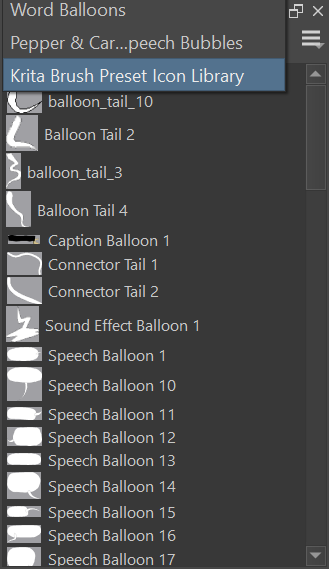
Thank you for trying to help, but the problem fixed on its own: I reopened Krita and could access to Pepper & Carrot cake bubble pack and Krita Brush.
Though, while you are here: I downloaded another pack (Kaichi speech bubbles), and it came in a Rar (I think that’s how it’s written; the symbol is three books tied to together by a belt) archive. I put the whole archive as it came, which had a folder inside. I can’t access to the pack, and I think it’s because of that (transfering the whole Rar archive instead of just the folder inside. Sounds possible).
You need an archiving program to unpack this RAR file, it is a kind of container, like ZIP files, unfortunately Windows itself can not unpack them, you’ll need another software for that. I would recommend 7ZIP or IZArc, both can handle RAR and many other archive-types, unlike Windows Explorer.
I have unpacked it before: it has a folder inside with a link to microsoft edge like the rest of the bubble packs. Do I transfer the folder just like that? Without the RAR file? I think that’s what I should do
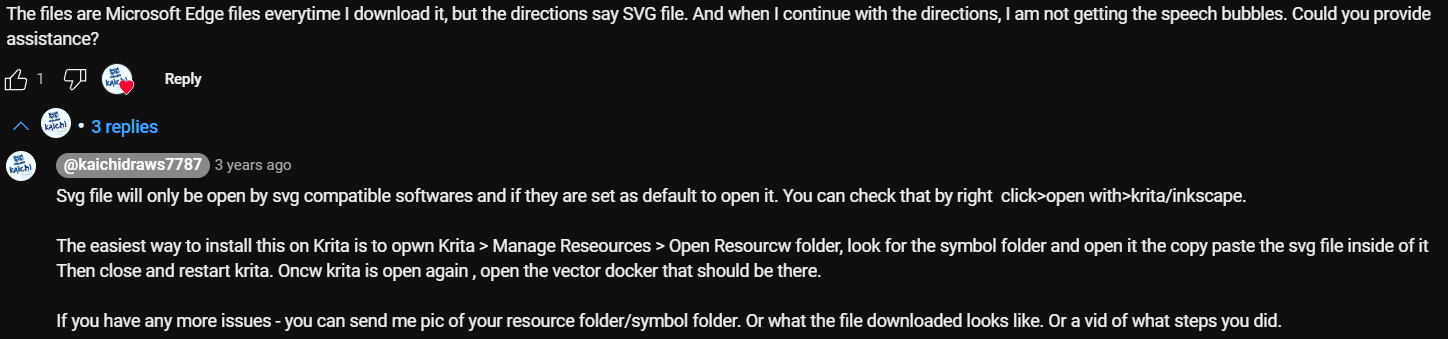
I’m not sure about that. I was went looking for the bundle but saw it wasn’t really a free download. My curiosity brought me their YouTube video on how to use the bubbles and saw the following response in the comments section there. Maybe that will help?
That are SVG files inside, and those dumb freaks in Redmond believe an SVG file has to be opened using their annoying browser.
You need to put these SVG files in Krita’s resource folder’s sub folder symbols, and then start Krita, in case you can not import them using the usual method via ‘‘Settings’’ >> ‘‘Manage Resources…’’ >> ‘‘Import Resources’’.
By the way, you should not double-click on them or select one and press enter, as this will only open them in their inferior browser imitation.
Add/Edit: Under Windows, from a certain date on, SVG’s are assigned to be opened in Edge¹, but you can assign them to any picture viewer capable of viewing SVG’s.
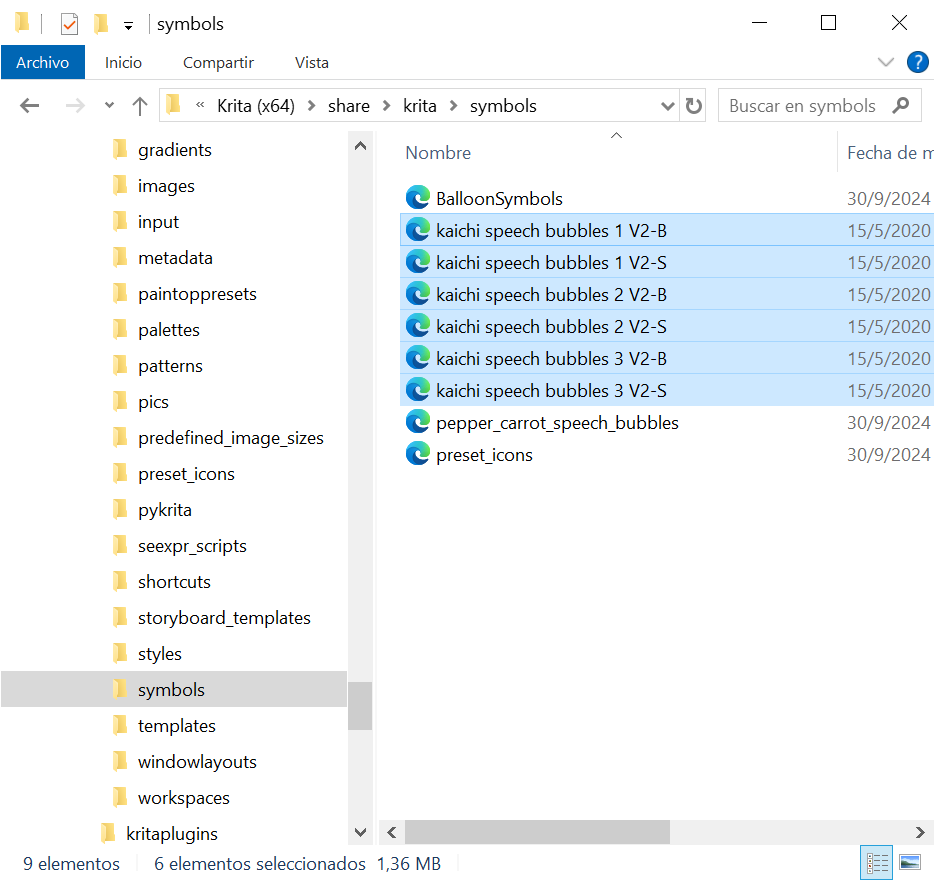
I imported them in the symbols resourse folder with a copy of the files (something I do in case everything fails) and restarted Krita twice now, but nothing still
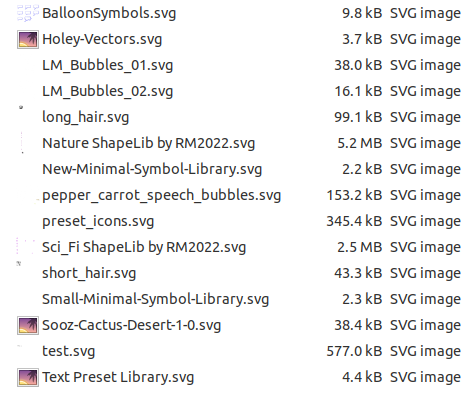
Your Windows File Explorer listing does not show file extensions (because Microsoft thinks that would confuse and frighten you).
You need to enable the display of file extensions to check that they have .svg extensions and are therefore SVG files which is what are needed.
That happens when users believe to be computer-savvy instead of reading the manual, your problem is that you used Kritas installation folder instead of Krita’s resource folder. And you never should manipulate something in Krita’s installation folder if you have no idea what you are doing there.
Additionally, there is a real good reason that Microsoft blocks accessing the folders which begin with Program for normal users, these should only be accessed from those who know what they do …
You can find your resource folder via the menu ‘‘Settings’’ → ‘‘Manage Resources…’’ where you have to click on the button Open Resource Folder, which will take you directly into your resource folder.
Or you browse with your file manager to the folder shown to you in the tab Resources that you will find via the menu ‘‘Settings’’ → ‘‘Configure Krita’’ → ‘‘General’’, it is the tab at the right end.
The next way is to copy and paste the following into your Explorer’s address bar and execute it: %APPDATA%\krita\
The last option is to use c:\Users\YOUR_WINDOWS_USERNAME\AppData\Roaming\krita\,
where you have to exchange YOUR_WINDOWS_USERNAME with your Windows username.
IT WORKEDDD
Omg thank u so much, ur a lifesaver
I opened the resources folder via “Configure Krita” > “General” > “Resources” and copied the folder with the .svg files
Thank you so much y’all, you’ve been of great help!!!
Windows 10 can open ZIP but not RAR, at least not mine, and that is the fully updated version:
Windows 10 Pro, 22H2 Build 19045.5247
Windows Feature Experience Pack 1000.19060.1000.0
So the most up-to-date one can have.
Windows 11 lastly got this long missed feature, but they let out Windows 10. Even Bing says it.

 instead of reading the manual, your problem is that you used Kritas installation folder instead of Krita’s resource folder. And you never should manipulate something in Krita’s installation folder if you have no idea what you are doing there.