The subject of graphics tablet problems is a rugged landscape covered in deep holes that you can fall down at any time.
Which version of Windows are you using?
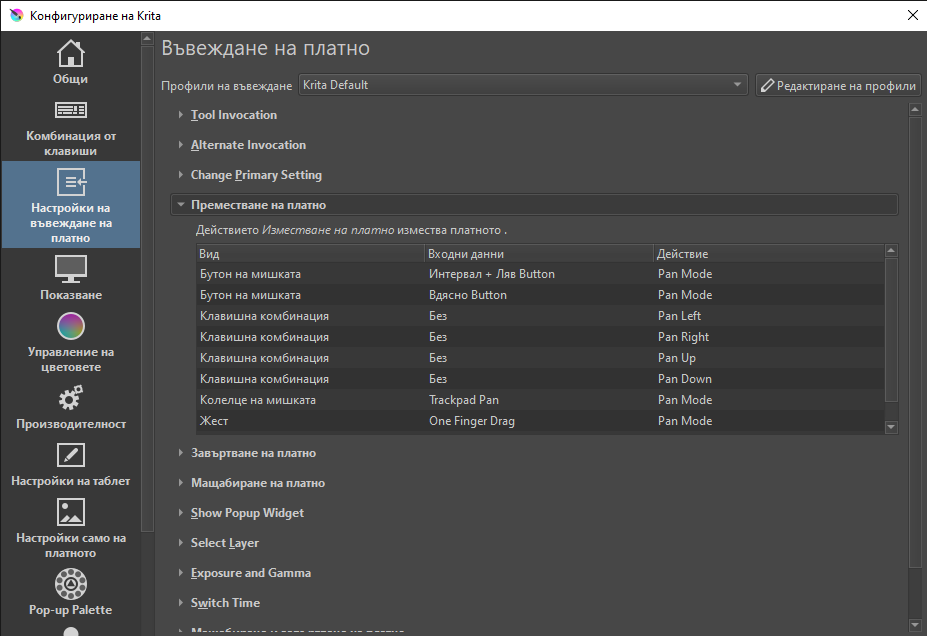
It’s not a good idea to ‘fix’ tablet problems by altering the Canvas Input settings in krita.
That just covers over and hides problems and will cause more problems.
The tablet problems must be fixed first.
The mouse right button is also used to activate the Popup Widget, which is the popup palette for the painting tools and various context menus for other tools.
That will be a cause of confusion for future use.
When drawing with your stylus on the krita tablet tester:
That is wrong. It should be B=1.
B=4 is the signal associated with panning the canvas which probably explains why you dragged the canvas when you tried to draw.
B=1 so the mouse is drawing properly.
The mixture of mouse events and stylus events when drawing with the stylus is common on Windows systems but I don’t know why it happens. It seems to cause no problems.
My suggestions are as follows:
Go to Settings → Configure Krita → Canvas Input Settings and press the Restore Defaults button.
Go to your tablet makers website and download the latest Windows driver for the tablet.
Even if you had already go the latest driver for the tablet, uninstall the current driver then do a full power down restart of the Lenovo. Then install the driver according the the tablet maker’s instructions.
Some require the tablet to be connected when this is happening. Some require it to be disconnected while it is happening.
Then do a full power down restart of the computer.
Run krita.
Open the tablet configuration/settings utility and see if it has the ability to create separate profiles for different applications. If it does then create a profile for krita and always select that profile when making any changes to the tablet settings.
There will probably be an option called ‘Windows Ink’. Disable that option.
Open the krita Settings → Configure Krita → Tablet settings and select ‘Wintab’.
Press OK then Quit krita and close the tablet settings utility.
Start krita and start the tablet configuration settings utility then confirm that you have a profile for krita.
In the Pen/Stylus settings, set the two buttons to be right-click for the upper one and middle mouse-button for the lower button.
Set the tip to ‘draw’.
Close the tablet configuration/settings utility then use the krita tablet tester to check the operation of the stylus.
Drawing should be B=1, Panning is B=4, upper button is B=2.
The upper buttton should activate the popup palette when you use it on the canvas.