So I’m using huion tablet and the pen has a two buttons, one of them activates pop up palette and the other one should set (not the actual eraser brush) an eraser mode (it is linked to the E key on krita, but on huion tablet settings i changed it to the eraser). Sometimes it does change to eraser mode, but also jumps between brushes, and i don’t want that. I think I should change something in krita, but i don’t know what (so the problem is actually me lol). Btw i have windows and i did disable windows ink. (idk if you will be able to understand what im trying to say because english is not my first language, sorry)
 Hello @Vandenzole_20, and welcome to the forum!
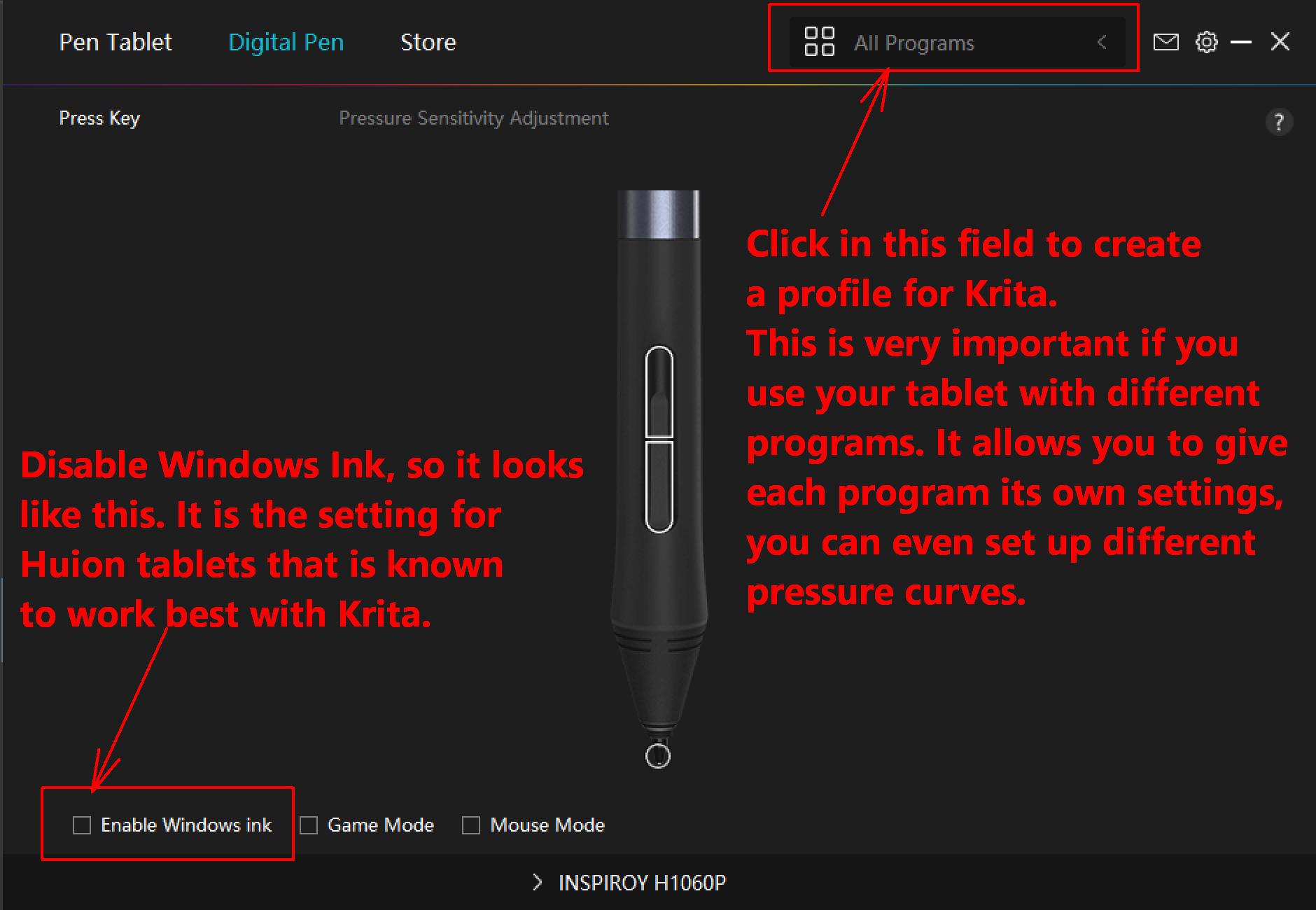
Where do you have disabled Windows Ink? In Krita or in the Huion Pen settings? If in the latter, you have to make sure that they are also disabled in Krita under ‘‘Settings’’ >> ‘‘Configure Krita’’ >> ‘‘Tablet Settings’’, where you have to enable ‘‘WinTab’’, then confirm that setting with the OK-Button in the lower right corner of that dialog and restart Krita.
So when you disable Windows Ink in your driver, you have to enable WinTab in Krita and vice versa, this is to let them speak the same language.
An important thing to do, especially when you are using more than one program with your tablet, which will very probably happen in the future if it is not already the case for you, is to create a profile for EVERY software you use with your tablet, because this allows you to give every program its own settings perfect for this program. For instance, Krita works best using WinTab when it comes to Huion tablets, but that must not be true for every program, so these profiles help to give every program what it likes best. You can create a profile via the input box on top of your tablet driver interface, there, where it is written “All Programs”.
That was the first part. For the second thing, you have to know that the presets chosen by Huion for your tablet driver settings, are made for an English language keyboard, and are pre-set to work with Photoshop. But if you use a keyboard with a different layout, like I do, these pre-set settings are most likely to be broken, and additionally Krita expects some different shortcuts too. I know what I’m talking about, I have these issues.
So here you have to hand over to Krita the shortcuts Krita knows, to make Krita do what you want, only because the original Huion setting let Photoshop erase does not mean that Krita has to do the same.
Now you have two ways to solve that. You can adapt Krita’s shortcuts to those of your tablet, or the shortcuts of your tablet to those of Krita.
In Krita you can redefine the shortcuts sent to your tablet in two places, one is found via the menu
‘‘Settings’’ >> ‘‘Configure Krita’’ >> ‘‘Canvas Input Settings’’,
and the other via the menu
‘‘Settings’’ >> ‘‘Configure Krita’’ >> ‘‘Keyboard Shortcuts’’.
Krita does not know what Huion defines as “eraser”, Krita only recognizes E to erase, or it will erase if you have chosen an eraser brush preset from the brush presets Krita offers. You, your tablet driver and Krita “have to speak the same language”, if you don’t then there will be misunderstandings.
Krita will set EVERY brush preset currently in use into erasing mode when the shortcut E is activated. And in case you have not adapted your Huion tablet settings to send the letter E if you want to erase, then Krita won’t erase. Or in other words, the predefined shortcuts in your Huion driver are not necessarily the shortcuts Krita must use, only because the driver says its predefined button XYZ should erase doesn’t mean it will do it in Krita, because the most graphics tablet manufacturers have their drivers set to the shortcuts Photoshop uses, and these only correspond in part to those Krita uses.
In case you should have any further questions, feel free to ask.
Michelist
1 Like
This topic was automatically closed 30 days after the last reply. New replies are no longer allowed.