Hello there! I just booted my pc and wanted to draw but when I launched Krita I noticed that everything is gone, literally. App is just like reinstalled itself, cleared all settings, deleted all my saved brushes and cleared my drawings history. I still have access to my art kra files but is everything else is gone?? I’m just a bit confused why it could even happen. I wonder if there is maybe a way to restore data or maybe there is a file that is keeping all Krita’s preferences? Also if it’s important I’m using Krita 5.2.2 and Windows 11. Would be happy to hear at lest any good news😭(sorry for bad english)
Hello!
Krita would not delete any of your files. Something must have happened externally that caused it.
What were you doing just before that? Installing any updates? Used any “cleaning” software?
Krita files are stored in user directories (C:\Users\<your name>, and various subdirectories), so either something happened to these files, or maybe you logged in as another user? Did any other apps were affected, lost the history, etc?
Hello. Yes actually something did happen. I live in Ukraine and we have some bad problems with electricity right now, so power sometimes cuts off randomly. But this thing is that it’s first time that Krita randomly decided to clear everything up, it never did this after random power blackouts. And no, every other app works just fine
Could the hardware have been damaged by the constant black outs? Normally that would probably prevent the whole system from booting at all but I’m just guessing. The Resources and Settings normaly don’t simply get deleted except something deleted the directiories where theyre in
Yeah that what I’m wondering too, why only Krita got fully wiped out?? No idea 
Hmm, it’s unlikely, but not unheard of to get disk corruption from a power loss.
By default, Krita resources are stored in the following path: %APPDATA%\krita you can check if you can access it and if the resources seem to be there.
As for the stuff like the last opened files, it should be in %LOCALAPPDATA%, e.g. kritarc file.
 Hello @V.Goos and welcome to the forum!
As @YRH already said, Krita will not delete these things, it has no function implemented to do this.
But now to your problem. In Krita do open ‘‘Settings’’ >> ‘‘Manage Resources…’’ >> ‘‘Open Resource Folder’’, please look in the following sub-folders there “brushes”, “bundles”(if existent, this folder can exist, but also can not), “paintoppresets”, and see at the end of the resources-folder if there are files with the names of your bundles.
If there are files, we can help you!
Michelist
Hi! I just looked through recourses and now my brushes appeared! Idk why they were not displaying before but now they do
Alright, now that most stuff is regenerated I still need to somehow bring back my options, because all of them got wiped off too
Anyway, thank you and @YRH very much for help!
What exactly do you mean with your options, I’m not sure. Maybe you make a full screenshot of your Krita window and mark what you mean, in case you have issues to describe it?
Michelist
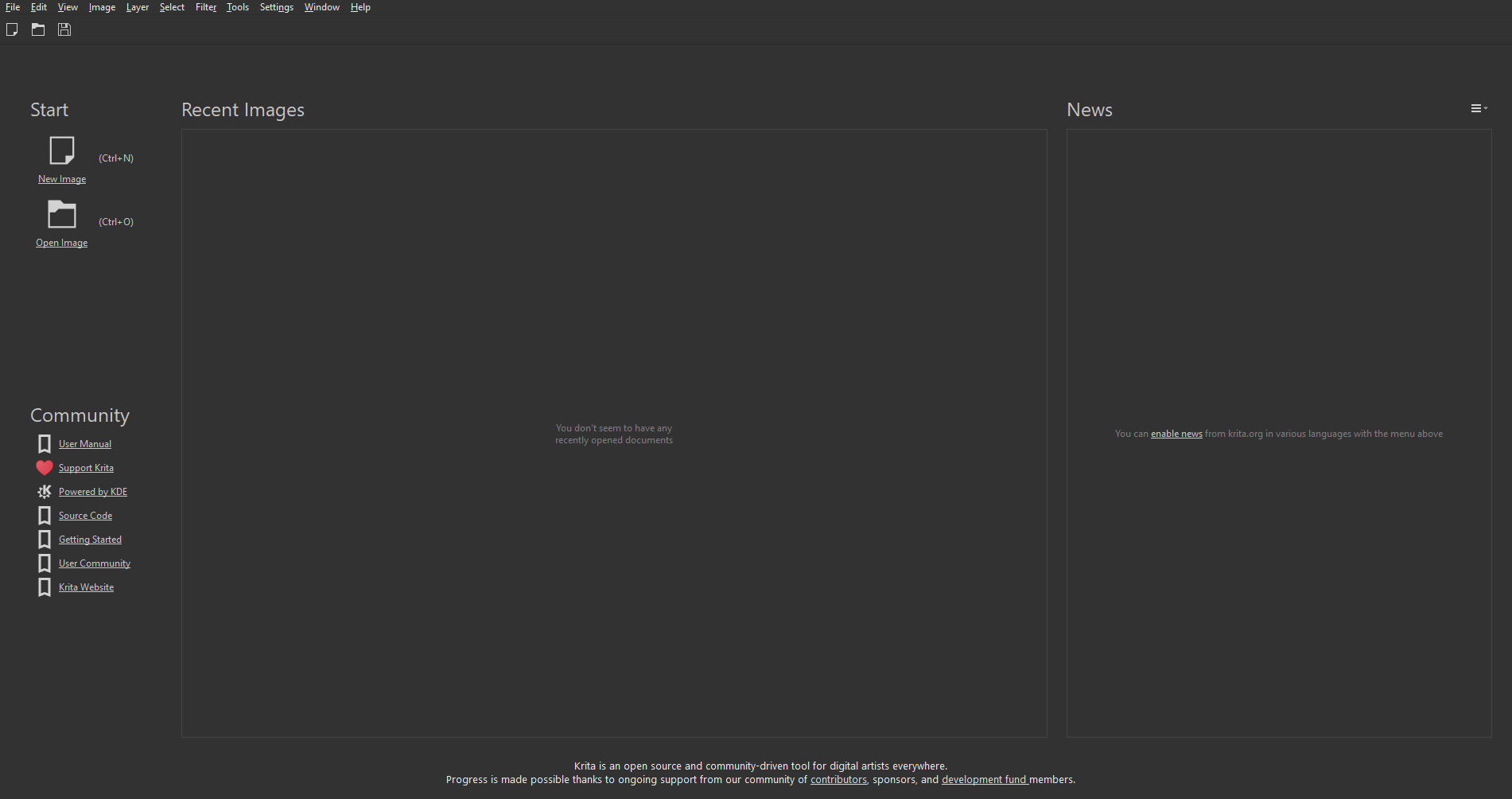
Is there also anything empty when you open a picture or create an empty canvas?
You have two options, a quick one and a slow one, the slow one allows precise selection of the resources to undelete, the quick one restores all resources.
First, the quick one:
Close Krita, so click the X-Button in the top right corner.
Now you have to enable the view of file name extensions:
If you haven’t enabled this already by yourself, open your Windows Explorer, there you have to enable the view of file name-extensions in the View menu of Explorer.
That menu is on the top of Explorer, and usually it is on the right side (the menus are: File, Start, Share, View), so click on View and set the hook in front of file name extensions. Now you should be able to see what we need in the process, and so we hinder Windows 11 to do things we don’t want.
After you have enabled the view of file name extensions, copy the following into the address-bar of Explorer and hit your Enter-Key :
%APPDATA%\krita\
This will bring you into Krita’s resource folder. At the end of that folder, you will find a file named resourcecache.sqlite, rename this file to resourcecache.sqlite.old.
That’s it! Done!
Now, when you restart Krita, Krita re-creates the resource-database, and you will get all your resources back.
Now the precise and selective version, the version for surgeons. In your case, it can be a lengthy multi-pass operation:
Open your Manage Resources dialog in Krita via
‘‘Settings’’ >> ‘‘Manage Resources…’’:
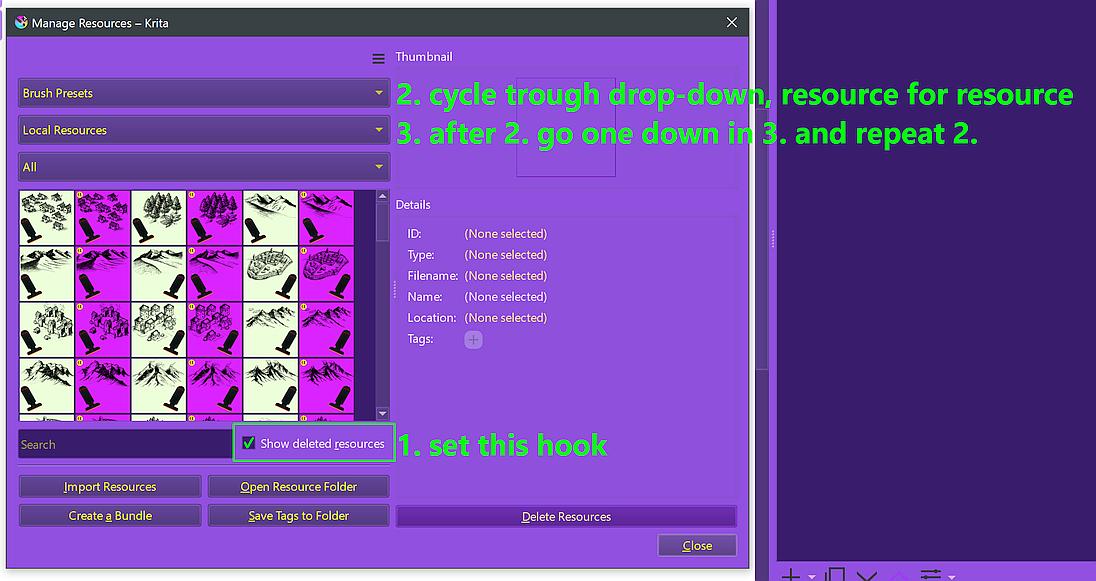
Tip: you can grab a corner of that dialog and enlarge it with dragging, like you can resize windows of most applications, this can make it easier to select the resources to undelete.
Point 1.
At first activate Show deleted resources.
Then Krita will show you those resources Krita has marked as deleted in its database, additionally to the undeleted resources.
Point 2.
Krita starts here with Brush Presets, but to get all your resources back, you have to go through all resource types from that drop-down menu: so Brush-Tips, Gradients, Color Schemes, …
Let us begin with Brush Presets and undelete those you want to have back. To undelete a brush preset, you have to click on its icon, and then you can click on the Undelete Resources button in the lower right corner. You can select single presets, many presets or even all presets at once.
If you have problems to distinguish the undeleted from the deleted Brush Presets, there is a simplifying trick. You must first select all (deleted and undeleted) Brush Presets, Krita will then only offer delete if deleted and undeleted are selected together, and after you have deleted all you can select all again and then undelete all brush presets at once.
After you have undeleted those Brush Presets you want, you can select the next resource type from that drop-down menu, say Brush Tips, so select the resources to undelete and so on, till you have all resources you want to undelete back.
After you have undeleted everything you want to get back, go to Point 3.
BUT, before you proceed in the Manage Resources dialog:
I would first check in Krita via ''Settings'' >> ''Manage Resource Libraries...'' if all of your bundles are Activated. If there are bundles Deactivated, then please set them to Activated before you proceed.
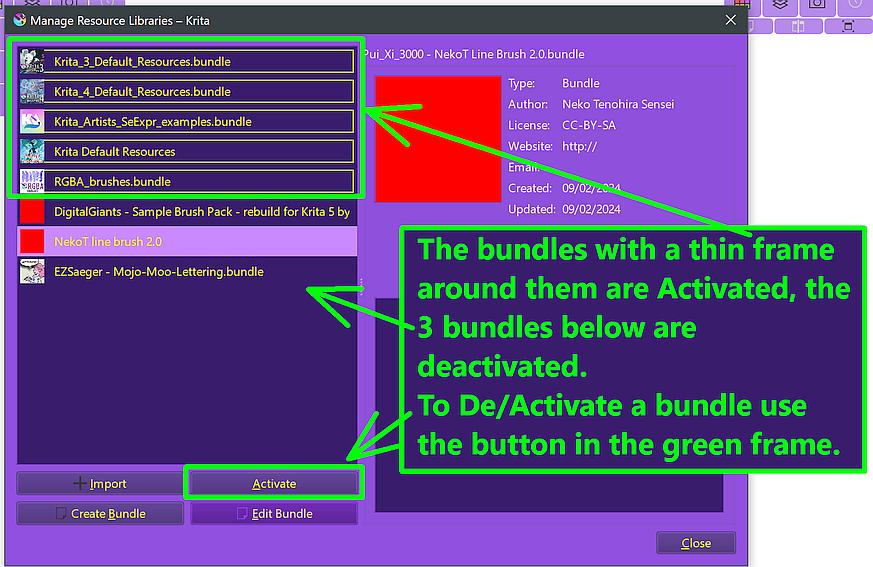
NOW back to the Manage Resources dialog:
Point 3.
Then go to the middle drop-down menu, beside the pre-selected Local Resources you can select installed bundles in this menu.
After you selected a bundle, you have to repeat the steps from Point 2., so select those brush-tips, brush presets, gradients, whatever you want to undelete and click on Undelete Resources to restore deleted resources out of bundles.
Regarding your Shortcuts and the customization settings you made to the UI of Krita you can be on the unlucky side, at least if Krita’s settings files kritarc and kritashortcutsrc got damaged through this black out. This is the reason why you always should create backups from these files after you made changes to your settings.
But you only can see if there was a damage when you create a new picture or open an existing picture, and Krita’s interface is fully visible so you can test your shortcuts for function.
First your Shortcuts:
To make backups of your shortcuts there are at least two ways, the first is found in Krita via ‘‘Settings’’ >> ‘‘Configure Krita’’ >> ‘‘Keyboard Shortcuts’’:
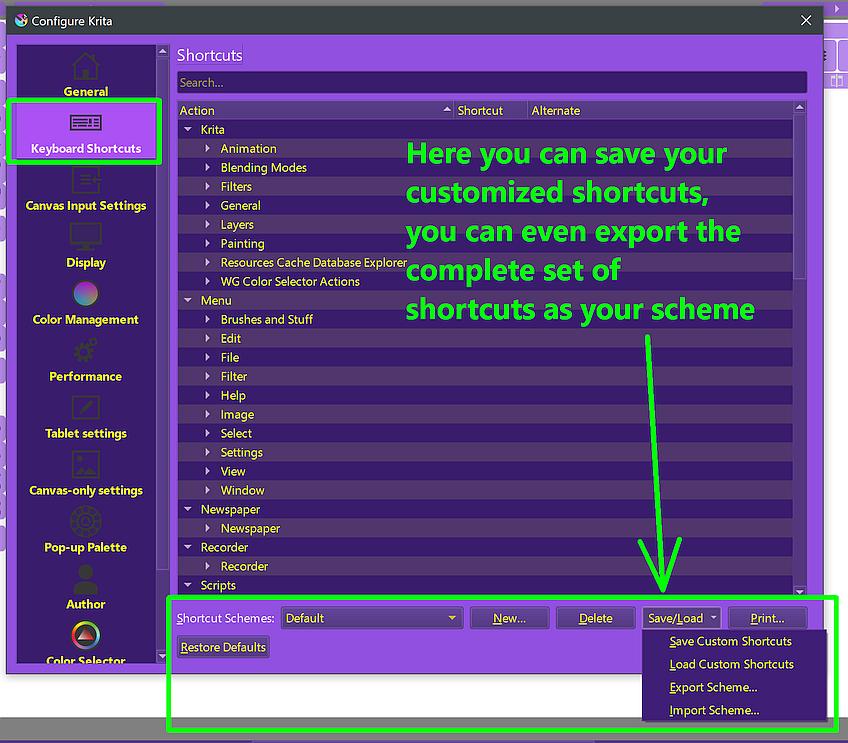
I don’t know if you ever noticed it, but here you can select predefined schemes, delete schemes, create new ones from scratch, and you can save your shortcuts and export your schemes, respectively reimport them when you need them.
The other way would be to make a backup of the file kritashortcutsrc and in case of need you can replace a damaged kritashortcutsrc with your backup.
Now to the settings of your UI, a lot of that is saved in the kritarc, also from this file you must have a backup if you want to restore a damaged one.
BOTH files, kritarc and kritashortcutsrc are found in the same location, your local applications data folder. Enter the following into the address-bar of Explorer and hit your Enter-Key : %LOCALAPPDATA%
At the very end of that folder, but not in the sub-folder named krita you will find these files among a few other files, all of the files that carry krita in their name belong to Krita.
And also here it is absolutely important that you have enabled the view of file name extensions in Windows Explorer, because if you do not have that enabled Windows Explorer will add file name extensions to these files like Explorer thinks it is correct, the problem is, that the extensions Explorer thinks are correct will make Krita not accepting the backups you copy into that folder.
And considering the fact that it’s already 2:45am, I’ll call it a day for now, if you need further assistance with this, please post back here in this topic and describe what’s not working or where you don’t understand something. Please describe it so that someone who wasn’t there can understand it, we can’t see what works or doesn’t work for you and are dependent on your support.
Michelist
Hello yet again, thank you very much for you detailed response, but it seems like the thing with settings is still not working for me. I tried to rename files etc etc but it just still don’t show any of my settings. I guess I’ll just start over and try to set up Krita again… Anyway, at lest my brushes and bundles are safe so thank you for your help
That was, what the last part was about, you probably need to set up your shortcuts and the settings you made to Krita again from the beginning. But you now know how and where to find the files you have to back up when you have recreated your settings and shortcuts, so the next time this happens, you just need to exchange the broken files with your backups and everything should be okay. And very important is that you enable the view of file name extensions when you handle these files, if you don’t do it, then it can never work.
In case of further questions, feel free to ask.
Michelist
1 Like
This topic was automatically closed 30 days after the last reply. New replies are no longer allowed.