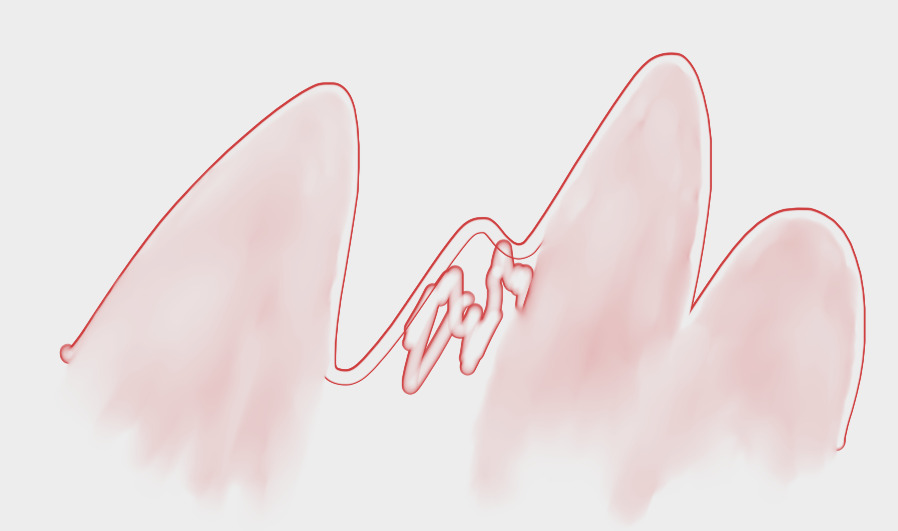
i know it’s probably procreate but do we have some very similar brush like this? It feels like a watercolor brush with an outline effect and a smudge effect. I think it’s 2 brushes the outline brush and the smudge one
1 Like
happy to see you here ^-^
I’m gonna tag @RamonM or maybe @tachiko, they are good with these type of brushes.
As for that brush if its this one?
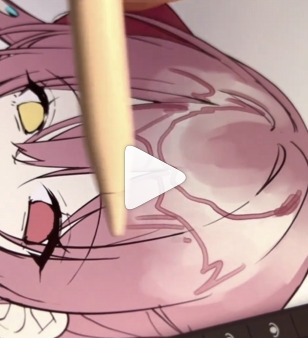
There is a similar one in the watercolor tag.
this is like a combo of Wet Circle brush + Water C Basic Round Fringe.
The outline was like Water C but the softening effect is like Wet Circle.
I’ll take a stab in recreating.
but if you can check those two brush and comeback here to confirm if the effect of those are similar - that would maybe helpful in pinpointing it.
1 Like
I suppose it is “wet smear”  in combination with “wet circle”. I can not see if the brush changed in between, but i can get a similar effect, when working with bot in tandem.
I couldnt really determine if its a smear type smudge or wet blur type smudge based on the image. I was leaning on more blur that smear. but the smear one does come close but no outline.
There is this brush that can act like a solid paint on heavier stroke and smudger on lighter stroke. I experimented but the one I made gets this blow out at the end of the stroke… you know like a pen that suddenly went splat. I also could not get close to those “outline”, yet wet circle c does them pretty nicely.
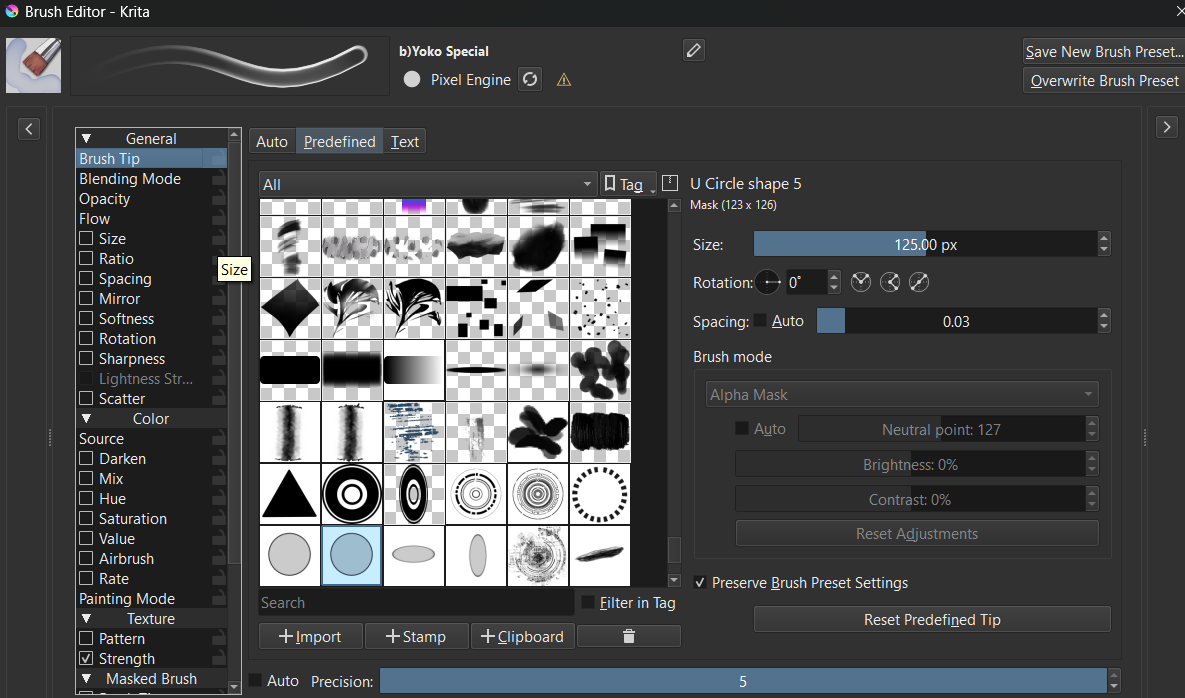
@ikira Watching Procreate videos, they have a smudge button, which Krita would use a different brush as you were saying. The line brush is not real hard to make, I made one a few weeks ago which reminds me of the one in the video. It is a brush with a masked brush, the line on the outside border is controlled by the diameter of the masked brush (bigger diameter/ smaller border).
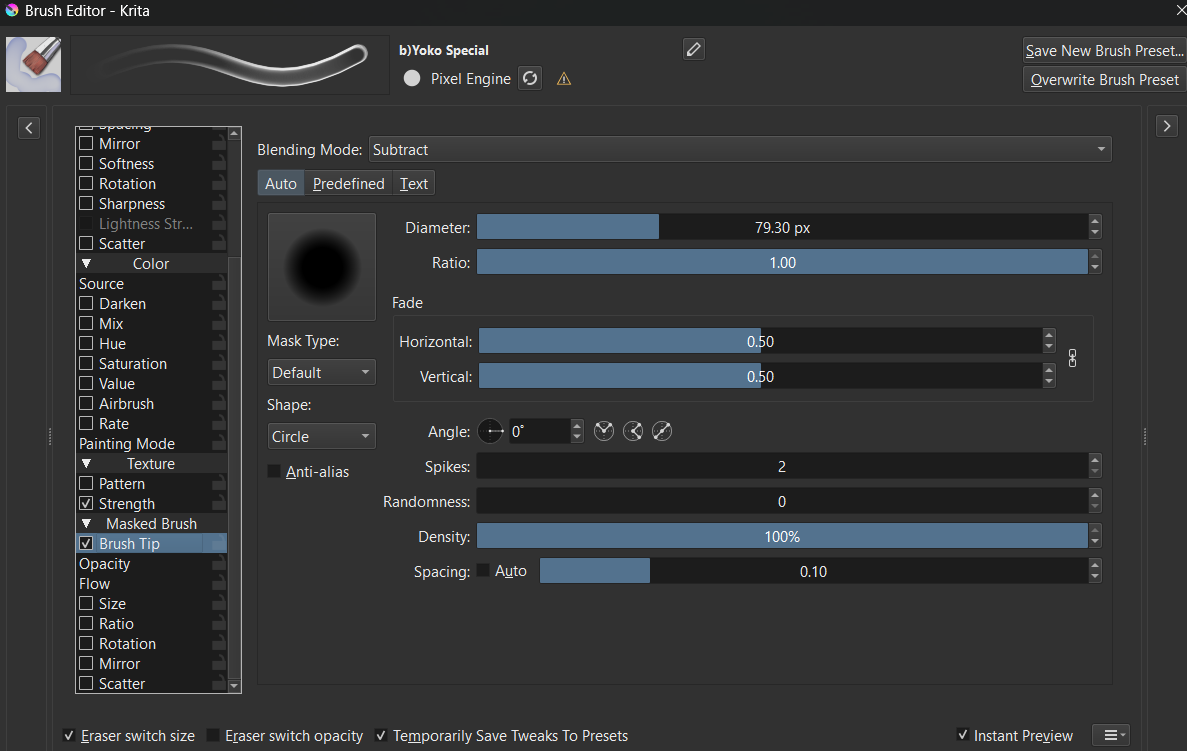
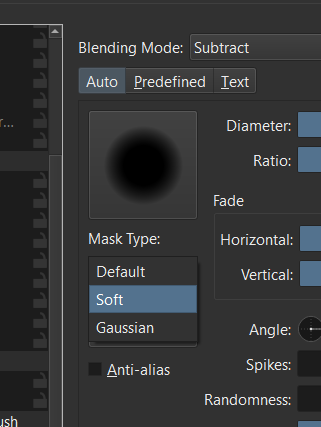
if you want a softer edge to the interior of the border, switch to “soft” or “Guassian”
trying the smudge part I just used the default, “Blender Blur”. Seemed to match close to the above.
You might need to disable the opacity on the main brush tip to give you more color in the center.
1 Like
and remember you can switch back and forth between the 2 brushes using a keyboard shortcut, default being the “/” key.
2 Likes