This guide is made to clean install krita and new generation graphic tablet on Manjaro gnome. (I pick this distro because it’s simple and efficient)
install Manjaro gnome on your pc.
connect your pc to internet
go in the terminal and tape:
sudo pacman -Syu #to update your system
sudo pacman -S base-devel # install to be able to build
sudo pacman -S yay # install be able to install AUR
Go to system tools/manjaro parameter/hardware
install your GPU driver
go to pacman (package manager app)
3dots on top right or 3 lines /go to setting/enterpassword/ third party tab/ enable AUR
reboot your computer and plug your tablet.
go to pacman search opentabletdriver
install it (do not install .GIT it is an update version for dev and it’s unstable)
or install it with yay thru terminal
yay opentabletdriver #install opentabletdriver with yay
open opentabletdriver it may tell you daemon is not working. close opentabletdriver
open terminal write:
systemctl --user enable opentabletdriver.service --now #let your app access the engine it needs at start
Reopen opentabletdriver it should work if your graphic tablet is plugged and ON it will find it. if not restart computer and plug -unplug tablet, it should work.
Once detected right click on desktop go to display setting
and dispose your screen where you want it to be and apply
Then opentabletgraphic app and configure it in display/output window right click on the screen select your tablet.
in layout/input window right click select your tablet. Stay in artist mode. apply/save
Restart your computer now you can also go to display settings (right click on desktop) a new tab as appear call graphic tablet tab and you can configure the pen calibration after selecting your tablet screen.
I don’t know about Manjaro gnome but on Manjaro KDE there’s no need to ever open the terminal to get AUR to work.
Tutorial would be much better when all terminal usage would be left out unless absolutely necessary, to be much more accessible to normal users.
I’m also surprised that opentablet packages are not in the Manjaro repos and not preinstalled already (perhaps a gnome thing) because I don’t remember ever installing this and I still have it. (But I’m on a phone right now, can’t check. Perhaps I did manually install it at some point for some reason).
Using the non AppImage version of Krita is also not recommended by the Developers. I tried the Krita version from the Manjaro repos and it gives me issues (mostly Qt related).
I think it’s worth mentioning that for some Brands and Models it’s not even needed to install this, like my Wacoms run fine with just xwacom on X11 and new libinput on Wayland.
The formatting of your post is all over the place which makes it hard to read.
I appreciate the effort but I wouldn’t recommend this tutorial to inexperienced users as it is right now.
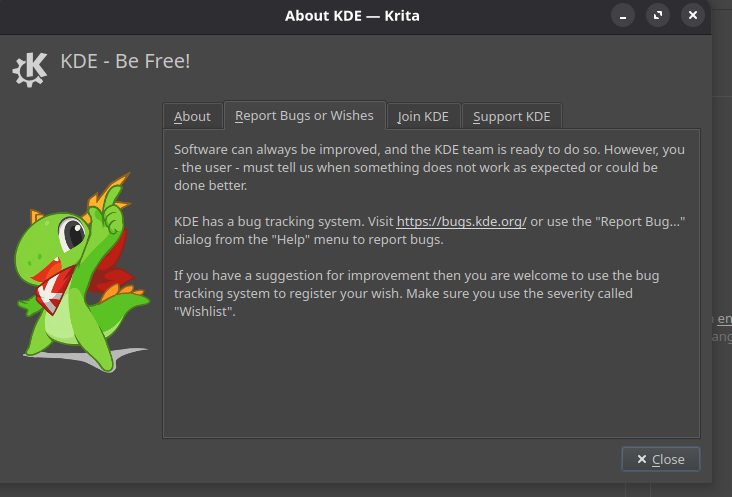
Yeah, recently I discovered that the Arch’s repo version doesn’t have the “Report a bug” menu entry… maybe it’s moved somewhere but still, it should be there.
As it is say in the tuto you are not obliged to install it with yay.
and for the terminal line at the begining it’s simply because yay and base-devel are very important tool that will serve anyone anytime so better have it.
same for updating a system.
Also nothing fancy here everyone can copy past the BOLD code i guess.
Citation
Sorry i don’t have any knowledge about it. It works neat for me. If i found something i let you know
Well am not a wacom user and for huion and xp-pen i guess this tuto works.
Thanks and sorry am not a designer. About the tuto this is a sum up of all the knowledge i accumulated during 4 days breaking my head understanding linux from zero. And how to setup krita. I am a novice and i think this tutorial does not put the bar higher. But it will certainly make you win a TON of time if you are in same situation.
I don’t know about that looks like it Works perfect for me. It’s in the help section where it belongs.
last words about distro:
what i learned the most during those 4 days of reading is that all linux users are talking a load of baloney about which distro is the best and what you can do and if they are polish or edgy or bloodyshapes or What?.. it does not even make sense anymore.
What i think as a novice is that all the distros (for a simple artist use) are the same. They are all linux.
Yes they are more or less complicate to use and give you more or less possibilities for personalizing your PC with more or less same open source stuff.
But they do all the same which is doing what they are programmed for.
And if you don’t have the knowledge about programming then it’s all about taste and sentiment.
So i don’t know if Manjaro gnome is better or not and i don’t care; I don’t want to spend 1h managing something i don’t have a clue about it to do simple things like connect to the internet…
Manjaro gnome is simple it comes with a lot of useful app and it works. I don’t think i need more for drawing.
If you read all of this and find a better distro am happy for you. Have a good drawing.