I’m sorry to be a bother and if this is supposed to go somewhere else. I just figured, since I haven’t downloaded Krita yet, then it would go here.
I have an art tablet, which is in the title, XP-PEN Artist 15.6 Pro. I also have an Acer laptop with Windows 10.
I want to know if Krita works with my XP-PEN, and if it does, which Krita am I supposed to use? Is it only compatible with the shell extension? or can I just download the regular Krita?
Krita looks to be my style, when I do art, and I don’t have the money to spend on Clip Studio or Paint Tool Sai (which seem to also be my style).
Thank you, I’m sorry if this is a stupid question. I’m new to digital art in general and a lot of sites that are explaining this are kind of confusing.
I hope you have a great rest of your day,
Ragnhild
I have no experience of the XP-Pen products but if you use the search icon at the top of the page and type “XP-Pen” then you’ll get quite a list of topics about it.
It seems that it works in general but you need to set it up properly and you need to make sure that the settings in krita match it (which is actually the case for all graphics tablets).
The shell extension is nothing to do with tablets and it’s included in the Windows installer package so I suggest that you download and use the 4.4.1 Windows installer from here:
Read this section of the manual for background about tablets:
This for tablet settings:
and this for any problems:
Somebody who does know about the XP-Pen 15.6 Pro may come along soon with more information.
If you have any problems, just come back here and explain the problem.
@AhabGreybeard, thank you so much! I downloaded Krita, and it seems that the only problem that I have, is that my knob on the tablet (it lets you zoom in and out of the picture as you’re drawing). So, I’ll definitely check out the links you sent me.
The ‘general’ zoom in/out is Ctrl+Space+left-click-hold with mouse movement up/down, or the scroll wheel up/down. Stylus movement gives automatic left-click generation with movement so you just need to hold Ctrl+Space to zoom with stylus up/down movement.
So, you may want to look at your XP-Pen driver utility to see what can be done to set the kind of output it provides for its zoom knob.
If that can’t be done for some reason, it may be possible to find out or figure out what the zoom knob actually sends to krita and then adjust the Canvas Input Settings -> Zoom Canvas settings to respond appropriately to that.
Just to be sure, after making changes in your tablet driver utility, restart your computer.
Thank you so much! This is my first art tablet and my first time dealing with an art program. I wanted to deal with something free, but professional, like Krita, before investing in something that would cost me a lot of money.
So, I’m sorry if any of my problems seem too amaturish.
I use a xp pen artist 15.6 pro for 1.5 years now and i only had one or two problems with it during this period , which were always fixed by restarting the pentablet driver.
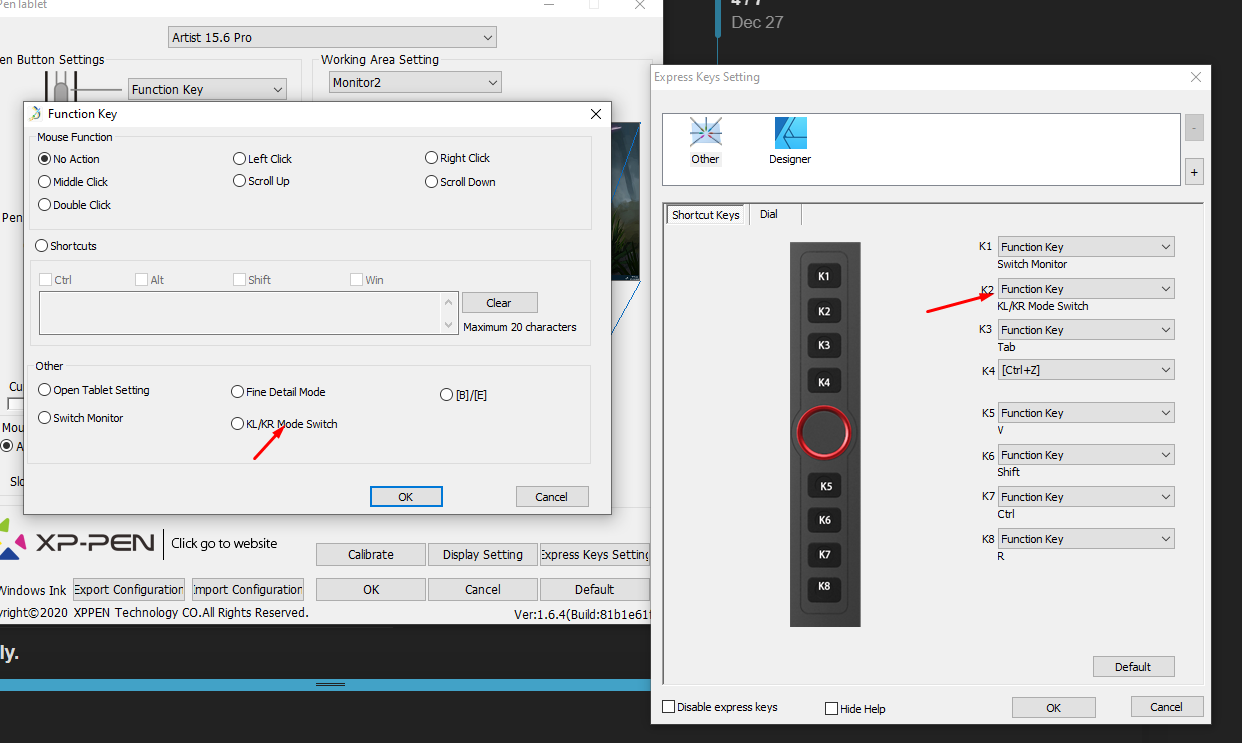
Regarding the red knob, i had no problem with it at all. Have you tried setting this up with the driver of the xp-pen? there is an option which you can set up hotkeys for the dial.
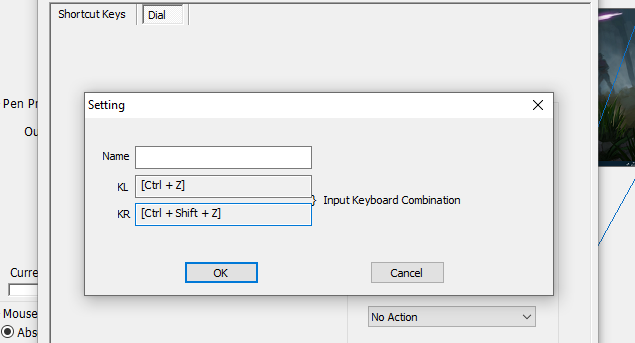
In order to use zoom in zoom out in krita i just have to set this to scroll… It also let you adjust different hotkeys for other software. There are also more functions you can set up to the red dial. You can switch functions mode for the dial by binding the KL/KR Mode Switch to a button on your tablet.
Another problem that i had is that i couldnt get the right click , which opens krita’s pop up pallete, to work when i binded it to one of the pen’s buttons. To overcome this i set up another hotkey through krita that did the same thing and binded this hotkey with the pen’s button. You can do this through Settings → Configure Krita → Canvas Input Settings → Show Popup Palette.
If you need any help regarding this tablet ill be happy to help. Overall for me it was and still is a pretty good experience!
yea that’s right! just change the hotkey binding to function key and then on the pop up you can either select one of the mouse actions, a custom key combination that can include a modifier (for example ctrl + e ) or the custom actions that xppen provides. KL/KR stans for Knob left, Knob right, so on the red dial thingie the shortkey you specify for the KL is trigered when you spin the knob left and right for KR
truth to be told i only find my self using it for zoom in zoom out but i guess you can be pretty creative on it if you dug in on what shortcuts krita provides.


 but i guess you can be pretty creative on it if you dug in on what shortcuts krita provides.