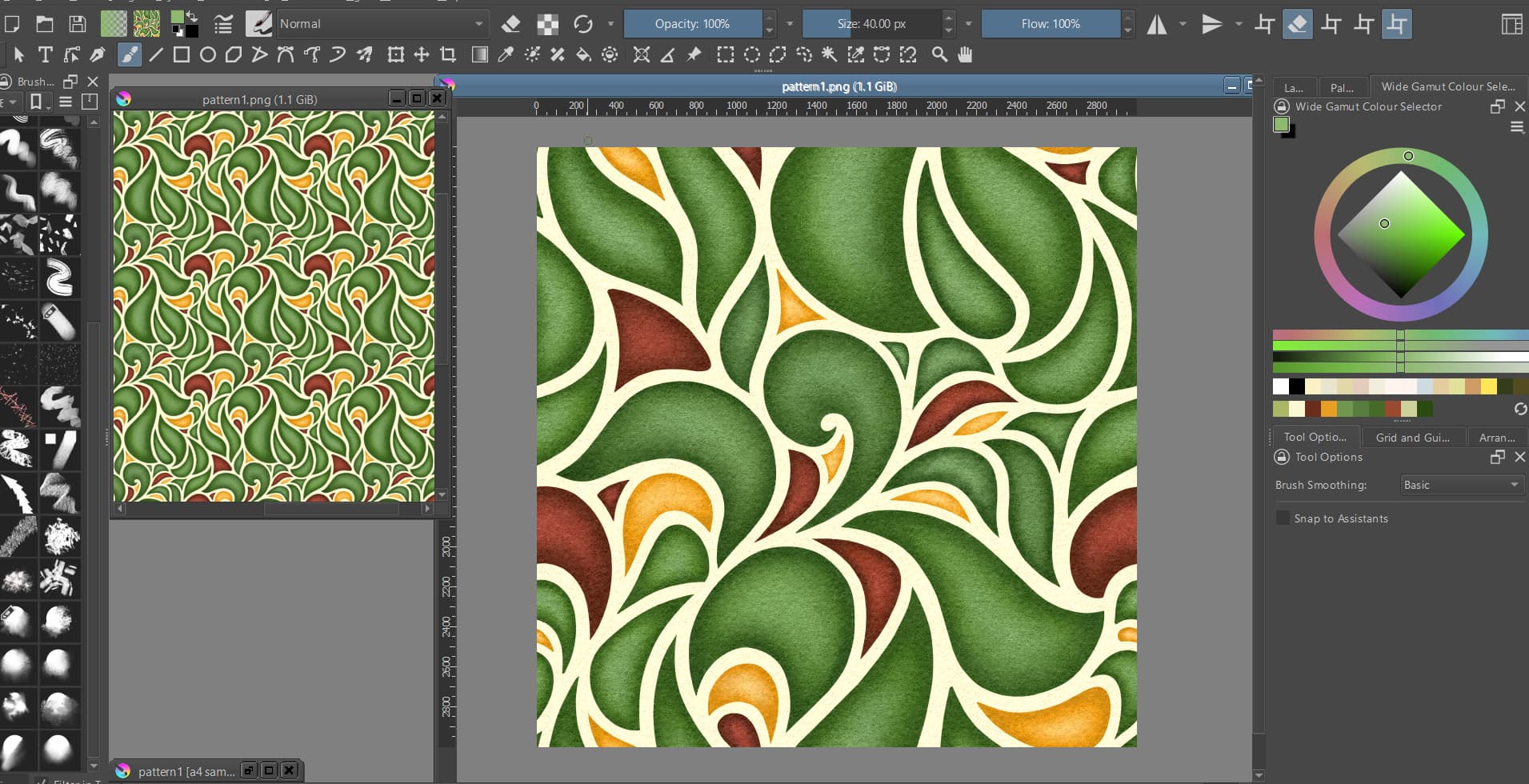
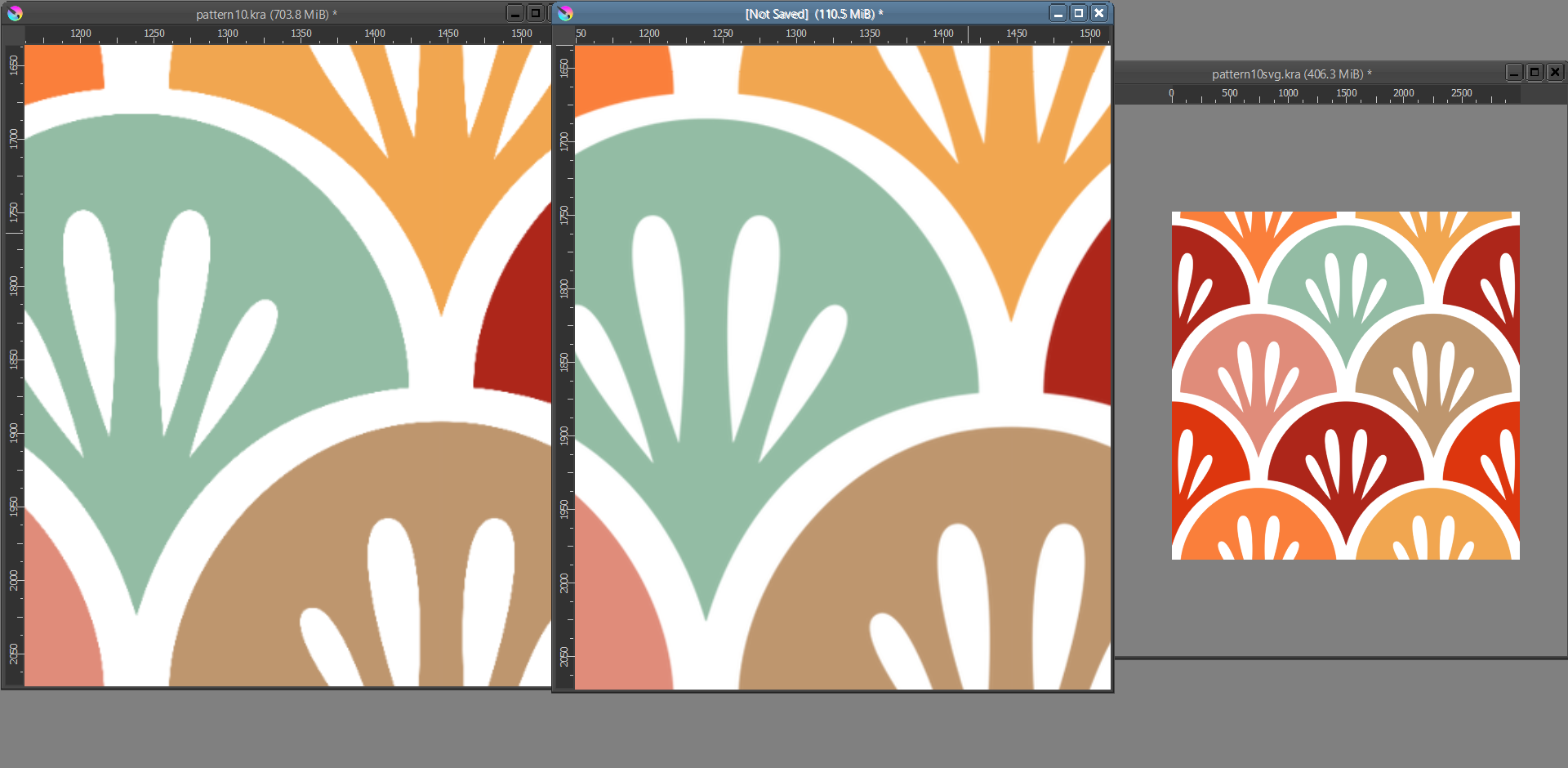
Hi! I made a seamless pattern and added it to predefined patterns (saved as .png) for me to use them as pattern fill. However, the quality went down evidently when I did apply it as pattern fill later on.
(this is the pattern - 3000 x 3000px with 300 ppi)
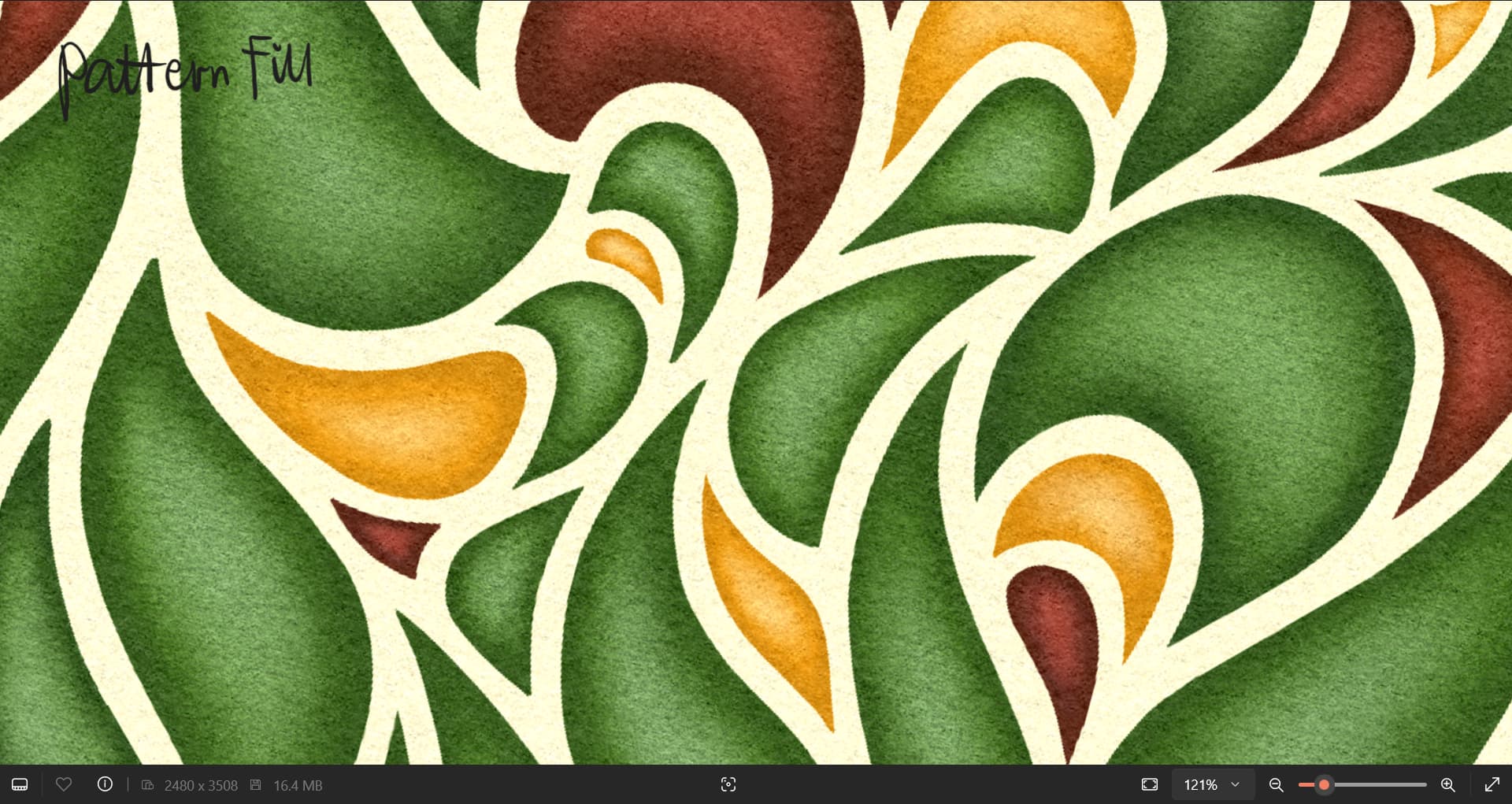
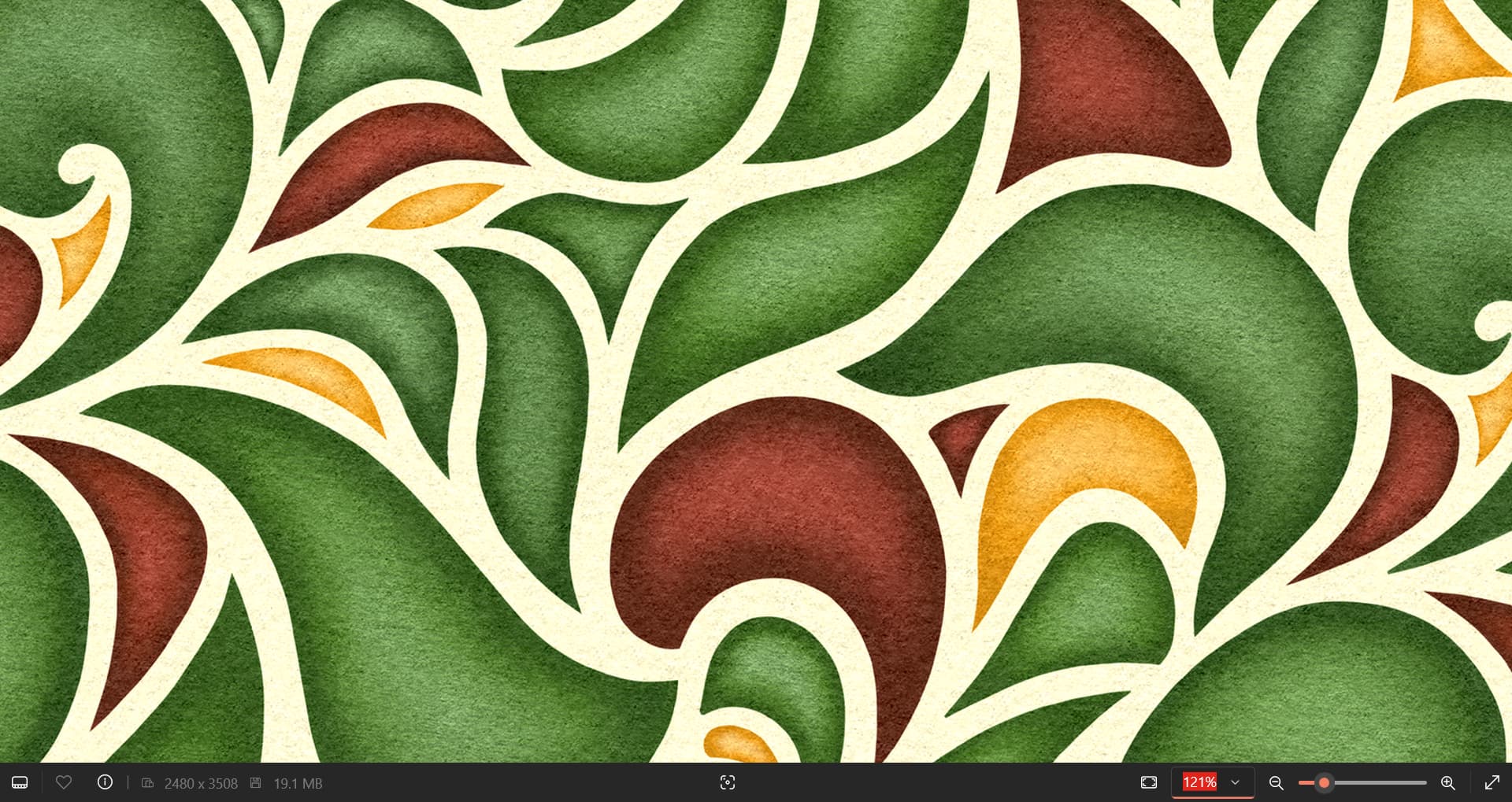
To make a comparison, I did another one by manually connecting multiple copies of the same image (saved as .png as well) to make a complete seamless pattern. Quality is much better than the other one.
Both are A4 sizes and both zoomed in 121%. The more pixelated one on the left is pattern filled. But, I wanted the outcome to be the same as the one on the right, not losing the quality from the original source.
Please help and let me know if there is a way to improve the image quality when applying a pattern fill in the canvas. Thank you so much.
The patterns I make are usually in solid colors, almost always in black and two or three shades of gray… and I often design them in a larger size than I intend to make. When applying them, I choose a reasonable size: not too big, not too small. I take all these precautions, of course, with the final quality in mind.
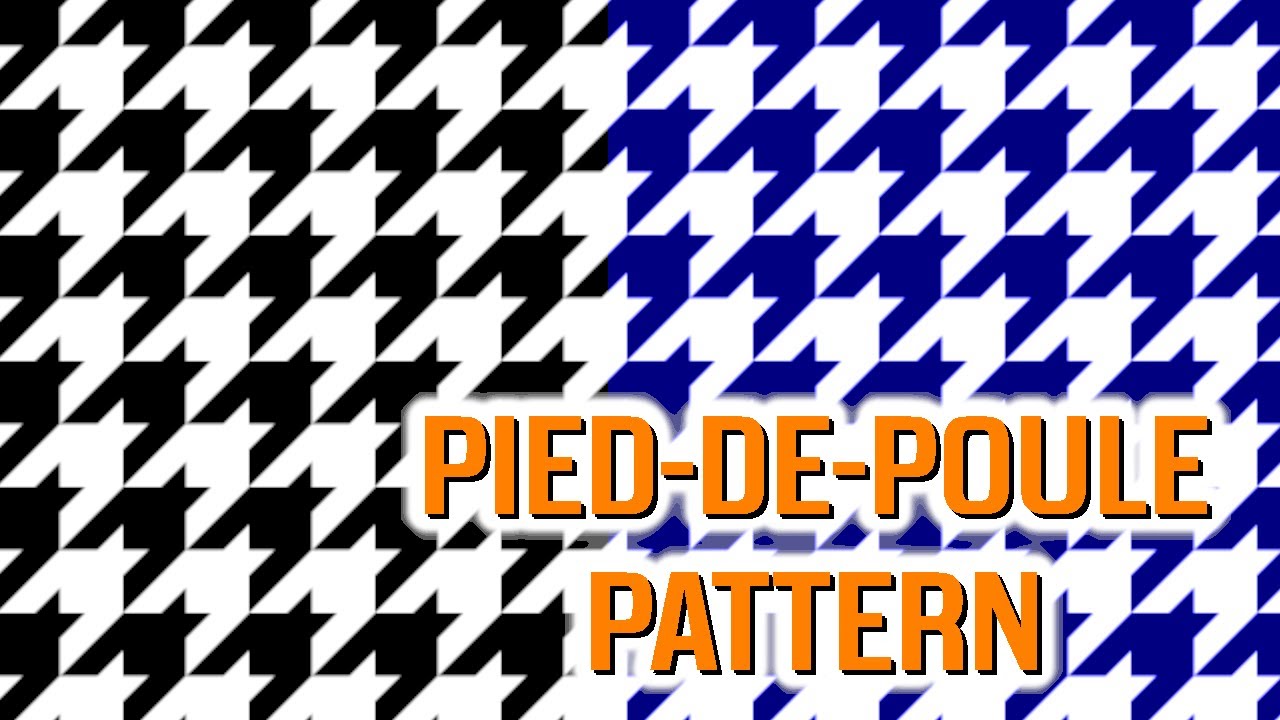
Your pattern is very interesting, but this effect of small black dots can be problematic when reducing or enlarging. What could solve it would be this: you would make the pattern in solid colors and then apply this effect of black dots using some filter (the problem is finding the filter, maybe in Krita’s G’Mic there is one).
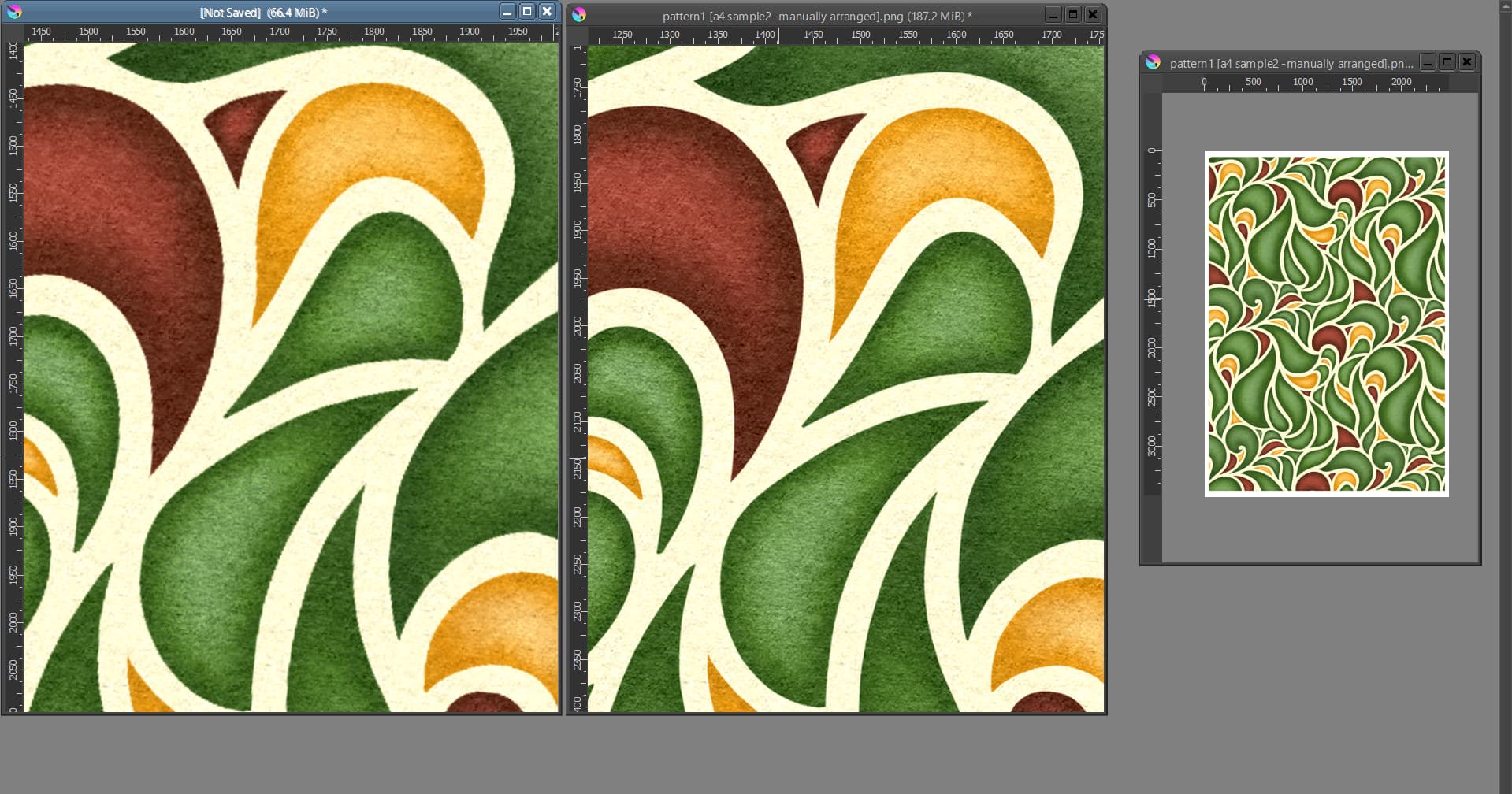
I want to add something I’ve noticed, whether the colors are flat/solid or dynamic/complex, the resolution really drops when added to pattern fill. You can see the reference below (Pattern fill on the left and manual placement on the right). It’s a different pattern but it’s more basic than the one I originally posted.
On another note, thank you for this suggestion. I’ll keep this in mind when I try again later.
P.S. I might need clarity for this part… is this supposed to be done before adding the image to predefined pattern or after applying pattern fill onto the canvas?
Thanks for the compliment!
Also, I’m sorry but, can you elaborate more about this wallpaper function? it’s the first time I hear about it… Or is it the wrap around mode you’re referring to?
Just out of curiosity: did you export this pattern in PNG with some compression?
(The most deteriorated PNG is half the size in megabytes in the side-by-side example)
PNG compression would be no issue at all, it is 100% lossless even at maximum compression you’ll lose no information, so it is very different to JPG for instance.
P.S. I might need clarity for this part… is this supposed to be done before adding the image to predefined pattern or after applying pattern fill onto the canvas?
I would first apply the pattern where the solid colors are and then apply the small blacks dots effect. But this effect is somewhat problematic, as I said. I did a quick search on G’Mic to see if there is a filter that gives something similar… and I didn’t find it.
So, to make my patterns I almost always use Inkscape in the process. What I do, basically, is this:
I create and plan the pattern in Krita or, if I’m going to draw from an existing pattern, I check what size it looks best in. In other words, it can’t be blurry or low resolution. Then, I export the drawing in png format, even if it’s finished;
I open the png in Inkscape and act according to the situation. If the pattern needs to be drawn, I use the png as a base for the construction and vectorize manually using the program’s tools. If the pattern is finished, I use automatic vectorization. With the png image selected, I go to Path > Trace Bitmap.Look this tutorial.
Then I export the final image in png. In the dialog, there are several export options, I choose to export only the selection. In this case, by default, Inkscape exports at twice the size.
I open the png in Krita and if it’s OK I save it as a pattern. Otherwise, if there are any errors I go back to Inkscape to fix them.
This was helpful. I already know how to use Inkscape so it was easier on my part to try this method. I followed this process but still lost the quality when I saved it as a predefined pattern in Krita. But thank to this that it gave me an idea
The object to pattern in IS worked fine even if the image was raster-based (as what I intended for this pattern); and it didn’t lose quality when I applied it as pattern fill. It’s a roundabout way but it worked. Thank you so much for helping. I appreciate it!
Cool! There’s a tutorial of mine where I make a pattern in Inkscape. In the process, I used Gimp as well, but it’s perfectly possible to use Krita instead of Gimp: