I am not sure whether it’s bug or intentional and I just misunderstood how the colorize mask works however when I use the colorize mask and I paint over the object with various colors, I can’t change them if I color pick the different color that is already on canvas by holding CTRL key.
It works if I pick different color from the color wheel but when I use the CTRL key and I pick existing color that is already on canvas it does not work and it does not let me paint over the initial color.
BTW. color picking by CTRL key works if there is no initial color (or I erase it and paint over it)
Cheers.
I can’t change them
Yes, you can’t change the color palette of marker already painted on the colorize-mask.
If you really have to; you’ll have two options:
First one is to replace the color by erasing all markers on the colorize-mask related to this color and replace them manualy.
The second option − the one I choose − is to work with temporary colors on the colorize-mask and wait to convert your colorize mask to a paint layer to replace the temporary colors with the final colors. The Fill bucket tool makes a good work on them, that’s because the island are perfectly aliased, and replacing color or influencing the color with low opacity bucket fill tool is also quick.
It’s not a bug, nor intentional; but a part ‘open for improvements’ of the feature.
BTW. color picking by CTRL key works if there is no initial color
After the first rendering, the color picker with Ctrl picks the result of the colorize mask (the rendered island of colors, not the markers). It’s fusioned with the colors of the line-art. If you erase your marker and don’t re-render the colorize-mask; the color picker will keep picking the previous result of the colorize mask.
Ctrl+Alt+Click will pick the exact color of the marker on the canvas (useful if your line-art contains greish area, eg. a penciled sketchy line-art).
1 Like
For the colorize mask you need to click the color in the palette that appears in the tool options
Ops seems like i answered at the same time as Deevad, his answer is much more complete.
Clicking on the color slots of the palette apearing in the tool option (at the condition you select the Colorize Mask Editing Tool in the toolbar) only proposes three actions:
- It recovers the color as a foreground color (as a palette would do). It’s useful to continue the work with a target color marker.
- It offer the possibility to remove all the marker of a selected color (button Remove) .
- It offers the possiblity to set one of the selected color to transparent (button Transparent).
… but unfortunately, no possibility yet to change a color already set (eg. from red to blue). That would be a good feature request.
Ah then i misunderstood the question, i thought they just wanted to go back to a color they already used. Indeed it would be a good feature, reminds me of a plugin i saw once to replace colors already on the canvas, this one GitHub - kwrooijen/krita-fill-discontiguous
I see.
Thanks for the info, both of you. 
I may have misunderstood something but I can change an existing colour, after the mask Update, by setting the Colourise Mask Editing Tool to Erase mode, then erasing the existing colour marker, then repainting a marker in any colour I can select or Ctrl-Pick.
If I keep doing that, there are some bleeding effects where the colour goes into the line art (but not after Edit Key Strokes has been turned off).
Hi @AhabGreybeard : yes, I describe this method in my first point on my message. But erasing all the markers to replace them with another color can be a very heavy task, especially on a comic page.
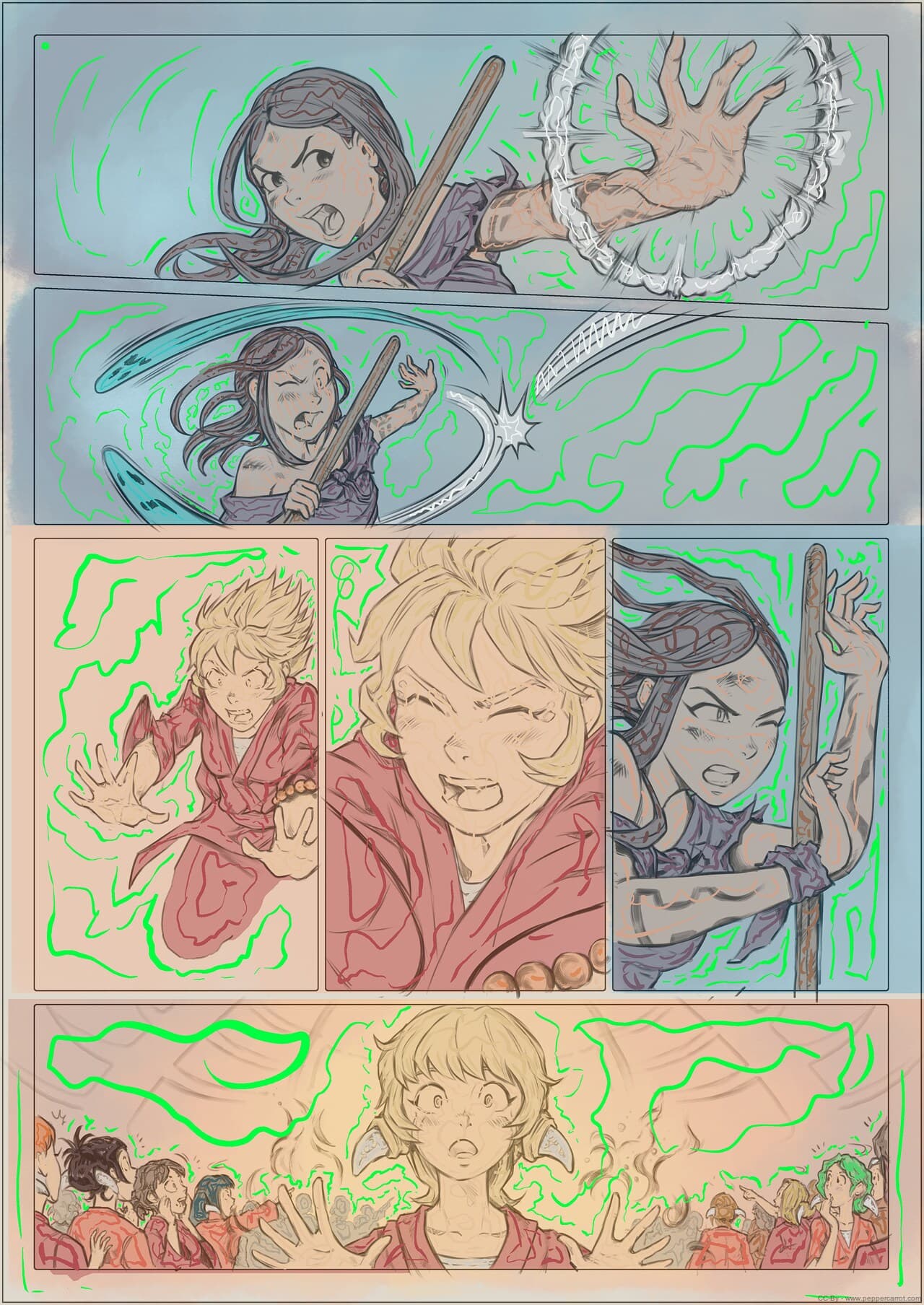
Example, if here I want to adjust the color red of the kimono of Shichimi (the blond character) to a pink, I don’t have the option to click on the palette in the Tool Option of Colorize Mask Editing Tool and switch/adjust this red color to pink. It require a selection of color before even knowing the effect very precise and finale… an impossible task (unless all the color are standardised upfront).
1 Like
And should be pretty easy to implement (though it might make the user wait a little bit). It would be basically a “Color to Alpha” function but “Color A to Color B” instead. Or Similar Color Selection Tool but instead of selecting, it would change the color. And actually there has been requests for that filter outside of the Colorize Mask functionality too. (It’s pretty useful for pixel art as well, and probably just other things).
3 Likes
@Deevad Now I understand, you mean to change the Key Stroke colours in the Tool Options docker. That would be very useful.
1 Like
This topic was automatically closed 15 days after the last reply. New replies are no longer allowed.