Hi. I can offer some tips.
- Make sure your tablet driver and firmware (two separate things) are up to date.
- Make sure Krita and tablet work in the same mode (Windows Ink or WinTab) – looks like you’re now aligned on WinTab, this is good. Krita needs restarting if you switch this setting.
- I would suggest to keep your driver pressure curve linear, i.e. straight line that goes from low-left to high-right.
- In Krita also start with the same straight line pressure curve, then start adjusting it to fix specific problems.
Regarding pressure curve behavior:
- If your curve starts above zero on the left, then you will always draw with some pressure even if barely touching the tablet. THIS IS UNUSUAL, I would only use it if your pen is broken.
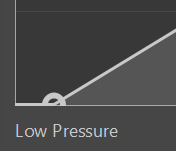
- If the pressure curve is offset from the left side, then it will increase the Initial Activation Force. This can help if you get a jittery response at low pressure, making the response more predictable. However, this is usually set on the driver side, rather than in Krita.
- If your pressure curve bends down (like in your screenshots), this makes it feel firm / hard. You will need to press more to get bigger pressure.
- If your pressure curve bends up, then the pen feels very soft. I would not recommend this either, it makes pressure hard to control.
- If your pen has 16k levels, it will likely feel very hard/firm. You will not be able to get high pressure, unless you press very hard, which will wear down your nib and tablet surface. You can offset it with a curve like this:
or this:


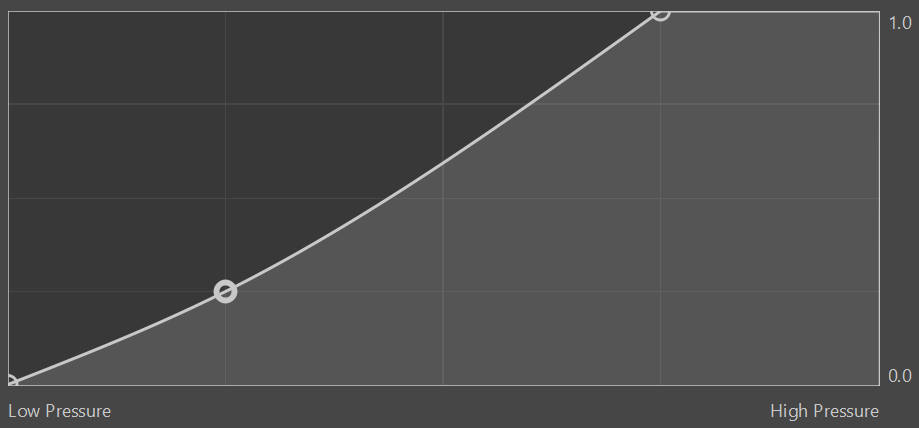
Lastly, what you describe sounds like an inversion of pressure. This should not really be possible, unless your curve somehow goes from high-left to low-right.
For testing pressure response, you can use a very simple brush like b) Basic-5 Size, which should make it easier to understand if it performs as you wish.
