FOUND IT!
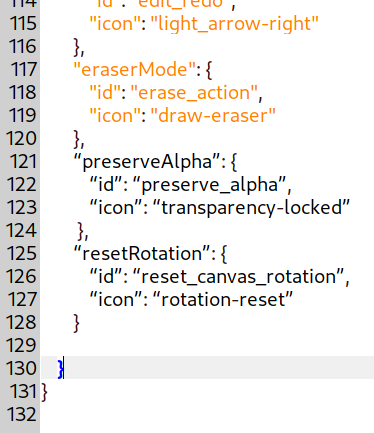
The new Krita Scripting School has an icon library, and that eraser icon is draw-eraser. Here’s the new data.json to use if you want the icon to be right. No functionality is changed, just the icon.
Thanks to @scottyp for the site!
FOUND IT!
The new Krita Scripting School has an icon library, and that eraser icon is draw-eraser. Here’s the new data.json to use if you want the icon to be right. No functionality is changed, just the icon.
Thanks to @scottyp for the site!
Thank you very much. could I ask you to insert specific buttons?
I tried to do it following your instructions but I find it very difficult, I don’t know anything about programming
What buttons do you want to add?
I did some experimenting a couple of days ago after reading Malle’s post and adding the eraser. Now I’ve got additional buttons on the bottom row for opening the brush editor, configure Krita, and toggling docker visibility. I made others but haven’t kept them in the lineup.
I’m not a coder, so I did it by duplicating sections (copy and paste) in the data.json file and replacing the relevant parts (more copy and paste) with information from the scripting site (from the action dictionary and icon library). You then add a line in the config file to enable the button.
I made a few other tweaks  …
…
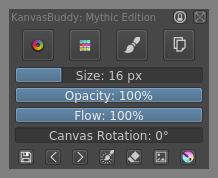
@kapyia This is incredible; thank you very much for your work!
Running Anarchy (arch, at baby level, lol) and Mate 1.24.0-1, and using the 4.3 stable appimage … no issues. The docker colour selector transferred to KB, which is great, and, having never tried canvas-only before, trying that, because of KB, is amazing.
May I ask if there’s a way to view a couple of python plugins while in canvas-only too? … timex, and the old reference docker. And I’d copied over @malle_yeno’s data.json (thank you for this), but am not seeing the eraser. Not sure overall how to enable extra buttons, but did go to the config file via krita and saw where to change 0’s and 1’s. Maybe I’m not understanding fully which command relates to what, or some buttons need manually adding?
Thanks so much again!
You can have dockers visible in canvas only mode but you need to set it up right. Have a look at the three posts I made in the toolkit plugin thread from this point onwards: https://krita-artists.org/t/toolkit-1-0-1/9273/53
That should explain everything you need to do. The reference docker works (I just tried it), but I don’t have the timex one so I’m not sure about that. If it’s a docker it should work in theory.
To enable the code for the eraser toggle button; the config file needs a line in the canvas section corresponding to the label in the button code, and with a value of 1 to enable it i.e. eraserMode=1
Thank you Mythmaker … success! I turned off any excess dockers via Dockers menu, and detached the 4 I would like to use in canvas-mode along with KB. Then I saved the workspace, and it switches perfectly through using KB’s canvas-mode switch button. And adding eraserMode=1 into the canvas section of the config file works perfectly too. Really happy with this whole new painting UI; great to have so much space and simplicity. 
Yeah - I can’t believe how much I’ve changed my setup over the past few weeks - it’s like a dream come true! The tweaks I’ve just added, combined with the UI Redesign plugin mean I can stay in canvas only most of the time.
If you want to add a button to toggle docker visibility you can use this code (in the same section as the eraser button code):
},
“showDockers”: {
“id”: “view_toggledockers”,
“icon”: “folder-pictures”
with this in the config:
showDockers=1
You can change the icon to something else if you want - I chose the picture icon as the only docker I’m using is the image overview.
I know what you mean! Couldn’t even imagine using Krita in this way previously, and am set on working in canvas mode mostly too. I’ve added the UI Redesign plugin as well, and it works perfectly with KB, timed exercises plugin, and the old reference images plugin. Definitely exciting to work in a new way, and already more productive. 
Thank you also for the code for adding a docker toggle. Great to learn more. Sounds a good idea that you use the picture icon, with solely using the overview docker.
There’s one button I’d like to add to KB, and that’s the reset canvas rotation button. Would that be resetCanvas=1? and the following code into the json file? …
},
“resetCanvas”: {
“id”: “reset_canvas”,
“icon”: “folder-pictures”
[not sure where to draw icon from]
Also ‘preserve alpha’, which I imagine could be ‘preserveAlpha’ and ‘preserve_alpha’, with preserveAlpha=1?
Do you have the rotation bar enabled in KanvasBuddy? - You can easily reset rotation by dragging it all the way to the left.
If you still want a button, the id for reset rotation is reset_canvas_rotation - so the code would look something like this:
},
“resetRotation”: {
“id”: “reset_canvas_rotation”,
“icon”: “rotation-reset”
resetRotation=1
For preserve alpha it would be:
},
“preserveAlpha”: {
“id”: “preserve_alpha”,
“icon”: “transparency-locked”
preserveAlpha=1
The link to the icon library (and all the available actions) is in Malle’s last post ^
If you click on an icon you can highlight and copy the id from the details on the right.
Thankyou Mythmaker; you’re a star! I hadn’t been able to access the Scripting School site via locked down waterfox classic, but am able to via regular waterfox current. Great to learn where the icons are and how to include them, and I really appreciate being able to add these extra 2 buttons; so much a habit to use reset rotation button, I hadn’t even checked the slider, lol. Very impressive that KB includes so many options.
I’ve just entered the 2 bits of code into the json file, then the 2 commands into the ini file, but am getting an error that makes no sense, as the code clearly is correct/like the eraser button details. On starting KB a message comes up saying expecting double quotes in property name, line 121, column 9 … I can’t see anything wrong at all. I’d previously added the eraser details onto the end of the json, then placing the command in the relevant section of the ini file, and did exactly the same with these 2 buttons.
I noticed the error reports the opposite to what is on the line, so have tried changing the order of resetRotation and preserveAlpha code blocks, but it still says that line has an issue, but the opposite again e.g. when resetRotation code is at line 121, error message reports preserveAlpha is the issue, and visa versa.
Fixed! … for some reason it didn’t like the quotation marks, lol. Re-did them, and the text turned orange.
Unfortunately a different error at the moment …
Traceback (most recent call last):
File “/home/wellspring/.local/share/krita/pykrita/kanvasbuddy/kanvasbuddy.py”, line 56, in launchInterface
ui = uikanvasbuddy.UIKanvasBuddy(self)
File “/home/wellspring/.local/share/krita/pykrita/kanvasbuddy/uikanvasbuddy.py”, line 63, in init
self.initPanels(config[‘PANELS’], jsonData[‘panels’])
File “/home/wellspring/.local/share/krita/pykrita/kanvasbuddy/uikanvasbuddy.py”, line 83, in initPanels
self.panelStack.loadPanel(data[entry])
KeyError: ‘preserveAlpha’
This might be beyond me to help with 
My best guess is that you might have placed the config code in the wrong section? The error code mentions ‘panels’’ which is the section at the top; the correct place for those actions is the ‘canvas’ section at the bottom. 
Yep, user error, lol. I’d put one of the entries into the middle section of config.ini, so everything works perfectly when changed to both lines in the Canvas section of the config, and both code pieces at the bottom of the json:
[CANVAS]
canvasOnly=1
eraserMode=1
preserveAlpha=1
mirrorCanvas=1
resetZoom=1
wrapAround=0
instantPreview=0
resetRotation=1
     },
    "resetRotation": {
        "id": "reset_canvas_rotation",
        "icon": "rotation-reset"
     },
    "preserveAlpha": {
        "id": "preserve_alpha",
        "icon": "transparencyMask"
    },
    "eraserMode": {
        "id": "erase_action",
        "icon": "draw-eraser"
    }

}
}
Thanks for your help with this. 
Cool! - Glad you got it working! 

Thanks!
iwould like pen presure, reset rotation, reload ooriginal presetn, ereaser and new layer
Okay - sorry for the delay; this took some time to get through! 
Do you mean a button to toggle pressure on/off, or a button to access the pressure settings? The toggle is possible, but the settings is part of configure krita - so you’d need a button to open the configure krita (like I’m using).
The code for pressure on/off toggle:
 },
        "pressureToggle": {
            "id": "disable_pressure",
            "icon": "transform_icons_penPressure"

*(^ put this part in data.json)*


pressureToggle=1

*(^ put this part in config.ini)*
The code for a button to open configure Krita:
 },
        "configureKrita": {
            "id": "options_configure",
            "icon": "krita"

configureKrita=1
To reset rotation you can just drag the existing rotation slider to the left. Or if you really want a button you can use this code:
},
        "resetRotation": {
            "id": "reset_canvas_rotation",
            "icon": "rotation-reset"

resetRotation=1
To add a reload preset button you can use this code:
},
        "reloadPreset": {
            "id": "reload_preset_action",
            "icon": "preset-switcher"

reloadPreset=1
Alternatively, you could add a brush editor button and access the reset from there:
},
        "brushEditor": {
            "id": "show_brush_editor",
            "icon": "krita_tool_lazybrush"

brushEditor=1
The eraser button code (as posted by Malle above):
 },
        "eraserMode": {
            "id": "erase_action",
            "icon": "draw-eraser"

eraserMode=1
I would suggest just using the layers docker built in to KanvasBuddy for adding layers - you have more control and it saves adding another button. If you still want a button for adding basic paint layers you can use this code:
},
        "newLayer": {
            "id": "add_new_paint_layer",
            "icon": "transform_icons_penPressure"

newLayer=1
I think that’s everything! 
All the codes listed go in the canvas section (at the bottom) of the data.json and config.ini. There are several examples showing how it should look in posts above.
You need to make sure the text is formatted the same as in the actual file - e.g. you might need to change the quotes if they’re different (I think the forum is reformatting them when I paste the code).
Hopefully they all work okay - I haven’t tested the new ones you requested, but the code should be right. If you want different icons, you can change them as decribed in posts above.
oh man thankyou very much!!!
De nada! 
And thanks to @raghukamath for reformatting the text - that’s easier to read!
Just tried to install this on my krita git build and I am getting a ‘QWidgetItem’ object has no attribute ‘itemAtPosition’ when trying to launch it. I made a post on the git issue page for more details.
Thanks