Krita 5 Beta shape & selection tools are too imprecise/broken for Pixel Artist

Krita 5 got made changes to the rectangular and eliptical shape & selection tools, you can now change the angle of the shape by holding ctrl+alt while drawing it. However, It seems to me that this change altered the way these tools worked and made it annoying and even impossible to use for very precise Pixel Art work.

First, i wanna show you how these tools worked in Krita 4 and previously.

Krita 4 Rectangle & Ellipse Tools
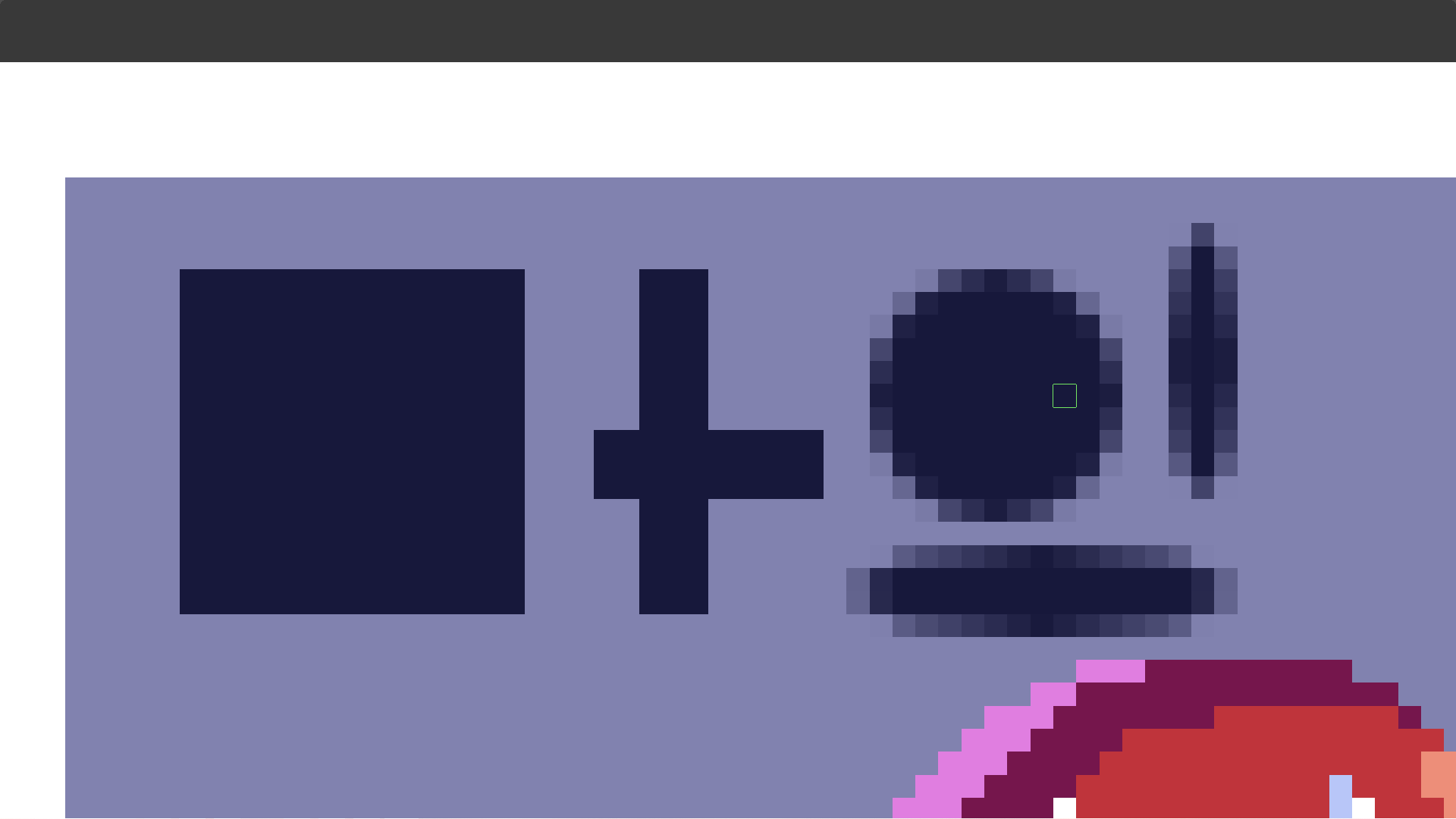
As you can see, the elipse tool was not good, because it leaves semi-transparent pixels all around the shape making it soft. The rectangle tool works wonderfully though, giving sharp corners around a rectangle or square of any size, this is great for filling in large areas or getting a flat edge very easily.

For the selections tools i have to show it in a video so i uploaded it to my youtube channel

As you can see in the video, the way the selection works is by snapping to a grid around the canvas which makes it easy to precisely select the pixels you want, this is also extremely useful, specially for the rectangular selection tool.

I want to note that this is the way all these tools behave while drawing, in this and previous versions of krita as i remember. Now let’s see how they work on Krita 5

Krita 5 Rectangle & Ellipse Tools
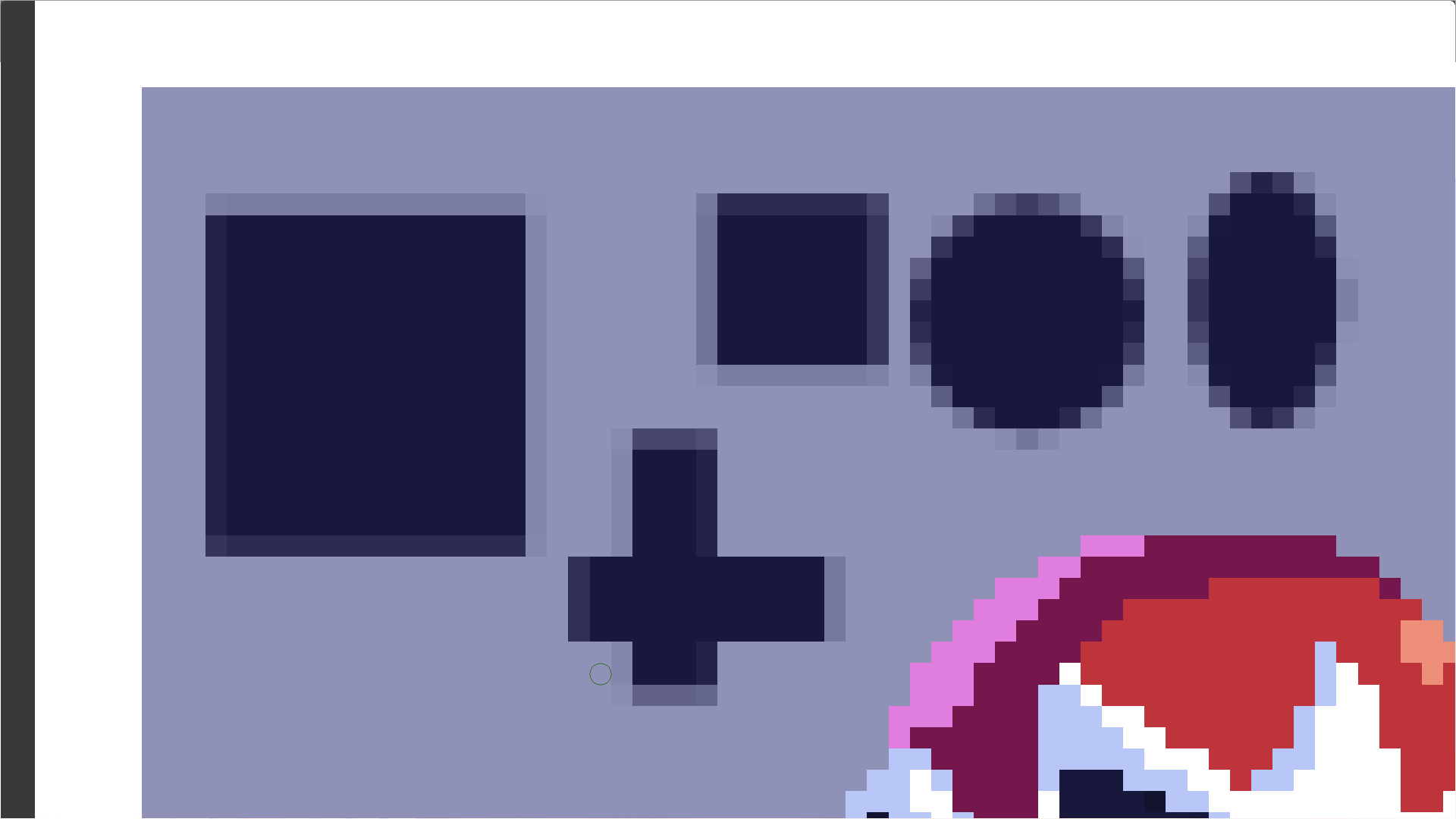
You can see the issue in that image, these shapes were made in the exact same way as in krita 4, but now all the shapes have awful, uneven transparentcy all around them, even the circles and ellipses are uneven (in krita 4 even though they were’t aliased each pixel had a symmetry in their transparency)

This is a huge problem, because even if i wanted to try and work with this, i’d have to do extra work to clean all the pixels everytime to have a solid color and that’s annoying and unnecesary

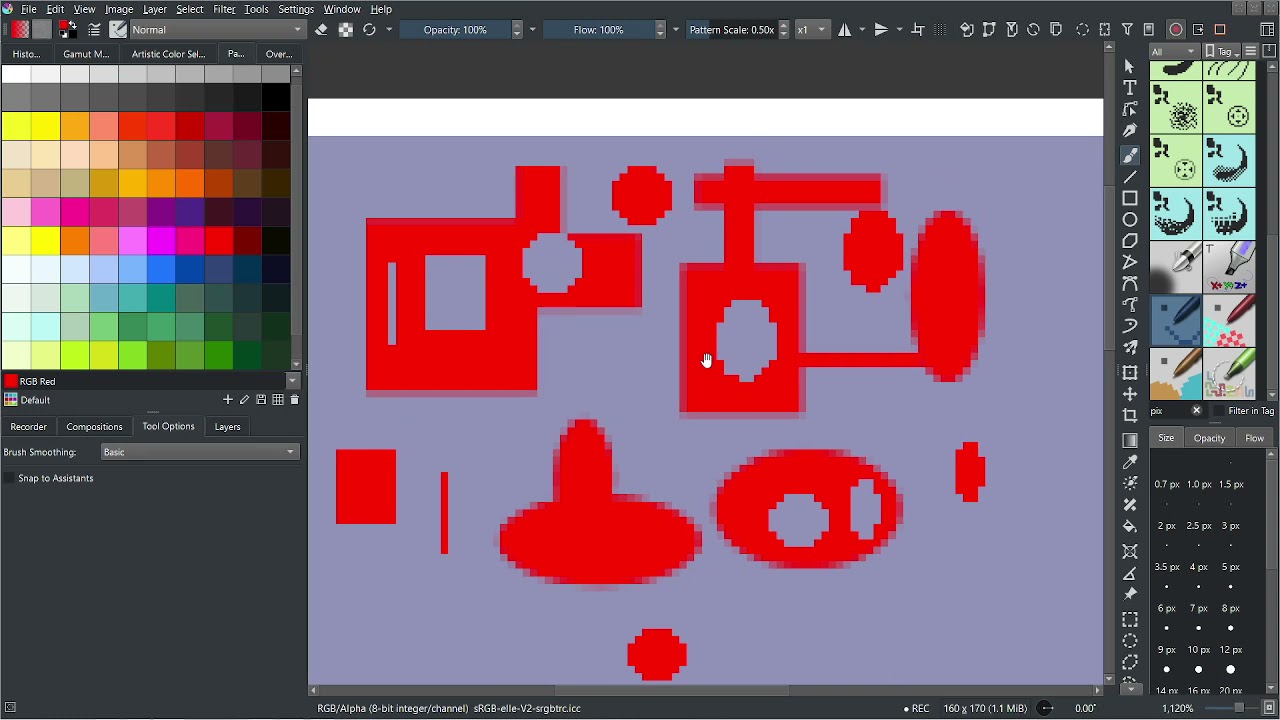
Now you can see the tool in action, and why it’s causing me a lot of annoyance. Rather than snapping to any pixel grid the tool seems to grow and jump in size in a distracting way, It’s also very imprecise, with the rectangular selection it’s less noticable, but look how much dificulty i have selecting and grabing a perfectly circular or eliptical selection without graving unwanted chunks around the selection.

Why this is a problem for Pixelart

Brushes, Lasso tool, magic wand, selection by color are some of my main tools for making pixelart, but among them are also the rectangle and ellipse shape and selection tools. Having these tools not work properly is seriously a dealbreaker for me! These are tools i’m constantly using while i work, they help me modify large portions of my artwork very quickly and easily, and while there are some workarounds, not having effective tools makes my pixelart workflow very unplesant.

I think the new features were what caused this issue for krita 5, and while it’s cool being able to rotate a shape or selection from it’s origin, i don’t find terribly useful (if it rotated from it’s center point then it’d be really helpful for getting ellipses in the right position). I really just want it to work like it did before.

That’s all for now, thank you for reading, sorry if i was too wordy.

7 Likes

I see what you mean - those edges look pretty bad. I’m using 5.0 beta 5 - I’m not able to replicate what you’re getting. I’ll type out my process in case I’m using a different method.

I used the rectangle and ellipse tools to make a square and a circle. Then I used the rectangular selection tool and the elliptical selection tool to make a selection inside of each shape. Once the selection was made I moved it outside of the initial shape using the transform tool.

Let me know if you did your a different way and I’ll try again.

Hi

@Scroptels_Gluzar
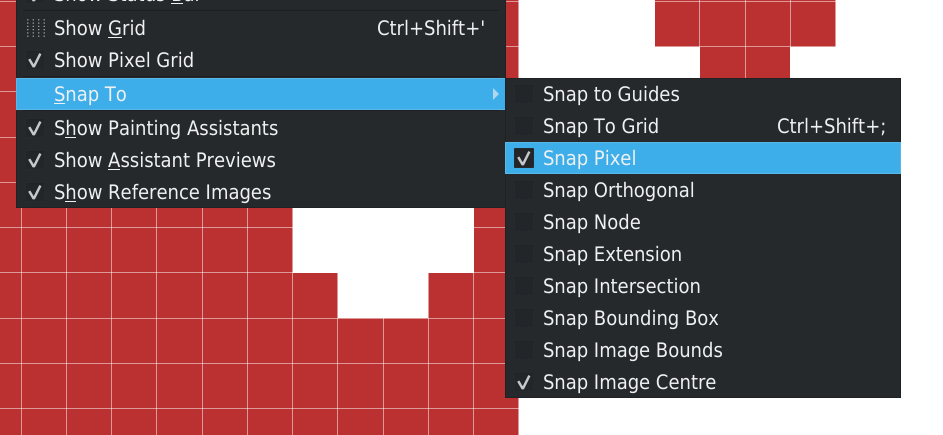
In menu View > Snap To > Snap pixel

When checked, selection tools always snap to pixel and I’m not able to reproduce your case with this option:

Can you made a test and tell us if this help to fix your case?

Grum999

2 Likes

Hello,
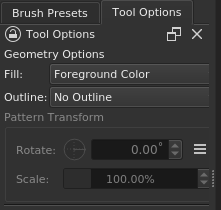
I remember someone talking about this before. For filled shapes a workaround at the time would be disabling the Outline in the Tools Options of the rectangle tool.
Captura de tela de 2021-12-08 15-20-21

However I can’t replicate this transparent edge in Krita 5.0 beta 5, using pixel art brushes.

Then I ask you: Which brush are you using? I tried with the Default Pixel Brush (u) Pixel Art) and couldn’t replicate the feather edges, no matter the size of the brush. Not even using the Ellipse Tool

Cheers

@Grum999 You got it! This fixed the issue with the tool and now i feel pretty stupid! lol
I guess seeing all the changes (good changes) made on krita 5 made me think this must have been a result of introducing new features and causing problems with the original tools.

I must have turned this option off the last time i was using vector tools in krita, since i have everything off to not snap to anything, and then i forgot about that option. I was just getting back to doing pixelart on krita after a looong time so this really threw me off when i saw it.


This screenshot is on Krita 5 beta5, now the tools work just like in krita 4, i can make clear shapes and selections without any transparent edges around the pixels or grabing chunks.

My test on krita 4 where done on a protable version of krita 4.4.8 i downloaded yesterday to test this stuff. So the settings where the default ones, meaning this option was on and that’s why it worked there but not on my installed Krita 5 Beta version where it was off.

I do wanna ask if there’s a way to have this option more visible, like placing it on the tool options menu for the rectangle and ellipse tool, or maybe concider have it turned on always though that may cause problems to some people working in other styles/mediums.

@sooz i see your image was 2000x2000 pixels, on a big canvas the problem is not an issue, you want transparent pixels around your shape to make them look realistic and natural. It’s only an issue in Pixelart where your canvas needs to be something like 50x50 pixels and every pixel needs to be clear and intentional, but because it was so small the tool wasn’t giving me that. As shown above by Grum999 that is solved by turning on ā€œSnap pixelsā€ in the snapping options menu under View>Snap To.

@Daishishi As shown above by Grum999 the issue is solved by turning on ā€œSnap pixelsā€ in the snapping options menu under View>Snap To.

Turning off the outline is not an issue, i already had it turned off in fact, and my issue doesn’t really have anything to do with the brushes i use, but to let you know, i use the Pixelart Brush set by the Artist Rakurri, these brushes are great for getting lines and shapes for pixelart. However, Krita’s default pixel art brush works just as well. if i was using any other brush i’d be getting a lot of undesired pixels around my strokes or shape outlines (because they use the brush you have active).

One thing i did noticed by testing your idea bit is that turning ON outline with a pixelart brush also fixes the issue i had with filled shapes! In fact, shapes with only an outline don’t have this issue with transparent pixels around the edges, though if i have Snap Pixels off the placement of the lines is still quite imprecise which is annoying but slightly less so.

:slight_smile:

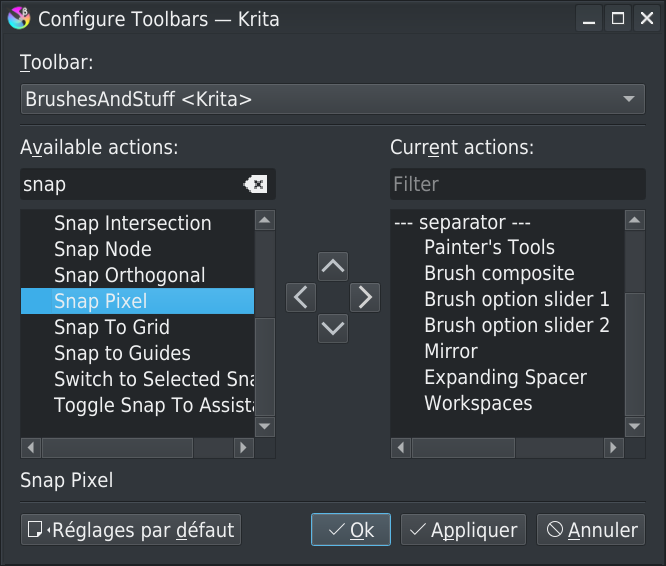
In menu Settings > Configure toolbars


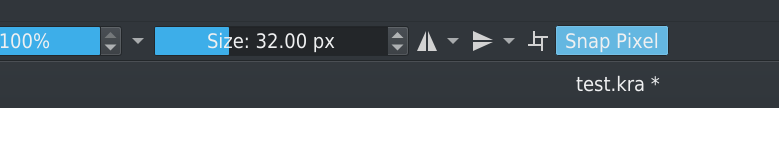
Add the Snap to pixel action to the toolbar.

There’s no icon, but the information is here, visible, and immediately accessible with one click:

Grum999

5 Likes

@Scroptels_Gluzar I’m so happy you asked your question and that you have a solution. As for me, I just learned a bunch of stuff from you and from @Grum999 and @Daishishi. That’s what it’s all about!

4 Likes

Hang on friends, I’m sorry to take more of your time, but even though the issue is solved i decided to test my theory to make sure the problem was snap to pixel being off on krita 5 and on on krita 4.

It turns out i have it off on both, but in krita 4 it doesn’t cause any problem at least krita 4.4.8 portable, in krita 5 it does.

here is a a quick video of me testing that

It seems this behaviour did changed in krita 5 and now i have to have snap to pixel on if i wanna work, that’s where my confusion came from.

@Grum999 that’s a nice idea although i think i’ll just keep it on all the time personally, i was just speaking for other people who might want it off

@sooz well i glad you think that, i personally feel kinda embarrased when a problem i point out turns out to have a really simple solution that i overlooked, but anyway i really should report stuff i come across more often here, thank you for your optimism :smiley:

Anyway, now that the issue is solved for me i can get back to making my artwork, thanks all for the help everyone! I’ll keep checking this forum in case there’s more replies in this topic.

2 Likes

I think most of time, users want it off.
That’s a really specific options mostly useful for people using Krita for pixel art or precise pixel related things.
I think by default, all snap options should be off, let the user activate/deactivate them when they need it.

:thinking:
I finally found the topic about this case

What you encountered seems to be a bug.

@tiar asked for a formal bug report

But I’m not sure a bug has been created, can’t found it in bug tracker.

Grum999

2 Likes

I agree, that’s why i suggested a checkbox on the tool options docker to toggle on and off, we already have that for all the selection tools to toggle anti-aliasing, which btw i’d love if that could also be added to the rectangle and ellipse tool, but that’s off topic, hee hee.

I wasn’t sure if this was something i should report as a bug on the website so that’s why i came here, but if it’s necessary i can make a report there i just wanted more input first.

That’s all for now

@Scroptels_Gluzar I am glad that you found the solution and I also hope that the bug is reported for the issue linked by @Grum999.

Off topic - it would nice to see some more pixel art in the forum so please do share your art :slight_smile:

3 Likes