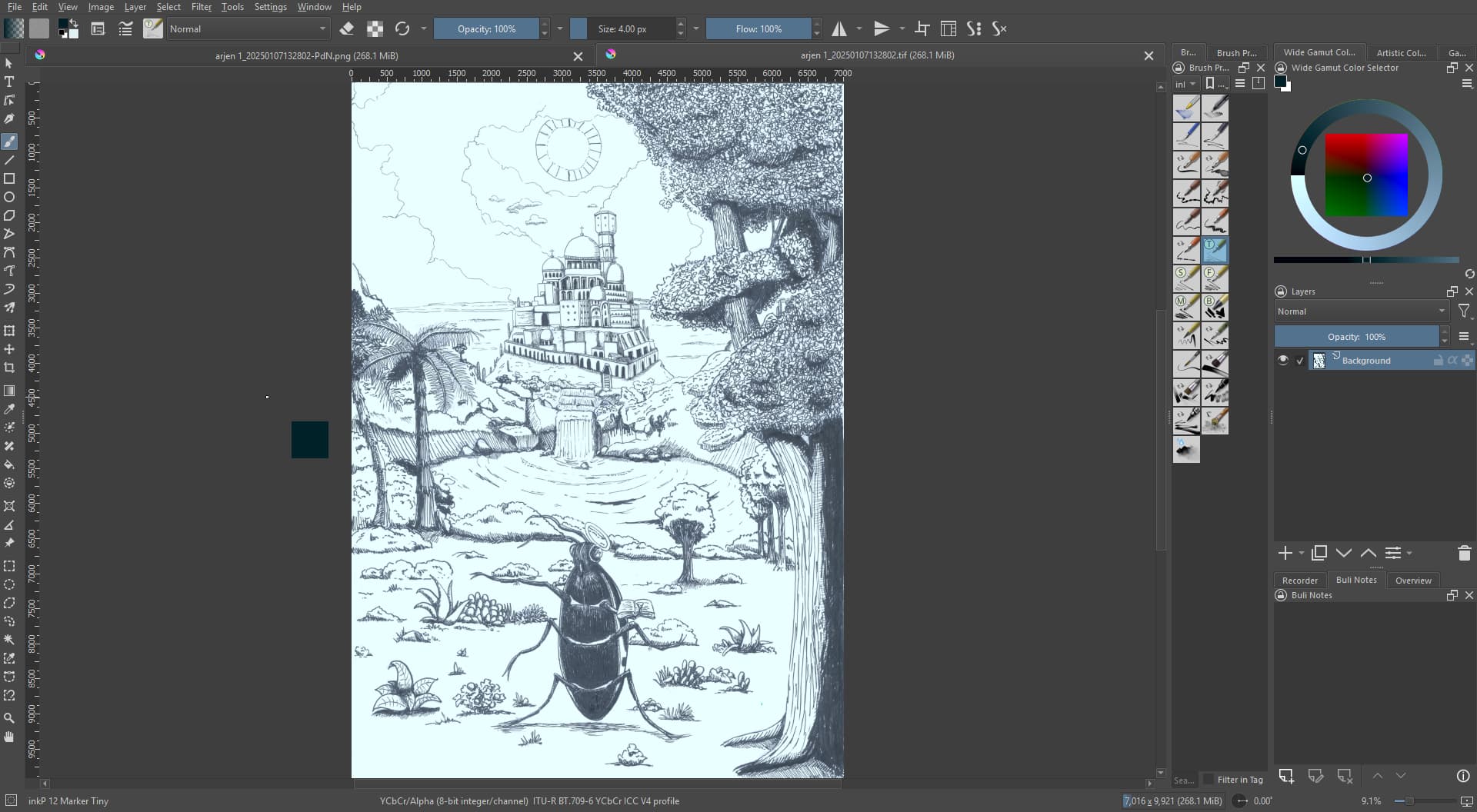
For my understanding, Krita does not colorize your TIFF scan, the reason for this is the color space you received your TIFF in. Krita will import what it gets, and unless you tell Krita to convert an input file to a different color space, it will take what it gets, e.g. the color space that is currently shown to you YCbCr/Alpha (8-bit integer/channel) lTU-R BT.709-6 YCbCr ICC V4 profile, and then the color wheel can only show the colors offered by/from that space.
My assumption may be wrong, but I have no other idea, therefor I began with:
But in which color space is the TIFF you want to import saved? Krita won’t open it in YCbCr/Alpha (8-bit integer/channel) lTU-R BT.709-6 YCbCr ICC V4 profile if it comes in a different color space. It may be that Paint.net automatically converts it for you without request, that is something Krita would never do without being set up this way beforehand.
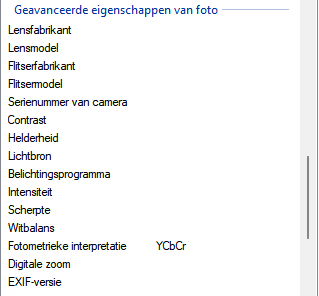
I don’t really know where I would be able to see that, except in the image properties.
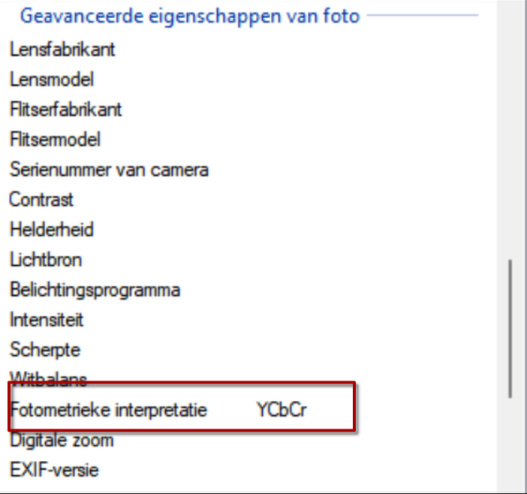
Here’s what it shows, it’s in dutch, but I think you can gather it from there:
ExifView may be a tool many think first of, and it is at least okay. But for picture formats other than KRA, I use XNView MP, you can get it for Linux, macOS and Windows, and it is free for non-commercial use.
And it will show you a plethora of information about a picture via the menu Image → Properties or the shortcut ALT + ENTER.
Also, MediaInfo is a nice tool to get a lot of information about pictures, videos, music, you can get it for nearly any OS currently popular, no matter if desktop or mobile.
The question for me is, do you convert it in any way?
Or, perhaps I misunderstood you completely, and you meant when you import a TIFF, or that certain TIFF, into an existing lineart picture it will change that existing picture? Because so far I thought you began with this scanned TIFF and that shows up with/in that unusual color space.
But usually Krita asks, while importing an image with a different color space than the pic you are working with, how it should handle the imported color space.
If you work for instance in RGB/A, and you do not convert the TIFF’s color space and do not tell Krita to convert to that color space, and do not have set up Krita to work in that color space, then it seems to be a bug for me.
Perhaps a user with a better understanding of the color profiles is able to give a well-founded answer on this, because here I’m at my wit’s end.
And Krita is opening it in that color space (you can see it in the status bar).
So. Krita is doing everything correctly so far. The reason why it could look off is that in your Krita display settings, the color profile for your monitor is not correct, so it can’t do a conversion properly.
Personally I would always use sRGB for drawing/painting and stay away from YCbCr unless I have very good reason to use it (and I also would not use tiff which is basically a raw photography file).
There are some misconceptions in your reply which leads me to assume that you didn’t read all of it, or maybe I was unclear.
I would never consider using an exotic colorspace for digital art, except for conversion to CMYK when it goes to the printer.
It has nothing to do with monitor settings or how things are set up in krita.
This concerns a scan of traditional lineart on paper, which was scanned.
The work is in A3, and for that reason I needed to use a work scanner, which unfortunately only outputs in PDF or TIFF.
Also unfortunately I can’t mess with its settings because it’s a work scanner.
If this is indeed working as intended that is great, no need for a bug report.
I will say though, paint.net is also an open source software, and has less trouble interpreting the color space.
No it isn’t. It is free to use but not open source. The license states
You may not modify, adapt, rent, lease, loan, sell, or create derivative works based upon the Software or any part thereof.
We didn’t really determine if it is not a bug, might as well could be.
Have you tried setting the correct color profile of your monitor in Krita’s display/color management settings and see if that helps?
I can’t tell you why it works in paint.net but usually it is a coincidence that happens because the application completely ignores the color management settings (windows for example is not even color managed by default untill windows 11, I think), and just assume it is sRGB. This is typical behavior for the windows image viewer for example, and often irritates users, wondering why their exported images look different than in Krita (for example when working in CMYK for some reason).
Additionally, it could be that the colors in Krita are actually shown correct but the scanner was wrong. There is an issue with scanning images drawn with some inks or with charcoal pencil, that is that the pigment reflects part of the light that the scanner uses, that gives everything a blue or sometimes greenish tint. It’s normally important to set the scanner to scan the image in grayscale mode to prevent this (it will still look a bit brighter and white might get a greyish tint). This is simply an issue you can have due to the physical process of scanning. I have this issue with my office grade scanner here at home too, and always have to post process some scans of artworks I made with some inks (or even paper that is very reflective, like the coated ones). And I belive that’s the case for you too.
I scan a lot of drawings using Vuescan on Win10 and it won’t attach such a profile to TIFF files – except if I ask for. So I suppose the color space is coming from the scanner and you should change this.
And, as it was said, there are chances that Paint.net does not manage the color space and shows black and white image. The real test would be to open the file in a another software that manages such a color space to see how it renders.
After opening the tiff, you can convert image’s color space to grayscale, which is a more appropriate one in my opinion, and it should look as expected.