Krita coming from GIMP, layers, selection, inherit alpha, mask

Hello every one
New to this forum, let’s introduce quickly myself before my questions.
I’m Patrice, a happy full GIMP user but not a paint artist, consider that I don’t know how to draw.
I’m very new to Krita even though I had Krita for many years installed on my computer (it’s free, don’t take much place, so why not having it and take a look time to time), but I can tell that I only opened it once after each update get curious and get quickly lost as I did not know the interface. Not really interested to learn a new UI/Software for photo manipulation/edit and so, then something unexpected happened 2 weeks ago…

I wanted to warp in a nice curve a “TV/Screen” translucent futurist alike in GIMP and none of the Transform tools were able to do it, although going to “Filters>Distorts>Curve Bend…” in GIMP did a proper job in its way, in another forum some one mentioned Krita and the “mesh” transform tool, which did an awesome job in a very simple way and even more than I expected…

Then something happened again 2 days after this, I needed to torsion a long ribbon, so I did it with Krita still with the mesh transform tool, from that moment, I started to learn Krita and discovered many other thing about Krita, I also discovered that I start to have the same amount of joy using Krita than GIMP for image manipulation.

I understand that Krita is a painting/drawing application that I am using for photography and I will use it for photo and image manipulation only, but there are many things in Krita that confuses me or do not work the way I would expect.

Now My questions.

Mask (transparency): for example, I draw a black and white layer (above the layer I want to add a mask) then I copy (Ctrl+C) this layer, create a transparency mask on the layer needed then paste (Ctrl+V) but it’s all white…

  • how do I paste a gray scale layer to a transparency mask (I don’t want to “convert” that layer in a transparency mask for later use).

  • Also, How can I activate the mask being visible on the canvas (seeing the black and white drawing on the transparency mask to fine tune it) with GIMP it’s Ctrl+Alt+Click on the mask and I see what i drew in black or white and can fine tune with a B&W brush or what do a blur on it, etc… how I do it with Krita?

Layers, Masks and Group: Coming from GIMP, this was a stiff learning curve to understand what does what and the differences between all of them. OK, I think I got it now, I still have a question, tough.

  • What’s the TRUE difference between a Filter Layer and a Filter Mask?
    I understood that the first one goes on top, the second one goes under, but what’s the true difference? It seems that if I put the Filter Mask(the one which goes under by default) on top it is acting like the Filter Layer and vice versa…

Inherit alpha: Do you know a good tuto about this (youtube for instance)? I do need to grab the concept and it seems to be an important one, each time I click on this icon on a layer or group, everything goes transparent.

Select Opaque… I would say it’s like with GIMP “Alpha to Selection”, but does not act really like it, so my question is what exactly does this “Select opaque” do? what about half opaque? is there some adjustment sliders somewhere?

Similar color Selection tool: is Fuzziness the threshold? also it’s hard to adjust 1 by 1 the level of fuzziness, mouse wheel is 10 by 10 like the arrows up and down on the side, what’s the modifier key when I scroll on top of the number to increase or decrease by one? I tried Ctrl/Shift/Alt, nothing is working, right click, yes I can input a number (that’s nice), but if I just would like to know if there is a modifier key with the mouse wheel to increase/decrease 1 by 1

I still have a plethora of questions as working with Krita is quite different (but enjoyable) than working with GIMP, so today, let’s start with those few questions above as appetizers and tanks a lot for reading.
I use Google Translate to answer some of the questions, hope there is no language barrier

“Filter Layer” is effective for all layers below it, but invalid for the layers above it. “Filter mask” only takes effect on a single layer; if it is in a layer group, it will take effect on all layers in the group (regardless of the order)

Isn’t it in the krita manual? You need to create a new layer group

I generally use it to select contours

Hello and welcome to the forum :slight_smile:

I used GIMP for many years, and I still use GIMP, so I can understand your confusion and ‘the shock of the new’.
Nothing about using krita for image manipulation is particularly difficult or complicated once you learn what it does and how to use it. (The mesh transform tool is really good to use.)

Transparency Mask:

You can’t paste directly onto a layer in krita. If you try that then it creates a new layer above the selected layer. You can then Merge the pasted layer with the layer below it if you wish, or you can work on it separately.
You have to convert a paint layer to a transparency mask if you want to do this sort of manipulation.
Unlike in GIMP, a layer in krita can have more than one transparency mask on it and these masks are effectively multiplied together in their effects on the paint layer.

You can paint on the transparency mask (or apply a filter operation to it) and see the effects on the paint layer immediately.
If you want to see the transparency mask as you paint on it (or do other operations on it) then you need to select it in the Layers docker and do right-click → enable Isolate Active Layer, then you can see it and paint on it, etc. Then do right-click → disable Isolate Active Layer to go back to the entire image.

Filter Layer vs Filter Mask:

A Filter Mask has effect only on the layer that it is applied to.
A Filter Layer has effect on the ‘view’ looking down through the entire layer stack. So, it has a long ‘range’ looking down.
You can limit this range by using a group with the filter layer at the top and the group containing only those layers you want to be affected by the Filter Layer.
If you’re going to do that, you could put a Filter Mask on the group layer to get the same effect.

Alpha Inheritance:

Alpha lock affects your ability to put paint on a layer. Alpha inheritance affects your ability to see paint on a layer.
If a layer has alpha inheritance enabled, the apparent/composited opacity/alpha is inherited from every layer below it. So, to restrict the range of this inheritance, a group must be used to contain the layers of interest.

The manual has this section that may be of help:
Clipping Masks and Alpha Inheritance — Krita Manual 4.4.0 documentation
The best way to learn is to read that and then do your own experiments.

Select Opaque:

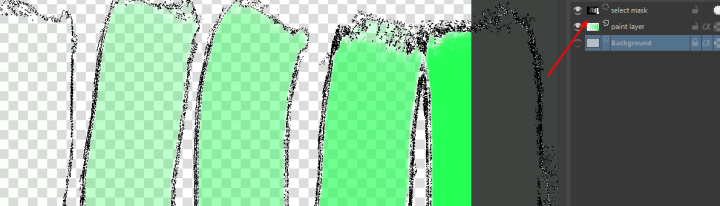
A selection in krita is actually a mask with ‘greyscale’ values in it. You can see this if you do Select → Show Global Selection Mask and then the selection mask will appear as a layer at the top of the Layers docker. You can then hover your cursor over the global selection mask to its image thumbnail.
So, Select Opaque converts the alpha channel of a layer to a selection mask.

Krita also has Local Selection Masks that can be set up for various purposes and enabled/disabled.

Similar Colour Selection Tool:

Fuzziness is a measure of how ‘strict’ the selection is when it’s deciding if a colour is ‘similar’ to the colour that was clicked on. The lower the value then the more strict (the less fuzzy) it is. You can adjust the Fuzziness by dragging the slider or you can type a number into the slider box.
I don’t think there is a way to change the step size of the mouse wheel or up/down arrow actions.

@AhabGreybeard Wow, thanks a lot for taking time to write these very clear explanations, now that I understand I’m going to play with it, Again thanks a lot I very much appreciated.

@TheTwo No worries Google translate did a good job, thank you very much for your input, much appreciated.

Adding my own (with Indian accent) video here.

You can also quickly isolate layers by pressing and holding the Alt key and then clicking on the layer in the layer docker. To disable repeat that shortcut again.

That doesn’t work for me. It may be beacause I use the MATE dektop which uses Alt at the system level for window dragging. (I’ve tried suppressing it in the past but had no luck with that.)

I’ve just set the keyboard shortcut to Alt+Z which is easy to press and works.

I’m also using the MATE desktop (Ubuntu-MATE) and it does not work as well. :upside_down_face:
Thanks a lot for your input, much appreciated, have a great day