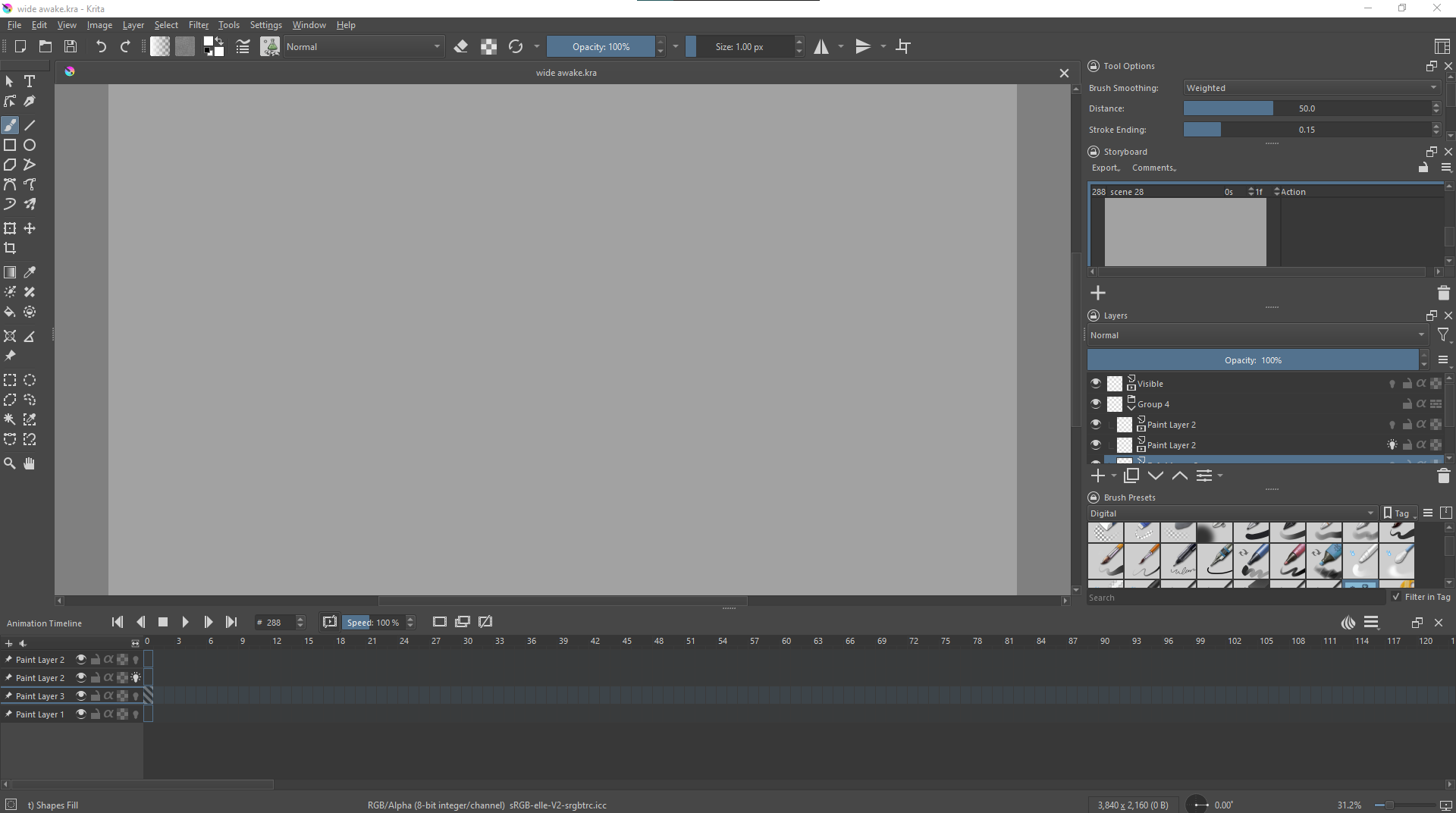
hello everyone and happy holidays! i recently started storyboarding/animating on krita and was doing pretty good up until last night. throughout working on the project, krita would occasionally crash but i saved frequently so getting my work back wasn’t an issue. however this time, it crashed and suddenly all my layers, frames, and boards were completely blank. but looking at the thumbnails, i can still see that my last frame was saved before crashing. here are some details in case it’s helpful:
- Windows 10
- Krita 5.1.5
- Huion Kamvas Pro 13
screenshots of the issues:

i heard that putting too much in one .kra file could make it unreadable in the app, is there a way to reverse this? i was super proud of this board and i’d really appreciate the help. thank you in advance for your time!
It would be a good idea to use version 5.2.2 which is the latest formal release.
Your canvas size is 3,840 x 2,160 px. Are you animating for viewing on a 2K monitor?
Does the backup file (wide awake.kra~) have the last good state available?
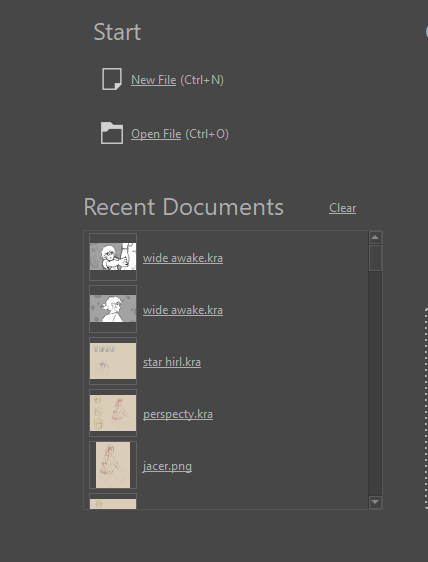
I don’t understand how your Recent Documents has two entries for wide awake.kra unless one of them is wide_awake.kra?
Hello AhabGreybeard,
Thanks for your response! Just updated to 5.2.2.
To be completely honest, I chose this canvas size because I wanted the 16:9 ratio that storyboards use, not realizing how HUGE it actually was.
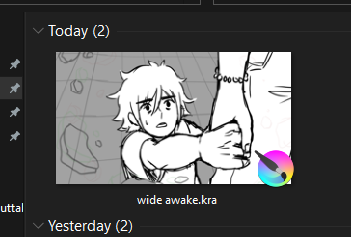
I believe so, the reason why there are two wide awake.kra files is because I made a copy of the backup file to a different folder to check if:
- the thumbnail would be my last frame saved (it was).
- to see if turning it into a zip and opening it would cause an error (it didn’t).
What size is the .kra file?
What size did it used to be when everything was there ok?
How much RAM did it use when it was working?
How much RAM does your computer have?
Was autosave running and if so, did the autosave file have anything useful?
If the wide awkake.kra~ backup file useful to you?
If it is then it sounds like you’ll have to take it from there.
The .kra file is 699 KB (715,861 bytes).
I kept everything the same for the most part, so it worked when the canvas was 3,840 x 2,160 px. In terms of file size, I’m not sure, but as I mentioned before, I kept everything the same except for the Memory Limit.
I’m unsure about this also, but I do remember having to put the Memory Limit slider all the way to 100% because it gave me a warning at some point when it was at 50%.
My computer has 16 GB of RAM.
I believe the autosave was running, yes, but when I opened Krita back up, it didn’t give me the option to recover my work, however I saved everything before it crashed so I assumed no work would be lost.
The backup file was also blank, unfortunately.
That is small, probably because it has very little in it.
Do you know how big it was when all your work was still there?
The default/standard RAM allocation is 50% of the total, i.e. 8 GB in your case.
That sounds like the earlier file with all content, combined with the work you were doing pushed the RAM use up to about 8 GB.
That is a very bad idea. If krita is allowed to use up to 100% of RAM then there will not be enough for the operating system (Windows) to use and it will crash.
Windows needs about 2.5 GB of RAM (it’s variable) all to itself to work with.
You should leave at least 3 GB of RAM for Windows and not use any other applications at the same time.
On my 16 GB RAM computer, I set the RAM limit to 12 GB for krita.
It sounds like you Saved the document when it was empty at some stage.
Sadly, it seems that your work has been lost 
I unfortunately do not. The backup file is 1.21 MB (1,278,637 bytes) however, so considerably more than the original, though it is still blank when I open it.
I’ll be sure to change that then, thank you for letting me know!
Ahhh that’s truly so unfortunate Do you have any advice as how to avoid an occurrence like this again? I’m assuming I should probably not work on such a large canvas for starters haha
The large canvas is not a problem in itself. It’s the amount of RAM that it causes krita to use if you have many layers and/or many frames in an animation.
Another thing in this situation is editing/working with the document. This causes more RAM to be used for the Undo storage to give Undo capability.
As I said, in your case you should set the RAM allocation to 12 GB at the most and not run any other applications while using krita.
You can also use the Windows Task Manager to see how much RAM krita is using overall.
If working on a large document then it’s a good idea to regularly Save and then to Quit krita and restart it then open the document to continue working on it.
That is what I do when working on large animations.
The backup file facility can be set to give more than one level of backup in
Settings → Configure Krita → General → File Handling tab → Number of Backup Files Kept.
That way you can go further back in time to try to find a good backup if you’ve previously Saved a bad state.
For instance, I have set up this in between to 6 copies to hold, after years of 5 to hold.
Additionally, as @AhabGreybeard already hinted, you should get into the habit of saving more often while painting/animating. A good option, since it is not complicated, is to regularly press the F4-Button “Save Incremental Backup” to create more save-states along the way of creating your works, a stack of backup-files for cases you just experienced.
And once your project is completed you can delete them to free up the space needed to hold them on disk (or maybe every second, or third day AFTER controlling those you keep ARE OKAY!).
Michelist
I will definitely be following all the advice that you’ve listed! 
And I deeply appreciate this tip, I’m going to set that up right now haha. I am very grateful for all the help that you’ve given me with my situation, thank you so much for your time!!
Hello and thank you, Michelist! I’ll be working to form that habit of saving as well as the creating more save-states like you mentioned. I’m going to be more particular about my files moving forth. I appreciate your insight!