Type of device* : Desktop
Brand and version of the device:
System** : Windows 8.1
* graphics tablet/display tablet/2-in-1 laptop/Android tablet
** Windows/Linux/Mac/Android, + version (you’ll find it in Help -> Show system information for bug reports)
I’ve just downloaded Krita and I have this really anoying problem that I haven’t yet been able to fix, I’ll try to explain it the best I can:
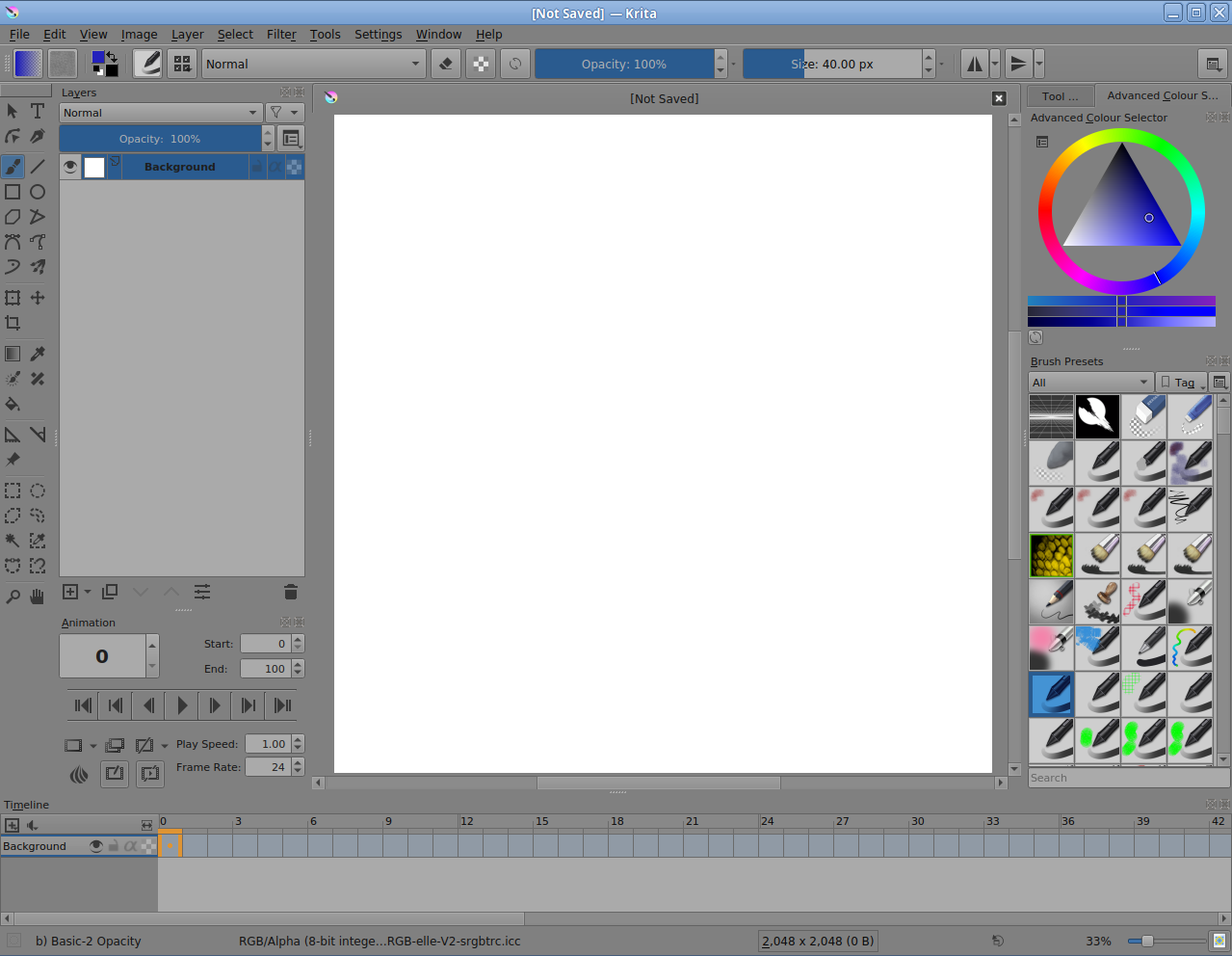
When I have Krita open normal display mode the dockers don’t fully show, it seems like it doesn’t fit or something and it doesn’t show all the features and I can’t move them around as I wish, and I can’t scale them either, that happens to every docker. When I quit the display mode and then click it again it gets back to normal but then I if I try to drag the dockers it exits Krita and I can’t put it back in, only if I double click it but then it doesn’t fit the screen again… I’ve already unabled Hi-Dpi and tried to reinstall Krita but nothing worked, I really don’t know how to fix it.
Yes, the window doesn’t fit. The resolution of your display is the absolute minimum we try to make Krita fit it, but for the animation workspace, you’ll need to move dockers around until the window will fit. Maybe dock the brush selector with the toolbox. You will only have a very small area to work in, but that can’t be helped.
The Onion Skins docker is only needed for adjusting the number and properties of the onion skins and you may as well delete it right now, the default settings are fine initially.
You can toggle the Onion Skins docker on and off with the ‘onion’ icon on the Animation docker.
The Animation docker has a minimum height requirement and as you have it then it’s very wasteful of horizontal space as well.
You could try the following arrangement. My monitor has a very different aspect ratio to yours but I think the point is clear:
If you float the Animation docker and reduce its width, you’ll be able to dock it in a docker column to the side of the Toolbox. Positioning it to get it to do that is a bit tricky but it will do it.
Then you can float the Layers docker (or the Brush Presets docker) and put that above the Animation docker. Or whatever you want to do.
Having done all that, you can save the arrangement as a named workspace using the Choose Workspace icon at the top on the right side of the Toolbar.