Type of device* : Graphic Tablet
Brand and version of the device: Wacom, Intuos S CTL-4100
System** : Windows 10
Basically, my pen pressure works normally according to the Wacom driver, it also works in other illustration software like Medibang.
Krita recognizes my pen pressure, but it is always at a very high value (almost 100%). I have tried a little bit of everything but I have no idea how to make Krita’s pressure recognition return to normal.
I tested with different brushes, I have Windows Ink on and WinTab mode selected for the tablet on krita. I have already reinstalled krita and did a Reset with Backup, and updated the wacom driver
Or, how to make it wrong.
These things, Windows Ink and WinTab are interfaces over which the programs, Krita and your driver, communicate, but when you select to use them different “languages”, how can you expect they understand each other?
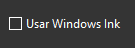
Set your Wacom to NOT use Windows Ink and set Krita to use WinTab, then confirm that setting with the OK-Button in the lower right corner of that dialog and restart Krita.
Now it will work, you’ll only need some fine-tuning, have to create a profile for Krita in your Wacom Control Center, and adjust the shortcuts so Krita and your tablet talk the same language.
The Krita shortcuts can be set in two places for different purposes, in the menus ‘‘Settings’’ >> ‘‘Configure Krita’’ >> ‘‘Canvas Input Settings’’ and ‘‘Settings’’ >> ‘‘Configure Krita’’ >> ‘‘Keyboard Shortcuts’’.
Either you use one or the other, both doesn’t work. Tablet and Krita need to be configured to use the same API. Just like you cannot drive stick in an automatic transmission car.
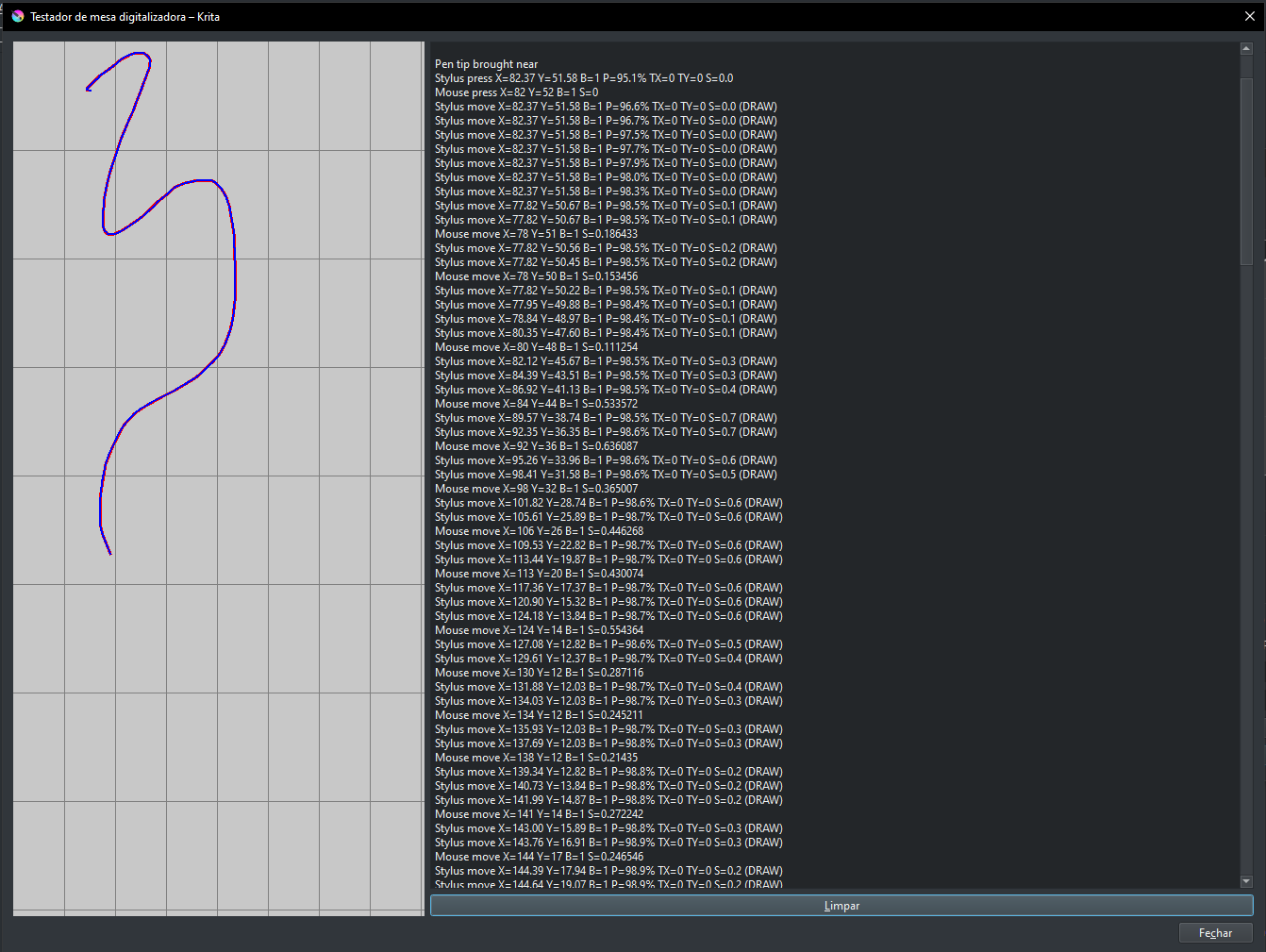
Hello Michelist, ty for replying me. Actually, as you and Takiro said, i’ve already tried to set the “WinTab” and turn off the Windows Ink. My main language it’s portuguese, so dont be surprised with the screenshots. Well, i followed ur instructions but didnt work, do u have some idea?
Hey sim, did you try to remove and install again the Wacom driver, then restart your computer? Usually when I see something messed up with the pressure, it’s due to the driver.
If this still doesn’t help, check if your pen settings in Wacom panel are set to defaults. Once you get the pressure to work well you can customize your settings again.
Yes, Wacom drivers are often corrupted by Windows updates, a fact I overlook too often as my Huion driver does not have this problem. Thanks for noticing this @YRH, it’s a good idea to update the driver!
It worked! i did it in the past before, but i restored to my backup settings. This time used the default settings of the tablet and everything is fine.
 Hello
Hello