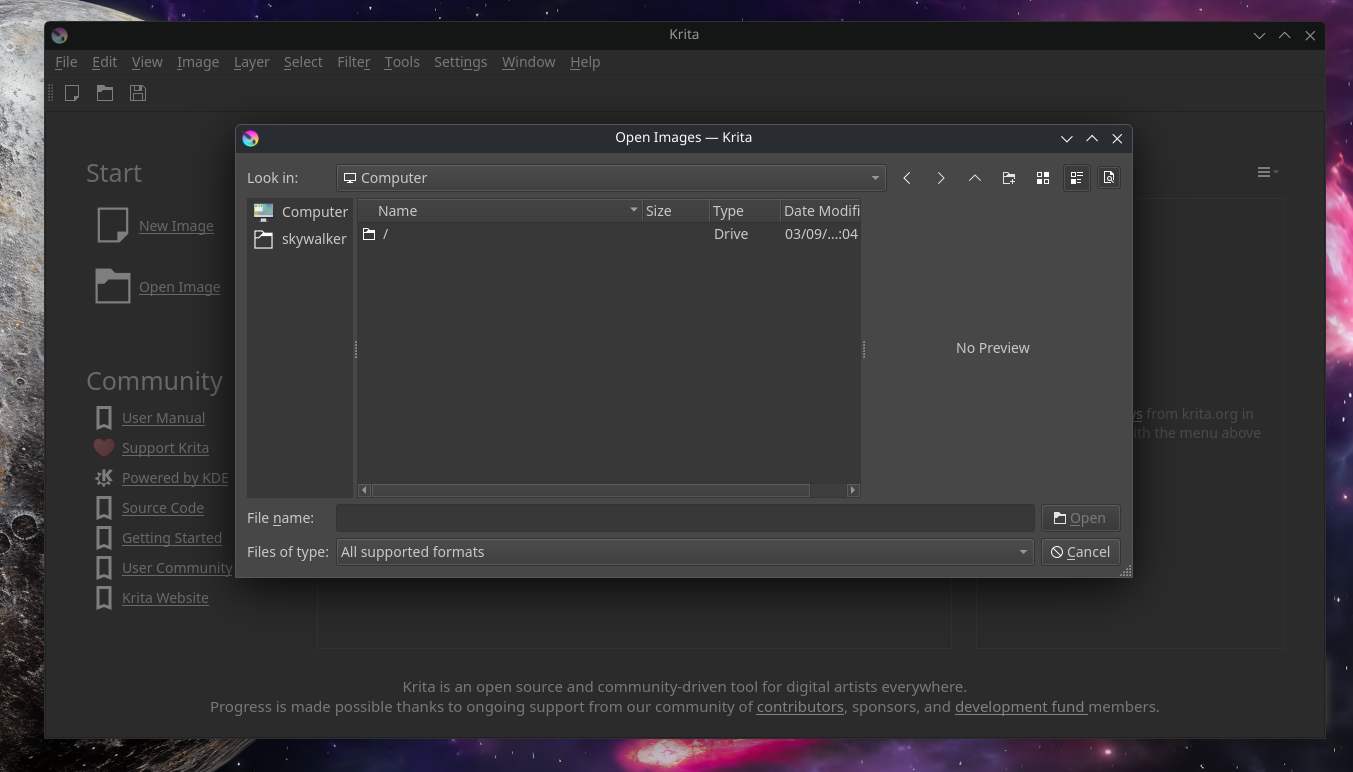
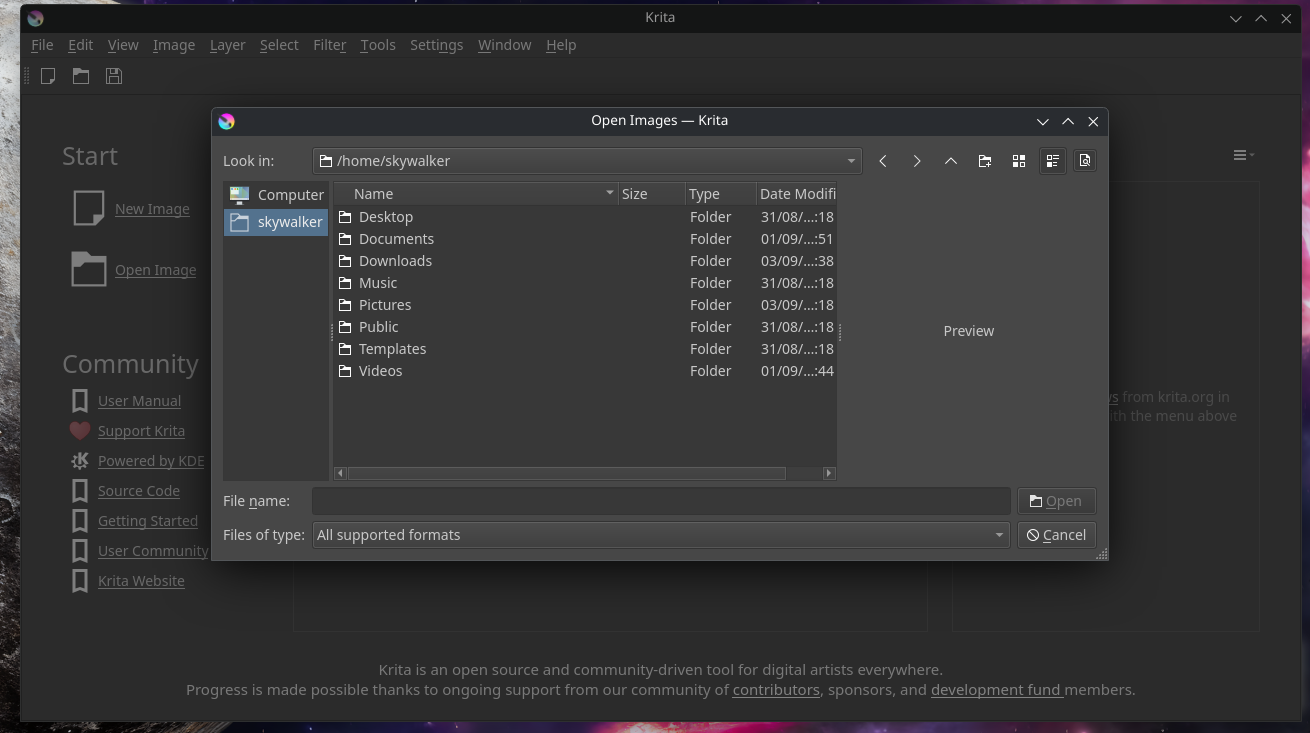
I am having a issue with Krita 5.2.11, the latest. The issue is, after installation, I cannot see any of my mounted drives while trying to open a file. I have first installed it with the command `sudo pacman -Syu krita’. I don’t know from where it installed from Arch repository or Flatpak. But it installed without any issue. It did not ‘see’ the mounted drives. Then I removed it with the command ‘sudo pacman -Rd krita’. Then I installed it from Flathub from Discover. The problem persists. It is still installed in my system. Beside this, Have downloaded the AppImage from here Krita Download Page on krita.org. The problem persists. Please help me to solve this problem.
Regards.
PS. I updated EndeavourOS fully before installing Krita and restarted after installing Krita. Nothing worked.
The Krita file manager that Krita opens during dialogs is not the same as the OS, so it does not have all the bookmarks and shortcuts you have in the file browser (nautilus, dolphin or whatever Endeavor uses), assuming you are referring to the drive icons and folders you normally have on the side bar of the file browser. But the drives should be perfectly reachable. I don’t know where Endeavor mounts them but they’re probably in /media, /mnt or /run. You can navigate there and then add the drives to the bookmarks/sidebar and then they should stay there for Krita’s dialogs too.
For the Flatpak versions, additional permissions might be required.
One thing you could try is use your regular file manager, Dolphin is the default with KDE, browse to your mounted drive, right click on the *.kra file, (assuming you have some), and select open with other application, browse to your krita appimage and set it as default.
Krita will open with the file you selected, and in the mounted drive where your files are at.
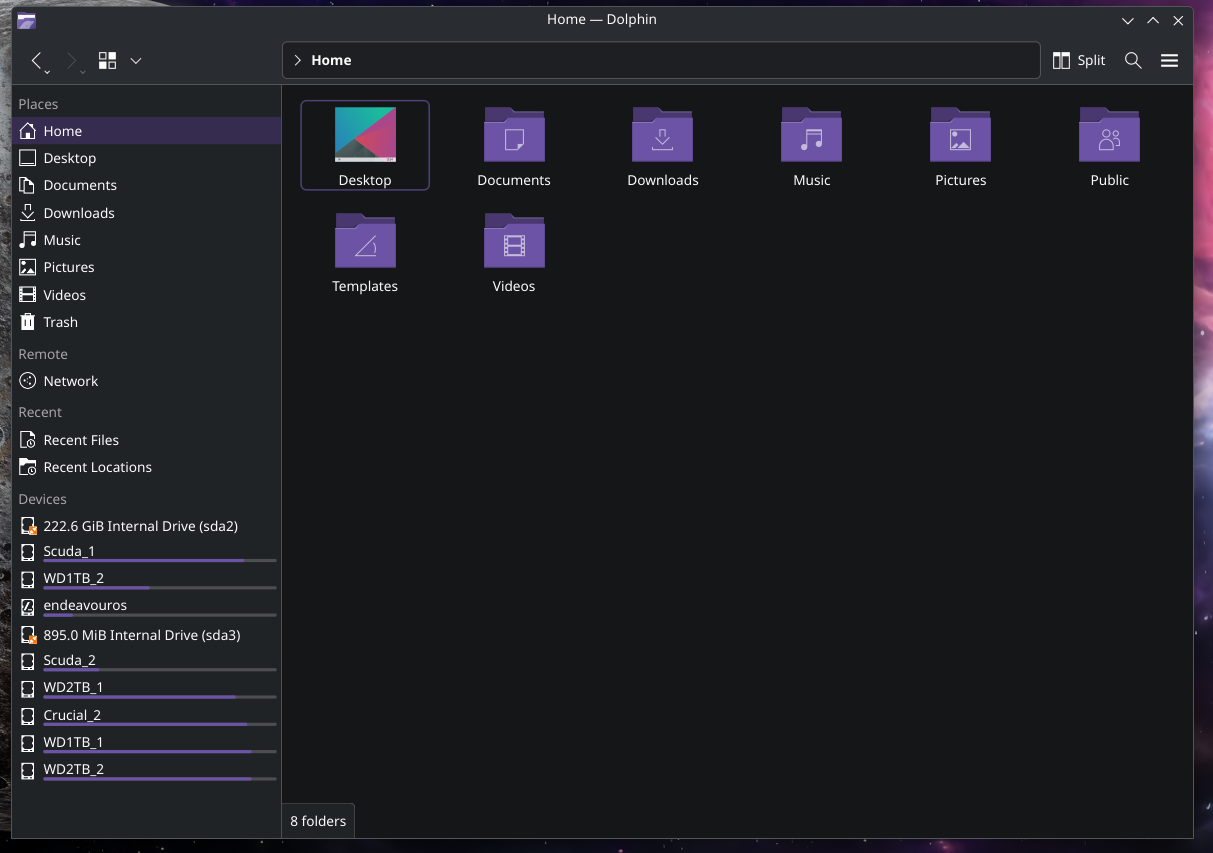
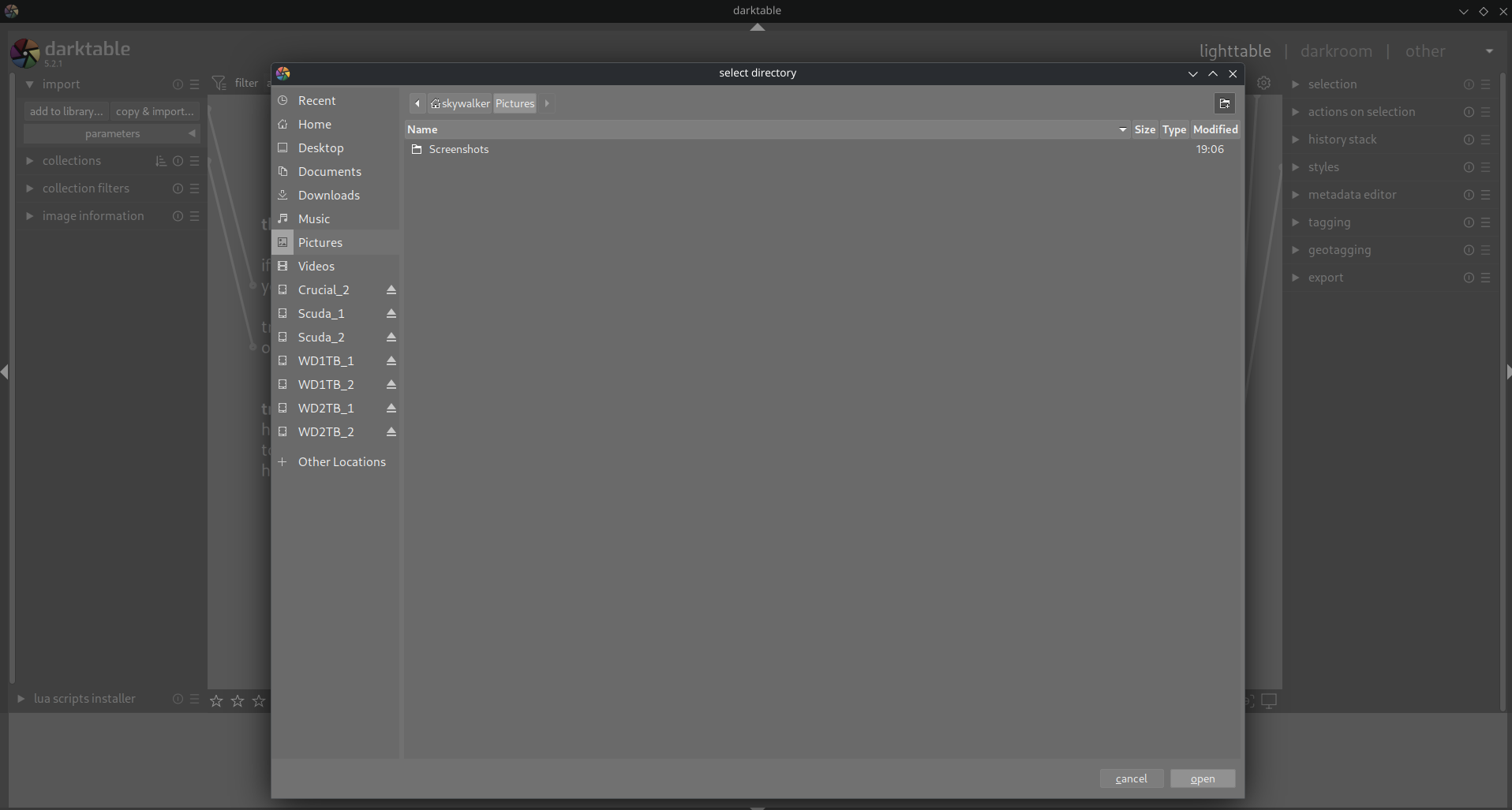
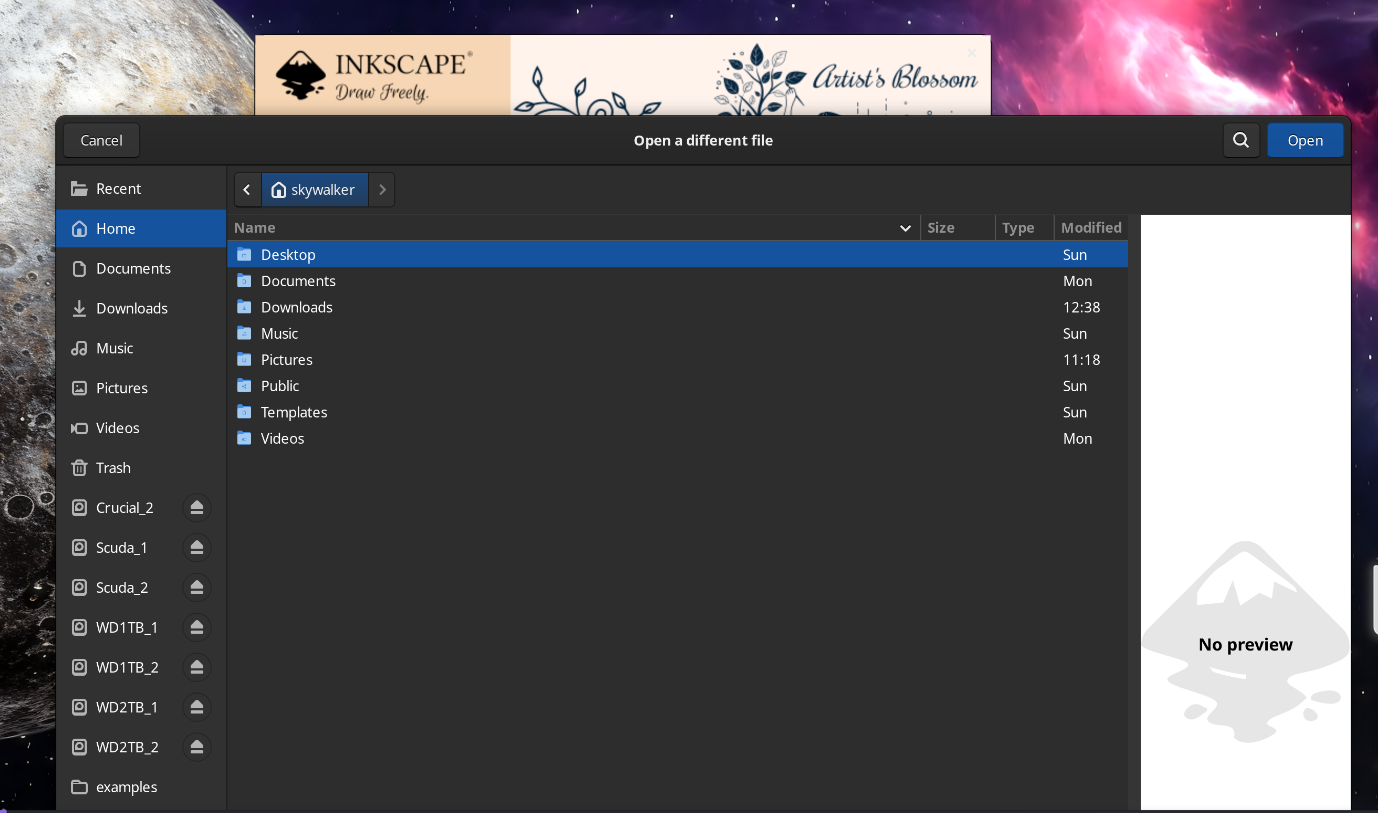
Side by side I am posting 3 more screenshots of Dolphin, the EOS file manager, Darktable file import window, Inkscape file open window. I think when you will compare with the pictures, then my problem will be more clearer to you.
You can see in all these 3 screenshots posted above, the mounted drives are clearly visible on the left side of the each window. That’s the way it should be visible but in the top most image of this post, in the screenshot of Krita ‘Open Images’ window, no drive is visible. That is the problem I am talking about.
Sorry for my question, usually I’m better when it comes to Windows.
Have you given Krita the rights to access these locations? That was something I had to learn in the beginning of my Linux experience, to always grant the rights a program needs.
@Michelist You are right. We give some programs rights/permissions in Windows but when they ask for it, generally with a warning dialogue, “You don’t have required permission to access this folder”. But in this case, it doesn’t show any such thing. Plus I have installed all other applications using the same procedure, either using the command or using ‘Discover’ and they are working fine. So, why Krita wouldn’t work in the same way?! It is not such a critical application which needs some ‘critical’ permission. So, what went wrong?!
What you see there is the root directory (not to be confused with the root users directory), it is the base of the directory structure. In Linux a drive has to be mounted somewhere in that structure to be accessible. Most of the time it is in /media, /mnt or /run. That means you first open the / folder than look for the directories I mentioned, one of them probably contains your other drives. When you found them you can drag and drop them to the side bar of the dialog (or right click them and choose “add to bookmarks” or something) and they will appear in the sidebar like in your other dialoges from now on (if they’re mounted).
Krita’s file Dialog does not scan for these “bookmarks” as far as I know. It will also show the last used directory which on first start is none which defaults to the file system’s root.
By the way, have you tried changing Krita’s behavior accessing your directory tree via enabling/disabling “Enable native file dialogs” under ‘‘Settings’’ >> ‘‘Configure Krita’’ >> ‘‘General’’ in the tab ‘‘Miscellaneous’’? But that is not available under every OS.
Open the / folder (or click on Computer, should also work) shown in your screenshot and look for folders named media, mnt or run, one of which will have your drives as folders and you can add them to the side bar.
Yes. It was there under /run/media/skywalker. Thank you so much but it is very inconvenient. It should work just like other apps. Anyway, thanks again.