hi you guys! i had an issue with my recordings from the recorder docker of krita, they all come out blur and im not sure how to fix it, ive used the recommended compression and quality levels for both png and jpeg and its still doesnt work. any advice?
 Hi @noorblin, and welcome to the forum!
Actually, you shouldn’t experience any blur effect when using PNG as a format, since PNG compresses lossless regardless of the “compression strength”. Did you possibly choose a strong reduction, for example, reducing to only a quarter of the image size? With JPEG, of course, this effect can be caused by the compression, so you should actually test the chosen settings first to see how they affect the image quality.
Please be so kind and tell us the settings you have chosen, for JPEG as well as for PNG, furthermore we need from you the used version of Krita and also the used operating system, to be able to support you more purposefully. Also, which version of FFmpeg are you using, and from where did you download FFmpeg and Krita?
To your question, if the blurred images can be cleared again, I can only tell you: possibly. But this is a complex process. You would first have to determine on one image whether the effect can be corrected, and if this is possible, you would have to apply the correction settings applied to this image to each individual image.
I myself know only the specialized tool “Smart Deblur” for Windows, which is now only available for a fee. Furthermore, I suspect that you could also eliminate this unsightly effect with the command line tool ImageMagick, for which there are graphical user interfaces to make it more convenient to use. But for that you have to ask users who know ImageMagick or ask for support in one of the forums for ImageMagick. But the advantage of ImageMagick is the possibility to apply found settings via batch processing to all further images, whether the paid version of Smart Deblur could do this as well, I don’t know, I only use the older free version.
I suspect that there are most likely other tools that can improve the image quality again, but you would have to research them yourself on the internet. I suspect most will be chargeable 
Please don’t be surprised that your topic has been moved to another forum area, I had to do this because you are not offering any resources for download, but are having a problem with the display of your recorded session(s). I am sure that as a new user, not yet familiar with the manners of this beautiful forum, you will soon learn and apply these little things in dealing with this forum, if only because a question in the right forum section will be found more quickly by the interested helpers, and thus you can be helped more quickly. 
Michelist
4 Likes
@noorblin Please also upload an example of the .jpg/.png images in the Recording folder and ideally post a link to a file download service/website to share the video file that you’re getting from this situation.
(If the .mp4 video file is smaller than 3MB, you can upload it here if you like.)
It would be useful if you could also upload screenshots of the Recorder docker and the Export Timelapse window to show the settings/options that you use.
3 Likes
Welcome to the forum, @noorblin.
When you provide screenshots of the recorder docker and export timelapse window, can you also provide the pixel dimensions of the canvas so we can compare those dimensions to the recorder settings?
2 Likes
hello! so i use windows and the krita version is 5.1.5, the dimensions of my canvas, export and recorder settings, are provided in the screenshots below,
i downloaded the ffmpeg from the secured site that was recommended on the tutorial of krita’s main channel
i cant add the video sample of my artwork as they are saying new users cannot upload attachments id also like to mention that the individual snapshots in the finished file are good quality, the problem arises when i play the video and its comes out blur, thankyou so much for your help.
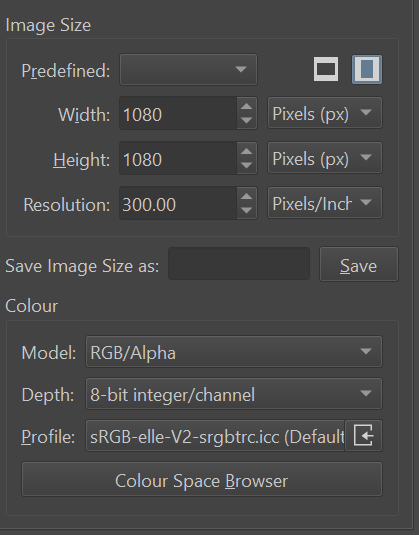
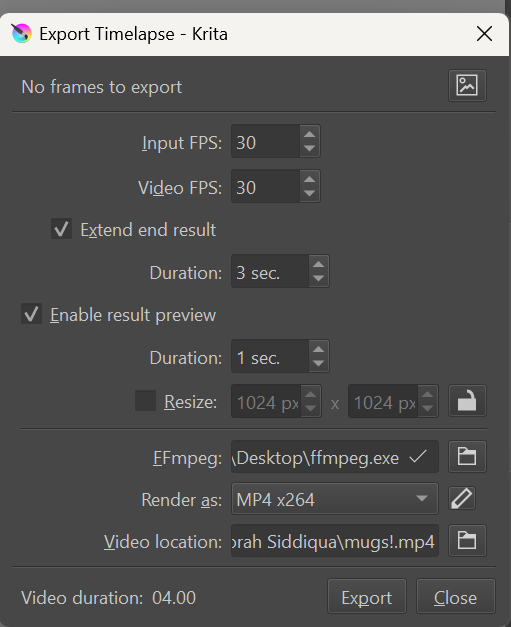
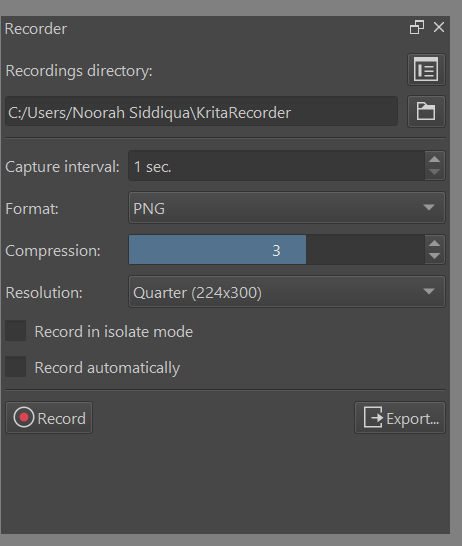
you were right!! its the quater resolution affecting the quality!! i pushed it back to the original resoultion and its looks much much better, tysm for ur help:)
3 Likes
I see that you have chosen to save your screenshots in a quarter of the real size of your canvas, at which size in pixels do you view your video? Because if you want to see your video in currently usual resolutions of round about 720p (1280x720) or maybe 1080p (1080x1920) it would be normal that your video is blurred, because the video has to be upscaled a few times to reach the resolution viewed in your video-player. And upscaling means nothing more than the computational addition of non-existent image information, which then creates the blur effect you see. So at 720p the information has to be quadrupled and that’s not little, at 1080p it gets even more unfavorable by sixfold.
Ahh, you found it yourself while I was writing this text. But that is fine, it is always good if users can help themselves, I’m happy that you are now getting a result that satisfies you!
Michelist
2 Likes
This topic was automatically closed 30 days after the last reply. New replies are no longer allowed.