Hi All,
I always seem to be on here asking for help!
I’m working with a Windows 10 Lenovo laptop, wacom intuos tablet, and Krita 4.4.8
I was trying my hand at animating last night, got a bit stuck so stopped for the night and have come back to it this afternoon.
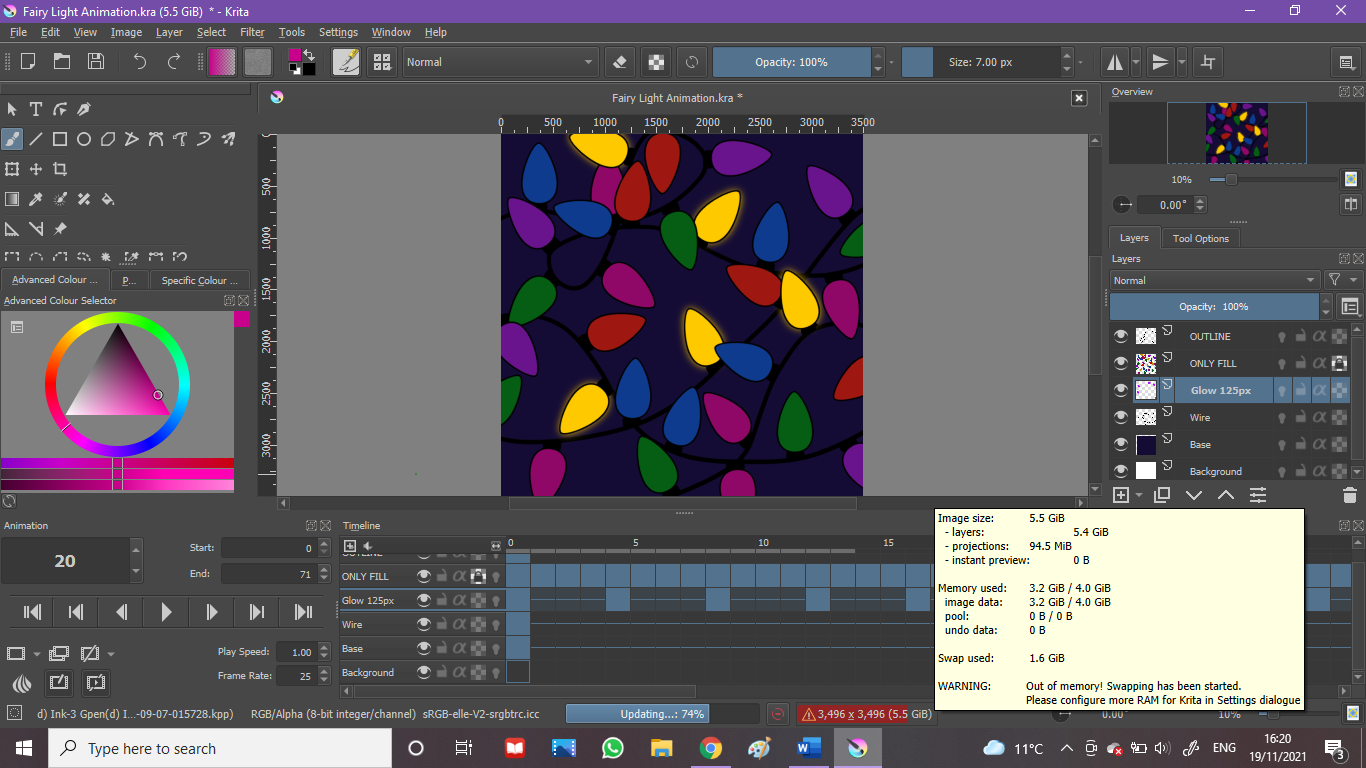
Opening the file this afternoon proved almost impossible. Krita crashed several times as well as “not responding” with the blue wheel of death mouse. Once I managed to get the file open and stay open it was telling me the file was too big yet it’s the exact same size as it was last night when I shut it down.
I am not tech savvy and I really don’t understand what’s happening.
I’ve tried searching for how to fix this and I can only find how to export files smaller, not anything about how to fix whatever this problem is.
It’s making my whole laptop lag and freeze and I’m getting frustrated with it.
Ideally I do not want to scrap this because it’s taken me hours to get this far. I only have a few more things to do on this piece but I can’t do anything with it behaving like this.
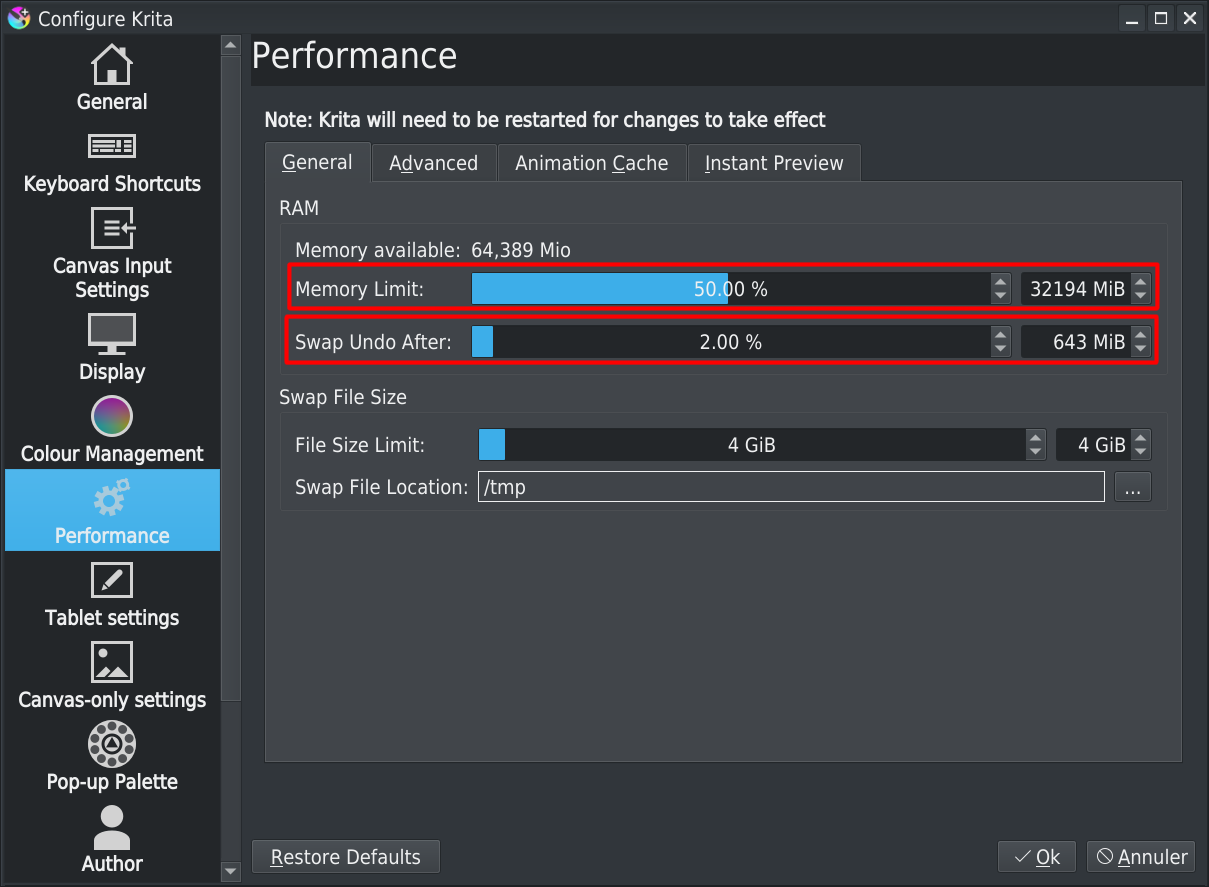
And reduce value of “Swap undo after” (this will reduce memory usage for undo action in memory and then, let Krita use available memory for other things - don’t set this to 0, I think maybe 50 or 100Mb should be good)
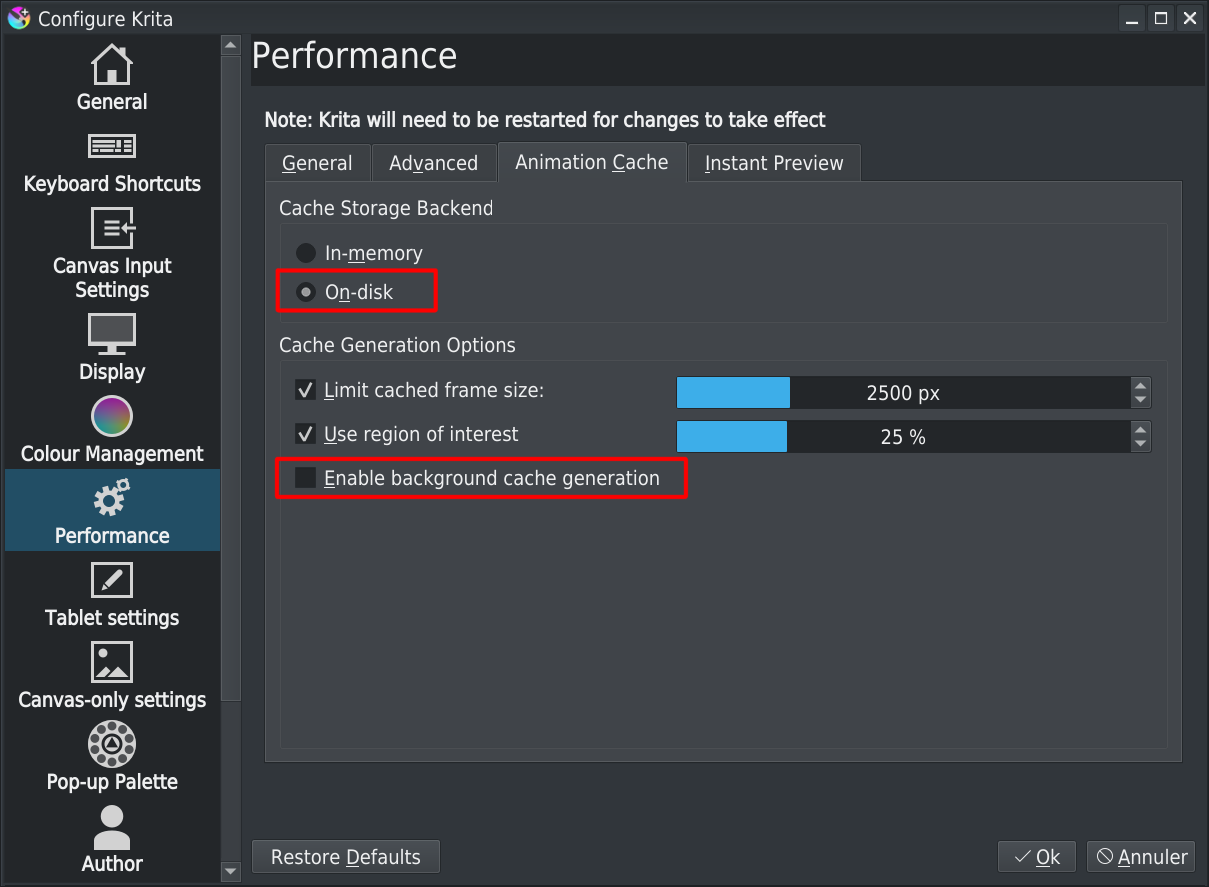
When you open Krita, and before trying to open your file, go in settings > performances > animation cache:
Set cache-storage on disk this will let memory space for more interesting tasks for Krita than keeping rendered frames in memory
Uncheck “Enable background cache generation” When checked, Krita tries to generate all frames in cache; this is a task that use memory & cpu; by unchecking it, Krita won’t spent time to do it
Can’t guarantee that it will fix everything, but it should be at least let you opening the file
After allocating more RAM in the Settings, I’d suggest 6GB because it seems that you have 8GB of RAM, restart your laptop and do not run any other applications then run krita.
Open the animated .kra file and hope that it will open.
Your ‘Background’ layer is an animated layer but I suspect it’s not actually visible because you have ‘Base’ above it which seems to be black, as a background.
If that is the case, delete the ‘Background’ layer.
If the ‘Base’ animated layer is always a black colour, it does not need to be animated, so delete it and replace it with a paint layer filled with black.
Then Save it.
Your image is 3,496 x 3,396 which is very large. Do you need it to be so big?
I’d suggest scaling it down to 50% then Save again. Quit, restart and reopen it.
After that, set your RAM allocation down to 5GB (to give 3GB for Windows and maybe another application to run) before using krita again.
Hi,
Can I ask what you mean by the base layer being animated? I created it as a standard paint layer so I’m not sure what you mean.
I tend to create all my work in 148mm x 148mm as my printing service for my art prints require everything to be that size and if I create it smaller and have to scale it up it loses quality even if I save it as a png.
Is there a way to scale the canvas size down that doesn’t cut off the image on the canvas? Every time I’ve shrunk the canvas size down it just cuts the work in half.
The Memory Limit slider shows a percentage of total RAM and also, at the right side, the amount in MB.
As I said, I believe that you have 8,000MB of RAM available, because the default allocation is 50% of total RAM and you’re showing 4GB on the animation RAM tooltip.
So, drag that slider so it says 75% i.e. 6,000 MB.
Then Quit krita, restart your laptop and only run krita.
Your ‘Base’ layer is an animated layer, as indicated by the lightbulb icon, and I think you’ve put a single black keyframe in frame-0.
This will not use up much memory but as a matter of principle, if it doesn’t have any animated content, you should replace it with a non-animated paint layer.
Your 148mm x 148mm at 3,496 x 3496 pixels has a printed resolution of 600dpi, which is fine for high quality art printing.
The image size, in mm along with the printed resolution, or in pixels is set by you when you create a new image. Those values are remembered and will be the same the next time you create a new image.
So, it’s up to you to set those to be suitable for whatever work you’re doing.
I can’t imagine that an animation needs to be 3,496 x 3,496 pixels, unless you intent to play it on a very high resolution monitor that can display all those pixels.
Image → Scale Image to New Size does not cut anything off.
I suspect that in the past, you’ve used Image → Resize Canvas and that will cut the image because it only works on the canvas size, not the image.