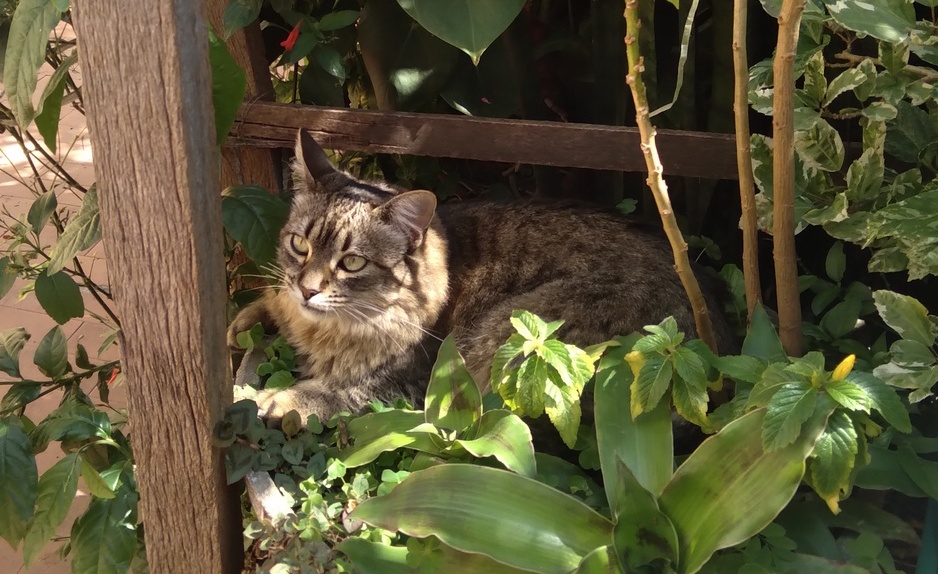
To find out for sure, I just did a test in Krita. I’m using a photo of my brother’s cat, taken with my cell phone, and I cropped the photo to make it smaller:
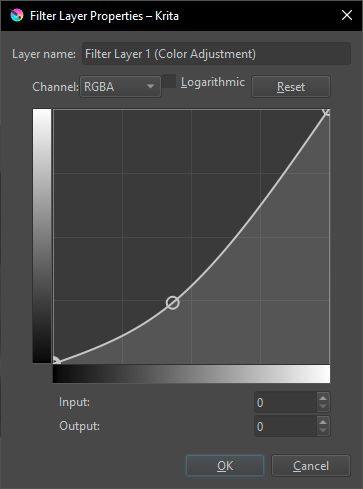
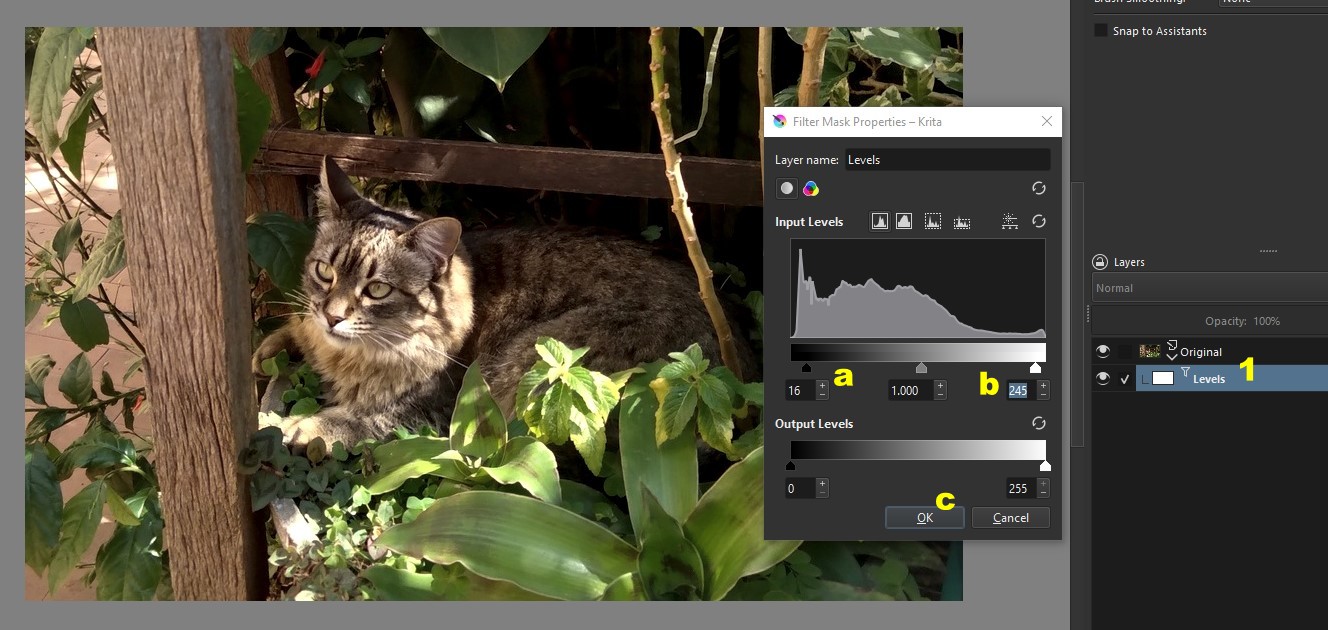
I didn’t even duplicate the layer, I just renamed it as: Original. I went to Filter > Adjust > Levels. I adjusted the "Input Levels" as usual: I dragged the top left slider a little to the right and the top right slider a little to the left, leaving the central slider untouched. I also didn’t change the “Output Levels”. Of course, the adjustments will depend a lot on the image…
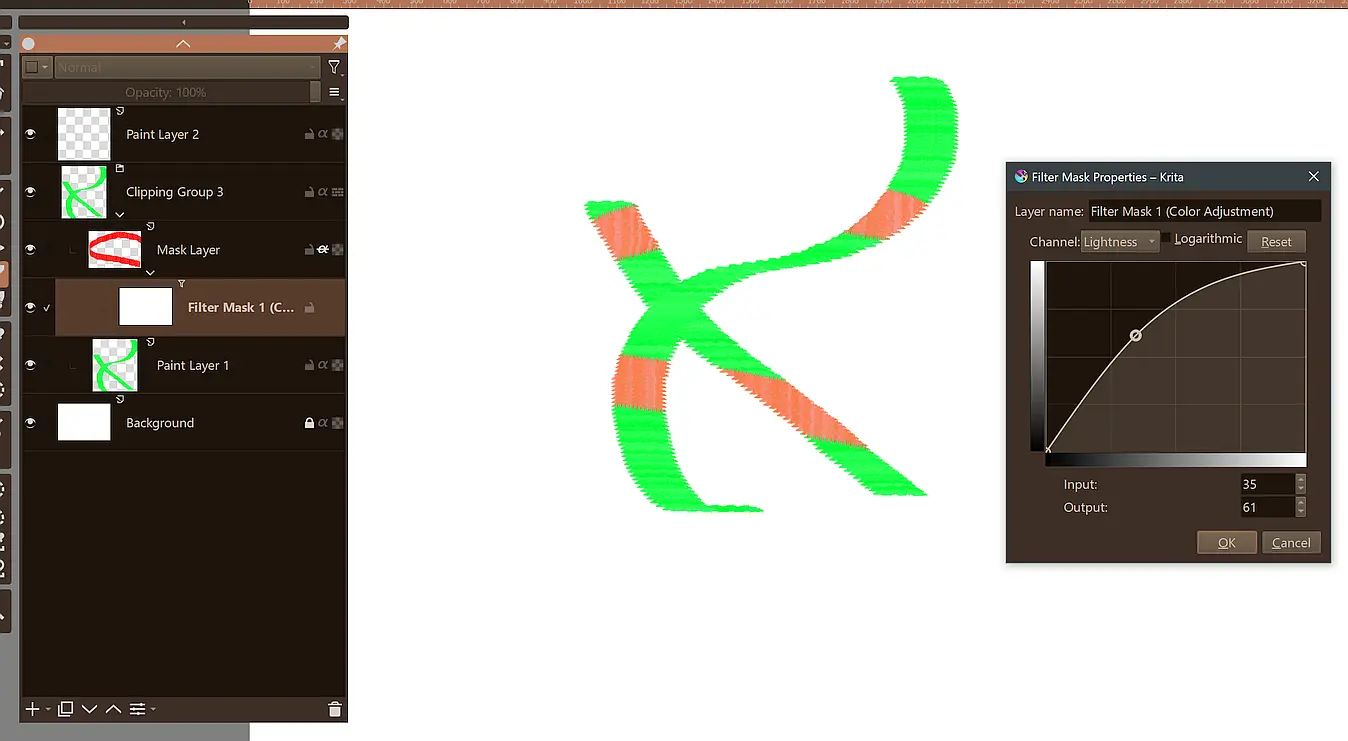
==> Now, the important thing: click on the “Create Filter Mask” button, not on “OK”! Because that way Krita will create a mask and you can go back to the filter dialog box if you need to redo the adjustments. To do this, just go to the layers docker, right-click on the filter mask (1) and choose the first option, "Properties": the dialog box will appear again. You redo the adjustments (a and b) and click OK (c) when you’re done.
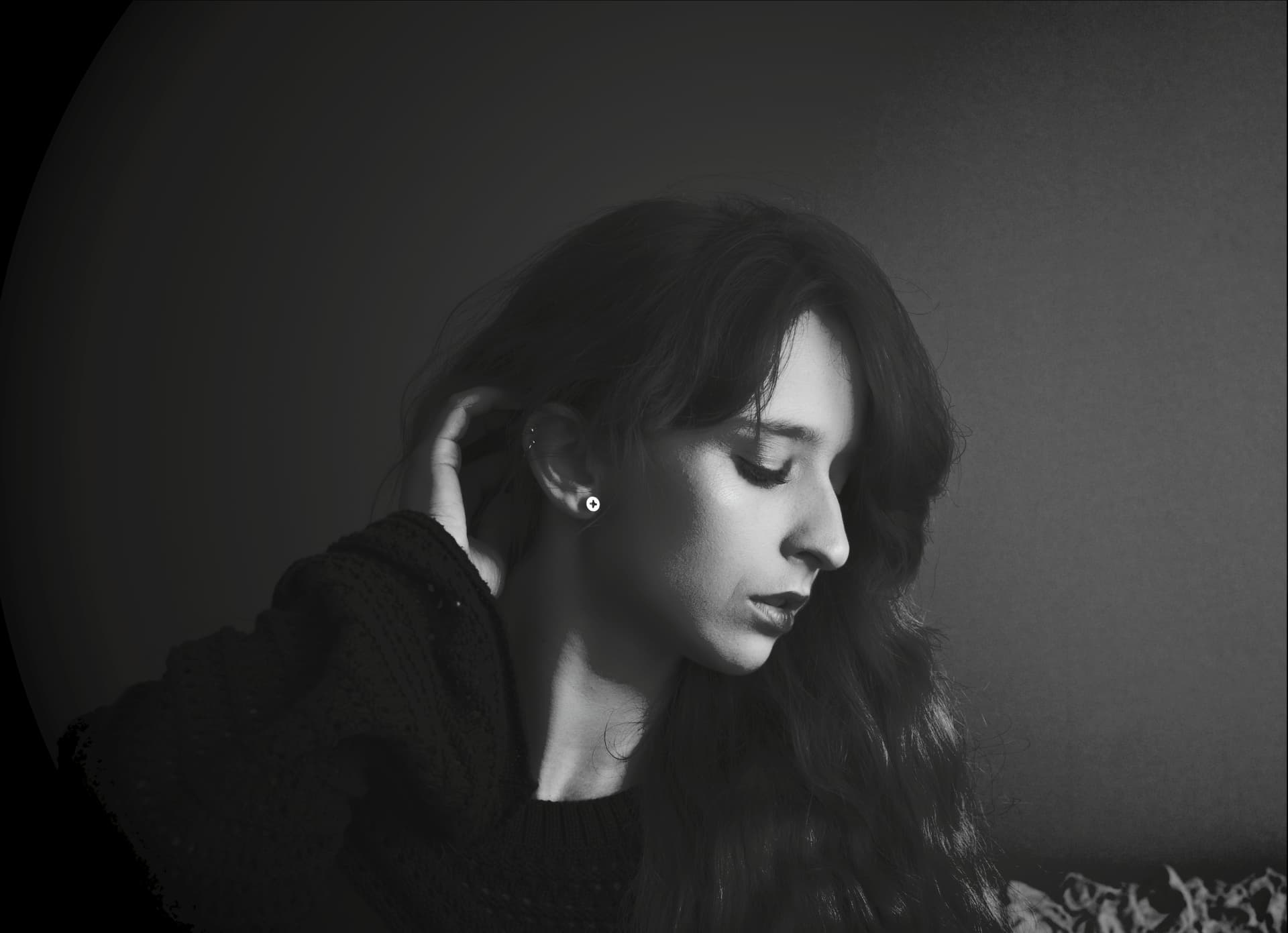
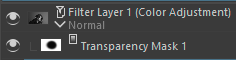
I made adjustments by editing the filter mask exactly as I would a regular transparency mask. I used “Airbrush Soft”, with Opacity of 25% and Size of 150 pixels, for the editing.
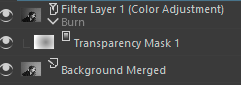
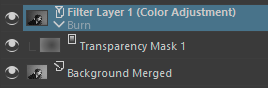
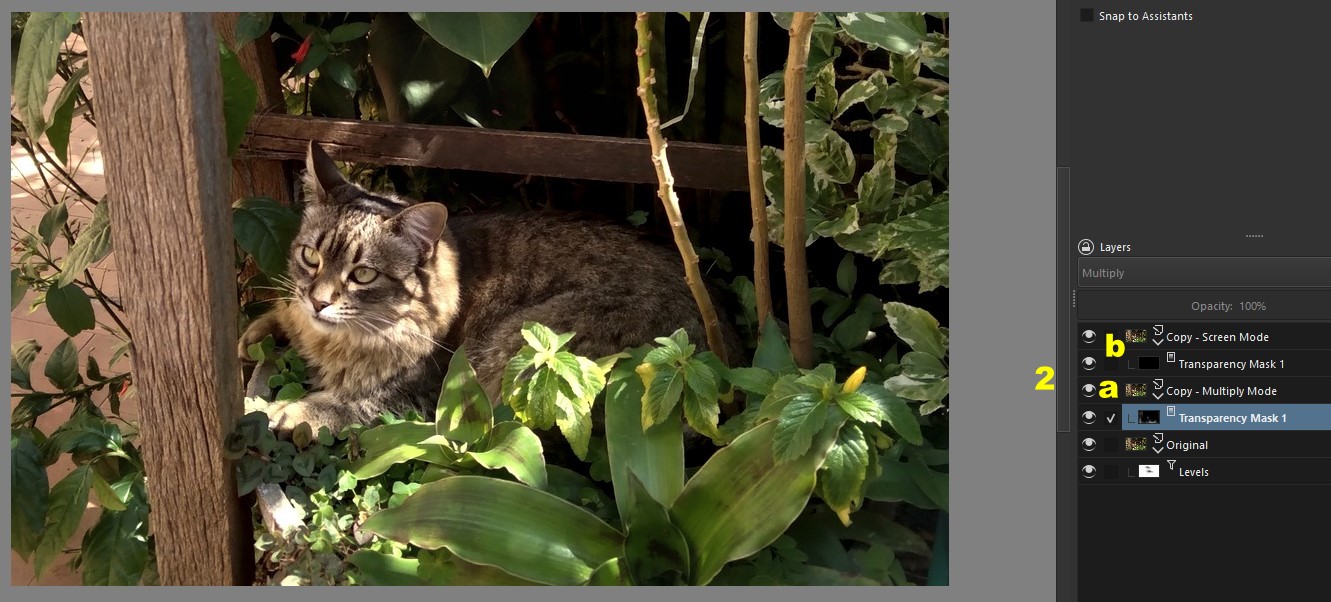
I took the opportunity to test what I said before: I created two copies of the Original layer, deleted their filter masks and, in their place, put transparency masks painted entirely with black (2). I changed the mode of one of them to “Multiply” (a) and the other to “Screen” (b).
In the image below I had already edited the transparency mask of the “Multiply” layer, to make the plants on the left side and the larger plant in the right corner clearer:
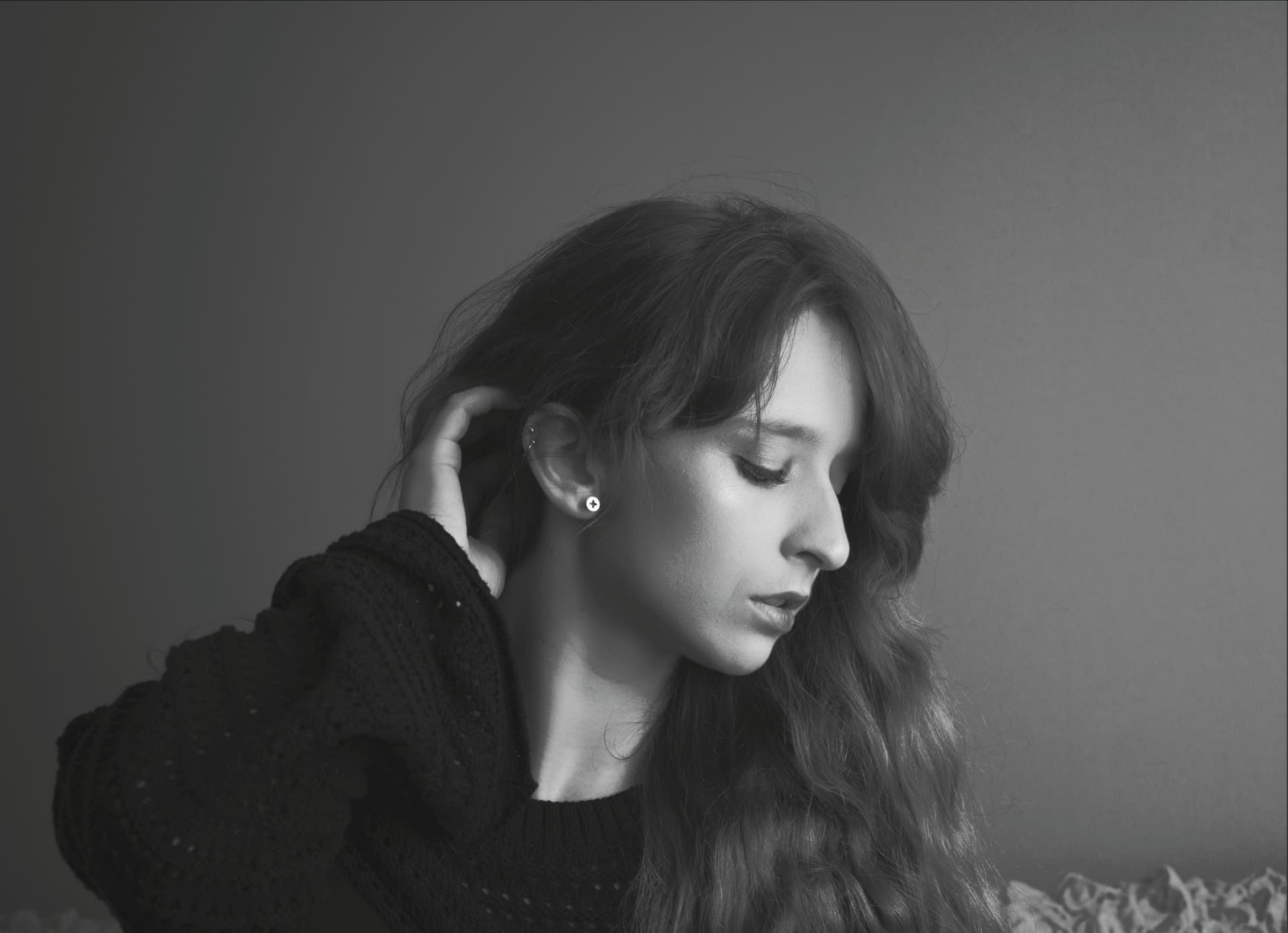
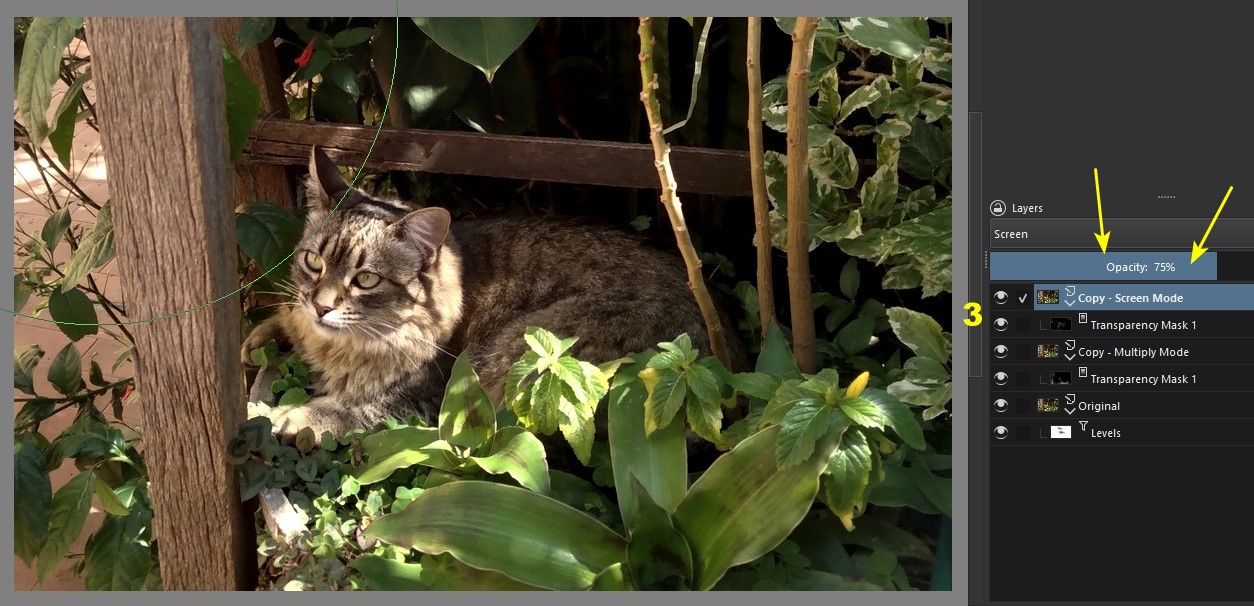
Finally, I edited the mask of the “Screen” layer (3): I mainly retouched the cat’s body, in order to make it stand out more. As my retouching was a little more than ideal, I reduced the layer opacity to 75% in order to solve the problem: