Layer styles affecting specific layers?

Hello.

I’m totally stuck here and been trying to achieve this for a long time!

Say i have multiple layers (making up an NFT)
Layer 1 - Head
Layer 2 - Body
Layer 3 - Ears
Layer 4 - Eyes
Layer 5 - Mouth
Layer 6 - Fur
Layer 7 - Backgrounds

How do i apply a layer style like drop shadow to each layer but it only shows on my background layer?

Many Thanks

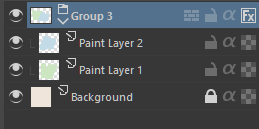
group them, minus the background. then apply layer style to the group.

That doesn’t achieve what im after.

When i apply the drop shadow to each layer in their groups… the shadow shows on the other layers of the other groups.

I want each layers shadow to show only on the background layer.

no. you do the drop shadow in the group folder itself, not the layer inside the group.

Edit:
image

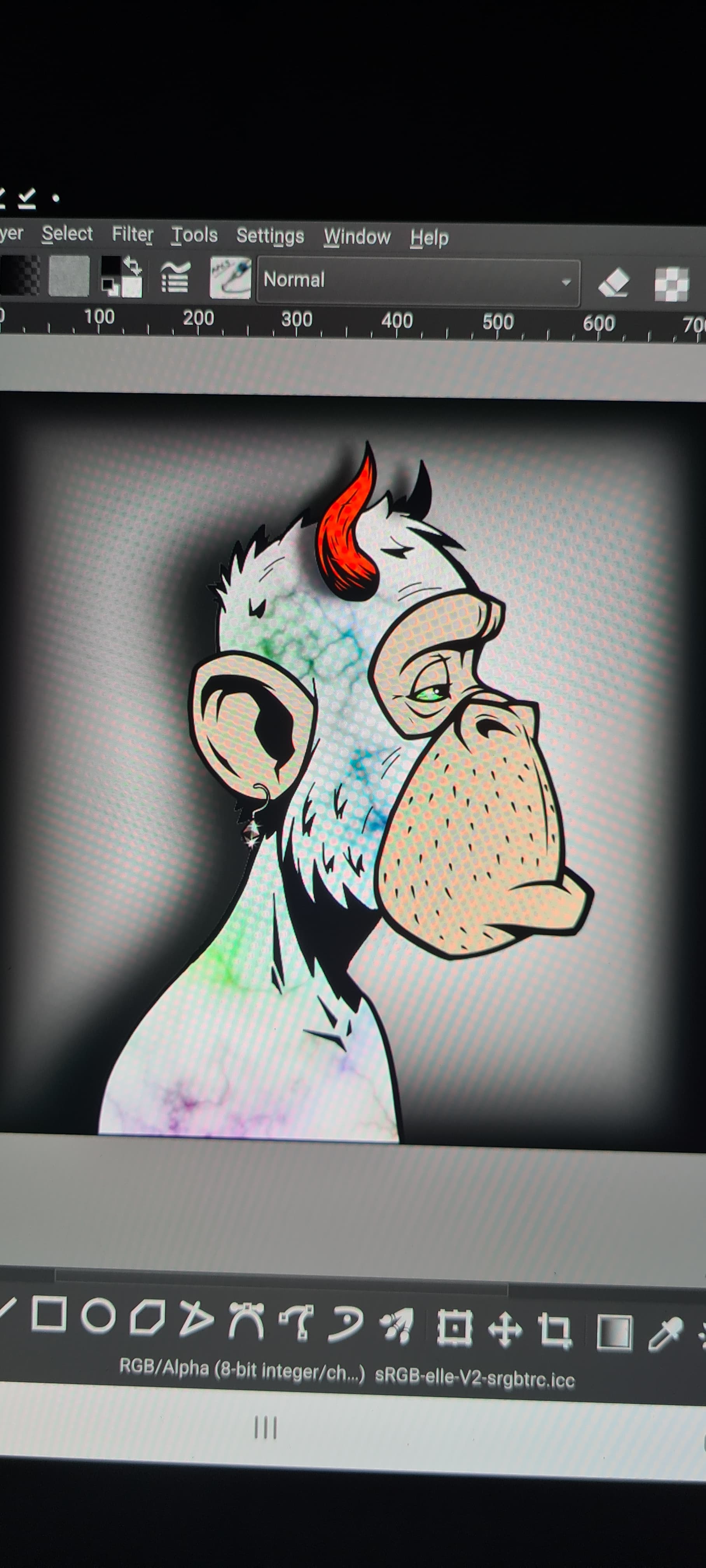
Ok so, you see the horn is casting the shadow on the fur?

I need it to only appear on the background (which is the bottom layer.

I tried applying to just the group and just the layer, it still shows the horns shadow on the layers i dont want it on

Then it’s not grouped properly or maybe you forgot to disable it’s own layer style. Hard to tell with this half backed screenshot.

For an image that simple, why not just draw the shadow manually on a seperate layer? Or make a selection, grow it and fill it on a seperate layer.

Btw, there’s a rule against promoting NFTs on this Forum.

Hi.

Firstly, I’m in no way promoting NFTs… I’m trying to find an answer to my issue.

I have the various groups with layers in each.
If i add a drop shadow to the “group” it show on the layers within the groups below it.

I somehow if possible, need it to only cast the shadow onto a specific group (the backgrounds group)

Also… as i have many different layers within each group of different shapes, i cant make a single generic shadow and i also dont want to have a shadow group or layers as a trait for the nfts.

If you don’t mind getting messy:

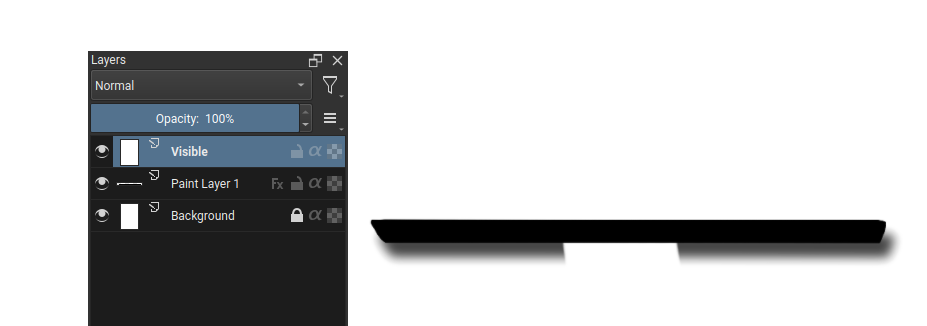
  1. Create New Layer from Visible, while the style is applied
  2. Disable the style on the layers below the layer created in step 1.
  3. Erase the parts from the Layer from Visible you don’t want.

It’s hard to visualize a more flexible solution without seeing the layer stack, but the above should at least give the result you want.

Hi thanks… I’ll give that a go. I’m close to thinking it’s going to be too much work for a shadow… we’ll see :slight_smile:

Hey, this is definitely possible. Though the method to do so is pretty niche and most Krita users have no idea about its existence.

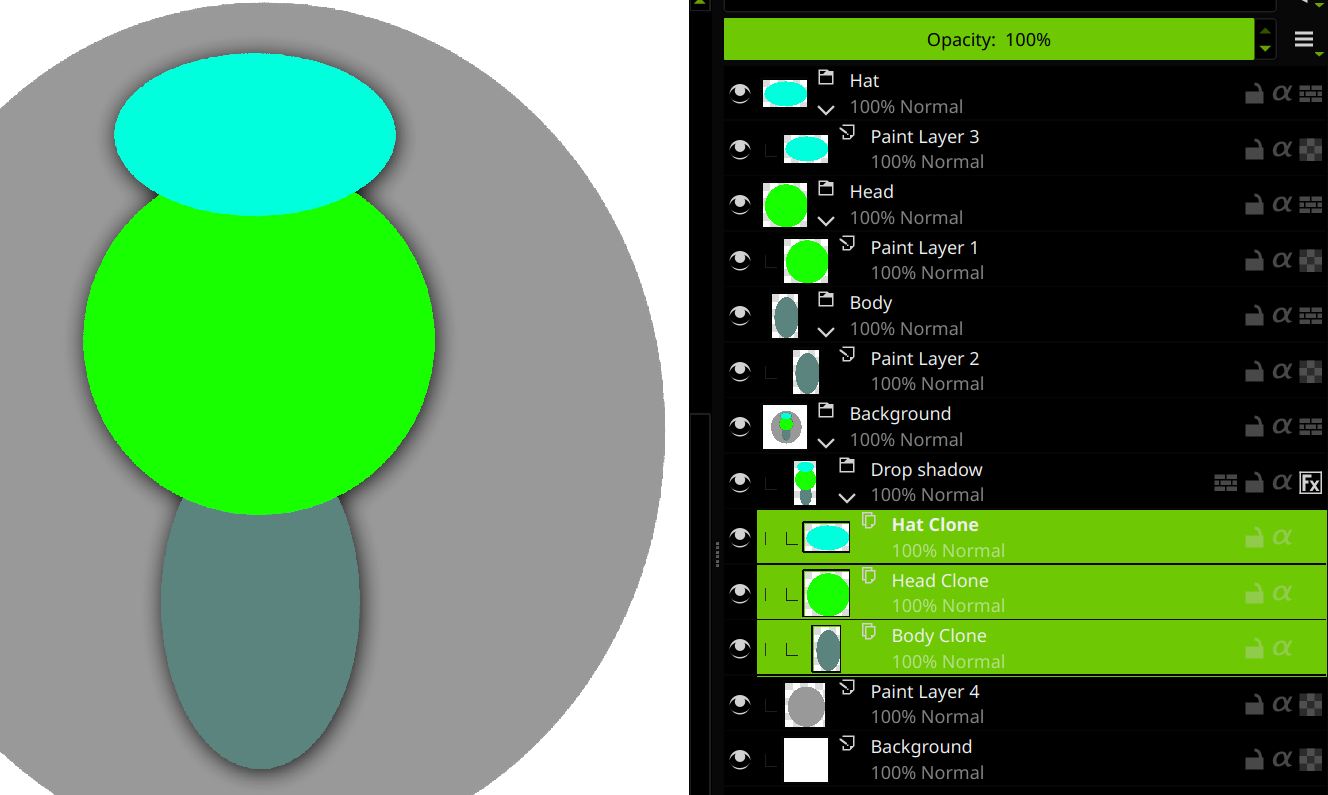
Simply create a new group in your background layer, and create one clone layer per body part. Then add the layer effect to the group as a whole.
For example:
And the example .kra file:

1 Like

This topic was automatically closed 15 days after the last reply. New replies are no longer allowed.