Ladies and gentlemen,
I recently ordered Krita 5.1.1, then before even trying it, downloaded 5.1.3.
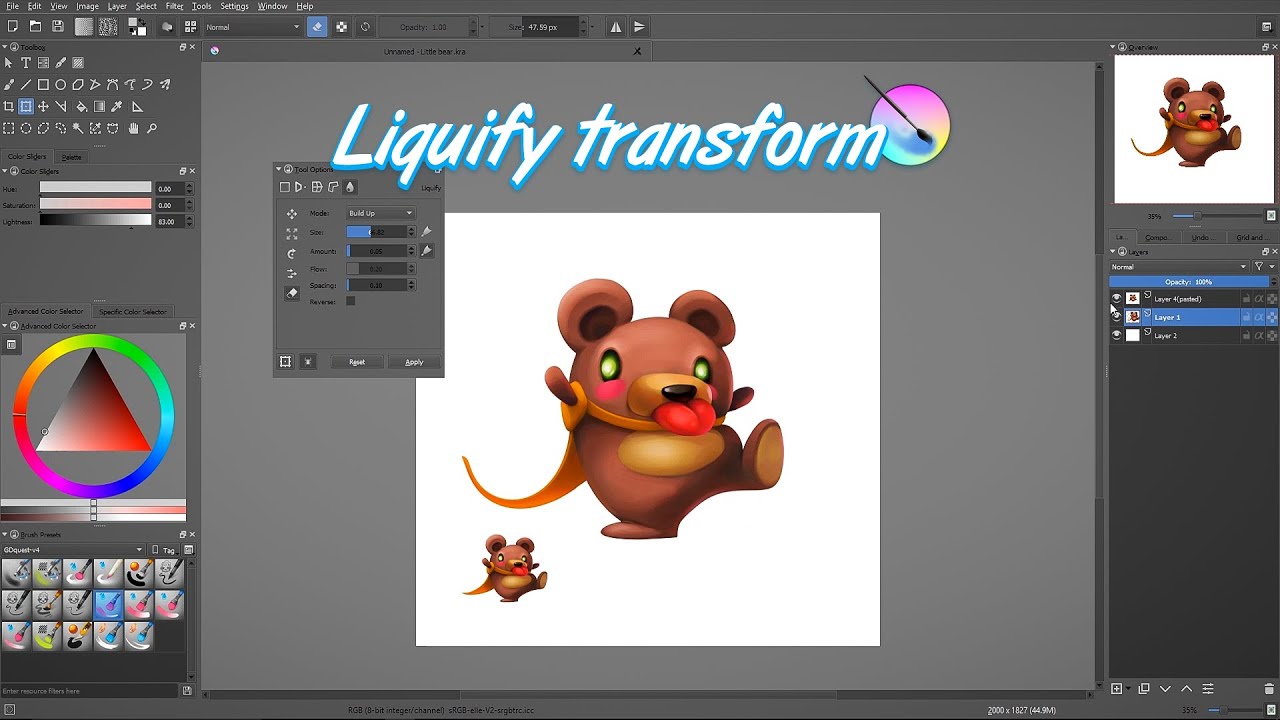
I recently saw a video (6 years old) tutorial about Liquify.
Looks real good in the video, but not on my computer. I’m running Windows 10.
Regardless of the mode or settings (from video or speculation) my brush will stick at the beginning of any stroke, take up to several seconds to show the effect, with the stroke ending 2 inches or more beyond where I stopped it. Also the effect is more severe than shown in the video even at same settings. I have Liquify in Affinity photo
1.10.5.1342, and it works fine there. The Affinity driver software file download is numbered
1.6.4.200717.exe
I checked your list of compatible tablets, and did not find either of mine listed, but your list has only older XP-Pen models. I have XP-Pen’s Deco Pro Medium and Innovator 16, ID160E. Both work without problems in all of my graphics programs. I realize that this program originated in Apple format. Could this function have been forgotten when Windows became accommodated?
I don’t have either one hooked up right now, so I can’t check to see if I have Windows Ink turned off but I think I do…
It’s possible that you need to switch the Windows Input API to the other selection. If you go into Settings > Configure Krita > Tablet Settings – you’ll see it in there. Switch it to the one that is not currently selected. Then close and restart Krita.
Regarding the driver, you need to be sure you have the updated driver installed according to the tablet manufacturer’s instructions. I’m not sure why you’re referring to Affinity - there’s no connection between that software and Krita - so maybe verify that your tablet driver is up to date and installed.
It would be interesting to see a few lines of text output from Krita’s tablet tester. You’ll find it in the Tablet Settings section, at the bottom. Open it, make a few strokes with your stylus and then copy a dozen or so lines of the text output into a reply.
Besides tablet problem Sooz has responded, this seems like a performance related issue when the transform tool preview mode is not set to Fast (which is the only previrw option before krita 5) at the top of Tool Option docker.
But 5.1.3 has a bug to cause liquify tool to have square artifact around cursor in Fast preview mode (and also artifact in some other tool like crop tool) , either downgrade to 5.1.1 or wait for 5.1.4 to aviod this issue.
Hi Sooz & Lesqwe56,
Thanks for prompt reply and the additional idea - on Sunday night no less!
Nothing worked, except the tablet test area which needed a rehearsal with the mouse before it would recognize the pen. I back-graded to 5.1.1, which bestowed the white square brush upon me. But did me no other favors.
I did stumble across a move brush. It walked upright and was housebroken, but was a one trick pony except for opacity and brush size. I found it in “favorites”… (Krita is a smart-ass & knew I was easy to please just then).
Affinity Photo has been locking up on me from time to time, and I think I need more muscle on my computer. Krita might just be a bigger pig on resources.
I’ll try it again when I get my computer reworked. I get good results from Affinity, and even better from a little freeware program called AnmanieSMP
Liquefy is one of several attractive features in Krita, and I don’t like to shuffle between too many programs to get what I’m after.
Hi Ahab,
Thanks for showing me this option, but it appears to be a holdover from a time when distortion was not a separate category. The liquefy brush that appeared yesterday has been joined by 2 others, separately, with no action by me.
It’s good that this function is still available for when Transform falls on its face, but to go from brush to brush and edit menu to edit menu versus all on one panel is not good use of my time. I get what I need out of Affinity Liquefy or AnmanieSMP, but the video from 6 years ago shows a seemingly more fluent and adept liquefy in Krita “x”.
I’M OPEN TO THE IDEA of putting that older version of Krita on my computer if I can still get it. I do that on rare occasions where a software does something so much better than others that it’s worth having on my computer for that function alone.
I’m going to keep Krita 5.1.1 to explore the other functions that attracted me and see how things turn out, I’ll also keep an eye on new versions.
There are no ‘liquefy’ brush presets in a default installation. There are three ‘Distort’ brush presets which may be what you mean.
You can get old versions from the ‘Attic’: KDE - Experience Freedom!
I’d suggest that you use the .zip package so as not to affect your current installation.
Hi Ahab,
I’ve been conditioned by Clip Studio Paint, Affinity photo, and Krita itself to call any congregation of these icons and functions Liquefy or Liquify.
In my defense, before I was even aware of Krita I’d been led to believe that if it looks like a duck, walks like a duck and quacks like a duck, it’s a duck.
Not being an ornithologist, I was not aware that a Western Grebe, American Coot, Common Loon, Brown Pelican, Pied-billed Grebe, Tundra Swan, Double-Crested Cormorant, Common Moorhen, White Pelican, Horned Grebe, or Brant could look like a duck.
Please convey my apologies to your product developers and marketers for not recognizing whichever of these was lovingly incubated and hatched as a brush.
My lawyer tells me that because I had no plausible reason to know these things, I am not liable for the cost of their
counseling and therapy.
Thanks again for your prompt help!
(I won’t tell your marketing department that you said “old versions” instead of “legacy”.)
Best regards,
mellenbecker
There is no marketing or product manager for krita. it is developed by 9 or 8 paid developers and rest is contributed by the community of volunteers for free.
Regardless of your long message with cryptic names of the bird species, I only got to grasp that you have issues regarding the transform tools liquify mode. You can read more about it here - Transform Tool — Krita Manual 5.0.0 documentation
Yes this mode is a bit heavy in computation and thus might not give you instant results.
I would request you to clearly state your issue in simple english and we volunteers will try our best to give you a solution like @sooz and others tried already.
Oh I have had this issue for a while too. It never goes in the direction I want it too always goes to the opposite direction with an overshoot when it goes to the right direction.