In krita, we have lquidfy tool and brush. I am a painter. When I flip canvas, I use liquidfy tool a lot. But it make art so blur. Any setting that need to adjust? Thank you.
Can you show example images of the effect it’s having at the moment along with the Tool Options docker for the Liquify Transfom and the ‘brush’ settings.


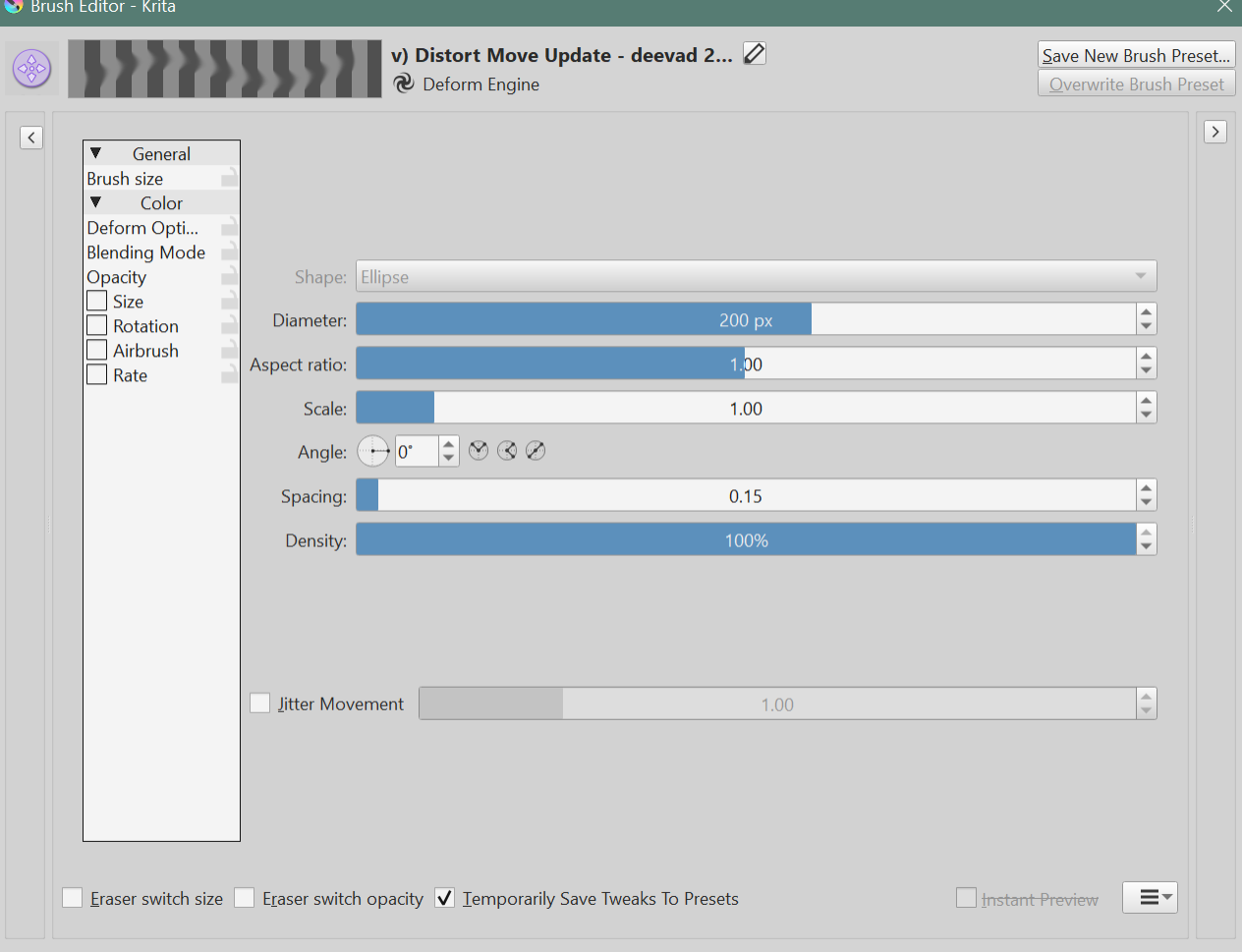
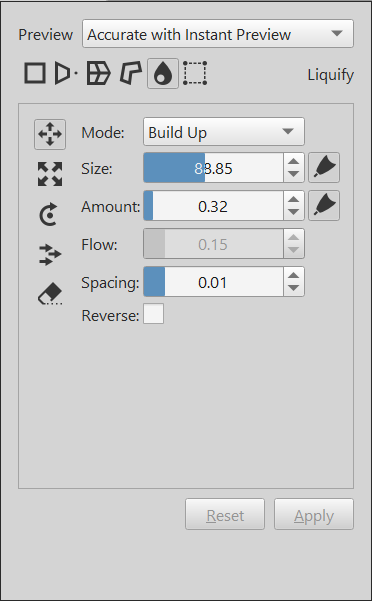
It’s normal for this to happen with what Krita currently has to offer for Liquify. The brush option is an older way for Liquifying in Krita and its Deform Engine wasn’t improved much since created (Could be improved with Bicubic instead of Bilinear Interpolation probably). It basically copies/smudges pixels to new location and uses Bilinear Interpolation to fix jagged edges. You could turn off bilinear interpolation under Deform Options in the Brush Editor and you won’t get blurred/smoothed pixels but you’ll have jagged edges.
Liquify transform tool option on the other hand I don’t know exactly how it works but it’s not as advance as in some other programs. However you can try decreasing Amount to something like 0.05-0.10 and increasing Spacing to somewhere around 0.20 to get better results.
For best results you could do your sketch first, then liquify to fix stuff, then do cleaner linework on a new layer and repeat if needed until you’re happy with the result. Then do the coloring and other stuff. If necessary you can do some liquify later but not big changes if you want to keep clarity.
Edit: Tested a bit more, for the Move Brush you could try to increase Deform Amount under Deform Options tab in Brush Editor. Try something between 60 and 70. It will move further for each dab but will retain more quality if doing less dabs for same pixel travel distance.