Type of device* : 2-in-1 Laptop
Brand and version of the device: ASUS Zenbook Flip 13
System** : Windows 10
* graphics tablet/display tablet/2-in-1 laptop/Android tablet
** Windows/Linux/Mac/Android, + version (you’ll find it in Help -> Show system information for bug reports)
Description of the issue (you can include screenshots): I am trying to map my ASUS pen so that it will erase with one button and undo with the other. Most of the topics I found through a google search say that I need to map it with the Windows 10 pen settings, but that doesn’t have the options I’m looking for. Is there a way to map these keys in Krita itself?
In Krita you can change almost every shortcut to your taste (under “Settings” >> “Configure Krita” >> “Keyboard Shortcuts” >> “Tools” >> “Tool Shortcuts” and under “Settings” >> “Configure Krita” >> “Canvas Input Settings”), but if Windows only allows certain mappings you won’t be able to change anything. In this case the operating system is a higher or privileged power.
I don’t know which buttons are allowed by Windows, but if Krita can be mapped to the buttons allowed by Window, you are lucky.
Thanks for the reply! I just tried to do the “Tool Shortcuts” menu, and it will let me assign shortcuts using my keyboard, but not my pen. Whenever I click the buttons on the pen to assign them it doesn’t seem like Krita recognizes the clicks at all. It lets me use the pen for everything else, though.
When I get to that menu I try and use the pen to edit the input and it doesn’t register for some reason.
As far as the pen itself - I use it because it is the one that came with my laptop. I think it is a bit too clunky and large and it doesn’t really feel natural, so I am considering getting a new one.
If the keyboard shortcuts settings don’t respond to the pen button presses, it means that those buttons are not sending keyboard key signals because the keyboard shortcut settings only recognise keyboard key signals as inputs.
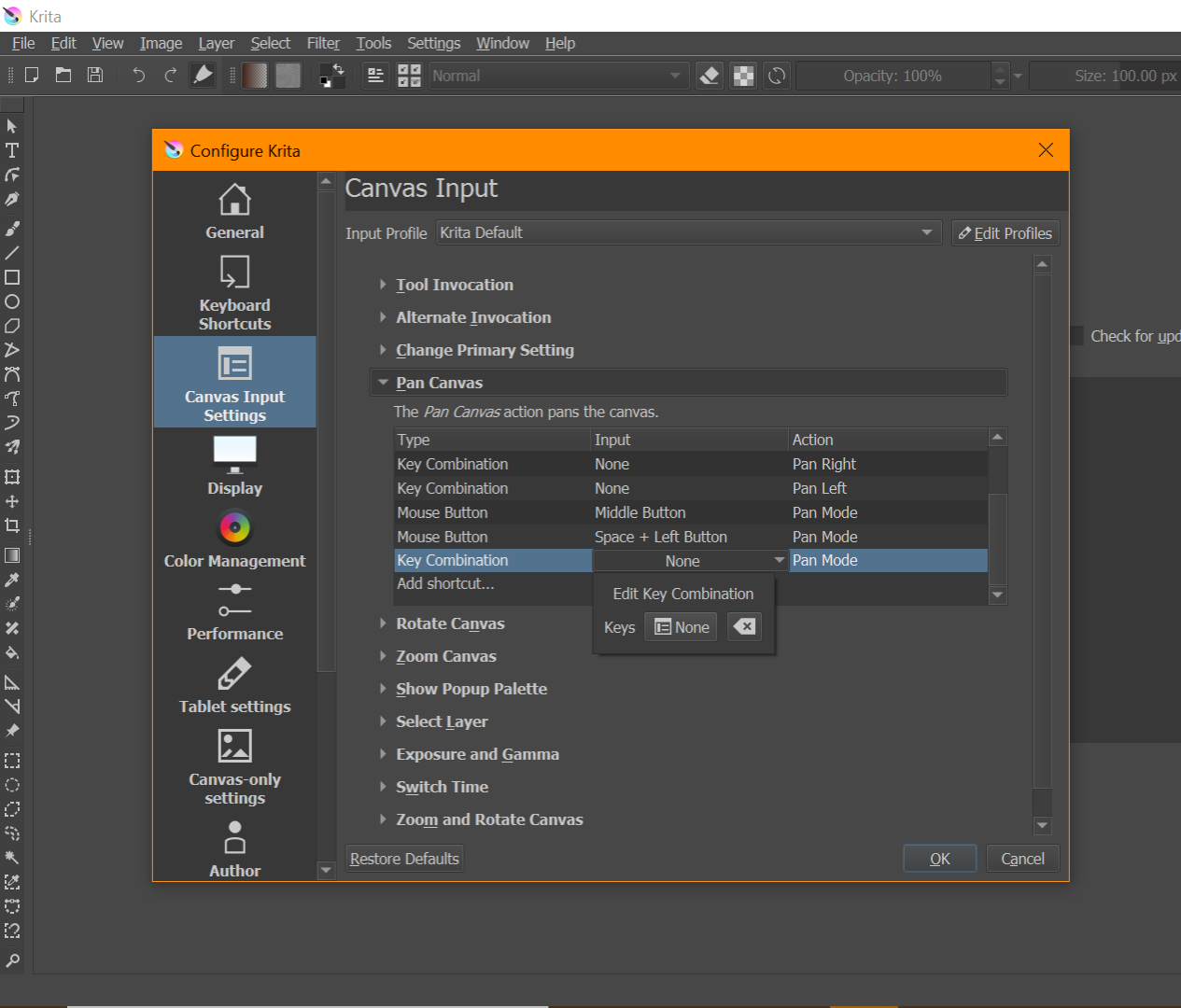
The Canvas Input Settings will respond to key combination, mouse button or mouse wheel signals. That is selected under ‘Type’ when you create or modify a shortcut.
Your screenshot shows a Pan Canvas setting with Type set to Key Combination. This won’t work because your pen buttons don’t send keyboard key signals.
You could try changing Type to Mouse Button to see if that works but at the moment it’s not clear what those pen buttons actually do in terms of what signal they send or what effect, if any, they have.
What the pen buttons send or do is detemined by something in the computer…pen driver…Windows Ink settings. This seems to be unknown and not capable of being determined at the moment.
Do the pen buttons have any effect at all in krita?
e.g. Does one of them cause the ‘hand’ Pan tool icon to appear?
Does one of them cause the popup palette to appear?
(These are the usual sort of effects that pen buttons have.)
I am going to be honest with you…I’m not sure what changed, but now the pen buttons will actually do things. Before they didn’t seem to register at all, but I just tried them again to answer your question, and one button will erase and the other brings up the popup palette. I’m still not sure how to change what they do, but this is already a huge step forward!
As far as the windows settings, it only has options to set up a pen’s shortcut buttons, which the ASUS pen doesn’t seem to have.
Did you shut down then restart the Zenbook?
Did you Quit and restart krita?
Did you use another application, especially a painting/drawing application?
Any of those actions could have nudged it into a different mode of operation.
When you buy a graphics tablet+stylus, you need to have a driver for it installed and that includes a setup utility which lets you examine and change a large number of behaviours of the tablet and stylus, with all sorts of options.
People have posted problem topics before on the forum about laptops/tablets with an included and integrated stylus. With the small number of topics I’ve seen, they’ve been unable to find any kind of config/setup utility for it.
If you ever do find one, please make a topic about it on the forum because it would be useful information.
That most certainly generates a mouse right-click signal, a common arrangement.
I believe that causes the stylus to identify itself as an ‘eraser tip’ when it touches the surface.
In krita, this is interpreted as secondary/alternative stylus and can be used to select any brush preset for use and that will be remembered for the session. In that case, it may be that it started as an eraser brush preset by chance. You can also look on the status bar to see which brush preset is being used.
You can confirm that by using the Tablet Tester to see how the stylus identifies itself in that situation.
 Hello and welcome to the forum