Hello. I have just created a logo on multiple vector layers, and three of them have a lowered opacity. This is causing the vector layers to become a paint layer when I merge them, and I therefore can’t export it to an SVG file. How do I merge them without creating a paint layer or losing my opacity settings?
I assume the lowered opacity is that of the layer, not of the individual vector objects, is it?
Correct. It’s of the layer itself. I wouldn’t know how to lower the opacity of the individual objects anyway because this is my first time using vector graphics. It’s for a school assignment.
I’m not even sure Krita can handle transparency for individual vector objects. Krita’s vector tools are pretty limited. The issue ist that Krita doesn’t know how to handle the layer transparency other by converting vector to raster graphics. Krita even projects every vector object onto a raster plane. Perhaps Inkskape can do this. It’s free too and specialized for vector graphics.
Edit: Just checked. In Krita you can change the opacity of individual vector objects in the Tool Options docker when the object was selected with the Select Shapes Tool (the one that looks like a arrow mouse pointer), however it es pretty ugly especially since the transparency of the border and the filling is set different and is hard to control. Then, when merging two vector layers, it stays a vector layer and keeps the transparency. Otherwise it loses its transparency, it doesn’t become a paint layer in my case, when using Merge with Layer below.
Now I tried it too that @Takiro’s post.
Even if the SVG exported from Krita contains translucent filled shape, I was able to import it with Illustrator and Inkscape.
I will share the results at that time.
FYI:
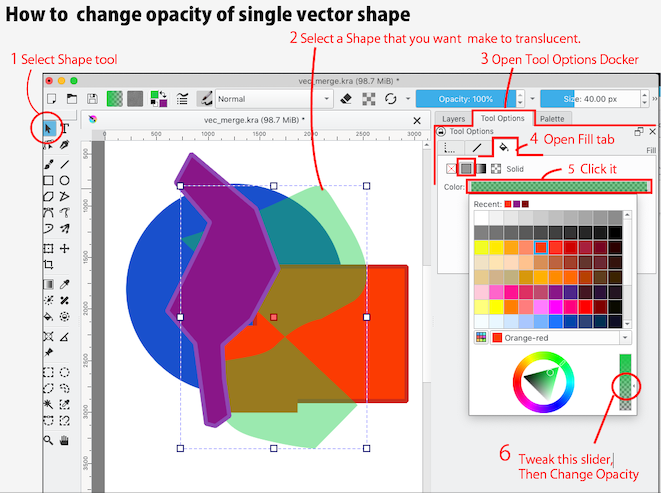
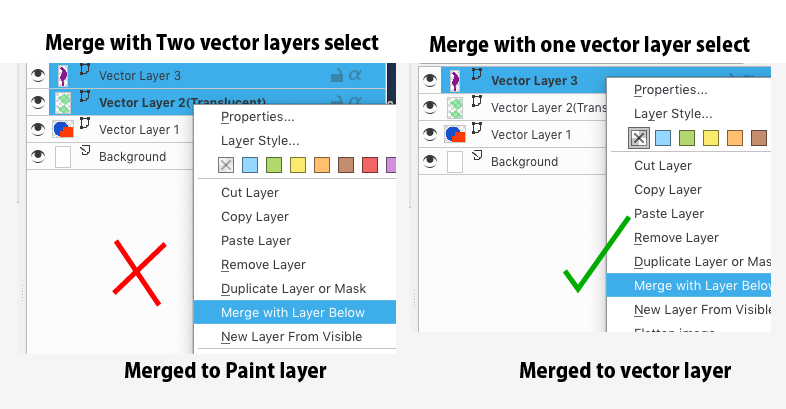

Regarding layer merging in Krita is unique than other software way.
In other software,it often explicitly select two layers for merge layers.
But in krita,The key to using “Merge with Layer below” is enough to select only one layer in anycase.
Thank you so much for the help. I ended up just removing the lines around it since once I lowered the opacity they overlapped with the color inside, but it looks great anyway. So glad to have that solved!