Hello friends! Help is needed. I’ll try to describe the situation. I have many layers with individual objects. Using the Move Layer Tool (T), I can select an object directly on the canvas and move it. Is it possible to make it so that when you select an object on the canvas in the Layers panel, the layer with this object becomes active?
Just hold down the R-key and click on the object you want to go to, and Krita jumps to the layer it is in. But for my knowledge, there is no jumping to the layer when selecting the object without holding the R-key. I may be wrong, but if so, you’ll see it in following answers.
Michelist
1 Like
I tried to do this, but it doesn’t work for me. I found this advice. I press R and select an object, but nothing happens. The active layer is still different, the one in which I was previously, before selecting the object.Maybe some additional settings are needed? I have Windows 10 if that matters.
Holding R and clicking on the canvas will select the first visible non-locked layer that has a non transparent pixel under the cursor where the click happened. So either the current layer is already the top most layer with a non transparent pixel or all the other layers in question are locked.
2 Likes
I only have the bottom layer blocked. The others are all unblocked. And the pixel does not belong to the active layer. And I checked it with different objects many times. The letter r does not work(((
Holding down R while clicking on the canvas is the default shortcut. Is there any chance you changed it to something else? You can look it up in the shortcuts.
I found a list of hotkeys in the settings. But I didn’t find R there. I don’t understand how to assign it and to which instrument…
Configure Krita > Canvas Input Settings > Select Layer
You will be able to see the shortcut there.
I have the following there: type-mouse button . Enter-Not. Action - Select top layer (replace selection)
There is nothing else. No R either.
When holding R the cursor icon should also change to something that looks like a stack of three layers (when it’s over the canvas) if that’s not happening the shortcut is probably different for you, perhaps because you use SAI or Photoshop (or any other) shortcut theme.
I have the following there: type-mouse button . Enter-Not. Action - Select top layer (replace selection)
There is nothing else. No R either.
Looks like you may have deleted the shortcut or are using a different shortcut theme. Here’s what it should look like (it’s the first one).
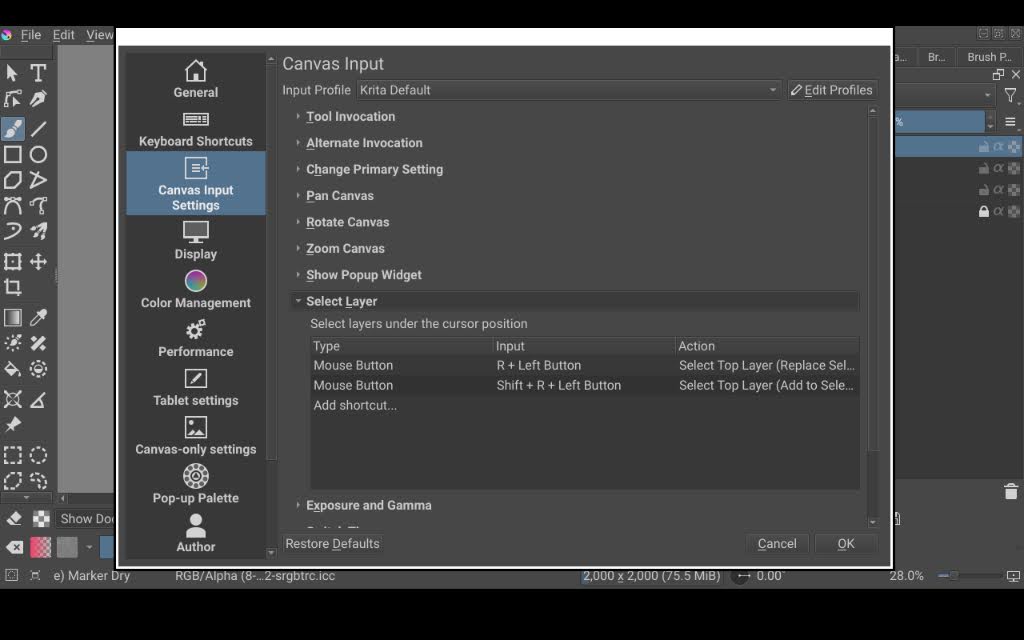
1 Like
Yes, I use the Photoshop keymap. Do you know how to add this R in it? I would be very grateful for your help
You can set it yourself
1 Like
Thank you very much!!! Thank you! You helped me a lot!!!
2 Likes
This topic was automatically closed 4 days after the last reply. New replies are no longer allowed.