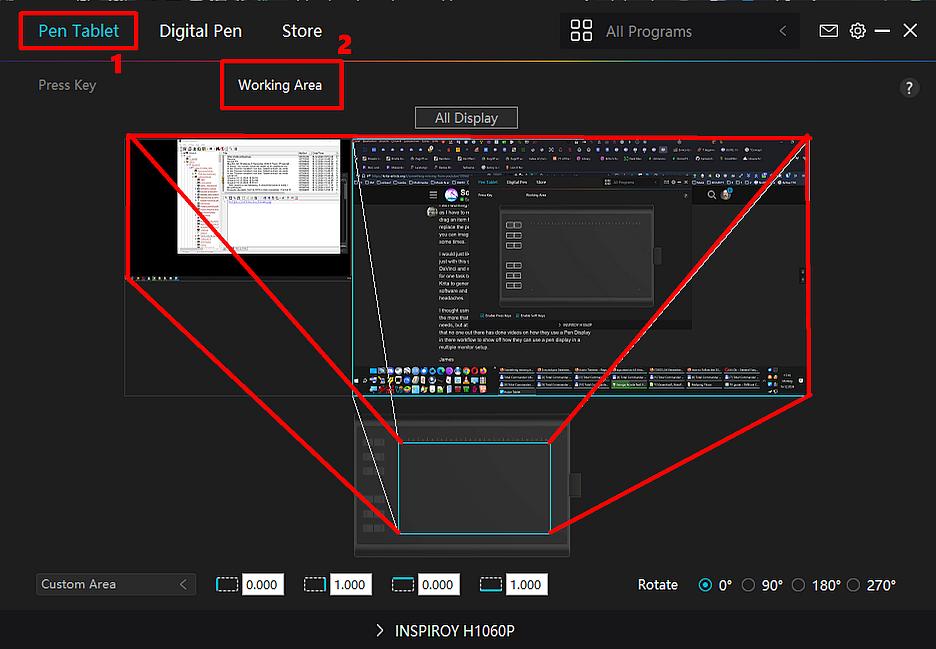
Please bare with me here as I am a new user not only to Krita but also to a Pen Display, I have been surgically linked to an Intous Tablet for way too many years, up until they decided to no longer support most of my tablets here, I was not really looking to buy anything from Wacom thanks to the way that they had ended the life of my own tablets so I started to look what others were doing out there in the modern world.
I soon came across MOSSCHARMLY and KRITA channels on YouTube and very soon afterwards I purchased a Kamvas Pro 24 4K Pen Display, but very soon after I plugged it in and got it working I noticed that I seemed to have missed something that was very important to me - Multiple Displays.
Most of my workstations use a minimum of 3 displays and the 2 that I use for 3D and Video Editing both have 5 Displays, but the only way that I can get the Pen Display to run is as a copy of the main display.
I would really love to see any videos on how they use the Kamvas Pro 24 with a multiple monitor setup, sadly at the moment I have not used the Kamvas at all, I have done some Editing on it and I certainly do like Krita as a Photoshop alternative, I have yet to try it with Z-Brush and Cinema 4D, but I see no way to drag items between screens.
In theory, you simply install the tablet as an additional monitor. It is important to follow the instructions of the respective manufacturer, with some the tablet must be connected to install the driver, with others it must never be connected before the driver installation. Even if this is not required, I would always restart the PC, at least under Windows.
After opening the Krita window, it should be possible to move it from the monitor on which Krita was started to the tablet.
If Krita refuses to do this, you can start trying out the connections on the graphics card.
So the first thing I would try in terms of not being able to map is to connect the tablet to a different graphics output on the graphics card, so far this has solved most of these problems. The most successful solution so far has been to use the first output, so I would start with this one.
With Windows, and almost certainly also with Linux and macOS, you can then arrange the monitors in the settings to position the display of the graphics tablet as you wish. The monitors don’t really care which of the connections is used.
By the way, it is always a good idea to name the OS used as well as the exact version of Krita, but since you’re installed it just recently and use Z-Brush it will most probably be Windows and Krita 5.2.6.
Hi Michelist and thanks for getting back to me, I mainly use MacOS these days but I do have access to a Windows 11 PC as well as a last resort for software not Mac Compatable, I also should have explained my issue more.
Okay, with the good old wacom tablet, the pen works over all displays, whereas the Kamvas Pro Pen ONLY works on the Kamvas Pro, thus if I am working on the Kamvas, I am getting really annoyed with myself as I have to remember to put that pen down, pickup the wacom pen to drag an item from a different display to the kamvas pro and then replace the pens again to carry on using the kamvas pro in Krfita, as you can imagine this not only gets annpying but also very confusing some times.
I would just like to see what others users do with this problem and not just with this software but with Maya, Cinema 4D, CaptureOne, DaVinci and what other software they use, I already try to a computer for one task but there are so many that crossover, I do not just need Krita to generate artwork, but I then may need to pull files from other software and it is the access of these that cause this old dinosaur the headaches.
I thought using Krita to replace Photoshop would be really great and the more that i watched the videos the more it looked perfect for my needs, but at present I need to find another way to work, but it seems that no one out there has done videos on how they use a Pen Display in there workflow to show off how they can use a pen display in a multiple monitor setup.
It sounds like your displays are all equipped with Wacom pen technology (or something similar), something that is pretty much standard on 2-in-1 notebook displays. If I’m not mistaken, such displays are equipped with sensor technology and electrostatic grids.
I don’t know if it would help you to extend the working area of your Kamvas to all displays, but it’s at least worth a try, maybe your Huion pen will then be recognized, because I don’t know if Huion might not also use this technology.
I have a Kamvas 22 pro (used with a PC sat on a desk with a main PC monitor) and my set-up is that I have them set to extended, one above the other; my pen works only on the Kamvas screen area, and if I want to drag anything from my main monitor onto the kamvas I use the mouse.
I have a Huion 13, which doesn’t seem to have the option, but I’ve seen other people showing the option for “mouse mode”. From what I understand, that would allow you move the cursor off the active area of your Display tablet and onto the other window areas, because the cursor would longer be calibrated to your stylus’ direct location over the screen.
(Edit: If available, the Mouse Mode option should be located on the Digital Pen > Press Key window of the driver app.
Hmm, not sure if I’m missing something here, but the ability to map multiple monitors to a pen tablet is a feature exclusive to pen tablets – those without the screen.
If the device in question is a pen display, then it has its own screen and the pen is simply able to track within this one device screen.
The only way to work across monitors is to use the mouse, assuming the OS is configured to extend the desktop to multiple monitors, and in this case the pen display will act as one of the monitors.
It sounds to me that for this workflow @Axnfell , you’d really benefit from a large pen tablet, like the one you used to have. If it’s not too late to refund your Kamvas, then I would go with one of the possible large tablets:
Wacom Intuos Pro Large
Huion Giano G930L
XP-Pen Deco Pro XLW Gen 2
All of them should be comparable, unless you need a really pressure-sensitive pen, and then probably Wacom or XP-Pen would be optimal. All devices should perform very well as long as you upgrade their firmware (which may require Windows, sadly).
 Hello
Hello