You have 2 tablets connected to the pc, so some conflicts.
You could try to unplug the unused tablet.
You have only one tablet but the usb cable is connected to a hub, sometimes it works anyway, but it could conflict with other devices (mouse, keyboard…) and/or not have enough energy available for the tablet from that unique usb port (if the tablet is powered by usb).
You could try to connect the tablet directly to a pc usb port.
Not enough energy for the tablet if your computer is a laptop not plugged to the power supply.
You could try to plug the laptop to the power supply.
Pen freeze may also be caused by a conflict with this other tablet drivers, you could disable the unused drivers (via Windows Task Manager [Ctrl+Shift+Esc] > Startup Apps > right click on unwanted driver > “Disable”).
After your changes (I mean also those I suggested in my previous message) the computer should be rebooted to load the right drivers/configurations.
I forgot to mention this, but the PC was re-installed(which I mean is the memory of the driver being there was wiped.)
These two devices from XP-Pen: Deco L and Star G640 supposed to work on the same driver, due to being in the same driver series (What I mean is, there is a certain amount of graphics tablets, which have the same driver to download, and can work with other graphic tablets which are on XP-Pen’s website considered being in the same tablet series).
I currently have a small laptop with me, (HP Pro x360 Fortis 11 inch G11 Notebook PC) which I haven’t used the Star G640 with. I plugged it in, and the original driver I have for the Deco L is compatible with the Star G640. The laptop does not have the same issues, as the PC does.
Why I don’t work on this laptop instead? Because it crashes every time I try to do more tasks than one. For example: Listening to music on Spotify + Drawing on Krita = crashing or freezing. But I can do small amount of work on Krita, while we fix the problem with the other Krita on the PC.
I appologize for not responding sooner, the website told me I’m unable to text for the next 9 hours as I edited the text about the driver..
Also thank you all for the help so far.
P.S. I edited the text about the driver link. @Michelist
Yes, sorry, I was lazy and I didn’t look at the drivers of the specific tablets before write this suggestion.
Old and new suggestions
What about usb cable connections possible issues I suggested to test in my first message here? Is tablet usb cable connected to a usb hub or directly to the pc?
You could try to connect the tablet directly to a pc usb port.
Moreover I didn’t mention the possibility of a damaged usb port
you could try to plug the tablet usb cable in another pc usb port.
I’d try - to test all the possibilities:
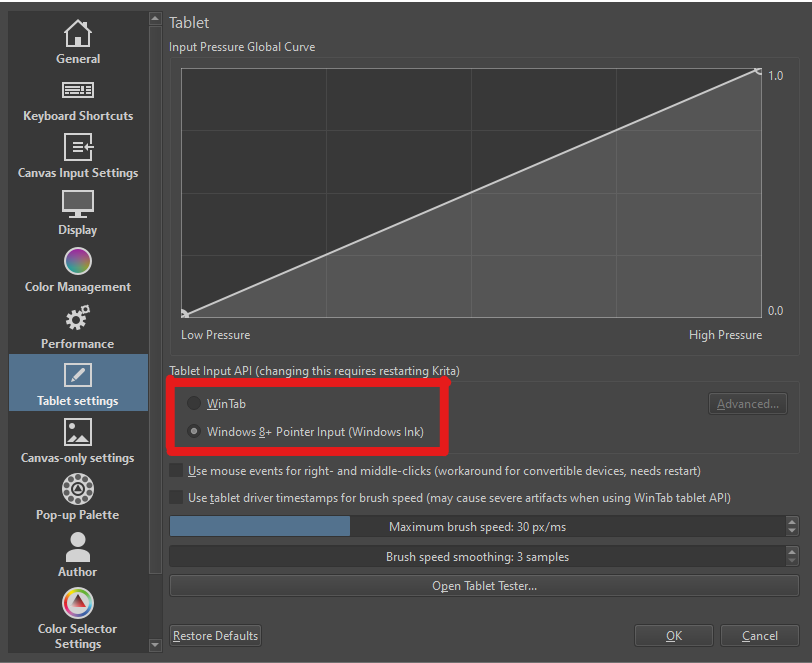
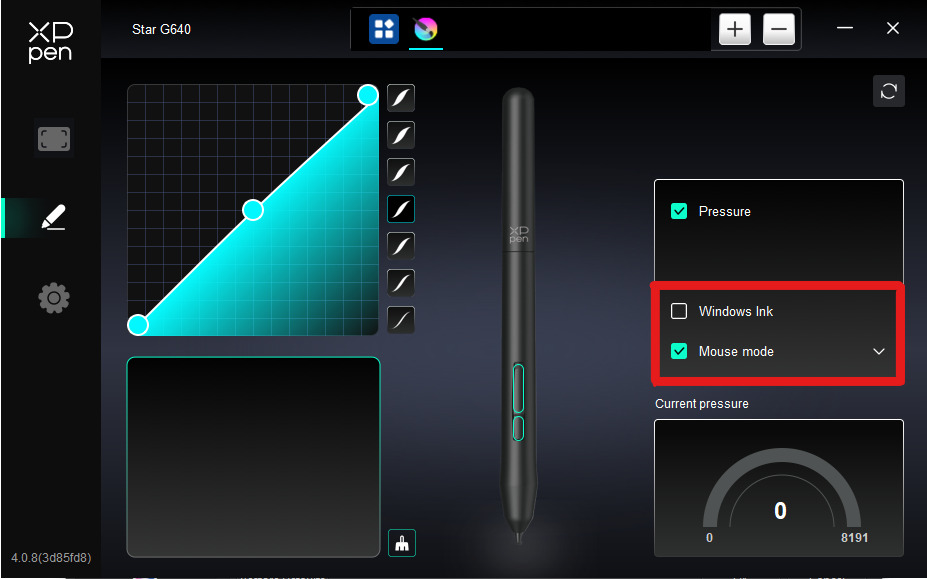
Windows Ink enabled
→ enable Windows Ink in tablet driver
→ enable Windows Ink in Krita
→ restart Krita
→ test
Windows Ink disabled
→ disable Windows Ink in tablet driver
→ disable Windows Ink in Krita (so WinTab enabled)
→ restart Krita
→ test
Please, if possible, try and answer to all the suggestions, so it will be possible to exclude what has already been tried.
Anyway if you choose Windows Ink in Krita I think you should choose Windows Ink in tablet driver, in my current system if I put Windows Ink in Krita and not in tablet driver then in Krita pen pressure doesn’t work.
But now you know where configure things so you’ll choose the best for your system, good painting
@Michelist and I are not moderators, but users, let’s say that IMO he, as a simple user, brings an incredible contribution to this forum and consequently to Krita
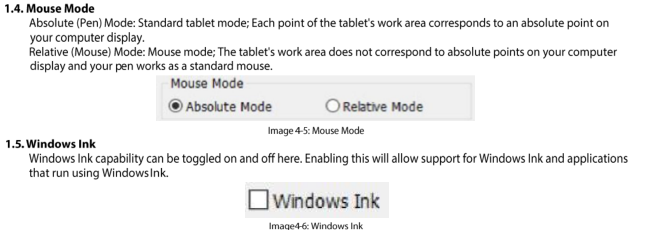
Regarding Mouse Mode, mouse Mode is not supported by Krita. Some tablet drivers call their relative mode *Mouse Mode" some have a mouse mode in addition to relative/absolute but I don’t know what it does in that case. Either way, there is no mouse mode support in Krita.